
A CRC error on a drive usually shows up as a ‘Data error (cyclic redundancy check)’ message while copying, opening, or scanning a file, and it almost always points to data that got corrupted somewhere between the drive and the file system. The good news is that most CRC errors are fixable without losing everything on the drive, as long as the right steps are taken in the right order.
Key Takeaways
- A CRC error means the data read from the drive does not match its stored checksum, which signals corruption or a hardware fault.
- Loose or damaged cables, failing sectors, file system corruption, and a dying drive are the most common causes.
- Built-in tools like CHKDSK and SFC fix many software-level CRC errors without extra software.
- Copying the affected file first, before running repairs, helps prevent further data loss.
- A drive throwing repeated CRC errors on multiple files is often near the end of its life and should be backed up immediately.
Common Causes of a CRC Error on a Drive
Before jumping into fixes, it helps to understand why this error shows up in the first place. A CRC error is not random. It is the drive or the operating system reporting that the data it just read does not match the checksum that was stored with it, which means something changed the data along the way.
Physical and Connection Issues
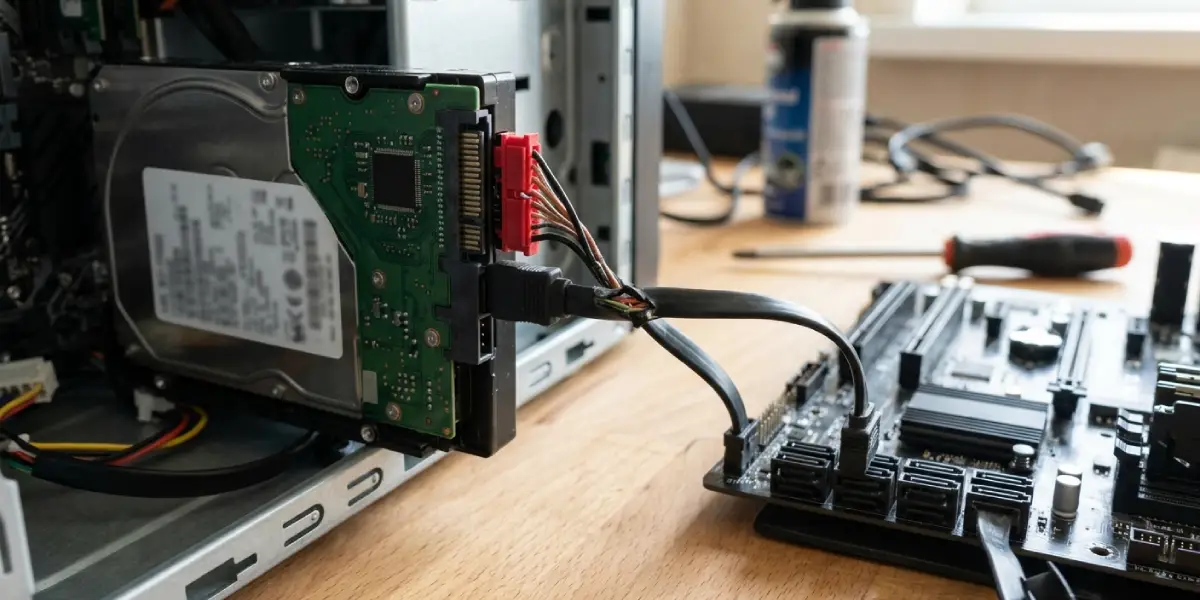
A worn or partially unplugged SATA, USB, or power cable is one of the most frequent culprits, especially on external drives that get moved around often. A failing power supply or a USB port delivering unstable power can cause the same symptom.
Bad Sectors and Drive Wear
Mechanical hard drives develop bad sectors as platters age, and solid state drives can develop failing memory cells over time. Once data sits on a damaged sector, it reads back incorrectly and trips the checksum mismatch.
File System Corruption
An improper shutdown, a drive removed while writing, or a sudden power loss can leave the file system in an inconsistent state, which often produces CRC errors on specific files even when the underlying hardware is fine.
Malware or Software Interference
Less commonly, malware or an overly aggressive antivirus scan interrupting a file operation can corrupt data mid-write and trigger the same error message.
Before You Start
A few quick precautions make the repair process safer and reduce the chance of losing anything important.
- Stop using the drive for anything other than the repair steps below, since continued writes can overwrite recoverable data.
- If the file throwing the error is critical, try copying it to a different, healthy drive first, even if the copy fails partway.
- Power off and safely disconnect external enclosures before checking or swapping cables.
- Avoid running repair tools on a drive that is making unusual clicking or grinding noises, since that points to a mechanical fault that needs professional data recovery instead.
Tip: If the drive is under warranty or holds irreplaceable data and shows physical failure signs, stop the DIY steps and consult a professional data recovery service rather than risk making the corruption worse.
How to Fix a CRC Error on a Drive
Step-by-Step Repair Process
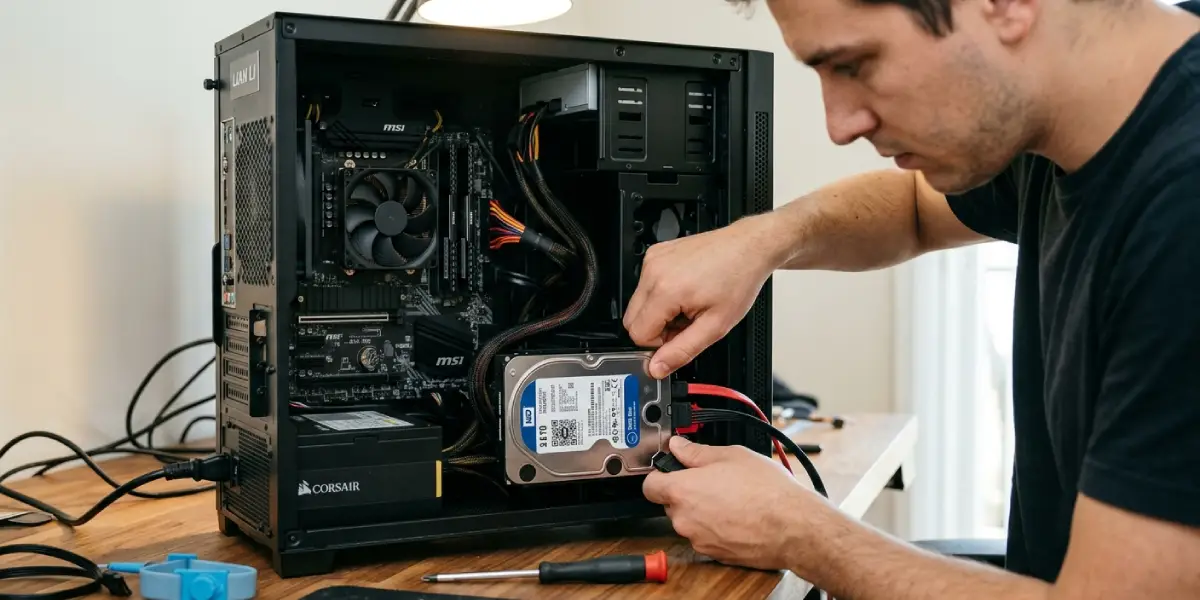
- Step 1: Check and reseat all cables. For internal drives, power the system down, unplug it, and reseat the SATA and power cables at both ends. For external drives, try a different USB cable and a different USB port, ideally connecting directly to the motherboard’s rear ports rather than through a hub.
- Step 2: Copy the affected file to a healthy location. Before running any repair tool, attempt to copy the problem file to another drive. Even a partial or failed copy gives a baseline to compare against after repairs.
- Step 3: Run CHKDSK to scan and repair the file system. Open Command Prompt as an administrator and run chkdsk X: /r, replacing X with the affected drive letter. This scans for bad sectors and attempts to recover readable data from them, which resolves a large share of CRC errors tied to file system corruption.
- Step 4: Run System File Checker if the CRC error affects system files. Run sfc /scannow from an elevated Command Prompt to repair corrupted Windows system files that can sometimes produce the same error message.
- Step 5: Check the drive’s health status. Use a S.M.A.R.T. monitoring tool such as CrystalDiskInfo to check the drive’s reallocated sector count and overall health rating. A rapidly climbing reallocated sector count is a strong sign the drive is failing.
- Step 6: Try the file on a different device or system. If a single file consistently throws a CRC error across different computers and cables, the corruption is likely baked into that specific file rather than caused by the connection.
- Step 7: Use data recovery software for files that will not copy. Tools designed for damaged or partially unreadable files can sometimes extract usable data even when Windows Explorer refuses to copy the file normally.
- Step 8: Back up everything and replace the drive if errors persist. If CRC errors keep appearing across multiple files after the steps above, treat the drive as failing. Clone or back up everything that can still be read, then retire the drive.
Tip: Running CHKDSK with the /r switch can take a long time on large or heavily damaged drives, so plan the repair for a time when the system does not need to be used for other tasks.
Common Problems and Fixes
CRC Error Returns Right After CHKDSK Finishes
This usually means the bad sectors are being marked but new ones are forming, which points to a drive that is actively degrading rather than a one-time glitch. Back up important data right away and plan for a replacement.
File Still Will Not Copy After Reseating Cables
If the cable and port swap did not help, the corruption is likely on the drive itself rather than in the connection. Move to running CHKDSK and checking S.M.A.R.T. health data before trying anything else.
CHKDSK Gets Stuck or Freezes
A scan that stalls for a very long time on a specific percentage often means it hit a large cluster of bad sectors. Let it run overnight if possible, since forcing a shutdown mid-scan can worsen file system damage.
External Drive Only Throws CRC Errors on One Computer
This points to a port, driver, or power delivery issue on that specific machine rather than the drive itself. Testing the same drive on another computer quickly narrows down which side of the connection is at fault.
CRC Error Appears During a Backup or Cloning Job
Cloning software often stops at the first unreadable sector. Switching to a cloning tool that supports skipping bad sectors and logging them allows the rest of the healthy data to be copied first.
Frequently Asked Questions
What does a CRC error on a drive actually mean?
It means the data read back from the drive does not match the checksum that was originally stored with it, which indicates the data has been corrupted or the sector holding it is damaged.
Can a CRC error be fixed without losing data?
Often yes, especially when the cause is a loose cable or minor file system corruption. Bad sectors sometimes allow partial recovery, though severely damaged sectors can make the original data unrecoverable.
Is a CRC error a sign the drive is failing?
It can be, particularly if the error appears repeatedly across different files or the S.M.A.R.T. data shows a rising reallocated sector count. A single isolated CRC error is less concerning than a recurring pattern.
Does CHKDSK actually fix CRC errors?
CHKDSK with the /r switch scans for bad sectors, marks them so the drive stops using them, and attempts to recover readable data from those areas, which resolves many CRC errors caused by file system or sector-level issues.
Why does the CRC error only happen with one specific file?
That usually means the corruption is isolated to the sectors holding that particular file, rather than affecting the whole drive. Other files on the same drive may still be perfectly readable.
Can a bad USB cable cause a CRC error?
Yes, a damaged or low-quality cable can introduce data transmission errors that trigger a CRC mismatch, especially on external hard drives and flash drives during large file transfers.
Should formatting the drive fix a CRC error?
Formatting can clear file system level corruption, but it erases all data on the drive in the process, so it should only be considered after everything recoverable has been backed up elsewhere.
How can drive health be checked before attempting repairs?
A S.M.A.R.T. monitoring utility such as CrystalDiskInfo reports the drive’s reallocated sector count and overall health status, giving a quick read on whether the drive is a repair candidate or nearing failure.
Is it safe to keep using a drive that throws CRC errors?
It is safe for short-term data recovery, but continued regular use of a drive with recurring CRC errors risks further data loss. The safer approach is backing up what is readable and retiring the drive.
