
The Outlook data file cannot be accessed error usually pops up right when a message needs to be sent or an inbox needs to load, and it brings everything to a halt. This guide walks through the exact steps needed to get the data file working again, permanently rather than just for one session.
Key Takeaways
- The error almost always traces back to a locked file, a corrupted PST, a bad file location, or leftover Outlook background processes.
- Fully closing Outlook (including hidden background tasks) resolves a large share of these cases in under a minute.
- The built-in Inbox Repair Tool, ScanPST.exe, fixes most corruption-related access errors without needing third-party software.
- Data files stored on network drives, USB drives, or cloud-synced folders are far more prone to this error than files stored locally.
- A fresh Outlook profile solves the problem when the file itself is healthy but the profile configuration is not.
Step-by-Step Guide to Fix Outlook Data File Cannot Be Accessed
Work through these steps in order. Most users find the issue resolved within the first three or four steps, so there is rarely a need to go through every single one.
Close Outlook Completely
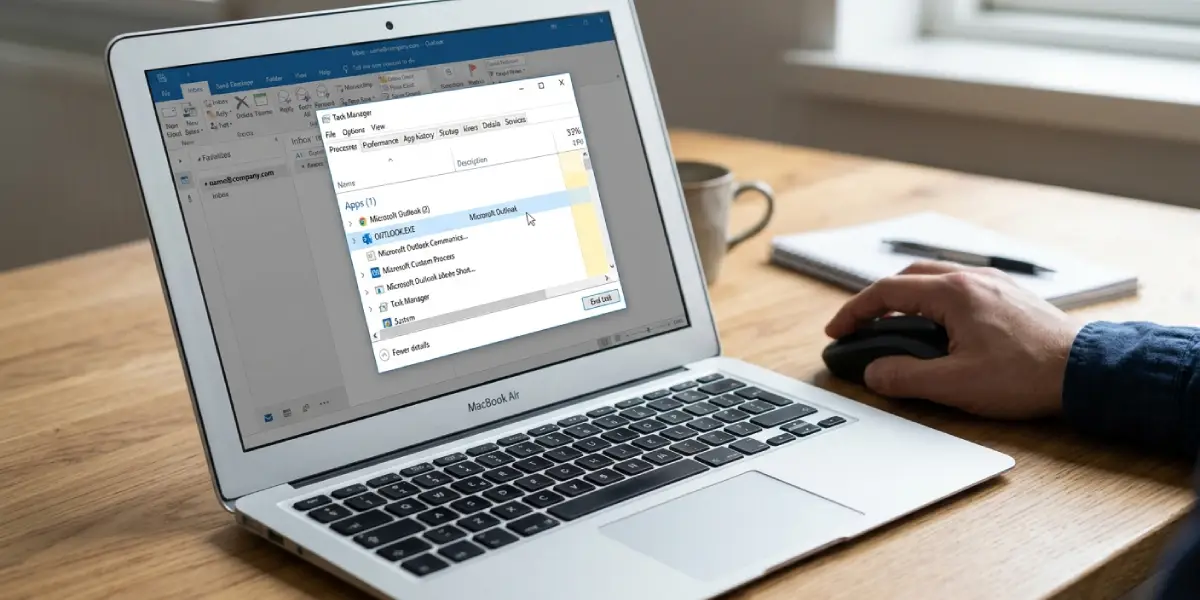
- Step 1: Close every open Outlook window, then check whether the app is still running in the background. Open Task Manager, look under the Processes tab for OUTLOOK.EXE, and end that task if it is still listed. A hung background process is one of the most common reasons a data file appears locked.
Confirm the File Location Is Reachable
- Step 2: Go to File, then Account Settings, then Account Settings again, and open the Data Files tab. Note the exact file path. If that path points to a network drive, a USB stick, or a OneDrive folder that is offline or unsynced, that disconnect is very likely the root cause.
Move the File to a Local Drive
- Step 3: If the data file lives anywhere other than the local hard drive, copy it to a local folder such as Documents. In Account Settings, select the data file, choose Open File Location, close Outlook, move the .pst or .ost file locally, then reopen Outlook and relink the file from the Data Files tab using Add.
Clear Read-Only and Blocked Attributes
- Step 4: Right-click the data file in File Explorer and select Properties. Under the General tab, uncheck Read-only if it is selected, and click Unblock if that option appears near the bottom of the window. Apply the change and try opening Outlook again.
Run the Inbox Repair Tool
- Step 5: Close Outlook, then locate SCANPST.EXE, usually found under a path similar to C:\Program Files\Microsoft Office\root\Office16. Launch it, browse to the data file, and click Start. Let the scan finish, back up the file when prompted, then click Repair.
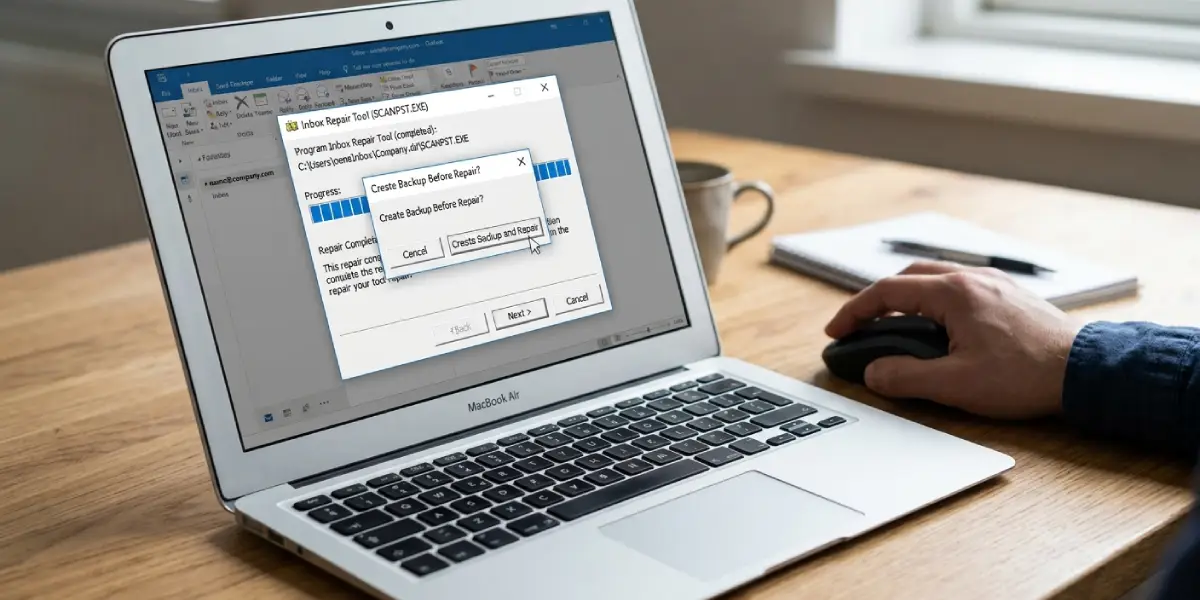
Tip: Running ScanPST twice in a row catches lingering errors that the first pass sometimes misses, especially on data files that have not been repaired in a long while.
Rule Out Antivirus or Security Software Locks
- Step 6: Temporarily disable third-party antivirus scanning for the folder containing the data file, or add that folder to the antivirus exclusion list. Some security tools scan PST and OST files on access and briefly lock them, which triggers this exact error.
Create a New Outlook Profile
- Step 7: Open the Control Panel, select Mail, then Show Profiles. Click Add, name the new profile, and follow the setup prompts to reconnect the email account. Set the new profile as default, then restart Outlook. A corrupted profile, separate from the file itself, causes this error more often than most people expect.
Check File Size Against Format Limits
- Step 8: Right-click the data file and check its size under Properties. Older ANSI-format PST files cap out around 2GB, and pushing past that limit can make the file unreadable. If the format is ANSI and the file is near that ceiling, archive older items into a second data file to bring the size back down.
Common Problems and Fixes
- Outlook still says the file is locked after closing the app: Restart the computer rather than just the app. This clears any process that Task Manager does not fully release.
- ScanPST finishes but the same error returns: Run the repair a second time, since one pass does not always catch every corrupted item in a large file.
- The data file path shows as missing entirely: The file was likely moved or deleted. Use Account Settings, Data Files, Add, and browse to the file’s current location, or restore it from a backup if it no longer exists.
- The error appears only when connected to VPN or a work network: This points to a network-drive-hosted PST. Moving the file locally, as described in Step 3, permanently removes this dependency.
- New profile does not fix the issue: This usually means the underlying data file itself is still corrupted. Go back to Step 5 and repair the file before creating another profile.
Frequently Asked Questions
What does ‘Outlook data file cannot be accessed’ actually mean?
It means Outlook is unable to open or read the .pst or .ost file that stores mail, contacts, and calendar data, usually because the file is locked, corrupted, missing, or stored in a location Outlook cannot reliably reach.
Is it safe to move a PST file to a new folder?
Yes. Moving a PST file is safe as long as Outlook is fully closed first and the file is relinked afterward through Account Settings so Outlook knows where to find it.
Will running ScanPST delete any emails?
ScanPST is designed to repair corruption without deleting content, but it can occasionally remove items that are too damaged to recover. Backing up the file before repair, as the tool prompts, avoids any permanent loss.
Why does this error show up more often on network drives?
PST files were built for local access. Network drives introduce latency and intermittent connectivity, both of which can cause Outlook to lose its lock on the file mid-session.
Does creating a new profile delete existing emails?
No. A new profile is a fresh configuration layer, not a data wipe. The existing data file can be attached to the new profile, keeping all mail and folders intact.
How can the exact size of a PST file be checked?
Right-click the file in File Explorer and select Properties. The Size field there shows the current file size in real time.
What is the difference between a PST and OST file in this context?
A PST is a locally stored file, while an OST is a synced cache tied to an email account. Both can trigger this access error, though OST issues are often fixed by simply deleting and letting Outlook rebuild the file automatically.
Can antivirus software really cause this error?
Yes. Real-time scanning sometimes places a temporary lock on large files like PSTs during a scan, which Outlook interprets as the file being inaccessible.
How often should the Inbox Repair Tool be run as a precaution?
There is no fixed schedule, but running it after unexpected shutdowns or when the data file grows very large is a reasonable habit that catches small errors before they become access problems.
What should be done if none of these steps work?
If the file still will not open after a repair attempt, a profile rebuild, and a location check, the file may be too damaged to recover, and restoring from the most recent backup becomes the most reliable option.
