
Creating a reusable template in Word saves the trouble of rebuilding the same letterhead, report, or invoice layout from scratch every time a new document is needed. This guide covers the exact steps to turn any Word document into a template that stays ready to use, without touching the original file’s formatting each time.
Key Takeaways
- A reusable template in Word is saved with the .dotx file extension instead of the standard .docx.
- Templates preserve styles, formatting, and boilerplate text without locking in document-specific content.
- Word automatically offers the Custom Office Templates folder as the save location, which keeps the template easy to find later.
- New documents created from a template leave the original template file untouched.
- Templates containing macros need the .dotm format instead of .dotx to keep the macros working.
Steps to Create a Reusable Template in Word
- Step 1: Open the Word document that has the layout, styles, and formatting worth reusing, or start a new document and build that layout from scratch.
- Step 2: Remove any content that is specific to a single use, such as a client’s name or a particular date, while keeping headings, placeholder text, and formatting intact.
- Step 3: Select the ‘File’ tab, then choose ‘Save As’.
- Step 4: Choose a save location, such as ‘This PC’ or a specific folder, then select ‘Browse’ if a more specific destination is needed.
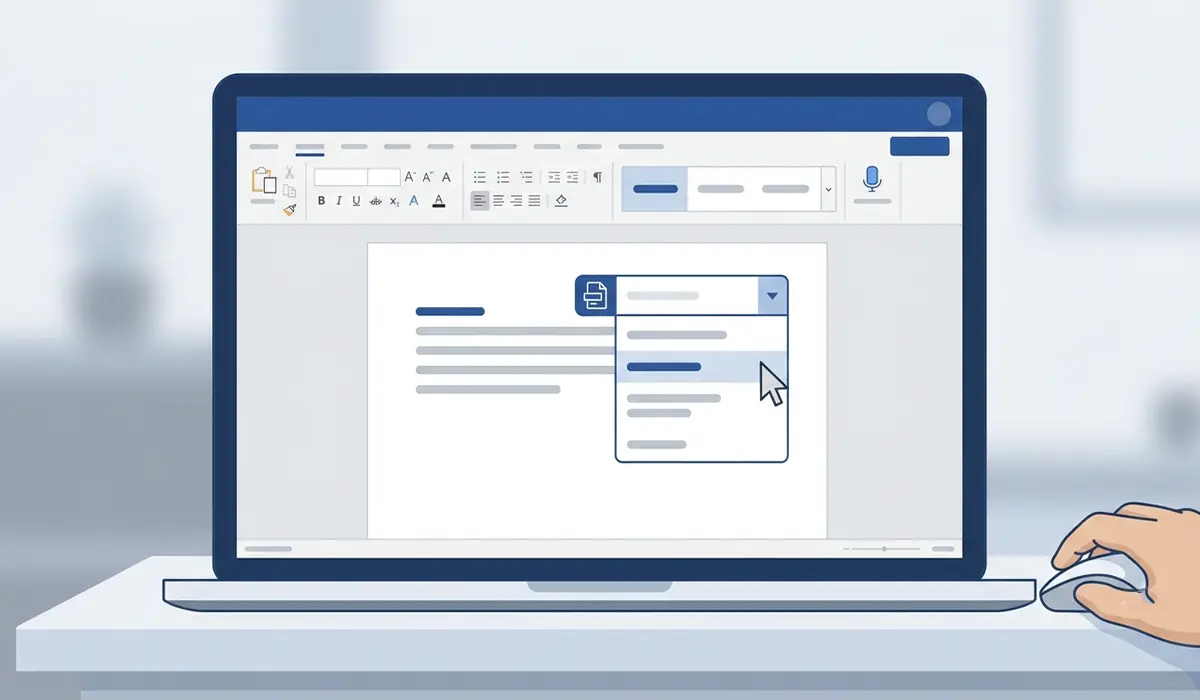
- Step 5: In the ‘Save as type’ dropdown menu, select ‘Word Template (*.dotx)’. Choose ‘Word Macro-Enabled Template (*.dotm)’ instead if the document contains macros.
- Step 6: Word typically switches the save location automatically to the Custom Office Templates folder once the template file type is selected. Leaving it there keeps the template visible from the New document screen later.
- Step 7: Type a clear, descriptive file name, something like ‘Invoice Template’ or ‘Weekly Report Template’, so it is easy to recognize later.
- Step 8: Click ‘Save’ to finish creating the template.
Tip: name templates by their purpose rather than a generic label like ‘Template1’. A folder full of templates gets confusing fast without descriptive names to tell them apart.
Creating a New Document From the Template
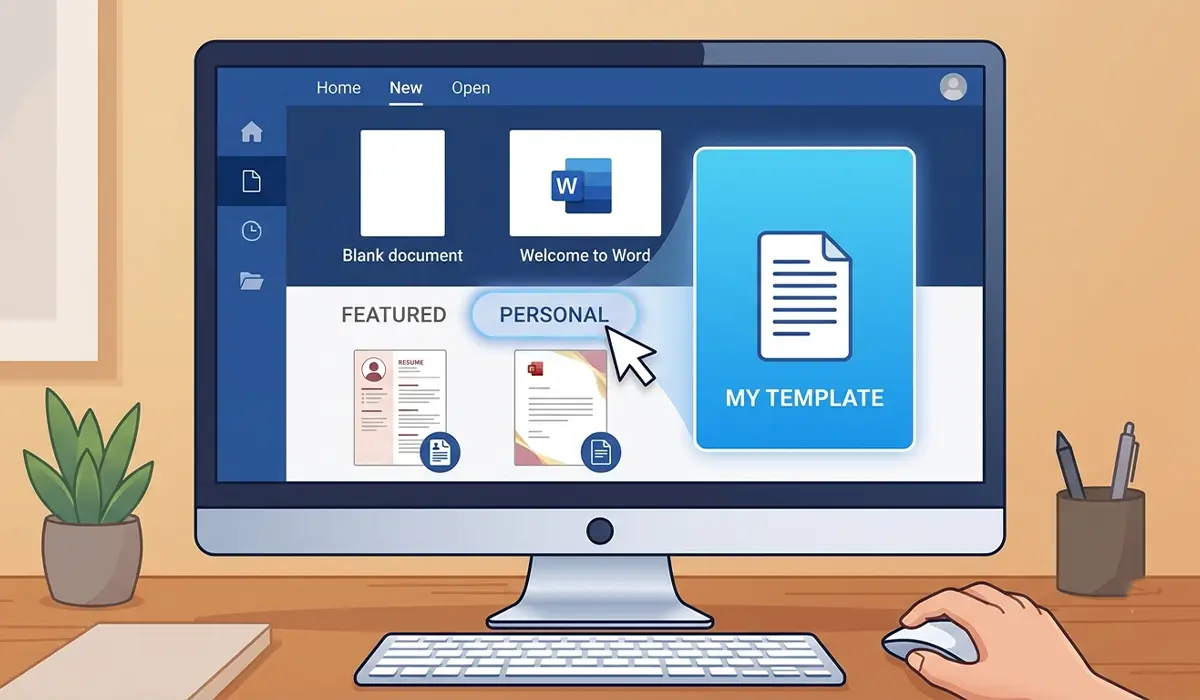
Once the template is saved, open Word and select ‘File’, then ‘New’. Click the ‘Personal’ tab (labeled ‘Custom’ in some Word versions) to see saved templates, then select the one to use. Word opens a fresh document built from the template’s styles and layout, leaving the original .dotx file unchanged.
Common Problems and Fixes
- The template does not appear on the New document screen: confirm it was saved as a .dotx or .dotm file rather than .docx, and that it landed in the Custom Office Templates folder. Restarting Word after saving often refreshes the template gallery.
- Edits made to a new document accidentally change the original template: this happens when the template file itself was opened and edited directly, instead of creating a new document from it through ‘File’ then ‘New’. Always start new documents from the ‘Personal’ tab rather than opening the .dotx file straight from File Explorer.
- Macros stop working after saving as a template: this points to the file being saved as .dotx instead of .dotm. Re-save using ‘Word Macro-Enabled Template (*.dotm)’ to keep macros functional.
- Styles do not carry over into new documents: double check that the styles were applied to the content before saving, since only formatting that is actually part of the document gets saved into the template.
- The Custom Office Templates folder cannot be found: this folder is usually under ‘This PC’ > ‘Documents’ > ‘Custom Office Templates’. If it is missing, Word creates it automatically the first time a template is saved there.
Frequently Asked Questions
What file extension does a reusable Word template use?
A standard Word template uses the .dotx extension. Templates that include macros use .dotm instead, since .dotx does not support macros.
Where should a Word template be saved?
Saving it to the Custom Office Templates folder, which Word usually suggests automatically, makes the template easy to find from the ‘Personal’ tab on the New document screen.
Does creating a document from a template change the original template file?
No. Opening a template through ‘File’ then ‘New’ creates a separate new document. The original .dotx or .dotm file stays exactly as it was saved.
Can an existing document be converted into a template?
Yes. Any existing Word document can be turned into a template by using ‘Save As’ and choosing ‘Word Template (*.dotx)’ from the file type dropdown.
What is the difference between a .docx file and a .dotx file?
A .docx file is a standard document meant to hold finished content. A .dotx file is a template designed to generate new documents while keeping its own formatting untouched.
Can a Word template be shared with other people?
Yes. The .dotx or .dotm file can be emailed or placed on a shared network location, and colleagues can create new documents from it through ‘File’ then ‘New’ after saving it locally.
Why include macros in a Word template?
Macros can automate repetitive tasks within documents created from the template. Saving as .dotm keeps those macros available every time a new document is generated.
How can placeholder text be added to a reusable template?
Typing sample text such as ‘Insert client name here’ directly into the document before saving it as a template gives future users a clear prompt for what to replace.
