
Knowing how to fix Visual C++ runtime errors saves a lot of frustration when a favorite program or game suddenly refuses to open or closes with a cryptic message. These errors almost always trace back to damaged, missing, or mismatched Microsoft Visual C++ Redistributable files. The good news is that the fix is usually a repair or a clean reinstall that takes only a few minutes.
Key Takeaways
- Visual C++ runtime errors usually come from corrupted, missing, or outdated Visual C++ Redistributable packages.
- Repairing the existing redistributable is the fastest fix and should be tried before anything else.
- Both the x64 and x86 versions should be installed on 64-bit Windows, because many apps still rely on the 32-bit package.
- Running SFC and DISM repairs damaged Windows system files that can trigger the same errors.
- Downloading individual DLL files from random websites is risky and should always be avoided.
Common Causes of Visual C++ Runtime Errors
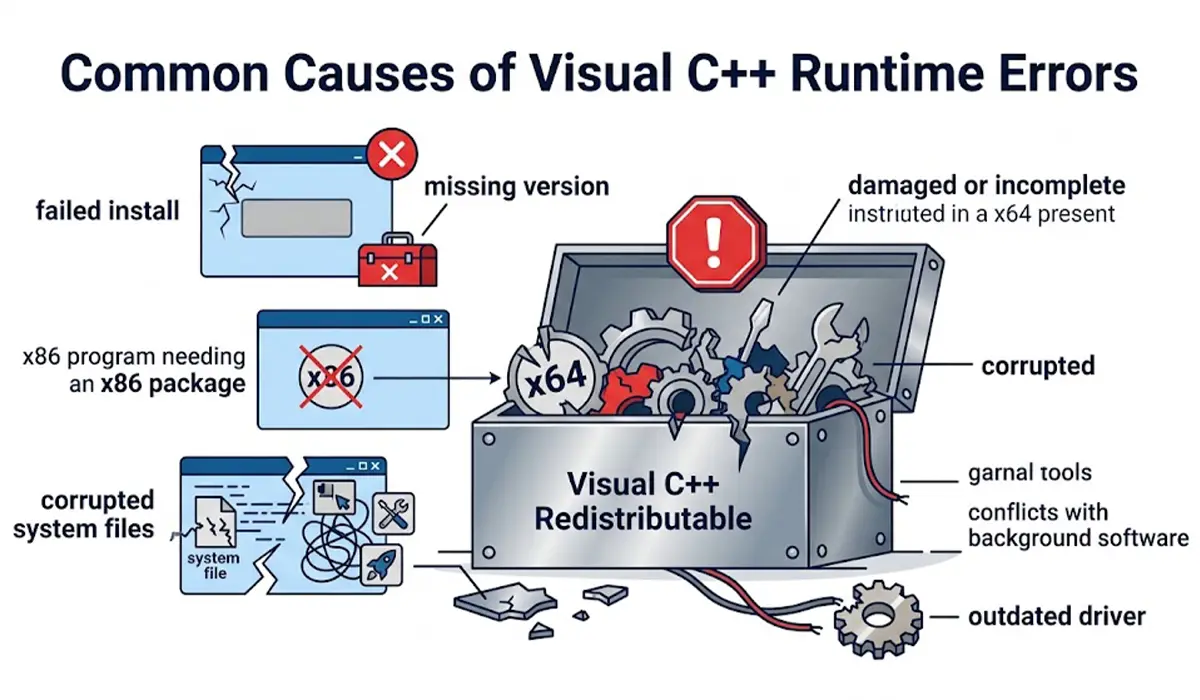
A Visual C++ runtime error appears when a program cannot load or properly use the shared code libraries it was built with. Think of the redistributable as a toolbox that many programs borrow from. If a tool is missing or bent, every program that needs it fails. The most common triggers are listed below.
- A damaged or incomplete Visual C++ Redistributable installation, often after an interrupted update or a failed install.
- A missing version of the redistributable, since older programs may need a different release than newer ones.
- Only the x64 package installed when a 32-bit program needs the x86 package.
- Corrupted Windows system files that the runtime depends on.
- A program that was installed badly or updated halfway.
- Conflicts with background software such as overlays, optimization tools, or leftover startup items.
- Outdated graphics drivers, which can cause crashes in games and graphics programs that surface as runtime errors.
Common Error Messages
The wording varies, but the usual messages include Microsoft Visual C++ Runtime Library with a program path, Runtime Error R6025 (pure virtual function call), VCRUNTIME140.dll was not found, MSVCP140.dll is missing, and The application was unable to start correctly (0xc000007b). All of them point back to the same family of fixes below.
Before You Start
Close the affected program and save any open work. Sign in with an administrator account, since repairs and installs need those rights. Creating a restore point first is a sensible safety net: search for Create a restore point in the Start menu, select the system drive, and choose Create. If a step later in the guide goes wrong, Windows can roll back to that point.
How to Fix Visual C++ Runtime Errors Step by Step
Work through these fixes in order. Most people find that the problem is solved by the third or fourth step, so there is no need to rush through all of them.
- Step 1: Restart the PC and install pending Windows updates. Open Settings, go to Windows Update, and select Check for updates. A restart clears locked files, and updates can replace outdated runtime components.
- Step 2: Update or reinstall nothing yet, but check whether the error appears in only one program or in several. A single failing program points to that app, while several failing programs point to the runtime itself. This quick check decides where to focus.
- Step 3: Repair the installed Visual C++ Redistributables. Open Settings, go to Apps, then Installed apps (Apps and features on older builds of Windows 10). Find an entry named Microsoft Visual C++ 2015-2022 Redistributable, select Modify (on Windows 11, use the three-dot menu first), and choose Repair. Repeat for both the x64 and x86 entries, then restart.
- Step 4: Install the latest supported Visual C++ Redistributable. If the repair option fails or the package is missing, download the x64 and x86 installers from the official Microsoft download page and run each one. The 2015, 2017, 2019, and 2022 releases share a single package, so one current install covers all four.
- Step 5: Install older redistributables if the program is old. Some older software was built for releases such as 2010, 2012, or 2013, which are separate packages that the latest one does not replace. If the error message names a specific year, install that version from Microsoft.
- Step 6: Repair Windows system files with SFC and DISM. Search for Terminal or Command Prompt, right-click it, and choose Run as administrator. Type sfc /scannow and press Enter, and wait for the scan to finish. Next, run DISM /Online /Cleanup-Image /RestoreHealth and let it complete. Restart the PC afterward.
- Step 7: Update the graphics driver. If the error shows up mainly in games or video and design software, download the latest driver from the GPU maker or the laptop manufacturer and install it.
- Step 8: Perform a clean boot to find conflicting software. Press Windows key + R, type msconfig, and press Enter. On the Services tab, tick Hide all Microsoft services, then select Disable all. On the Startup tab, select Open Task Manager and disable the startup items. Restart and test the program. If the error is gone, re-enable items in small groups until the culprit shows up.
- Step 9: Reinstall the affected program. Uninstall it from Settings, restart, and install a fresh copy from the official source. This replaces any damaged program files and often reinstalls the runtime it needs.

Tip: Repair first, reinstall second. Removing every Visual C++ package from the system can break other programs that rely on them, so uninstalling should only happen when a repair and a fresh install over the top have both failed.
Why Both x64 and x86 Packages Matter
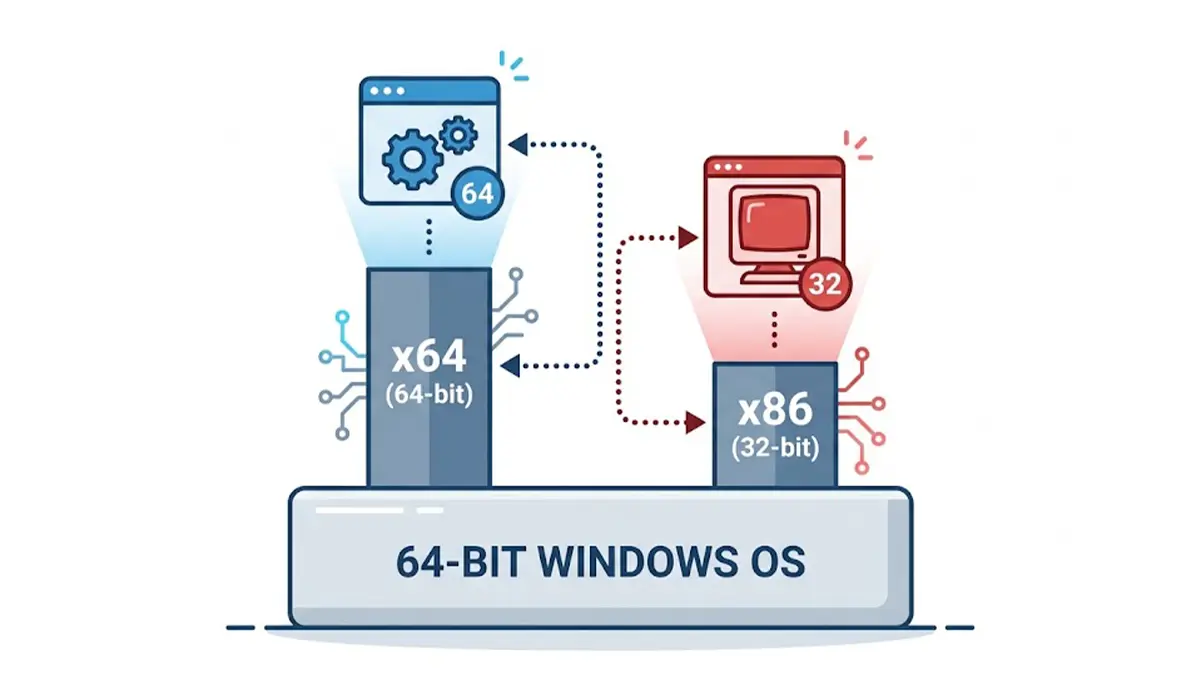
A 64-bit copy of Windows runs both 64-bit and 32-bit programs. The 64-bit programs use the x64 redistributable, while the 32-bit programs use the x86 one. Many popular tools and older games are still 32-bit, so a PC with only the x64 package can show runtime errors for those programs even though everything else works. Installing both removes that gap.
Tip: Avoid downloading single DLL files such as MSVCP140.dll or VCRUNTIME140.dll from third-party sites. Those files can be outdated, mismatched, or tampered with, and the official redistributable installs the correct versions safely in the right folders.
Common Problems and Fixes
The Repair Option Is Greyed Out or Fails
This usually means the installation record is damaged. Uninstall that specific Visual C++ 2015-2022 entry, restart, and install a fresh copy from the Microsoft download page. Make sure the installer is run as administrator.
The Installer Says a Newer Version Is Already Installed
This message is normal when the latest package is already present. Use the Repair option in Installed apps instead, or run the installer again and choose Repair if the setup window offers it.
The Error Returns After a Restart
A returning error often points to a conflicting startup program or a damaged app rather than the runtime. Repeat the clean boot test, then reinstall the affected program. Running SFC and DISM again can also confirm that Windows files are healthy.
Error 0xc000007b Still Appears
This code often means a 32-bit and 64-bit mismatch. Confirm that both the x86 and x64 redistributables are installed and up to date, then reinstall the program so it picks the correct files.
The Error Appears in Only One Game or App
If every other program works fine, the problem is most likely inside that one program. After repairing the redistributable, reinstall the program, check for an update from the developer, and review the developer support page for known issues.
SFC Reports Files It Could Not Repair
Run the DISM command from Step 6 first, restart, and then run sfc /scannow again. If damaged files remain, a Windows repair install or a professional technician is the safest next move.
Frequently Asked Questions
What does a Visual C++ runtime error mean?
It means a program tried to use shared Microsoft Visual C++ library files and could not do so correctly. The files may be missing, damaged, or the wrong version, or the program itself may have crashed in its own code.
Is it safe to have multiple Visual C++ Redistributable versions installed?
Yes. Different versions are designed to sit side by side because various programs need specific releases. Removing them to tidy up the list can cause new errors in programs that depend on them.
Why do both x86 and x64 Visual C++ packages need to be installed?
On 64-bit Windows, 64-bit programs use the x64 package and 32-bit programs use the x86 package. Many programs are still 32-bit, so having only one package can cause runtime errors for the others.
Should DLL files be downloaded from third-party websites?
No. DLL files from unofficial sources can be outdated, mismatched, or modified. Installing the official Visual C++ Redistributable from Microsoft places the correct files safely and registers them properly.
Will a Windows update fix Visual C++ runtime errors?
Sometimes. Windows updates can replace outdated or damaged system components, so installing pending updates is a worthwhile first step. If the error remains, repairing or reinstalling the redistributable is the next move.
Should every Visual C++ version be uninstalled and reinstalled?
That is not recommended as a first step. Repairing the existing packages and installing the latest supported release over them solves most cases. A full removal should only be a last resort and followed by a fresh install of the needed versions.
Can an outdated graphics driver cause a Visual C++ runtime error?
It can, mostly in games and graphics-heavy programs where a driver crash is reported as a runtime error. Installing the latest driver from the GPU maker or laptop manufacturer is a quick way to rule it out.
What if the error only happens in one program?
A single failing program usually points to a problem with that program. After repairing the redistributable, reinstall the program from the official source and check whether the developer has released an update or a known fix.
