
To edit the Normal.dotm default template in Word, open the file from inside Word, change the settings, and save it. Every new blank document then starts with your preferred font, spacing, and margins, so there is no need to fix them again each time.
Key Takeaways
- On Windows, Normal.dotm is normally stored in %appdata%\Microsoft\Templates.
- Open it with File > Open. Double-clicking the file creates a new document instead.
- Back up the file before making changes.
- Modify the Normal style for fonts and spacing, and use the Layout tab for margins.
- Save, quit Word, and test the result in a new blank document.
Step-by-Step: Edit the Normal.dotm Default Template in Word
These steps apply to Word for Microsoft 365 and recent desktop versions such as Word 2024 and Word 2021 on Windows. Mac steps follow further down.
Back Up the Template
- Step 1: Save any open documents and close every Word window.
- Step 2: Press Windows key + R, type %appdata%\Microsoft\Templates, and press Enter.
- Step 3: Select Normal.dotm, press Ctrl + C, and then press Ctrl + V. Rename the copy to Normal-backup.dotm. If file extensions are hidden, the file appears as Normal, so name the copy Normal-backup.
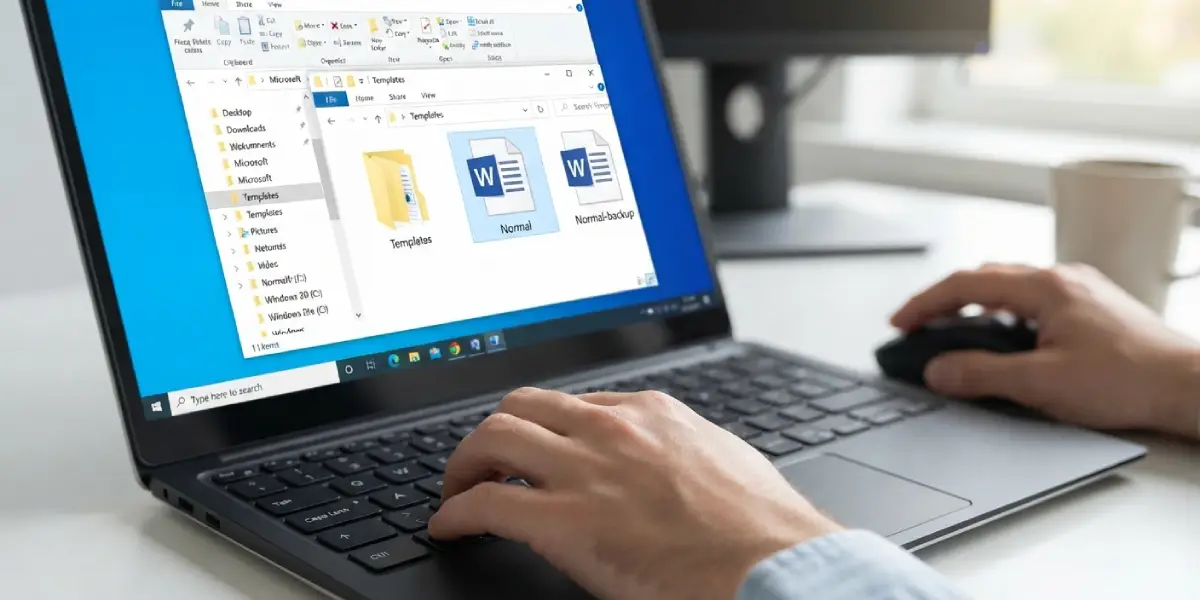
Tip: Think of this copy as a spare key. If an edit goes wrong, the original setup can be restored in under a minute.
Open Normal.dotm in Word
- Step 4: Start Word, then select File > Open > Browse.
- Step 5: Click the address bar in the Open window, paste %appdata%\Microsoft\Templates, and press Enter.
- Step 6: Select Normal.dotm and click Open.
- Step 7: Check the title bar. It should show Normal or Normal.dotm, not Document1. This confirms that the template itself is open.
Change the Default Settings
Leave the page itself blank. The goal is to adjust settings, not to type content.
- Step 8: On the Home tab, right-click Normal in the Styles gallery and select Modify.
- Step 9: Choose the font, size, and color to use by default, such as Calibri at 11 points for everyday letters.
- Step 10: In the same window, select Format > Paragraph. Set the line spacing and the space before and after paragraphs, then click OK.
- Step 11: Click OK to close the Modify Style window.
- Step 12: Select Layout > Margins > Custom Margins, enter the new values, and click OK.
- Step 13: If a different paper size is needed, select Layout > Size and pick one, such as A4 or Letter.

Tip: Change fonts through the Normal style rather than the font boxes on the ribbon. Ribbon changes apply only to selected text or the cursor position, while the style controls all text based on it.
Save and Test the Changes
- Step 14: Press Ctrl + S to save the template.
- Step 15: Select File > Close, then quit Word completely.
- Step 16: Reopen Word, create a blank document, and check the font, spacing, margins, and paper size.
Edit Normal.dotm in Word for Mac
- Step 1: Quit Word. In Finder, select Go > Go to Folder, enter ~/Library/Group Containers/UBF8T346G9.Office/User Content/Templates, and press Return.
- Step 2: Select Normal.dotm, choose File > Duplicate, and rename the copy to Normal-backup.dotm.
- Step 3: Start Word, select File > Open, and browse the files on the Mac until the Open dialog box appears. Press Command + Shift + G, enter the same folder path, and press Return.
- Step 4: Open Normal.dotm. Right-click the Normal style on the Home tab, select Modify, and set the font and paragraph options. Adjust margins from the Layout tab.
- Step 5: Press Command + S, then press Command + Q to quit Word. Reopen it and check a new blank document.
Common Problems and Fixes
Word Opens Document1 Instead of the Template
This usually happens after double-clicking Normal.dotm, which creates a new document based on it. Close that document without saving, then open the template through File > Open.
The AppData Folder Is Not Visible
AppData is hidden by default in Windows. There is no need to unhide it. Paste %appdata%\Microsoft\Templates into the address bar and press Enter.
New Documents Still Use the Old Settings
Word may be using a different copy of the template. Press Alt + F11, press Ctrl + G, type ?NormalTemplate.FullName in the Immediate window, and press Enter. Open the file at the path shown and apply the changes there. Also confirm that the test file is a new blank document, not an existing file or one built from another template.
Word Cannot Save the Template
- Close all other Word windows so that only the template is open.
- Right-click Normal.dotm in File Explorer, select Properties, clear Read-only if it is checked, and click OK.
- In Word, select File > Options > Add-ins. Choose COM Add-ins in the Manage list, click Go, clear the checked add-ins, and click OK.
- Restart Word and try the edit again. Re-enable add-ins one at a time to find the culprit.
The Edited Template Causes Problems
Quit Word and open the Templates folder. Rename Normal.dotm to Normal-old.dotm, then rename Normal-backup.dotm to Normal.dotm. Word will load the restored version the next time it starts. The same renaming method works in the Mac Templates folder.
Frequently Asked Questions
Where is the Normal.dotm file located?
On Windows, it is normally in %appdata%\Microsoft\Templates. On a Mac, it is normally in ~/Library/Group Containers/UBF8T346G9.Office/User Content/Templates.
Why does double-clicking Normal.dotm open a blank document?
Double-clicking a Word template creates a new document based on it. To change the template itself, start Word and use File > Open.
Will editing Normal.dotm change existing documents?
The new defaults are meant for documents created after the template is saved. Existing documents generally keep their own styles and page settings.
Can Normal.dotm be edited without opening the template file?
Some settings can. In the Modify Style window, select New documents based on this template before clicking OK. In the Page Setup window, use Set As Default. Save the Normal template if Word asks.
What happens if Normal.dotm is deleted or renamed?
Word creates a new Normal.dotm with original default settings the next time it starts. Customizations stored in the old file are not carried into the new one, so renaming is safer than deleting.
Why does Word ask to save changes to Normal.dotm?
Something has changed the global template during the session. Select Save if the change was intentional. If it was not, decline and check for add-ins or macros that modify the template.
Should text be typed into Normal.dotm?
No. Use Normal.dotm for default settings and styles. For reusable text, such as a letterhead, create a separate Word template.
How can the active Normal.dotm file be confirmed?
Press Alt + F11 in Word for Windows, press Ctrl + G, type ?NormalTemplate.FullName, and press Enter. The full path of the template in use appears below the command.
