
A wireless keyboard or mouse losing connection mid-task is one of the most common desk annoyances around, and it usually traces back to a handful of predictable causes. Most of the time the fix takes only a few minutes and does not require replacing any hardware. This guide walks through why the drops happen and how to stop them for good.
Key Takeaways
- Weak or dying batteries are the single most common reason a wireless keyboard or mouse loses connection.
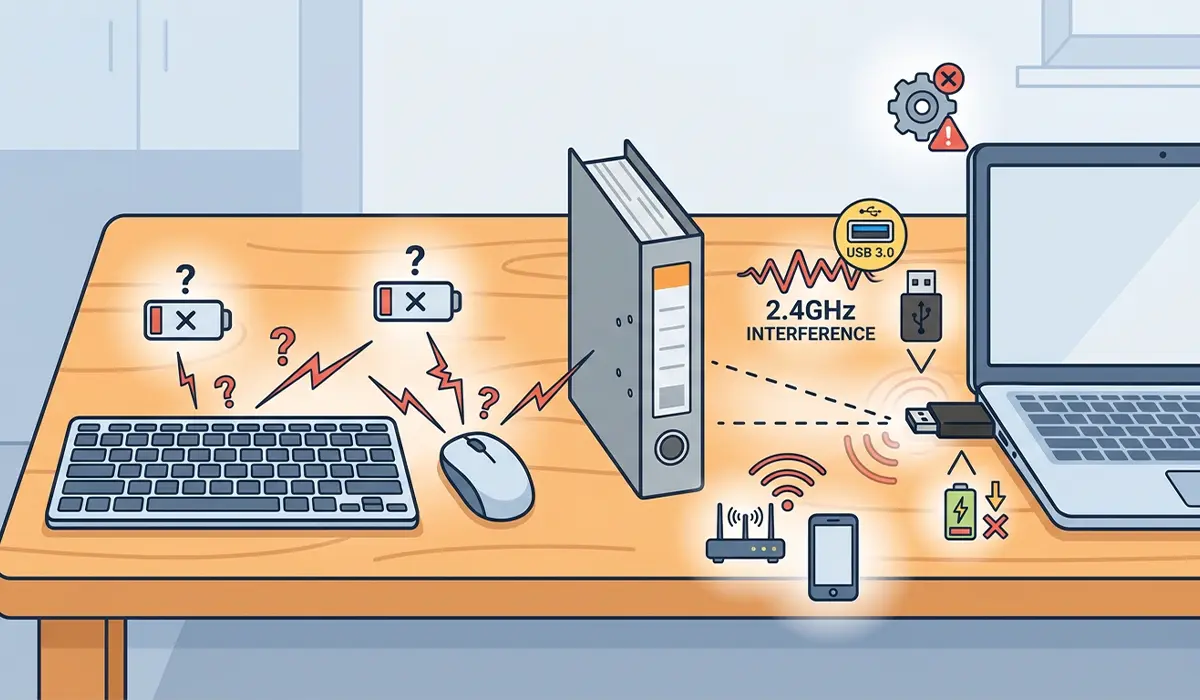
- USB 3.0 ports and nearby electronics often create radio interference that disrupts 2.4GHz receivers.
- Windows power management can put the USB receiver to sleep to save energy, causing random drops.
- Re-pairing the device and updating its driver resolves most persistent connection issues.
- A receiver plugged into a USB hub or extension cable is more prone to signal loss than one plugged directly into the PC.
Common Causes of a Wireless Keyboard or Mouse Losing Connection
Before jumping into fixes, it helps to understand what is actually happening behind the scenes. A handful of factors are responsible for the vast majority of dropped connections.
- Low or unevenly seated batteries that cause the transmitter to underpower itself.
- A USB receiver plugged into a USB 3.0 port, which is a known source of 2.4GHz radio interference.
- Physical obstructions or distance between the device and the receiver, especially metal desks or laptop stands.
- Competing wireless signals from routers, other Bluetooth accessories, or nearby 2.4GHz devices.
- Outdated or corrupted drivers for the receiver or the Bluetooth adapter.
- Windows power settings that allow the USB hub to power down the receiver when idle.
- A loose or dirty USB connection at the receiver end.
How to Fix a Wireless Keyboard or Mouse Losing Connection
Work through these steps in order. Most connection drops get resolved in the first two or three steps, but the later ones are worth trying if the problem keeps coming back.
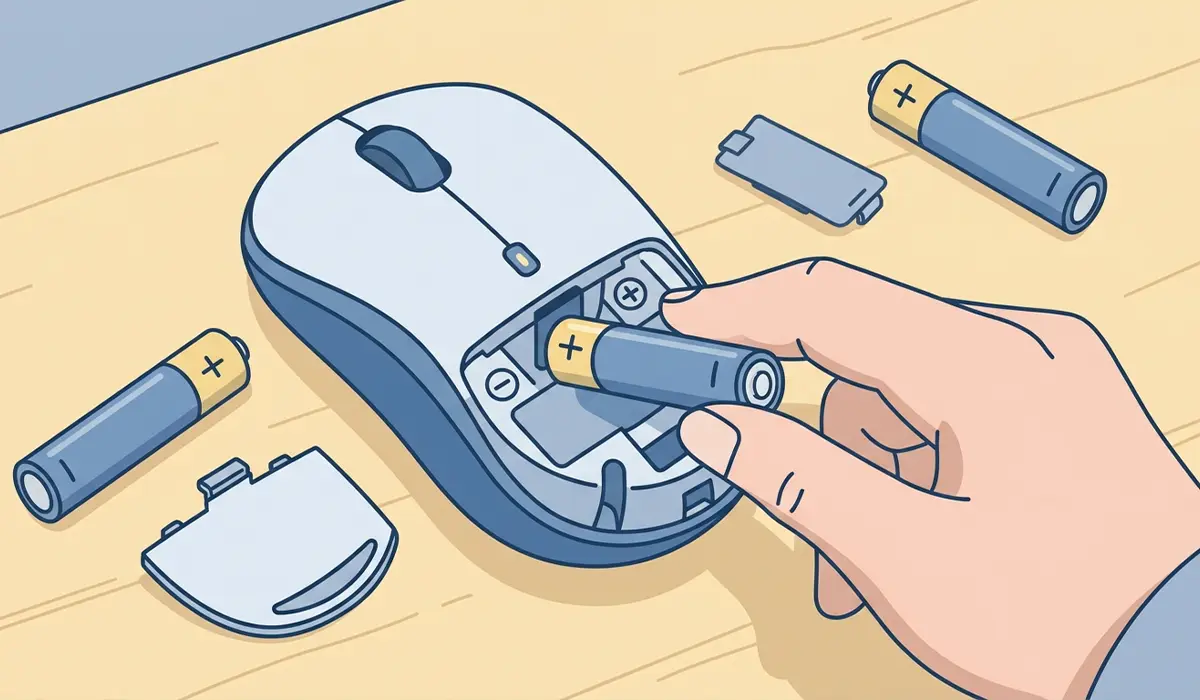
- Step 1: Swap in a fresh set of batteries, making sure they are seated with the correct polarity. A mouse or keyboard that intermittently drops out is very often just running low on power, even if the on-screen battery indicator has not flagged it yet.
- Step 2: Unplug the USB receiver and plug it directly into a USB 2.0 port on the back of the computer or a rear panel port rather than a front-panel USB 3.0 port. USB 3.0 ports transmit at frequencies that overlap with 2.4GHz wireless signals, and this alone fixes a large share of dropout complaints.
- Step 3: Move the receiver away from other electronics such as external hard drives, USB hubs, and Wi-Fi routers. If the receiver is currently on the end of a USB extension cable behind a laptop or under a metal desk, move it to an open, unobstructed spot closer to the keyboard or mouse.
- Step 4: Open Device Manager, locate the entry under ‘Mice and other pointing devices’ or ‘Keyboards’ (or the Bluetooth adapter if the device pairs directly), right-click it, and choose ‘Update driver’. If the connection problems started recently, right-click and choose ‘Uninstall device’ instead, then restart the computer so Windows reinstalls a clean driver automatically.
- Step 5: Open Device Manager, expand ‘Universal Serial Bus controllers’, right-click each ‘USB Root Hub’ entry, select ‘Properties’, go to the ‘Power Management’ tab, and uncheck ‘Allow the computer to turn off this device to save power’. This setting is a frequent cause of a wireless mouse that disconnects only after sitting idle for a while.
- Step 6: For Bluetooth keyboards and mice, remove the device from Windows Bluetooth settings, turn the device off and back on, and pair it again from scratch. A stale pairing cache is a common reason a device reconnects briefly and then drops again.
- Step 7: Test the receiver in a different USB port, and if possible, test the keyboard or mouse on a different computer. This isolates whether the fault lies with the port, the receiver, or the input device itself.
- Step 8: Check the manufacturer’s website for the keyboard or mouse and install any available firmware or companion software update. Some higher-end wireless peripherals ship with software that fine-tunes connection stability and adds channel-hopping to avoid interference.
Tip: If the dropouts started right after plugging in a new USB device, such as an external SSD or a webcam, try moving that new device to a different port first. New high-speed peripherals are a common, easy-to-miss source of interference.
Common Problems and Fixes
The mouse still stutters after updating the driver
This usually points to interference rather than software. Move the receiver to a USB extension cable positioned away from the tower or laptop chassis, keeping it clear of USB 3.0 ports and other electronics.
A Bluetooth keyboard will not reconnect after the PC wakes from sleep
Open Device Manager, expand ‘Bluetooth’, right-click the Bluetooth adapter, open ‘Properties’, select the ‘Power Management’ tab, and uncheck the option that allows the computer to turn off the device to save power. This keeps the adapter from fully powering down during sleep.
The receiver is not recognized after moving it to a new port
Give Windows a minute to reinstall the driver automatically, since moving a receiver to a different physical port can register as new hardware. If nothing happens after a couple of minutes, unplug it, restart the computer, and plug it back in once the desktop has fully loaded.
Connection drops happen only when a USB 3.0 device is nearby
This is a known interference pattern. Where possible, dedicate one USB 2.0 port to the receiver and keep USB 3.0 storage devices or webcams plugged into ports on the opposite side of the case.
The mouse works but the keyboard keeps dropping, or vice versa
Test both devices with a single unifying receiver if the brand supports it, since a shared receiver can eliminate one point of interference. If they use separate receivers, try spacing them a few inches apart, as receivers placed directly next to each other can interfere with one another.
Frequently Asked Questions
Why does a wireless keyboard or mouse keep losing connection even with new batteries?
New batteries rule out power as the cause, which usually means the issue is interference or a driver problem. Move the receiver to a USB 2.0 port away from other electronics and update the device driver in Device Manager.
Does a USB 3.0 port really cause wireless connection drops?
Yes. USB 3.0 ports can emit radio interference in a frequency range that overlaps with many 2.4GHz wireless receivers, which is a well-documented cause of intermittent disconnects.
How far apart should the receiver and the keyboard or mouse be?
Closer is generally better, and a clear line of sight helps. Keeping the receiver within a few feet of the device, without metal objects or other electronics in between, gives the most stable connection.
Should a wireless receiver be plugged into a USB hub?
A direct connection to the computer is more reliable than going through a hub, since hubs add another point of interference and power fluctuation. If a hub is unavoidable, choose a powered one.
Why does the mouse disconnect only after sitting idle for a few minutes?
This points to a Windows power management setting that allows the USB hub to power down to save energy. Disabling that option in Device Manager under the USB Root Hub properties usually resolves it.
Can Wi-Fi routers interfere with a wireless keyboard or mouse?
Yes, especially routers broadcasting on the 2.4GHz band. Moving the receiver a bit further from the router, or switching the router to the 5GHz band where possible, can reduce the conflict.
Is it necessary to re-pair a Bluetooth keyboard or mouse every time it disconnects?
Not usually. Occasional drops are normal and the device typically reconnects on its own. If drops become frequent, removing the device and pairing it again clears out a stale connection profile that may be causing the trouble.
Why does the wireless mouse work fine on one USB port but not another?
Different ports sit on different internal USB controllers, and some are simply closer to sources of electrical noise inside the case. Testing a few different ports helps identify one that gives a clean, stable signal.
Could the keyboard or mouse itself be faulty rather than the connection?
It is possible, particularly if the problem persists after trying a different receiver port, updating drivers, and ruling out interference. Testing the device on another computer is the quickest way to confirm whether the hardware itself is at fault.
