
Low microphone volume on a laptop is one of the most common audio complaints during video calls, streaming, or voice recording, and it almost always comes down to a setting, a driver, or a hardware conflict rather than a broken microphone. This guide walks through the exact causes and the fixes that resolve them, starting with the quickest checks first.
Key Takeaways
- Low mic volume is usually caused by an incorrect input level, a disabled boost setting, or an outdated audio driver.
- Windows sometimes selects the wrong microphone as the default recording device, which can sound like a volume problem.
- Other apps holding exclusive control of the microphone or aggressive noise suppression can quietly reduce input volume.
- Dust and debris in the microphone port or grille can muffle sound on laptops that see heavy daily use.
- Most fixes take just a few minutes and do not require opening the laptop.
Common Causes of Low Microphone Volume on a Laptop
A handful of culprits show up again and again when microphone input sounds faint or distant. The input level slider in Windows may simply be set too low, or Microphone Boost may be turned off entirely. An outdated or corrupted audio driver can also cap the input gain below what the hardware is actually capable of. Sometimes the issue is not the built-in mic at all – Windows may have quietly switched the default recording device to a webcam or a headset that is not actually connected. Background noise suppression and voice enhancements, while useful in theory, can also cut volume more aggressively than intended. Finally, dust buildup around the microphone opening on the laptop’s chassis is easy to overlook but genuinely affects sound quality over time.
How to Fix Low Microphone Volume on a Laptop
Work through these steps in order. Most people find that the fix is one of the first three, but it helps to go through the full sequence if the problem persists.
Step-by-Step Fixes
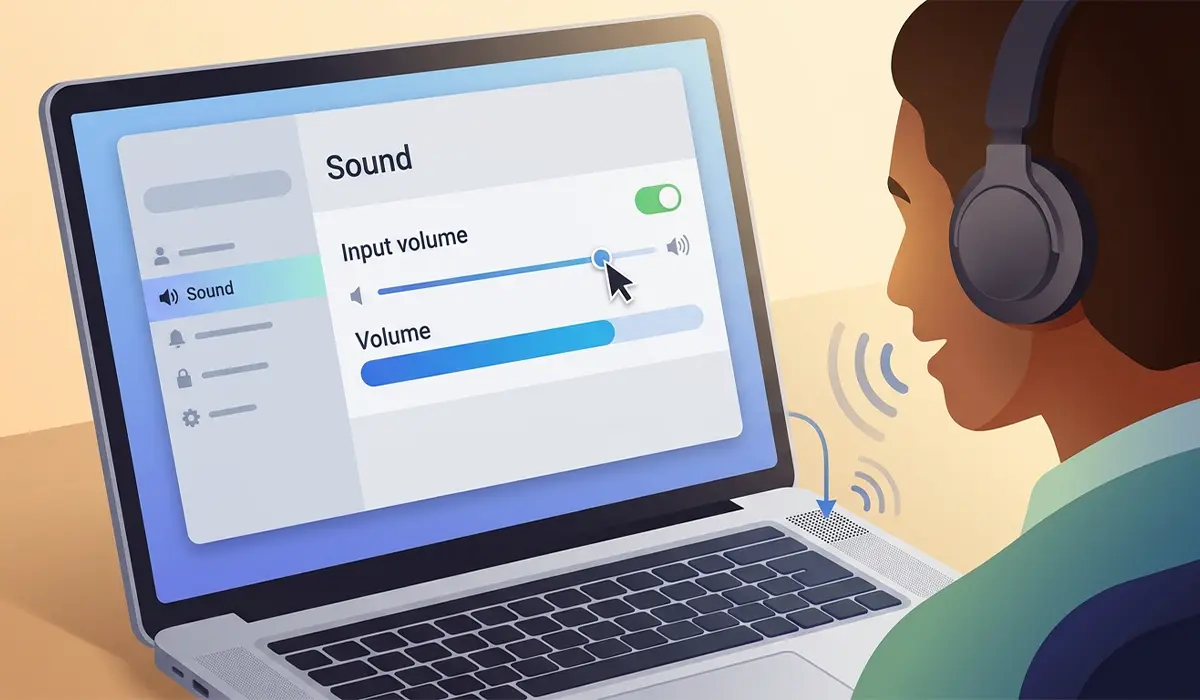
- Step 1: Open Windows Settings and go to System, then Sound. Under Input, select the correct microphone and check the input volume slider. Speak normally and watch the blue activity bar – if it barely moves, the level is too low and should be raised closer to the upper third of the range.
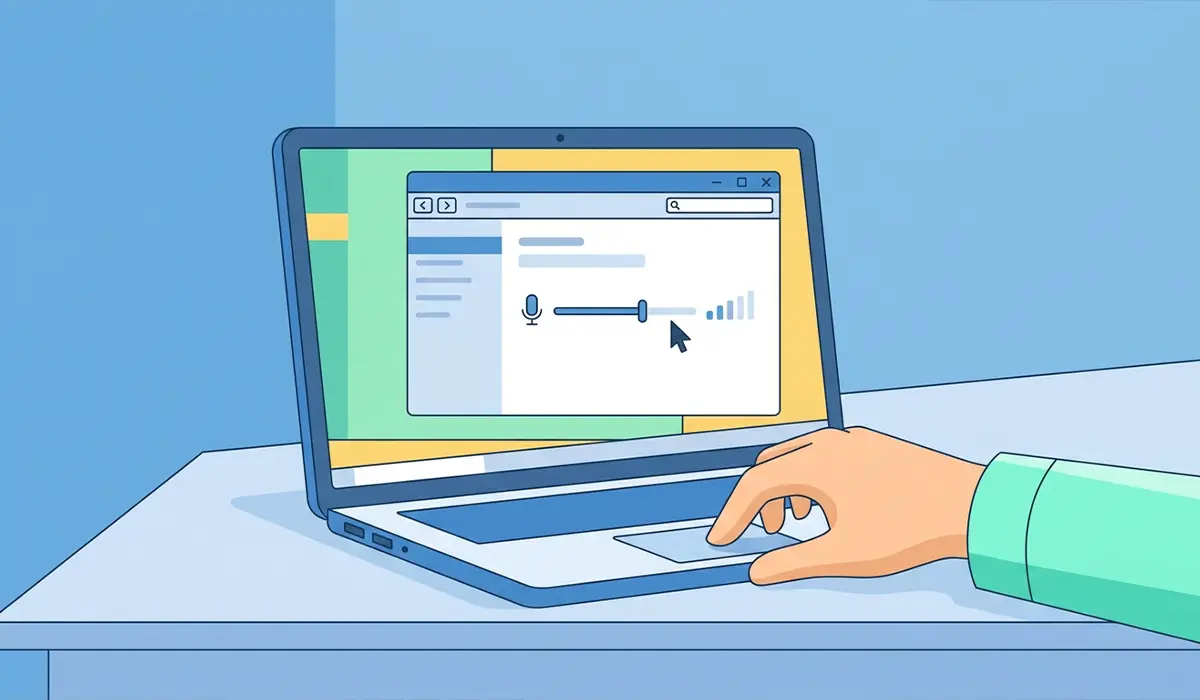
- Step 2: Click on the microphone device name to open its properties, then select the Levels tab. Raise the main Microphone slider and check that Microphone Boost is set to a moderate level rather than 0.0 dB. Too much boost introduces hiss, so small increases work better than maxing it out immediately.
- Step 3: Open Device Manager, expand Audio inputs and outputs, right-click the microphone or audio driver, and choose Update driver. Select ‘Search automatically for drivers.’ If a recent Windows update coincided with the volume drop, rolling back the driver from the same properties window can also help.
- Step 4: Confirm the correct default device is active. In Sound settings, make sure the built-in laptop microphone, not a disconnected headset or webcam, is set as the default input. A mismatched default is a frequent cause of what looks like a volume issue but is really the wrong device being used.
- Step 5: Check for exclusive mode conflicts. In the microphone’s properties under the Advanced tab, uncheck ‘Allow applications to take exclusive control of this device’ if it is enabled. This prevents one program from locking the mic and starving other apps of proper input levels.
- Step 6: Review app-level microphone settings. Video call software such as Zoom, Teams, or Discord often has its own input gain and noise suppression controls that override the system level. Lowering aggressive noise suppression or auto-gain features inside these apps frequently restores volume that Windows settings alone cannot fix.
- Step 7: Inspect and gently clean the microphone opening. Power down the laptop first. Using a soft brush or a short burst of compressed air held at a slight angle, clear any visible dust from the small microphone grille, usually located near the webcam or along the keyboard deck. Avoid inserting anything into the opening itself.
- Step 8: Test with an external microphone or headset. If input volume improves significantly with an external mic, the built-in microphone hardware itself may be at fault rather than any setting.
Tip: Record a short test clip in Windows Voice Recorder after each major change. It gives a clearer read on actual volume than watching the live input meter alone.
Common Problems and Fixes
Volume is still low after raising the input level
This usually points to Microphone Boost being left too low or a driver that is capping the input range. Revisit the Levels tab in the microphone’s properties and confirm boost is active, then reinstall the audio driver if the ceiling still seems low.
Microphone works in one app but not another
This is almost always an app-specific permission or input device setting rather than a system-wide issue. Check that microphone access is enabled for that app in Windows privacy settings, and confirm the app is pointed at the correct input device in its own audio preferences.
Volume fluctuates or cuts in and out
Inconsistent volume often traces back to automatic gain control or noise suppression reacting unpredictably to background sound. Turning off automatic gain features, either in Windows or inside the specific app, usually produces a steadier, more natural input level.
Microphone sounds muffled even after cleaning
If a light cleaning does not help, moisture exposure or age-related wear on the internal microphone component may be the cause. At this point, testing with an external USB or headset microphone is the fastest way to confirm whether the built-in hardware needs professional repair or replacement.
Frequently Asked Questions
Why is the microphone volume low on my laptop even at full volume?
This is typically caused by Microphone Boost being disabled, an outdated audio driver limiting the input range, or noise suppression in a specific app reducing the signal after Windows already picks it up.
Does Microphone Boost damage the microphone?
No, Microphone Boost simply amplifies the signal in software. Setting it too high can introduce background hiss or distortion, but it will not cause physical damage to the microphone hardware.
How much should Microphone Boost be raised?
A moderate increase, tested in small steps, usually works best. Raising it too far often adds noise rather than genuinely useful volume, so it helps to test with a short recording after each adjustment.
Why does the microphone work fine in one app but sound quiet in another?
Many apps have their own independent input gain and noise suppression settings that operate separately from Windows. Checking the audio settings inside that specific app usually resolves the difference.
Can a Windows update cause low microphone volume?
Yes, an update can sometimes install a generic audio driver in place of the laptop manufacturer’s driver, which may lower default gain settings. Rolling back or updating the driver directly through Device Manager typically fixes this.
Should the built-in microphone or an external one be used for calls?
Either works, but an external USB microphone or headset generally provides a stronger, more consistent signal since it sits closer to the mouth and is not affected by internal laptop noise or dust buildup.
Is it safe to clean the laptop’s microphone opening with compressed air?
Yes, a short burst of compressed air held at a slight angle away from the opening is a safe way to clear light dust. Avoid liquids, cotton swabs, or anything that could push debris further into the opening.
Why does the microphone level bar not move at all in Windows settings?
This usually means the wrong input device is selected as default, the microphone is muted at the hardware or driver level, or the correct device has not been chosen in the app currently being used.
Does exclusive mode affect microphone volume?
It can. When another application takes exclusive control of the microphone, it may apply its own gain settings that differ from the Windows default, which can make volume seem inconsistent across programs.
When does low microphone volume mean a hardware problem rather than a settings issue?
If volume stays low after adjusting levels, updating drivers, and confirming the correct default device, and an external microphone performs noticeably better than the built-in one, the internal microphone hardware is likely the cause and may need professional evaluation.
