
Knowing how to fix a noisy PC fan can turn a rattling, whining desktop back into a quiet machine in under an hour. Fan noise almost always comes from a short list of causes, such as dust, loose mounting, worn bearings, or a fan curve that reacts too aggressively. This guide walks through each one in the order that saves the most time.
Key Takeaways
- Pinpoint which fan is making the noise and what it sounds like before changing anything, since the sound type points to the cause.
- Dust buildup, loose screws, and cables touching the blades are the most common and cheapest problems to fix.
- A fan that speeds up and slows down constantly usually needs a smoother fan curve, not new hardware.
- Grinding or clicking that survives cleaning and tightening means worn bearings, and replacement is usually the better choice.
Common Causes of a Noisy PC Fan
A fan is a simple machine, but small problems get amplified by the thin metal of a PC case. Matching the sound to the likely cause makes the repair far quicker.
Whirring or Constant Loud Airflow
A steady loud whoosh usually means the fan is running at high speed because the system believes it is too hot. Dust-clogged filters, blocked intake vents, and a poorly set fan curve are the usual triggers.
Rattling or Buzzing
Rattling normally comes from a loose fan screw, a loose panel, or vibration passing from the fan into the case. A cable resting against the blades can also create a buzzing or ticking sound that changes with fan speed.
Grinding, Clicking, or Squealing
These sounds point to the fan itself. Bearings wear out over time, and a dry or damaged bearing produces a rough grinding or high-pitched squeal, often worse right after startup.
Speed Constantly Rising and Falling
If the fan seems to breathe in and out every few seconds, the fan curve is reacting to small temperature changes. The noise comes from the speed changes rather than from a damaged fan.
Before You Start
Most fan repairs are simple, but a few precautions keep the PC and the person working on it safe.
- Shut the PC down fully, switch off the power supply, and unplug the power cable. Press the power button once afterward to drain leftover charge.
- Touch bare metal on the case before handling parts, or wear an anti-static strap, to discharge static electricity.
- Gather the tools: a Phillips screwdriver, compressed air, a soft brush, a microfiber or lint-free cloth, 90 percent or higher isopropyl alcohol, a toothpick or plastic stick, and a few cable ties.
- Have a replacement fan with matching size and connector type ready if the old one turns out to be worn.
Never open the power supply unit itself, since its internal capacitors can hold a dangerous charge even when unplugged. If the noise comes from inside the power supply, stop and let a professional handle it. Opening a prebuilt PC may also affect its warranty, so check the terms first.
How to Fix a Noisy PC Fan: Step-by-Step
- Step 1: Find the noisy fan. With the PC running and the side panel off, listen from a safe distance and keep fingers, cables, and tools clear of the blades. Check the CPU cooler fan, the case fans, the graphics card fans, and the power supply fan one at a time. Noise that stays the same at every speed is mechanical, while noise that only appears at high speed is usually a heat or fan curve issue.
- Step 2: Review the fan curve. Open the BIOS or UEFI fan control page, or use the motherboard manufacturer’s fan software, and look at how fan speed responds to temperature. Choose a smoother profile or add a short delay or step-up time if the option exists, so brief temperature spikes no longer cause sudden loud bursts.
- Step 3: Match the fan control mode to the fan. Fans with a three-pin connector are controlled by voltage (DC mode), while fans with a four-pin connector use PWM. A wrong mode setting can cause erratic speed, ticking, or a fan that refuses to slow down.
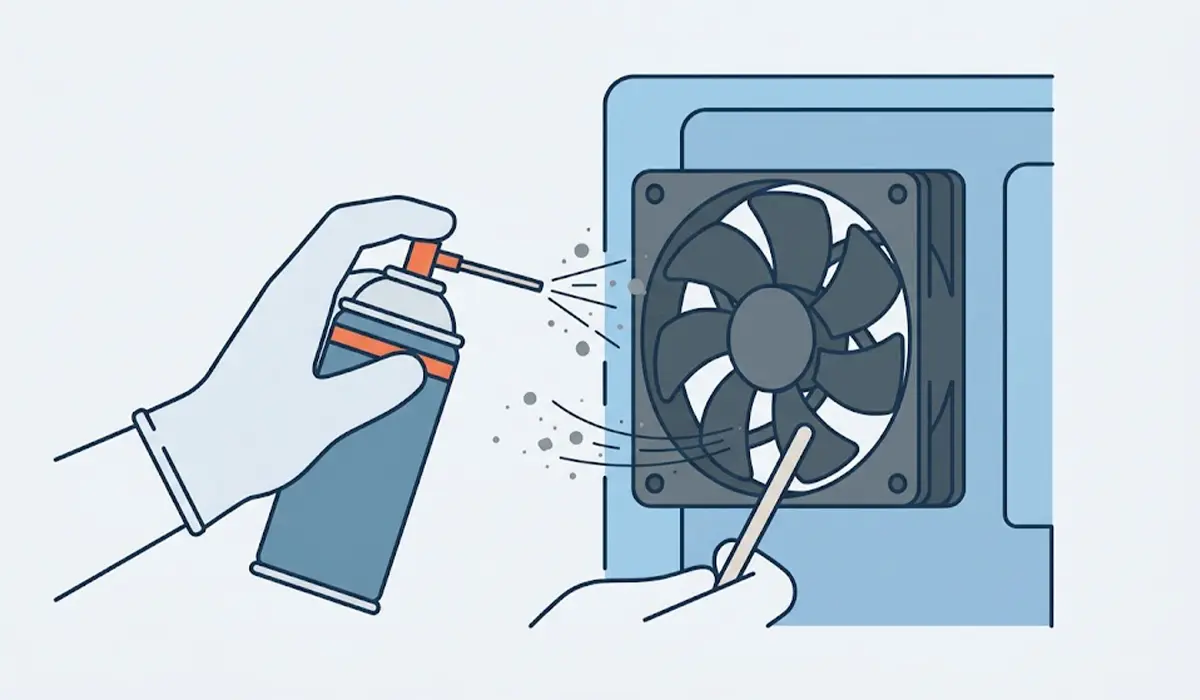
- Step 4: Power down and unplug the PC, then clean the fans. Hold each fan blade still with a toothpick or plastic stick so it cannot spin freely, then clear dust with short bursts of compressed air. Wipe stubborn grime from the blades with a cloth lightly dampened with isopropyl alcohol, and let everything dry fully before powering on.
- Step 5: Clean the dust filters and vents. Slide out or detach the intake filters, brush them clean, and clear the front and top vents. Restricted airflow forces fans to work harder and louder.
- Step 6: Check the mounting. Gently tighten each fan screw until snug, without overtightening. If a fan sits directly against metal, rubber fan mounts or anti-vibration pads can stop the case from amplifying the hum.
- Step 7: Tidy the cables. Route loose cables away from the blades and secure them with cable ties, keeping them clear of the path of every fan.
- Step 8: Inspect the bearing. Spin the fan gently by hand with the PC off. A smooth, quiet coast is healthy, while grinding, wobble, or sudden stopping signals wear. Some sleeve-bearing fans have a small sticker covering an oiling point, and a single drop of light machine oil there can quiet them. Many fans are sealed and cannot be oiled.
- Step 9: Replace the fan if the noise remains. Match the size (such as 120 mm or 140 mm), the connector type, and the mounting pattern. Choosing a fan with a quality bearing design and rubber corners usually gives the quietest result.
Tip: Change one thing at a time and test after each step. That way it is clear which fix solved the problem, and the same fix can be repeated in the future.
Which Fan Is Most Often the Culprit
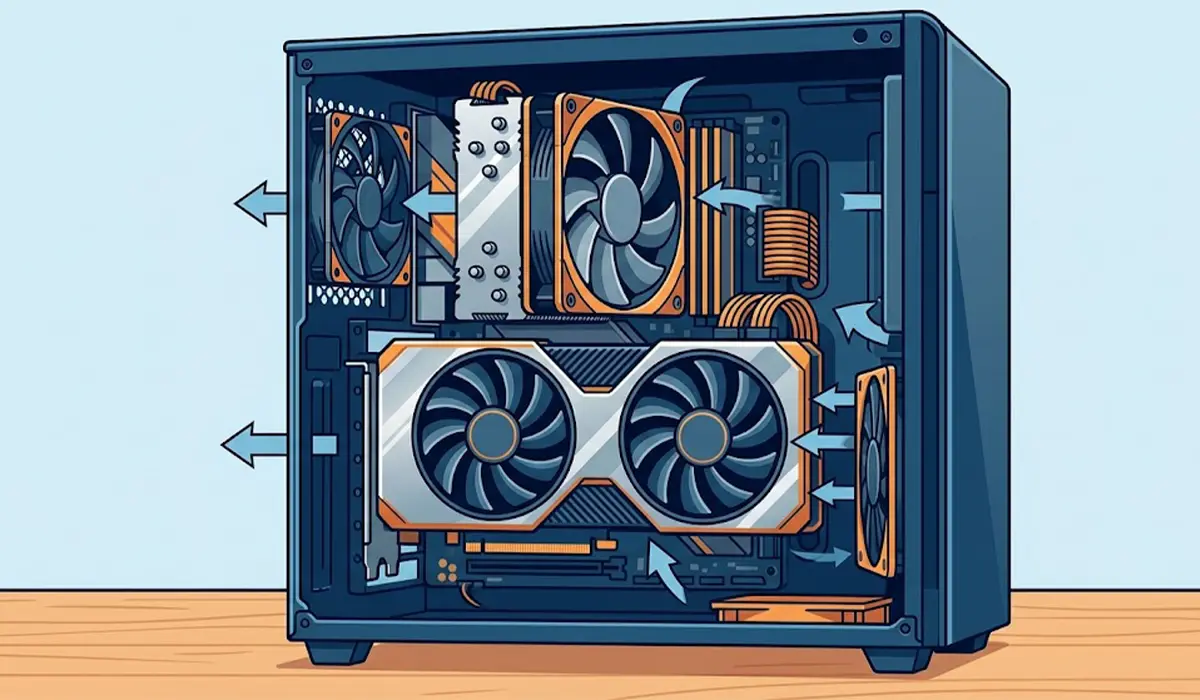
The graphics card and CPU cooler fans work hardest, so they tend to get loud first. A fan that is loud only under heavy gaming or rendering often points to airflow trouble inside the case, while a fan that is loud at idle usually has a mechanical issue.
Keeping a PC Fan Quiet After the Fix
Quiet fans stay quiet with light, regular upkeep. Brushing the filters and blowing out dust every few months prevents most of the problems above before they start.

Tip: Leave a little room around intake fans and avoid pushing the PC tight against a wall or into a closed cabinet. Starved fans get louder because they have to pull harder for the same airflow.
Common Problems and Fixes
The Fan Is Still Loud After Cleaning
Persistent noise after cleaning usually means a worn bearing or a fan curve that is too aggressive. Test the fan at a lower fixed speed in the BIOS. If it still grinds or clicks, replace it.
The Fan Is Quiet at Idle but Loud in Games
This points to heat rather than a faulty fan. Check that the filters are clean, the case has clear intake and exhaust paths, and the fan curve is not set too late, which can force a sudden jump in speed.
A Fan Will Not Spin After Cleaning or Reseating
Check that the connector is seated fully on the correct header, and that no cable is pressing against the blades. If the fan still will not spin, test it on a different header or replace it.
The Noise Returns After a Few Weeks
Returning noise is often caused by a loose screw that backed out from vibration, or by dust returning to an unfiltered intake. Recheck the mounting and make sure all intake fans have a clean filter.
The Fan Speed Will Not Change in the BIOS
This is often a control mode mismatch between DC and PWM, or a fan connected to a header that does not support speed control. Move the fan to a header designed for case or CPU fans and set the matching mode.
Frequently Asked Questions
Why is my PC fan suddenly so loud?
A sudden increase in noise is usually caused by dust buildup, rising temperatures, a loosened screw, or a bearing that has started to fail. Cleaning the fans and filters and checking the mounting resolves most cases.
Is a noisy PC fan dangerous?
Noise itself is not dangerous, but it can warn of a failing fan. If a fan stops or runs poorly, components can overheat, so a grinding or stuttering fan should be fixed or replaced promptly.
Can dust really make a PC fan louder?
Yes. Dust on the blades throws them slightly off balance, and clogged filters force fans to spin faster to move the same amount of air. Both effects increase noise.
Should a noisy PC fan be oiled?
Only if the fan is designed for it. Some sleeve-bearing fans have an oiling point under a label, and a small drop of light machine oil can help. Sealed fans should be replaced instead, and general-purpose spray lubricants should never be used.
Why does the PC fan keep speeding up and slowing down?
The fan curve is probably reacting to small temperature changes. Smoothing the curve, adding a response delay, or raising the temperature point at which the fan speeds up usually stops the constant pulsing.
How can the noisy fan be identified?
With the side panel off, listen to each fan from a safe distance and compare the sound at idle and under load. Lowering individual fan speeds in the BIOS one at a time also helps show which fan is responsible.
Is it better to replace a noisy fan or repair it?
Cleaning and tightening are worth trying first, since they cost nothing. Once the noise comes from the bearing itself, replacement is the more reliable fix because case fans are inexpensive and easy to swap.
Will lowering fan speed cause overheating?
It can if the speed is set too low for the workload. A balanced fan curve keeps fans slow at idle and ramps them up as temperatures climb, so the PC stays cool without unnecessary noise.
