
Learning how to clean laptop touchpad surfaces properly can fix erratic cursor movement, sticky tracking, and unresponsive clicks without opening the laptop or touching a single screw. A grimy touchpad is one of the most common causes of frustrating cursor behavior, and the fix usually takes less than ten minutes.
Key Takeaways
- Most touchpad problems come from oil, dust, and skin residue building up on the sensor surface, not from hardware failure.
- Isopropyl alcohol at 90 percent or higher and a lint-free cloth are the only supplies most cleanings require.
- Powering down the laptop before cleaning prevents accidental input and protects the trackpad’s sensor layer.
- Avoid water, household glass cleaner, and abrasive materials, since they can seep under the surface and damage the sensor.
- Deeper buildup around the edges or under the palm rest may need a soft brush or plastic pry tool for the surrounding trim.
Before You Start
A few quick precautions keep the process safe and prevent any accidental damage to the trackpad or the components underneath it.
- Power off the laptop completely and unplug the charger. Cleaning a live touchpad can register phantom clicks or drag actions.
- Let the laptop cool down for a few minutes if it has been running, since warm plastic and glass surfaces show streaks more easily.
- Work on a clean, flat surface with good lighting so smudges and debris are easy to spot.
- If the laptop has a removable battery, taking it out adds an extra layer of safety, though this is optional for most modern laptops with sealed batteries.
Opening the laptop chassis is not required for a standard touchpad cleaning. If the trackpad feels physically loose, clicks unevenly on one side, or shows visible cracking, that points to a hardware issue rather than a cleaning problem, and a qualified repair technician should take a look before anything else is attempted.
Tools and Materials Needed
- Isopropyl alcohol, 90 percent concentration or higher
- A lint-free microfiber cloth
- A soft-bristled brush, such as a clean makeup brush or soft toothbrush, for edges and seams
- Compressed air for dust around the trackpad border
- A plastic pry tool or old gift card, only if buildup has collected under the trackpad’s edge trim
- Cotton swabs for tight corners
How to Clean Laptop Touchpad: Step-by-Step
This process works the same way across glass, plastic, and precision touchpad surfaces found on most modern laptops.
- Step 1: Shut down the laptop fully and unplug any connected cables. Close any external mouse connections as well, since a wireless dongle can interfere with testing later.
- Step 2: Wipe the touchpad surface with a dry section of the microfiber cloth first. This lifts loose dust and crumbs before any liquid touches the surface, which prevents grinding debris into the finish.
- Step 3: Dampen a fresh section of the cloth with isopropyl alcohol. The cloth should feel slightly moist, not wet. Excess liquid is the main risk here, since it can wick along the edge and reach the ribbon cable underneath.
- Step 4: Wipe the touchpad in one direction using light, even pressure, then repeat in the opposite direction. Avoid circular scrubbing, which tends to push residue into the seam around the edge instead of lifting it away.
- Step 5: Use a cotton swab lightly dampened with alcohol to clean the border where the touchpad meets the palm rest. This is where finger oil and dead skin tend to collect most.
- Step 6: Let the surface air dry for a minute or two before closing the lid or powering the laptop back on. Isopropyl alcohol evaporates quickly, so this step rarely takes long.
- Step 7: Power the laptop on and test the touchpad’s tracking, clicking, and scrolling gestures across the full surface, including the corners.
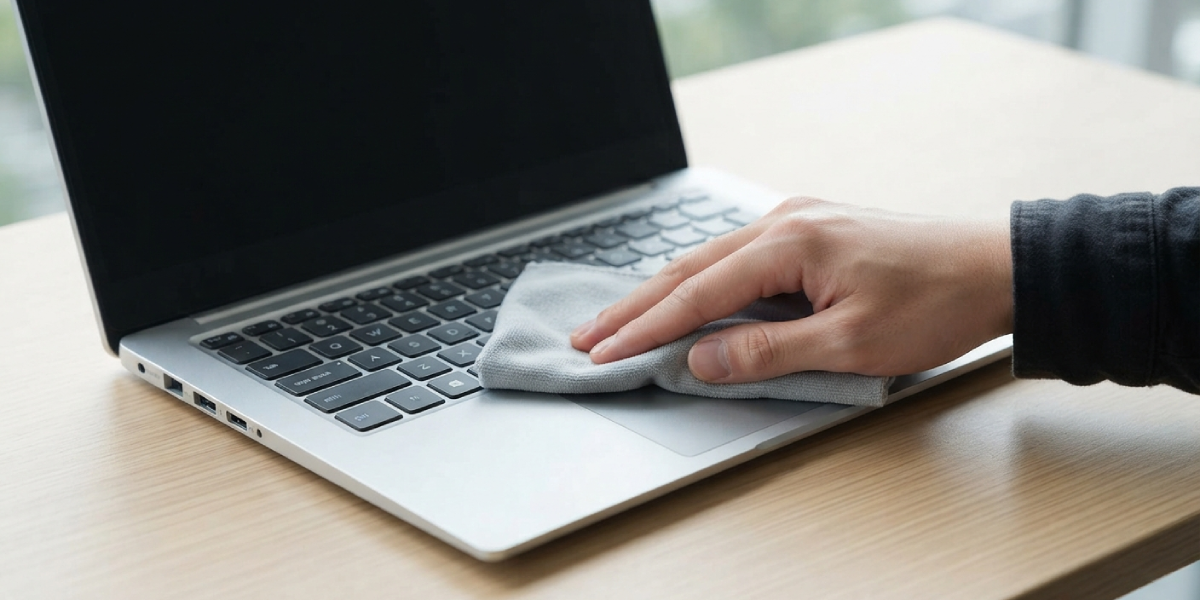
Tip: Wrap the cloth around a fingertip rather than balling it up loosely. This gives more control over pressure and keeps alcohol from pooling in one spot.
Cleaning Around a Physical Click-Pad
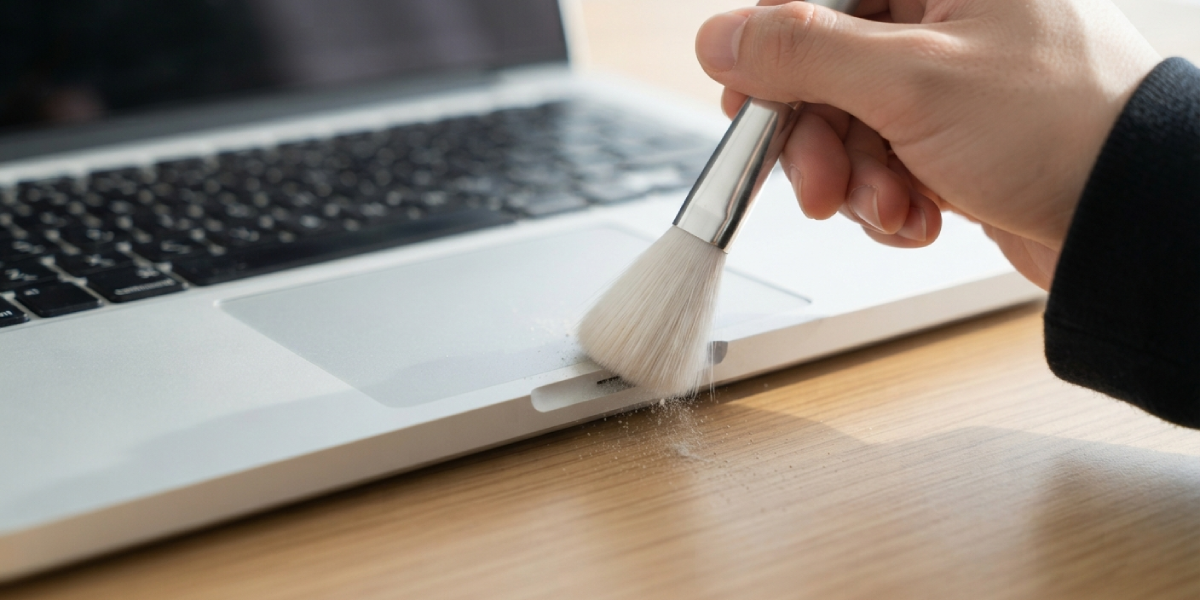
Laptops with a separate hinge or click mechanism under the pad sometimes trap dust along the bottom edge, where the pad tilts to register a click. A dry, soft brush works well here, since liquid can seep into the hinge gap. Compressed air held at a slight angle also clears out debris without introducing moisture near the mechanism.
Dealing with Sticky or Tacky Residue
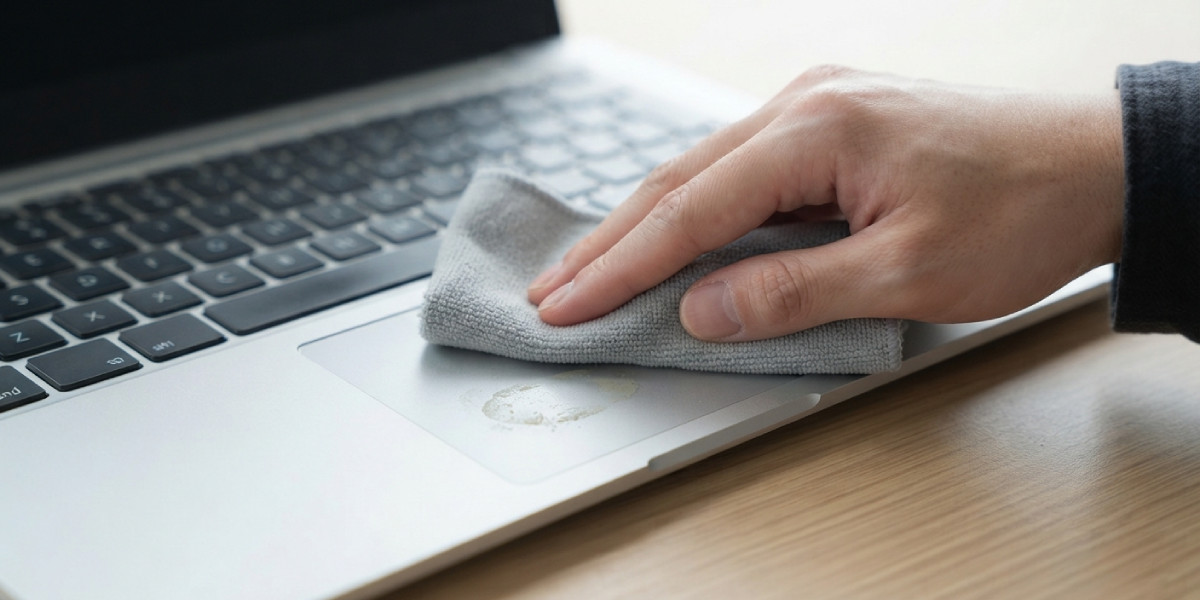
Spilled drinks, hand lotion, or food residue can leave a tacky film that a single wipe will not fully remove. In this case, several light passes with a freshly dampened cloth work better than one heavy pass. Pressing too hard on a single spot risks flexing the trackpad against the sensor board underneath, so patience matters more than pressure.
Common Problems and Fixes
Touchpad Still Feels Sticky After Cleaning
This usually means residue was pushed into the seam rather than lifted off. A cotton swab dampened with alcohol, run carefully along the border, typically clears what a cloth alone missed.
Cursor Jumps or Drifts After Cleaning
A small amount of alcohol may still be evaporating near the sensor edge, which can cause brief false readings. Waiting a few extra minutes before use, and confirming the cloth was only damp rather than wet, usually resolves this.
Touchpad Feels Rough or Less Smooth Than Before
Certain glass touchpads have an oleophobic coating that reduces finger drag. Repeated alcohol cleaning over a long period can gradually wear this coating down. Cleaning only when needed, rather than daily, helps preserve the surface feel.
Clicks Register Inconsistently in One Corner
If cleaning does not resolve uneven clicking on a physical click-pad, the issue is likely mechanical rather than related to surface residue, and it points toward the hinge or click mechanism underneath needing professional attention.
Touchpad Stops Responding Entirely After Cleaning
This is rare and usually unrelated to the cleaning itself. Restarting the laptop and checking the touchpad driver or enabling it through a function key combination resolves most cases. Persistent unresponsiveness after a restart suggests a driver or connection issue rather than a cleaning problem.
Frequently Asked Questions
How often should a laptop touchpad be cleaned?
A light wipe with a dry microfiber cloth every week or two keeps most buildup from forming, with a deeper alcohol cleaning every month or so for heavier daily use.
Can water be used instead of isopropyl alcohol?
Water is not recommended, since it evaporates slowly and can seep into seams around the trackpad, risking moisture damage to the sensor or ribbon cable underneath.
Is it safe to use disinfecting wipes on a touchpad?
Many disinfecting wipes contain bleach or strong chemicals that can strip protective coatings or leave streaks. A cloth dampened with isopropyl alcohol is the safer, more controlled option.
Why does the touchpad feel greasy again so quickly after cleaning?
Finger oils naturally transfer with regular use, so some residue returning within a day or two is normal. Washing hands before typing sessions can slow this buildup.
Can compressed air alone clean a touchpad?
Compressed air removes loose dust and crumbs well but does not address oil or grime, so it works best as a first pass before a damp cloth follows.
What concentration of isopropyl alcohol works best for this task?
A concentration of 90 percent or higher is preferred, since it evaporates faster and leaves less residual moisture near the trackpad’s edges compared to lower concentrations.
Does cleaning the touchpad fix erratic cursor movement caused by software?
No. If the cursor jumps or lags due to a driver conflict or outdated touchpad software, cleaning the surface will not resolve it, and updating or reinstalling the touchpad driver is the correct fix.
Is it safe to clean a touchpad while the laptop is asleep instead of fully off?
Fully powering down is safer, since sleep mode can still register touch input and cause unintended clicks or gesture actions during cleaning.
Can rubbing alcohol be substituted for isopropyl alcohol?
Standard rubbing alcohol is typically isopropyl alcohol at a lower concentration, usually around 70 percent, which works but evaporates more slowly and leaves more residual moisture than a 90 percent solution.
