
When Outlook search stops returning results or misses emails that clearly exist, the fastest fix is usually to rebuild the Outlook search index. This guide walks through the exact steps, using the built-in Windows Indexing Options tool, so search works reliably again.
Key Takeaways
- Rebuilding the Outlook search index clears the corrupted catalog and forces Windows to reindex every mailbox item from scratch.
- The process runs through Control Panel’s Indexing Options, not through a setting inside Outlook itself.
- A full rebuild can take anywhere from thirty minutes to several hours, depending on mailbox size.
- Outlook should stay open (or be reopened right after starting the rebuild) so indexing can run in the background.
- New Outlook for Windows and Outlook on the web use server-side search, so this process only applies to classic desktop Outlook.
How to Rebuild the Outlook Search Index
This is the core fix for slow, incomplete, or missing search results in classic Outlook. Follow these steps in order and avoid skipping the verification step, since a missing indexed location is one of the most common reasons search never recovers.
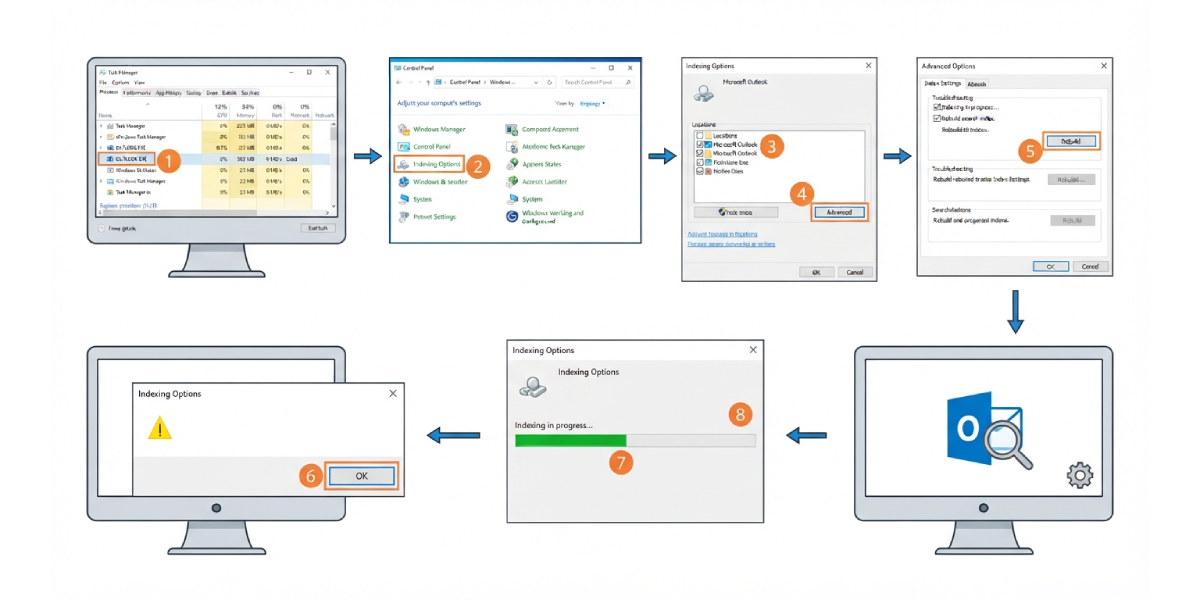
Step-by-Step Instructions
- Step 1: Close Outlook completely. Check Task Manager and end any lingering OUTLOOK.EXE process before continuing, since a background process can interfere with the rebuild.
- Step 2: Open Control Panel and select Indexing Options. Typing ‘Indexing’ into the Windows search bar and choosing Indexing Options works just as well.
- Step 3: Confirm that Microsoft Outlook appears in the list of indexed locations. If it is missing, select Modify, check the box next to Microsoft Outlook, and select OK.
- Step 4: Select Advanced. This opens the Advanced Options dialog box, where the actual rebuild controls live.
- Step 5: On the Index Settings tab, under Troubleshooting, select Rebuild.
- Step 6: Confirm the warning that appears. This step deletes the existing index and starts a fresh one, so search results will be incomplete until the process finishes.
- Step 7: Select OK, then Close, to exit the Indexing Options windows.
- Step 8: Reopen Outlook and leave the computer on and idle when possible. Indexing runs fastest when nothing else is competing for system resources.
Tip: Check progress anytime by clicking into the Outlook search box and choosing Search Tools, then Indexing Status. The count should steadily drop toward zero remaining items.
Verifying the Rebuild Worked
Once the indexing status shows zero items remaining, run a test search for a term known to appear in an older email. A returned result confirms the index has caught up. This works best when the test message sits several weeks or months back in the mailbox, since recent items tend to index first.

Common Problems and Fixes
- The Rebuild button is greyed out: This usually means Outlook is still running or a related process is stuck. Close Outlook fully, confirm no OUTLOOK.EXE process remains in Task Manager, and reopen Indexing Options.
- Microsoft Outlook is not listed under indexed locations: Select Modify in Indexing Options and check the box for Microsoft Outlook. Without this, no amount of rebuilding will fix search, since the mailbox was never included in the first place.
- Indexing seems stuck at the same item count for a long time: Large PST or OST files, or a laptop that keeps going to sleep, can stall the process. Keep the machine plugged in and awake, and give it more time before assuming something is wrong.
- Search still misses results after the rebuild finishes: Check Advanced options under File Types and confirm the .msg extension is set to ‘Index Properties and File Contents,’ not just properties alone.
- Rebuild keeps restarting on its own: Avoid changing indexed locations while a rebuild is in progress, since that action can trigger the process to start over from the beginning.
Frequently Asked Questions
How long does it take to rebuild the Outlook search index?
Most rebuilds finish within thirty minutes to a few hours, though very large mailboxes with years of PST or OST data can take longer. Leaving the computer on and idle speeds things up considerably.
Can Outlook still be used while the index rebuilds?
Yes. Outlook can stay open and functional during the rebuild, but search results will be incomplete until indexing finishes catching up on the mailbox.
Where is the Rebuild option located?
It sits in Control Panel under Indexing Options, then Advanced, then the Index Settings tab under Troubleshooting. It can also be reached from inside classic Outlook through File, then Options, then Search, then Indexing Options.
Why is Microsoft Outlook missing from the indexed locations list?
This typically happens after a fresh Outlook install or a profile change. Selecting Modify in Indexing Options and checking Microsoft Outlook adds it back to the list.
Does rebuilding the index delete any emails?
No. The rebuild only affects the search catalog, which is a separate database used for locating items quickly. No emails, contacts, or calendar items are removed.
Does this process work for new Outlook or Outlook on the web?
No. New Outlook for Windows and Outlook on the web rely on server-side search hosted by Microsoft, so there is no local index to rebuild. This process applies to classic desktop Outlook only.
What should be done if the rebuild never completes?
Confirm the PC has been left idle for an extended stretch, since indexing only runs at full speed when the system is not busy. If it still never finishes after several hours, contacting Microsoft Support for help with Windows Desktop Search is the next step.
How can indexing progress be checked during a rebuild?
Click into the Outlook search box, then select Search Tools, then Indexing Status. This shows how many items remain to be indexed in real time.
Is it necessary to restart the computer after rebuilding the index?
A restart is not required. Reopening Outlook after starting the rebuild is enough for indexing to continue running in the background.
