
Knowing how to disable fast startup to fix boot issues can save a lot of frustration when a Windows PC hangs on the logo, ignores BIOS changes, or boots into a strange half-updated state. Fast startup saves a snapshot of the system to disk at shutdown, and that snapshot sometimes carries old errors straight into the next session. Turning it off forces a clean boot every time, and the whole process takes about two minutes.
Key Takeaways
- Fast startup is a hybrid shutdown that saves the Windows kernel state to a hibernation file, so the next boot reloads it instead of starting fresh.
- The quickest way to turn it off is Power Options in Control Panel, by unchecking the fast startup box.
- A Restart always performs a full reboot, so it can confirm whether fast startup is the cause before any setting is changed.
- Disabling fast startup may add a few seconds to boot time, which is most noticeable on a hard drive and barely noticeable on an SSD.
Before You Start
This is a software setting, so no tools or disassembly are needed. Save any open work, then sign in with an administrator account, because the setting is locked for standard users. The Control Panel method works on both Windows 10 and Windows 11. Registry and Group Policy methods are covered further down for cases where the checkbox is missing or keeps reverting.
How to Disable Fast Startup in Windows Using Control Panel
This is the method most people need, and it is the safest. Follow the steps in order.
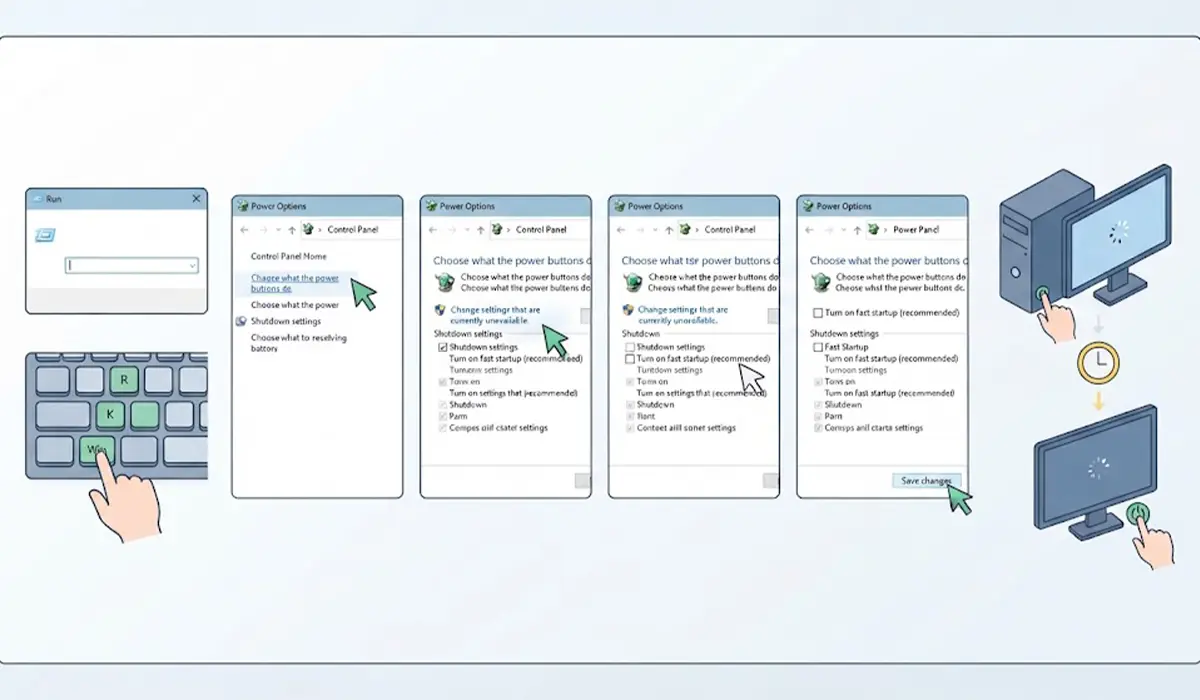
- Step 1: Press the Windows key and R together to open the Run box, type powercfg.cpl, and press Enter. The Power Options window opens.
- Step 2: Click ‘Choose what the power buttons do’ in the left-hand menu.
- Step 3: Click ‘Change settings that are currently unavailable’. Approve the administrator prompt if one appears. This unlocks the greyed-out options in the Shutdown settings section.
- Step 4: Under Shutdown settings, uncheck ‘Turn on fast startup (recommended)’.
- Step 5: Click ‘Save changes’ and close the window.
- Step 6: Shut the PC down completely, wait about ten seconds, and power it back on to test the result.
Tip: Before changing anything, click Restart instead of Shut down. Restart skips fast startup entirely, so if the boot problem disappears after a restart but returns after a shutdown, fast startup is almost certainly the cause.
Other Ways to Turn Off Fast Startup
If the checkbox is missing, greyed out, or keeps turning itself back on, one of these methods usually solves it.
Disable Fast Startup With Command Prompt
Fast startup depends on hibernation. Turning hibernation off removes the fast startup option altogether.
- Step 1: Click Start, type cmd, right-click Command Prompt, and choose ‘Run as administrator’.
- Step 2: Type powercfg /hibernate off and press Enter.
- Step 3: Close the window and restart the PC.
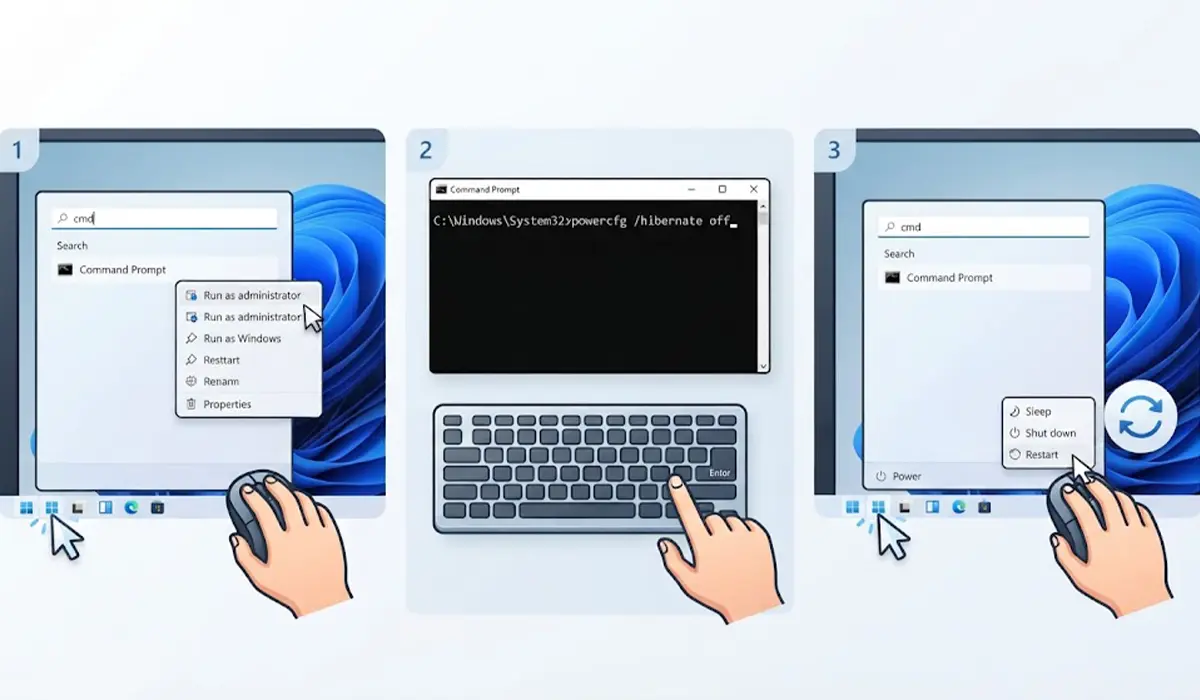
This also disables the Hibernate power option and deletes the hiberfil.sys file, which frees some disk space. To bring everything back later, run powercfg /hibernate on in the same elevated window.
Disable Fast Startup With the Registry Editor
This method suits situations where the Control Panel option behaves oddly. Registry edits affect core system behavior, so follow each step exactly.
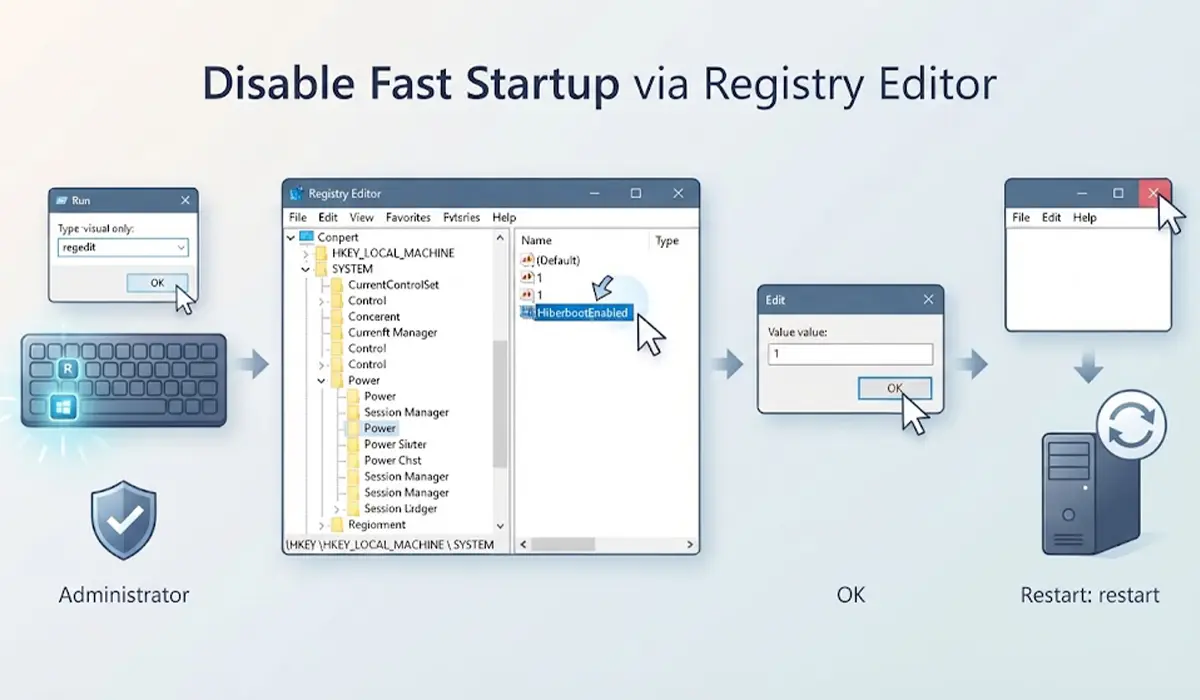
- Step 1: Press the Windows key and R, type regedit, and press Enter. Approve the administrator prompt.
- Step 2: Browse to HKEY_LOCAL_MACHINE\SYSTEM\CurrentControlSet\Control\Session Manager\Power.
- Step 3: Double-click the HiberbootEnabled value in the right-hand pane.
- Step 4: Change the Value data to 0 and click OK.
- Step 5: Close the Registry Editor and restart the PC.
Disable Fast Startup With Group Policy Editor
Windows Pro, Enterprise, and Education include the Local Group Policy Editor, which is useful when the setting is managed by policy. Windows Home does not include it.
- Step 1: Press the Windows key and R, type gpedit.msc, and press Enter.
- Step 2: Go to Computer Configuration, then Administrative Templates, then System, then Shutdown.
- Step 3: Double-click ‘Require use of fast startup’.
- Step 4: Select Disabled, click Apply, then click OK.
- Step 5: Restart the PC.
Tip: On a work or school PC, a policy set by an administrator can override local changes. If the setting keeps returning, the policy source needs to be changed by whoever manages the device.
Do a One-Time Full Shutdown Without Changing Settings
Sometimes a single clean boot is all that is needed. Hold the Shift key while clicking Shut down from the Start menu, and Windows performs a full shutdown that skips the saved snapshot. A full shutdown can also be triggered by typing shutdown /s /full /t 0 in Command Prompt. Both approaches leave the fast startup setting untouched, which makes them handy for testing.
Common Problems and Fixes
The Fast Startup Checkbox Is Greyed Out
The options under Shutdown settings stay locked until ‘Change settings that are currently unavailable’ is clicked. That link requires an administrator account. If the link is clicked and the box is still locked, use the Command Prompt or Registry method instead.
The Fast Startup Option Is Missing Entirely
The option only appears when hibernation is enabled. Run powercfg /hibernate on from an elevated Command Prompt, reopen Power Options, and the checkbox should appear. It can then be unchecked normally.
Fast Startup Turns Itself Back On
Major Windows updates occasionally restore default power settings. Repeat the Control Panel steps after a large update, or use the Group Policy method on editions that support it for a more lasting result.
The PC Still Hangs at Boot After Disabling Fast Startup
If boot problems continue with fast startup off, the cause lies elsewhere. Common culprits include a failing drive, corrupted system files, a faulty startup program, or an outdated BIOS. At that point, running a drive health check and scanning for corrupted system files are the logical next moves. If the PC will not reach Windows at all, a qualified technician is the safest option.
Boot Speed Feels Slower Than Before
A slightly longer boot is the expected trade-off, because Windows now loads everything fresh. If startup feels too slow, reviewing the list of startup programs in Task Manager usually recovers more time than fast startup ever did.
Frequently Asked Questions
What is fast startup in Windows?
Fast startup is a hybrid shutdown feature in Windows 10 and Windows 11. At shutdown, Windows closes user sessions but saves the kernel state to a hibernation file, then reloads it at the next power-on to speed up boot.
Is it safe to disable fast startup?
Yes. Disabling fast startup is safe and does not affect files, programs, or personal data. It only changes how Windows shuts down and starts up, and it can be turned back on at any time.
Will disabling fast startup make my PC slower?
Boot time may increase by a few seconds, especially on a traditional hard drive. Once Windows has loaded, performance is exactly the same as before.
Why does fast startup cause boot problems?
Because the system state is saved and reloaded instead of rebuilt, driver glitches, stuck hardware states, and incomplete updates can carry over from one session to the next. A full shutdown clears those leftovers.
Does Restart use fast startup?
No. Restart performs a full reboot and ignores fast startup. That is why a problem that disappears after a restart but returns after a shutdown points directly to fast startup.
Why is the fast startup option missing from Power Options?
The option is hidden when hibernation is turned off. Running powercfg /hibernate on in an elevated Command Prompt brings the option back.
Can fast startup cause problems on dual-boot systems?
Yes. With fast startup active, Windows may leave the drive in a hibernated state, which can lock Windows partitions or cause errors when another operating system tries to access them. Disabling fast startup avoids this.
How can a full shutdown be done without turning off fast startup?
Hold Shift while clicking Shut down in the Start menu, or run shutdown /s /full /t 0 in Command Prompt. Either method performs a one-time full shutdown and leaves the setting unchanged.
