
Knowing how to enable Secure Boot in BIOS takes a few minutes and adds a real layer of protection against malware that loads before Windows even starts. The setting lives in the UEFI firmware, and the exact menu name changes from one manufacturer to the next. This guide covers the full process, from checking the current status to fixing a greyed-out option.
Key Takeaways
- Secure Boot only works when the PC runs in UEFI mode, so Legacy or CSM mode must be turned off first.
- Windows needs a GPT-partitioned system disk to boot in UEFI mode with Secure Boot on.
- A greyed-out Secure Boot option is usually fixed by clearing or restoring the factory keys, or by setting an administrator password.
- Save the BitLocker recovery key before changing firmware settings, since a recovery prompt can appear afterward.
- The msinfo32 tool in Windows confirms whether Secure Boot is really active.
Before You Start
No screwdrivers or opening of the case is needed, so this is a settings change only. A little prep still prevents the common surprises.
- Save open work and close all programs, since the PC will restart several times.
- Back up the BitLocker recovery key if drive encryption or Device Encryption is on. It can be found in the Microsoft account online or in a work or school account portal.
- Have the PC plugged into power, especially on a laptop, so a firmware change never gets interrupted by a dead battery.
- Know the system disk type. Windows can show this in Disk Management, where the Properties of Disk 0 list the partition style as GPT or MBR.
Firmware menus are safe to browse, but changing unrelated options can cause boot problems. If a screen looks unfamiliar or the PC will not start after a change, stop and ask a qualified technician or the manufacturer’s support team rather than guessing.
How to Enable Secure Boot in BIOS: Step-by-Step
Check Whether Secure Boot Is Already On
Many modern PCs ship with Secure Boot already enabled, so a quick check can save time. Press the Windows key, type msinfo32, and open System Information. Look at the entries named BIOS Mode and Secure Boot State. If BIOS Mode says UEFI and Secure Boot State says On, nothing more needs to be done. If Secure Boot State says Off, continue. If BIOS Mode says Legacy, the disk conversion in the next section is needed first.
Turn On Secure Boot
- Step 1: Open the Start menu, go to Settings, then System, then Recovery. Next to Advanced startup, select Restart now. Alternatively, restart the PC and tap the firmware key repeatedly as it powers on. Common keys are Delete, F2, F10, F12, and Esc, and the correct one is usually shown on the startup splash screen.
- Step 2: If the Advanced startup route was used, choose Troubleshoot, then Advanced options, then UEFI Firmware Settings, and select Restart.
- Step 3: Once inside the BIOS or UEFI screen, switch to Advanced Mode if the manufacturer offers an Easy Mode. Many boards show the full settings after pressing F7 or a similar key.
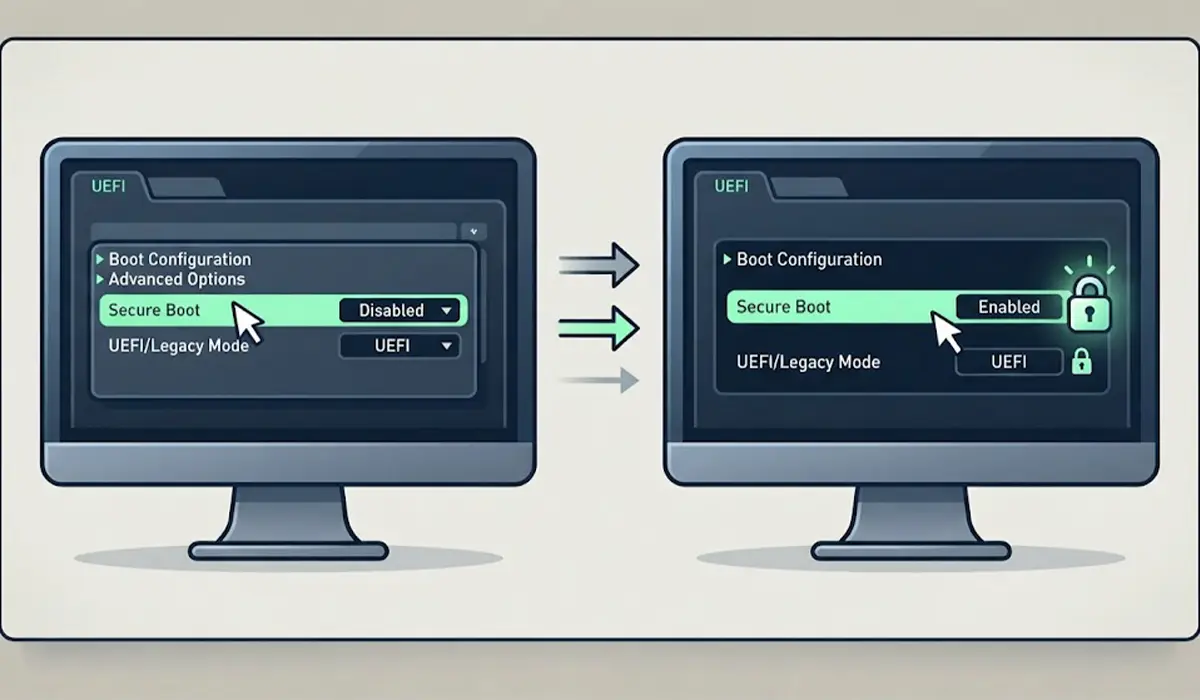
- Step 4: Find the boot mode setting. It may be listed under Boot, Boot Configuration, or BIOS Features. Set the boot mode to UEFI and disable CSM (Compatibility Support Module) or Legacy Support.
- Step 5: Locate the Secure Boot setting. Depending on the brand, it sits under the Boot, Security, or Authentication tab. Some systems group it under a menu named Secure Boot Configuration.
- Step 6: Set Secure Boot to Enabled. If a Secure Boot Mode option appears, choose Standard rather than Custom, since Standard loads the manufacturer’s default keys.
- Step 7: If the menu asks to install or restore the default Secure Boot keys, accept. This option is often named Install Default Secure Boot Keys or Restore Factory Keys.
- Step 8: Save and exit, usually with F10, then confirm the prompt. The PC restarts and loads Windows with Secure Boot active.
- Step 9: Open msinfo32 again and confirm that Secure Boot State now reads On.
Tip: Take a phone photo of each BIOS screen before changing anything. That makes it easy to reverse a setting later if something behaves unexpectedly.
Convert the Disk to GPT if Windows Will Not Boot
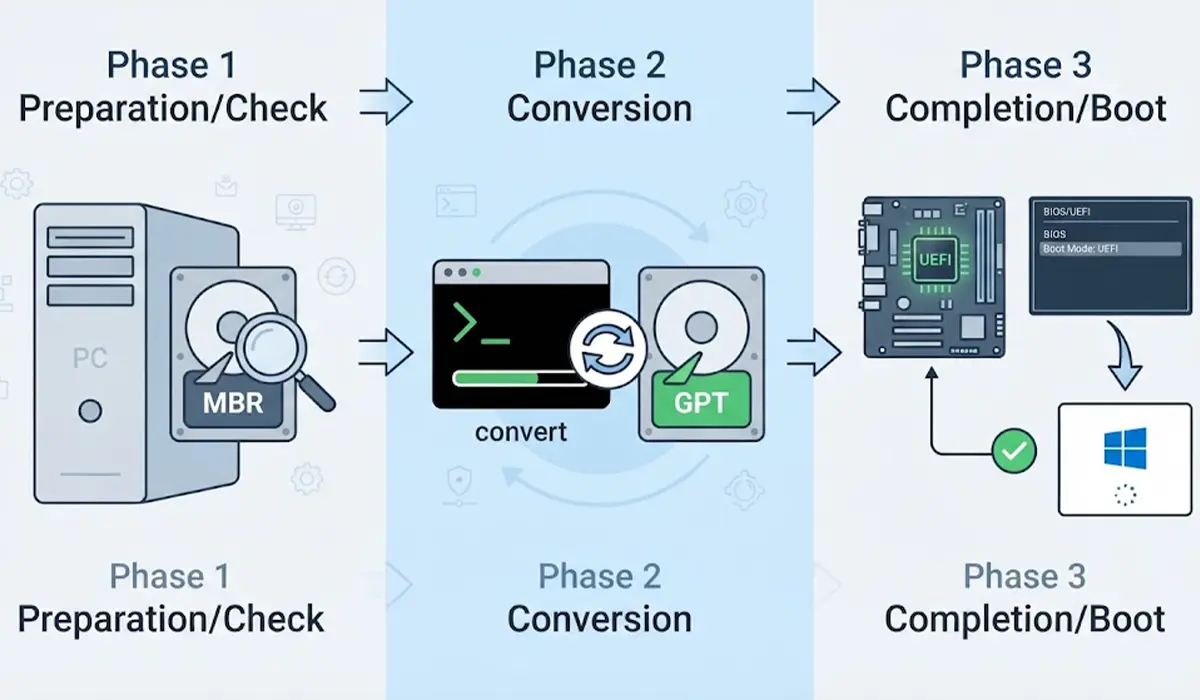
If the system disk uses the older MBR style, Windows cannot boot in pure UEFI mode, and turning off CSM will lead to a boot error. Windows includes a tool called MBR2GPT for this. From an administrator Command Prompt, run mbr2gpt /validate /disk:0 first. If validation passes, run mbr2gpt /convert /disk:0, then restart straight into the firmware settings and switch the boot mode to UEFI. A full backup of important files should be made before this conversion. If validation fails, stop there and get professional help instead of forcing the change.
Tip: Always run the validate command before the convert command. Validation changes nothing on the disk and reports problems safely.
Why Secure Boot Matters
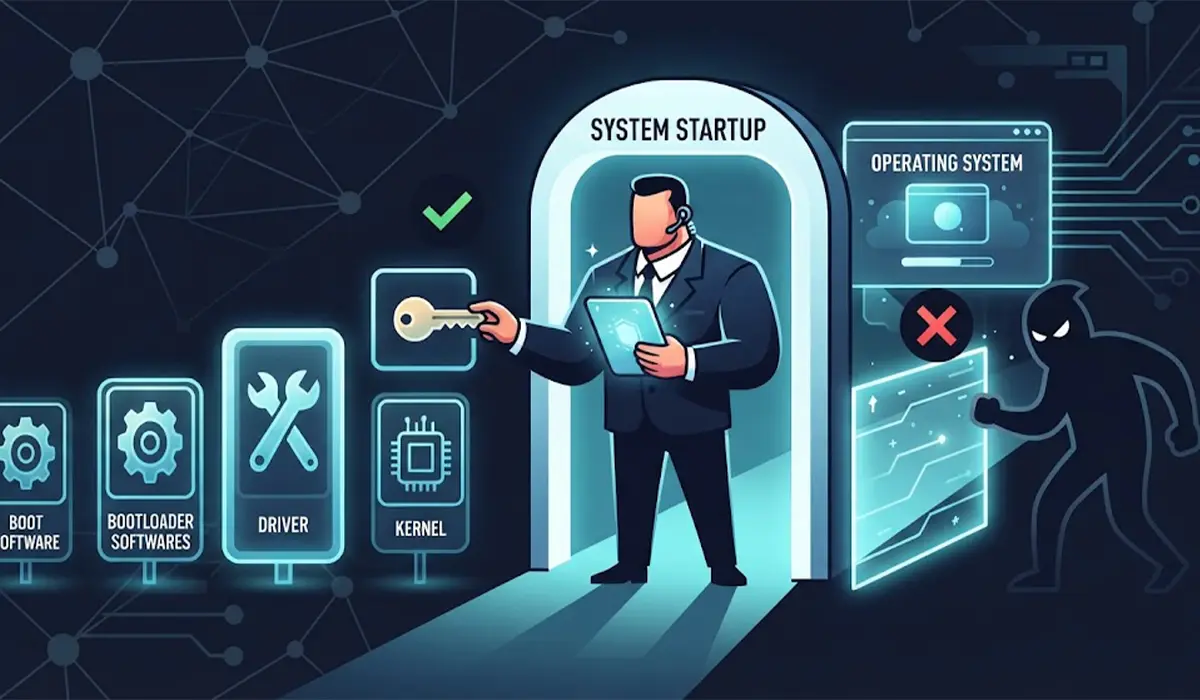
Think of Secure Boot as a bouncer at the door of the startup process. Every piece of boot software, from the bootloader to key drivers, must carry a trusted digital signature before the firmware lets it run. Rootkits and bootkits that try to hide below the operating system are stopped before they get a chance to load. Most people notice nothing different in daily use, which is exactly how a good security feature should behave.
Common Problems and Fixes
The Secure Boot Option Is Greyed Out
This is the most frequent complaint. The usual causes are CSM still being enabled, missing or cleared keys, or the firmware being in Custom mode. Disable CSM first, then look for an option such as Restore Factory Keys, Install Default Secure Boot Keys, or Reset to Setup Mode. Some boards also require an administrator or supervisor password to be set before Secure Boot can be changed.
Windows Will Not Start After Enabling Secure Boot
The cause is almost always an MBR system disk or an older graphics card without UEFI support. Go back into the BIOS, set Secure Boot to Disabled, and restore the previous boot mode so Windows starts again. Then convert the disk to GPT using the steps above before trying a second time.
BitLocker Asks for a Recovery Key
Changing firmware settings can look like tampering to BitLocker, which then asks for the 48-digit recovery key. Entering the saved key unlocks the drive, and normal startup resumes afterward. This is why the key should be backed up before any firmware changes.
Secure Boot State Still Shows Off in Windows
If the BIOS shows Enabled but msinfo32 reports Off, the keys are probably not installed. Return to the Secure Boot menu, restore the factory keys, save, and restart. A BIOS update from the manufacturer’s support page can also resolve stubborn cases.
A Linux or Dual-Boot Setup Stops Booting
Most major Linux distributions ship signed bootloaders and work with Secure Boot on. Unsigned third-party drivers, however, may be blocked. Check the distribution’s documentation for signing drivers or enrolling a key, rather than leaving Secure Boot off permanently.
Frequently Asked Questions
What is Secure Boot?
Secure Boot is a UEFI firmware feature that only allows trusted, digitally signed software to run during startup. It helps block malware that tries to load before the operating system.
Is it safe to enable Secure Boot?
Yes. Enabling Secure Boot does not delete files or change installed programs. The main risk is a boot failure on systems that use an MBR disk or Legacy mode, and that can be reversed by switching the setting back.
How can I check if Secure Boot is enabled?
Press the Windows key, type msinfo32, and open System Information. The Secure Boot State line shows On or Off, and the BIOS Mode line should show UEFI.
Why is the Secure Boot option greyed out in BIOS?
The option is usually locked because CSM or Legacy mode is still on, the factory keys are missing, or the firmware is in Custom mode. Disabling CSM and restoring the default keys normally unlocks it.
Do I need Secure Boot for Windows 11?
Windows 11 requires hardware that supports Secure Boot, and running with it turned on is the standard configuration. Enabling it is recommended for any Windows 11 PC.
Will enabling Secure Boot erase my data?
No. The setting only changes how the firmware checks boot software. Data stays untouched, although a full backup is still a smart habit before any firmware or disk change.
Will enabling Secure Boot trigger a BitLocker recovery prompt?
It can. Changing firmware security settings may cause BitLocker to ask for the recovery key at the next startup, so the key should be saved before making the change.
Can Linux run with Secure Boot enabled?
Most popular Linux distributions include signed bootloaders and run fine with Secure Boot on. Some third-party or custom drivers need to be signed or enrolled before they will load.
What is the difference between UEFI and Legacy BIOS mode?
UEFI is the modern firmware standard that supports GPT disks, faster startup, and Secure Boot. Legacy mode uses the older MBR approach and does not support Secure Boot.
