
Knowing how to fix browser homepage hijacked by malware saves a lot of frustration when a browser suddenly opens a strange search page and refuses to let go. A hijacker changes the homepage, new tab page, and search engine so that traffic is pushed toward ad-filled or deceptive sites. The good news is that the problem can be cleaned up in a systematic way, and this guide covers each place a hijacker hides.
Key Takeaways
- A hijacked homepage is usually caused by an unwanted program, a rogue extension, or a modified browser shortcut, so all three need to be checked.
- Simply typing a new homepage rarely works, because the hijacker rewrites the setting again at the next launch.
- Removing the source first (programs and extensions), then resetting the browser, gives the most reliable result.
- A full antivirus scan is essential to catch anything that restores the hijack in the background.
- Saved passwords should be changed from a clean device if the scan finds real malware.
Common Causes of a Hijacked Browser Homepage
Most hijacks start the same way. A free download, a cracked app, or a fake update prompt quietly installs extra software alongside the program that was actually wanted. Understanding where the change comes from makes the cleanup much faster.
- Bundled software: Free utilities, PDF tools, and video converters sometimes install a hidden browser add-on or background program during setup.
- Rogue browser extensions: A harmless-looking extension can request permission to read and change browser settings, then replace the homepage and search engine.
- Modified shortcuts: The target line of a browser shortcut can be edited so a web address is added after the program path, forcing a specific page to open every launch.
- Scheduled tasks and startup entries: Some hijackers re-apply their settings every time Windows starts, which is why the homepage keeps coming back.
- Proxy changes: Certain malware sets a proxy in Windows so browser traffic is redirected through an unwanted server.
- Deceptive pop-ups: Fake alerts that claim the PC is infected often push a download that is itself the hijacker.
How to Fix Browser Homepage Hijacked by Malware Step by Step
Work through the steps in order. Each one closes a different door the hijacker can use to restore itself. The key is to remove the cause before resetting the browser, otherwise the settings get overwritten again.
Remove the Source of the Hijack
- Step 1: Open Settings in Windows, go to Apps, then Installed apps. Sort the list by install date and look for anything unfamiliar that appeared around the time the problem began, such as odd toolbars, search helpers, PDF converters, or system optimizers.
- Step 2: Select each suspicious program and choose Uninstall. If a program does not appear in the list but the problem continues, move on to the scan in Step 6, which can find hidden items.
- Step 3: Open the browser’s extension page. In Chrome, enter chrome://extensions in the address bar. In Microsoft Edge, use edge://extensions. In Firefox, enter about:addons. Remove every extension that was not deliberately installed, especially ones with vague names or no clear purpose.
Tip: When unsure about an extension, remove it. Anything genuinely needed can be reinstalled from the official browser store in a few seconds, while a malicious one can keep re-hijacking the homepage.
Fix the Browser Settings and Shortcut
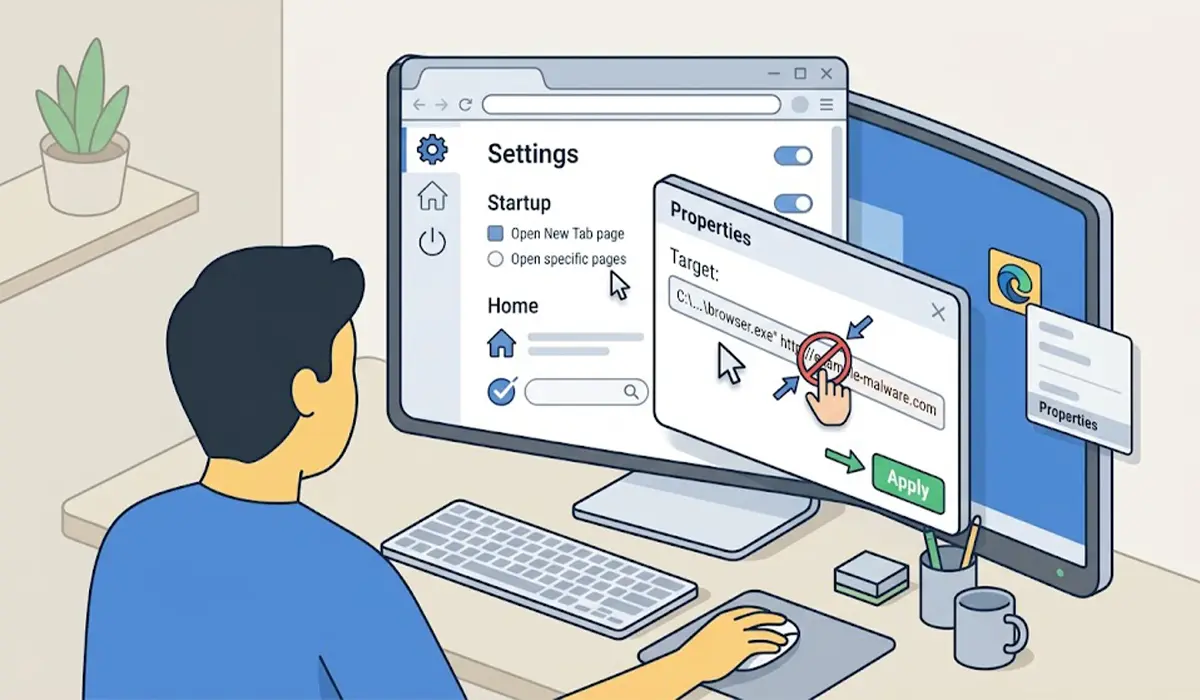
- Step 4: Right-click the browser shortcut on the desktop or taskbar and choose Properties. On the Shortcut tab, look at the Target box. It should end with the browser’s executable name, such as chrome.exe or msedge.exe. If a web address follows it, delete that extra text and click Apply. For a cleaner result, delete the shortcut and create a fresh one from the browser’s installation or Start menu entry.
- Step 5: Reset the homepage and startup behavior in the browser settings. In Chrome and Edge, open Settings, find the On startup section, and choose the option to open the new tab page or a page that was chosen on purpose. Then set the homepage and the default search engine to a trusted one. In Firefox, open Settings, choose Home, and set Homepage and new windows to Firefox Home or a custom page.
Scan for Malware and Remove Hidden Triggers
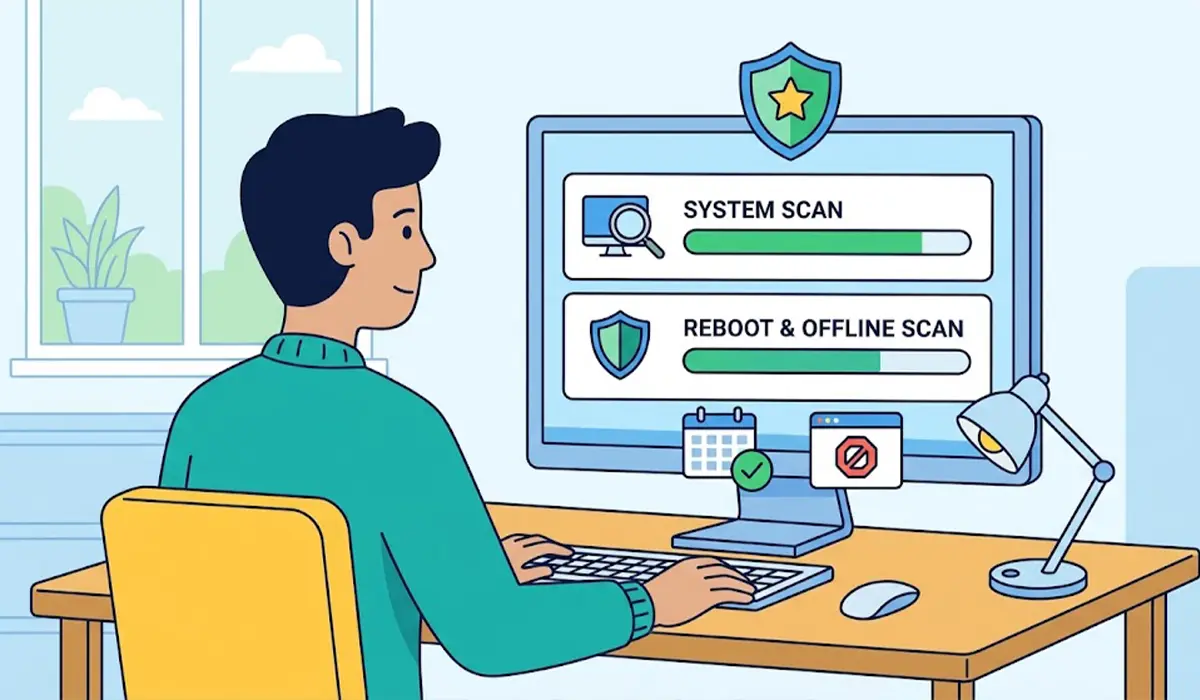
- Step 6: Open Windows Security, go to Virus and threat protection, and choose Scan options. Run a Full scan, and then run a Microsoft Defender Offline scan, which restarts the PC and checks for threats that hide while Windows is running. A second opinion from a reputable anti-malware scanner such as Malwarebytes can also catch adware that other tools overlook.
- Step 7: Open Task Manager, go to the Startup apps tab, and disable anything unfamiliar. Then open Task Scheduler, browse the Task Scheduler Library, and look for tasks with random-looking names or tasks that launch a browser or an unknown program. Disable or delete the ones that clearly do not belong to installed software.
- Step 8: Open Settings, go to Network and internet, then Proxy. Under Manual proxy setup, make sure no proxy server is switched on unless it was set up deliberately. A hijacker proxy is a common reason the browser keeps loading strange pages even after the homepage is fixed.
Tip: Restart the PC after the scans and open the browser before opening anything else. If the homepage stays correct after a restart, the persistent trigger has most likely been removed.
Reset the Browser and Finish Cleanup
- Step 9: If the hijack is still present, reset the browser. In Chrome, open Settings, choose Reset settings, then Restore settings to their original defaults. In Edge, open Settings, choose Reset settings, then Restore settings to their default values. In Firefox, open the Help menu, choose More troubleshooting information, then select Refresh Firefox. Bookmarks and saved passwords are kept in most cases, but extensions and custom settings are cleared.
- Step 10: Update the browser and Windows to the latest versions, then clear the browser cache and cookies. If the scan found real malware rather than only adware, change important passwords, starting with email and banking, from a device that is known to be clean.
How to Keep the Homepage From Being Hijacked Again
Prevention comes down to a few habits. Download software only from the developer’s official site or a trusted store, and choose the custom or advanced install option so extra offers can be unticked. Skip cracked software completely, since it is one of the most common carriers of hijackers. Keep Windows Security turned on, install updates promptly, and be cautious with browser pop-ups that claim the PC is infected or that a plugin is out of date. Real security alerts do not arrive as a web page asking for a download.
Common Problems and Fixes
The homepage changes back after every restart
A scheduled task or startup entry is re-applying the change. Recheck Task Scheduler and the Startup apps tab, then run the Microsoft Defender Offline scan to find the background component.
The browser shows a message that it is managed by an organization
This appears when a policy has been forced onto the browser. On a work or school device, the administrator may have set it on purpose. On a personal PC, it can be a sign of a hijacker that wrote browser policies. A full malware scan usually clears it, and a technician can remove leftover policy entries if the message stays.
The browser reset did not fix the search engine
A hijacker may still be present in Windows rather than in the browser. Recheck installed apps, the proxy setting, and the shortcut target, then repeat the full scan.
The shortcut keeps opening an unwanted page
The shortcut target still contains an added web address. Delete the shortcut entirely and make a new one so no leftover text remains.
Extensions keep reappearing after removal
Another program is reinstalling them. Uninstall suspicious apps first, run a full scan, and then remove the extensions again.
The problem keeps returning after every cleanup
This points to deeper malware. Back up important files, then consider using Reset this PC in Windows settings, or let a professional technician handle the cleanup. A clean reinstall is slower, but it guarantees the hijacker is gone.
Frequently Asked Questions
What does it mean when a browser homepage is hijacked?
It means unwanted software has changed the homepage, new tab page, or default search engine without permission. The goal is usually to push traffic to advertising or deceptive websites.
Is a hijacked homepage the same as a virus?
Not exactly. Most hijackers are classed as adware or potentially unwanted programs rather than traditional viruses. They are still unsafe, because they can track browsing and expose the PC to harmful sites.
Why does the homepage keep changing back after being reset?
Something is still running in the background to re-apply the change. Common culprits are a leftover program, a rogue extension, a scheduled task, or a modified browser shortcut.
Will resetting the browser remove the hijacker?
A reset clears extensions and restores default settings, which fixes many cases. It will not remove an unwanted program installed in Windows, so uninstalling suspicious apps and running a full scan is still necessary.
Can a browser hijacker steal passwords?
Some can, especially when they are bundled with spyware or information-stealing malware. If a scan finds real malware, change important passwords from a clean device and enable two-step verification where available.
Is the built-in Windows Security enough to remove a hijacker?
It is a good first step, particularly the Full scan and the Microsoft Defender Offline scan. A second opinion from a well-known anti-malware scanner can catch adware that was missed.
Does reinstalling the browser help?
It can help if the browser files were altered, but it does not fix a hijack caused by a program, shortcut, or scheduled task. Clean the source first, then reinstall only if the problem remains.
How does a homepage usually get hijacked in the first place?
The most common routes are bundled software in free downloads, malicious browser extensions, and fake update or security pop-ups. Downloading only from official sources greatly lowers the risk.
When should Windows be reset because of a hijacked browser?
A reset is worth considering when the hijack returns after repeated cleanups and scans. Back up personal files first, then use Reset this PC in Windows settings for a clean start.
