
A context menu too slow to appear turns a simple right-click into a frustrating wait, with the cursor spinning for several seconds before the options finally show up. In most cases, the delay comes from a third-party add-on, a heavy visual effect, or a stalled File Explorer process rather than a failing drive. This guide covers the causes and fixes in a practical order, starting with the quickest checks.
Key Takeaways
- A slow right-click menu is usually caused by third-party shell extensions added by installed apps.
- Restarting File Explorer and turning off menu animations are the fastest fixes to try first.
- A clean boot or a free shell extension manager can pinpoint the exact app causing the delay.
- Outdated graphics drivers and offline network drives are common hidden triggers.
- Running SFC and DISM repairs damaged system files that can also slow the menu down.
Common Causes of a Slow Right-Click Menu
Every time a right-click happens, Windows asks each installed add-on to contribute its own entry to the menu. If even one of them responds slowly, the whole menu waits. Picture a group photo where everyone has to be ready before the shutter clicks – one late person holds up the shot.
- Third-party shell extensions from archive tools, cloud storage apps, antivirus programs, image editors, and file-sharing utilities.
- Graphics driver entries, such as a desktop menu option added by the graphics control panel.
- Menu fade and slide animations that stretch out the time before the menu is fully visible.
- Mapped network drives or network locations that are offline or slow to respond.
- A stalled or overloaded File Explorer process.
- Damaged or missing Windows system files.
- Malware or unwanted software hooking into the shell.
Tip: On Windows 11, the short menu has a ‘Show more options’ entry that loads the full classic menu. Holding Shift while right-clicking, or pressing Shift + F10 on a selected item, opens the full menu directly and skips that extra layer.
How to Fix Context Menu Too Slow to Appear
Work through the steps in order. Test the right-click menu after each one, and stop as soon as the delay disappears.
Start With the Quick Fixes
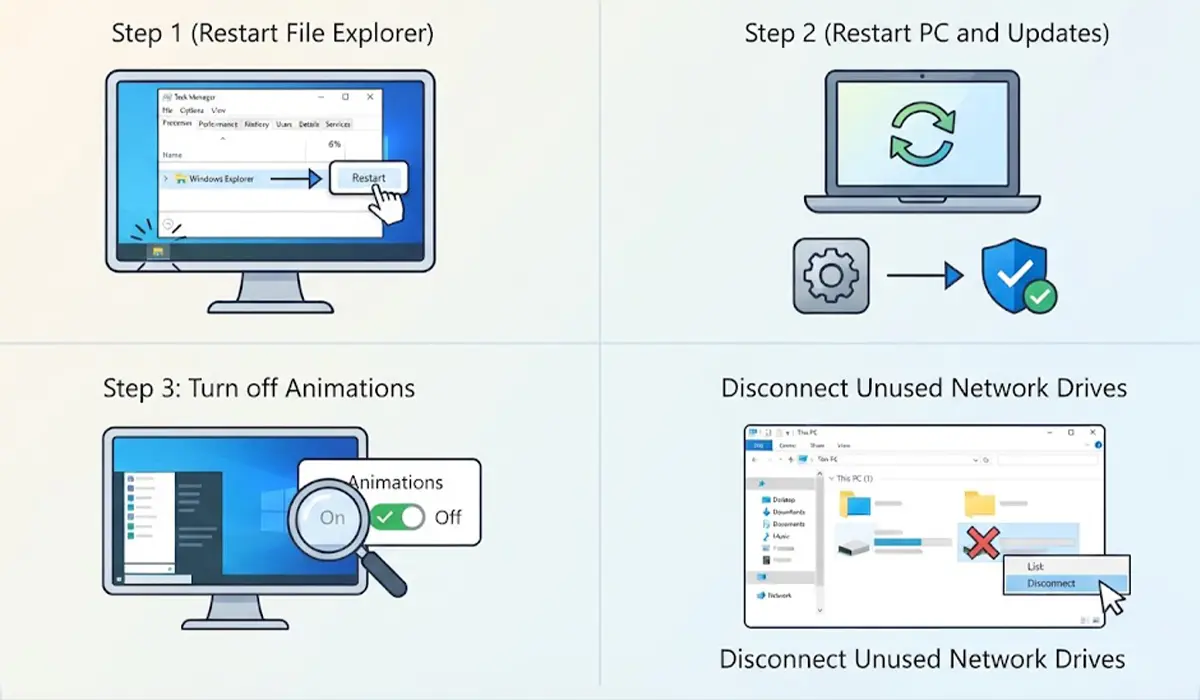
- Step 1: Restart File Explorer. Press Ctrl + Shift + Esc to open Task Manager, find Windows Explorer under Processes, select it, and click Restart task. The taskbar will flicker for a moment, and that is normal.
- Step 2: Restart the PC and install pending updates. Open Settings, go to Windows Update, and click Check for updates. A fresh restart clears stuck processes, and updates often include fixes for shell and File Explorer behavior.
- Step 3: Turn off menu animations. Press Windows + R, type sysdm.cpl, and press Enter. Open the Advanced tab, click Settings under Performance, and uncheck ‘Fade or slide menus into view’. Click Apply, then OK. On Windows 11, the same effect can be reduced by going to Settings, then Accessibility, then Visual effects, and switching Animation effects off.
- Step 4: Disconnect unused network drives. Open This PC and look for network drives marked with a red X or ones no longer needed. Right-click them and choose Disconnect. A drive that no longer answers can make Explorer wait before it draws the menu.
Find the Add-On Causing the Delay
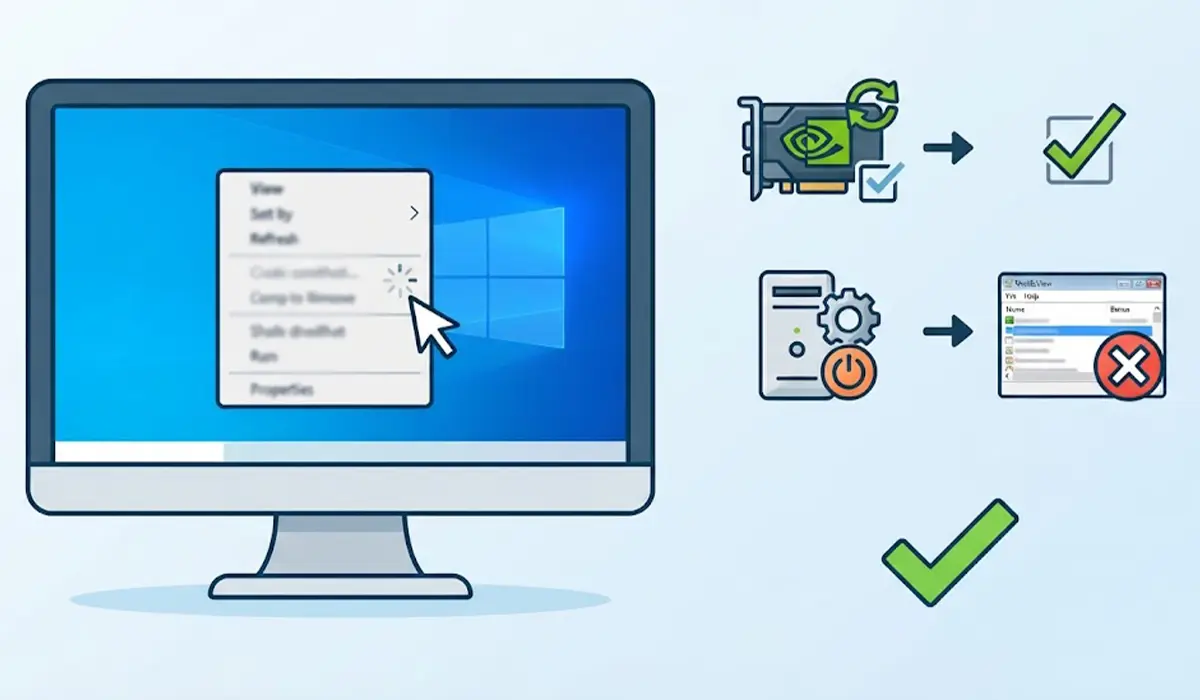
- Step 5: Update the graphics driver. Download the latest driver from the graphics manufacturer, or check Settings, Windows Update, Advanced options, and Optional updates. On systems with an NVIDIA GPU, open the NVIDIA Control Panel, click the Desktop menu, and uncheck Add Desktop Context Menu. That removes the extra graphics entries from the right-click menu.
- Step 6: Test with a clean boot. Create a restore point first. Press Windows + R, type msconfig, and press Enter. On the Services tab, tick Hide all Microsoft services, then click Disable all. On the Startup tab, click Open Task Manager and disable the startup items. Restart the PC and test the right-click menu. If it is fast again, the cause is one of the disabled items. Re-enable them in small groups, restarting each time, until the delay returns. When finished, set the PC back to Normal startup in msconfig.
- Step 7: Disable individual shell extensions with ShellExView. This free utility from NirSoft lists every extension loaded by Windows. Download it from the official NirSoft website, right-click the file, and choose Run as administrator. Open the Options menu, choose Filter by Extension Type, and select Context Menu. Then choose Hide All Microsoft Extensions from the Options menu. Select the remaining entries, click the red disable button, and restart File Explorer. If the menu speeds up, re-enable the extensions one at a time to find the slow one, then uninstall or update the app that owns it.
Tip: Disable extensions in small batches rather than all at once. Most users find that one or two entries from a single app are responsible, and a batch approach finds them in far fewer restarts.
Repair Windows System Files
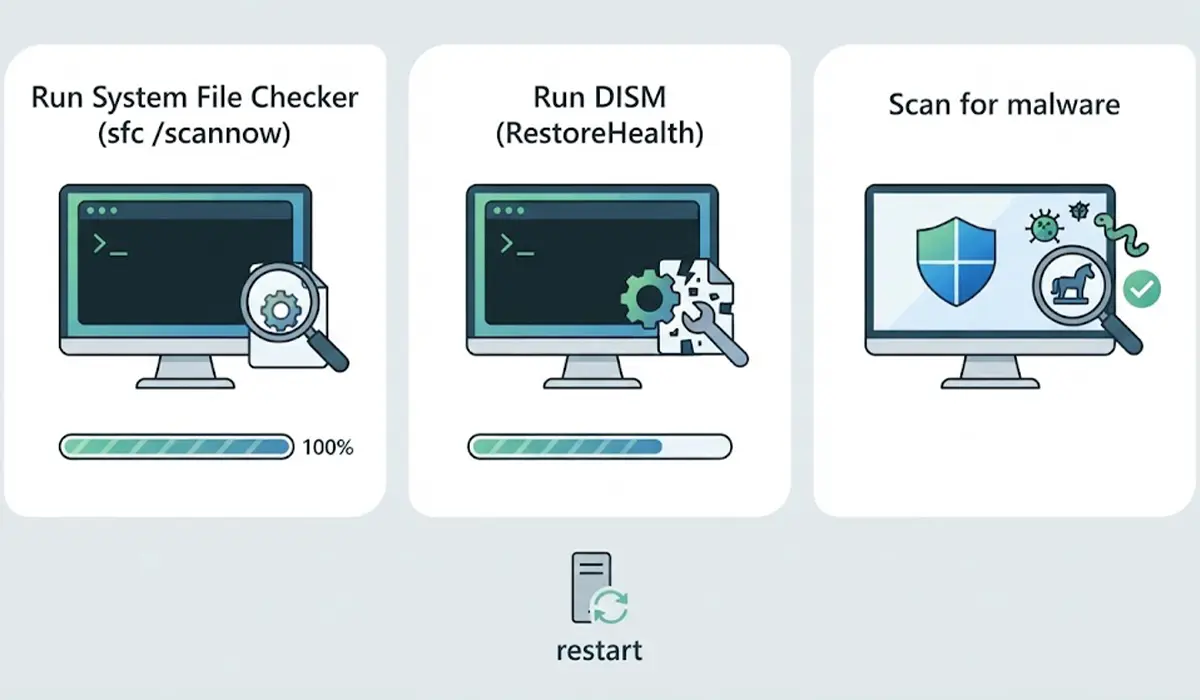
- Step 8: Run System File Checker. Right-click the Start button, choose Terminal (Admin) or Command Prompt (Admin), type sfc /scannow, and press Enter. Let the scan reach 100 percent, then restart.
- Step 9: Run DISM. In the same administrator window, type DISM /Online /Cleanup-Image /RestoreHealth and press Enter. This can take several minutes. When it finishes, run sfc /scannow once more and restart.
- Step 10: Scan for malware. Open Windows Security, go to Virus and threat protection, choose Scan options, select Full scan, and click Scan now. Remove anything it finds, then restart.
Common Problems and Fixes
The Menu Is Slow Only Inside One Folder
Folders packed with photos, videos, or music can lag because Explorer tries to read file details for every item. Right-click the folder in the navigation pane, choose Properties, open the Customize tab, and set Optimize this folder for to General items. Tick Also apply this template to all subfolders, then click Apply.
The Delay Returned After Installing a New App
New software often registers its own shell extension. Open ShellExView, filter for context menu extensions, and look for entries from the app that was just installed. Disabling its entry, or uninstalling the app, usually restores normal speed.
The Menu Is Still Slow After a Clean Boot
If the delay survives a clean boot, the cause is likely in Windows itself. Repeat the SFC and DISM steps, then create a new local user account and test the right-click menu there. A fast menu in the new account points to a damaged user profile, and moving files to the new account solves it. If the new account is slow too, a repair install of Windows or help from a professional technician is the next sensible move.
ShellExView Will Not Open or Is Blocked
Windows may show a warning for utilities that are not widely downloaded. Confirm the file came from the official NirSoft website, then right-click it and choose Run as administrator. If the warning persists, use the clean boot method in Step 6 instead.
Disabled Extensions Removed Useful Menu Entries
This is expected. Disabling an extension hides the matching right-click option until it is turned back on. Re-enable the extension in ShellExView and restart File Explorer to bring the entry back.
Frequently Asked Questions
Why does right-click take so long on Windows 11?
The most common reason is a third-party shell extension that responds slowly when Windows builds the menu. Animations, an unresponsive File Explorer process, and offline network drives can add to the delay.
Is a slow context menu a sign of a failing hard drive or SSD?
Rarely. A failing drive usually causes other symptoms too, such as slow file opening, freezing, or error messages. A right-click delay on its own almost always traces back to software.
Is it safe to disable shell extensions?
Yes, when the extensions come from third-party apps. Disabling them only hides the related menu entries, and the change can be reversed at any time. Microsoft extensions are best left enabled.
Can an outdated graphics driver slow down the right-click menu?
Yes. Graphics drivers can add their own entries to the desktop menu, and an old or faulty driver may respond slowly. Updating the driver or removing its desktop menu entry often helps.
Will turning off animations really fix the delay?
It helps when the slowness comes from the fade or slide effect, since the menu appears instantly without it. It will not fix a delay caused by a slow extension, so continue with the other steps if the problem remains.
How can the full right-click menu open faster on Windows 11?
Hold Shift while right-clicking, or select the item and press Shift + F10. Either method opens the full classic menu without clicking Show more options.
Can malware cause a slow context menu?
It can, since some unwanted programs hook into the Windows shell. A full scan with Windows Security is a quick way to rule that out.
Does a slow context menu mean Windows needs to be reinstalled?
Almost never. Restarting Explorer, disabling extensions, and running SFC and DISM solve the problem in the vast majority of cases. A repair install is only worth considering after every other step has failed.
