
Learning how to fix screen burn-in on a monitor starts with one honest distinction: temporary image retention usually fades on its own, while true burn-in is permanent panel wear. The good news is that most faint ghost images people panic about fall into the recoverable category. This guide walks through the causes, the fixes that actually work, and the habits that stop it from returning.
Key Takeaways
- Most ghosting on a monitor is image retention, which fades after the panel rests or displays moving content for a few hours.
- True burn-in is uneven pixel wear, most common on OLED panels, and cannot be fully reversed at home.
- Built-in Pixel Refresh or Panel Refresh routines on OLED monitors are the single most effective recovery tool available.
- Full-screen colour cycling and white-screen sessions can even out mild retention on both LCD and OLED displays.
- Many OLED monitors carry dedicated burn-in warranty coverage, so contacting the manufacturer is a real option before replacing the panel.
Common Causes of Screen Burn-In on a Monitor
Burn-in is not random bad luck. It comes from the same bright, unchanging elements sitting in the same pixels for hundreds or thousands of hours. Think of it like a rug in a hallway: the traffic path wears flat long before the edges do.
Static Interface Elements
Taskbars, desktop docks, spreadsheet gridlines, IDE sidebars, and stream overlays are the usual suspects. They rarely move, they often sit at high contrast against the background, and they stay on screen for the entire workday. Office workers who live in one spreadsheet often see the faint outline of column headers first.
Panel Technology
OLED pixels generate their own light using organic compounds that dim as they age, so heavy use in one area creates a permanent brightness difference. LCD and IPS panels use a shared backlight and are far more resistant, though they can still suffer temporary image retention when liquid crystals settle into a charged state.
High Brightness and Long Sessions
Running a panel near maximum brightness accelerates wear dramatically. Combine that with a machine that never sleeps, a disabled screen saver, and HDR content pushing peak luminance, and the timeline shortens considerably.
Logos, Channel Bars, and Game HUDs
News tickers, broadcaster logos, and game health bars sit in fixed corners at strong contrast. Gaming monitors used for a single title over many months are a classic case, especially with a bright minimap in one corner.
Before You Start
None of these fixes require opening the monitor, which is exactly why they are worth trying first. Opening a display voids most warranties and exposes fragile ribbon cables and a high-voltage backlight inverter, so panel disassembly is a job for a professional service centre.
- Power the monitor off and let it cool if it has been running for hours. A warm panel gives misleading results.
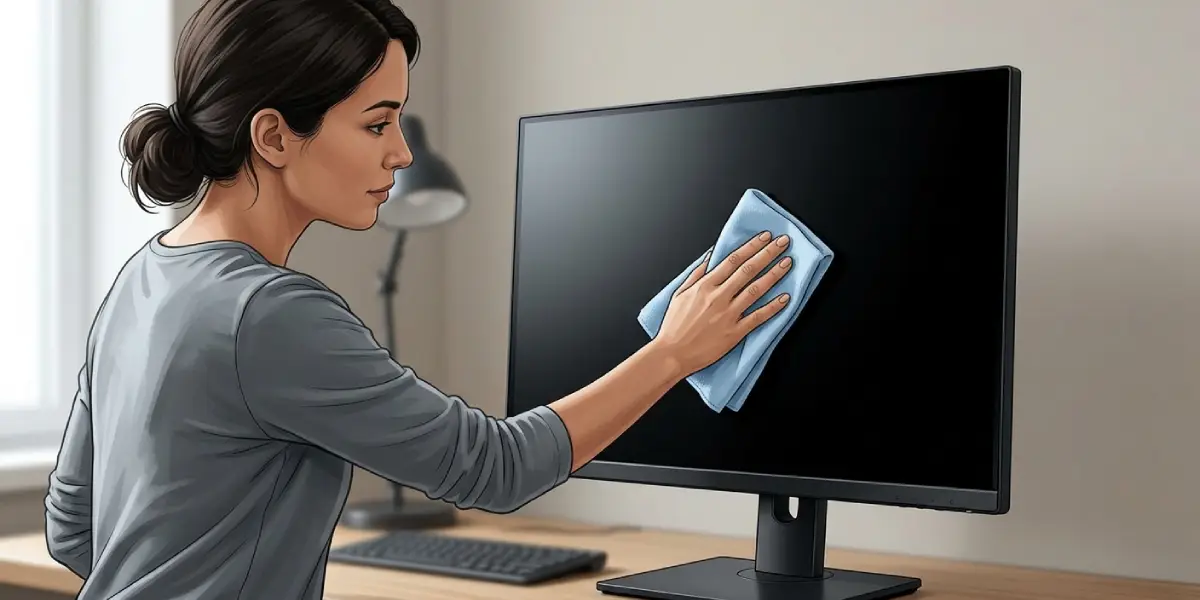
- Have a clean, dry lint-free microfiber cloth ready to rule out smudges, and a screen-safe display cleaner if a light residue needs removing. Never spray liquid directly onto the panel, and never use paper towels, ammonia-based glass cleaner, or abrasive pads.
- Note the monitor model and panel type. The service menu options differ completely between OLED and LCD.
- Locate the purchase receipt and check the warranty terms before doing anything drastic.
Tip: Photograph the affected area with a phone against a solid grey background before starting. It gives an honest before-and-after comparison instead of relying on memory, which tends to exaggerate improvement.
How to Fix Screen Burn-In on a Monitor Step by Step
Work through these in order. The early steps cost nothing and solve the majority of cases.
- Step 1: Confirm what is actually on screen. Close every window, hide the taskbar, and display a solid white full-screen image, then a solid grey one. Dirt shows as a defined smudge that moves with a cloth. Retention and burn-in appear as a faint ghost of a past interface that stays perfectly in place.
- Step 2: Clean the panel properly. With the monitor powered off, wipe gently in straight passes with a dry microfiber cloth. If a mark remains, dampen the cloth slightly with a screen-safe cleaner, never the screen itself. A surprising number of suspected burn-in cases end here.
- Step 3: Rest the panel. Switch the monitor off at the power button and leave it unpowered for several hours, ideally overnight. Liquid crystals relax and light image retention on LCD and IPS panels often disappears completely with nothing more than downtime.
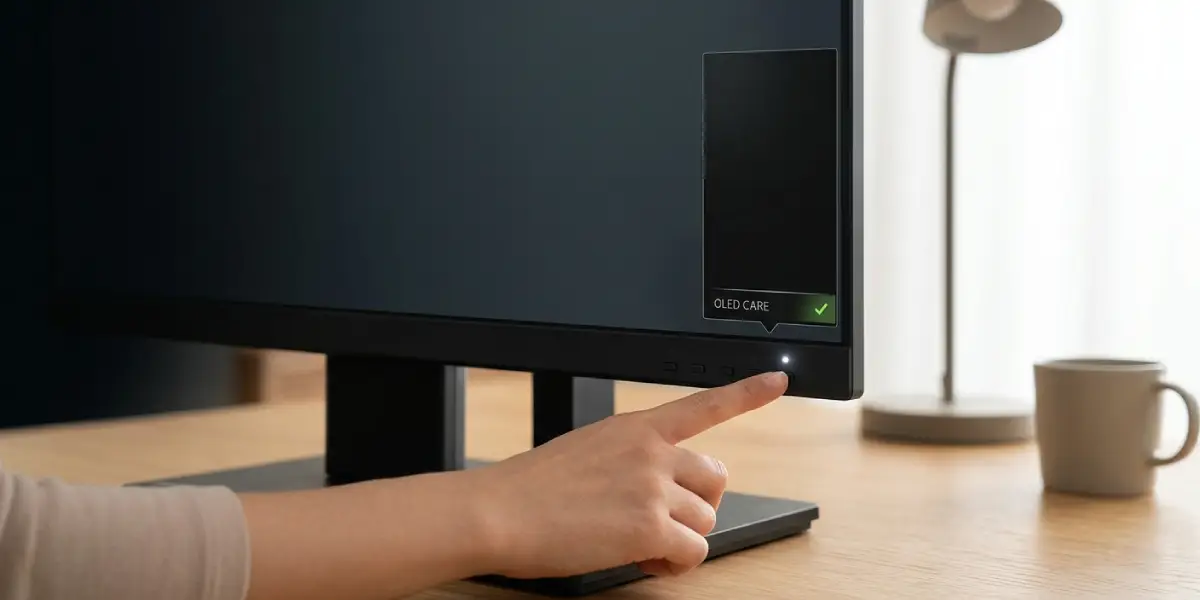
- Step 4: Run the built-in refresh routine. OLED monitors from major brands include a maintenance cycle listed in the on-screen display as Pixel Refresh, Panel Refresh, Pixel Cleaning, or Screen Move under a panel care or OLED care menu. Start it, then leave the monitor plugged in and untouched until it finishes. Interrupting the cycle cancels it and it will need to run again.
- Step 5: Cycle solid colours full screen. Display pure white, then red, green, blue, and black across the entire screen for roughly ten to fifteen minutes each, with the monitor at a moderate brightness. Forcing every pixel through its full range helps redistribute charge and evens out mild retention. Many monitors include test patterns in their service menu, and free full-screen colour test pages work just as well.
- Step 6: Run a long white or noise session. If a faint ghost survives the colour cycle, display a full-screen white image or a moving static-noise pattern for two to four hours. Keep brightness moderate rather than maximum so the panel is not baked further. Check progress every hour instead of running it blindly all day.
- Step 7: Try a dedicated pixel-exercising tool. Browser-based utilities such as JScreenFix flash rapidly changing pixels across a movable window and can be parked directly over the affected region for an hour or more. Results vary, but it costs nothing and carries no risk to the panel.
- Step 8: Reassess against the original photo. If the ghost is gone or clearly lighter, move straight to the prevention section. If it looks identical after all of the above, it is permanent wear rather than retention.
- Step 9: Contact the manufacturer. Several OLED monitor makers now include specific burn-in coverage for a defined period on top of the standard warranty, and LCD panels with severe retention can qualify as a defect. Provide the photos, the model number, and the purchase date. Support tickets are free, and a panel replacement beats a new monitor.
Tip: Do not leave a white screen running at peak brightness for an entire weekend hoping for a miracle. Extended maximum-brightness sessions add wear to the healthy areas of the panel and can make an uneven screen look worse, not better.
How to Prevent Screen Burn-In from Coming Back
Recovery is only half the job. Once a panel has shown retention, it will show it again under the same habits.
- Step 1: Lower brightness to a comfortable working level. A dimmer panel wears more slowly, and most rooms need far less output than factory settings provide.
- Step 2: Enable the monitor’s own protection features. Look for pixel shift, screen move, logo dimming, or static brightness limiter in the OLED care menu and switch them on. Pixel shift nudges the image by a pixel or two periodically, which is invisible in use but breaks up fixed edges.
- Step 3: Set the display to sleep after a short idle period in Windows power settings or macOS energy settings. Ten to fifteen minutes is a sensible balance.
- Step 4: Auto-hide the taskbar or dock and switch to a dark theme. This removes the brightest permanently fixed elements from the screen entirely.
- Step 5: Vary the content. Move windows between positions across the week, use a rotating wallpaper, and avoid leaving a single paused frame or static dashboard on screen for hours.
- Step 6: Turn the monitor off during long breaks rather than leaving a screen saver running. Nothing protects a panel better than a dark, unpowered display.
Common Problems and Fixes
The Ghost Image Fades but Returns Within Days
This is early-stage burn-in rather than simple retention. The refresh cycle masks it temporarily by dimming surrounding pixels, then normal use re-exposes the difference. Reduce brightness, enable pixel shift, and change the layout that created it, then run the refresh cycle weekly.
The Pixel Refresh Option Is Greyed Out or Missing
Most OLED monitors only unlock the manual routine after a set number of hours of panel use, and some run it automatically after the monitor is switched off instead. Leave the monitor plugged into mains power, switch it off at the button rather than the wall socket, and give it time to complete its automatic cycle.
Burn-In Is Only Visible on Grey or Dark Backgrounds
Mild wear hides well against busy content and shows clearly on flat mid-tones. It is genuine but minor. Continue with prevention habits rather than aggressive white-screen sessions, which add wear without meaningfully improving a difference this small.
The Screen Looks Blotchy After a Long White-Screen Session
Heat build-up can cause temporary uniformity issues, particularly on VA panels. Switch the monitor off and let it cool for a few hours. The blotching normally settles. If it persists, stop the white-screen method and rely on the built-in refresh routine instead.
A Taskbar Ghost Appears Only on the Secondary Monitor
Secondary displays often show a fixed toolbar or chat window for the entire day while the primary screen rotates content. Move the persistent window to a different edge, hide the secondary taskbar in display settings, and treat that panel to the same refresh routine.
Nothing Improves After Every Method
Permanent organic wear cannot be undone outside a panel replacement. At that point the realistic paths are a warranty claim, a manufacturer repair quote, or replacement. Attempting to open the chassis to reach the panel risks cracking the display assembly and ends any remaining coverage.
Frequently Asked Questions
Is monitor burn-in permanent?
True burn-in is permanent because it comes from physical wear of the pixels themselves, especially on OLED panels. Image retention, which looks similar, is temporary and usually clears after the panel rests or displays varied content for a few hours.
What is the difference between burn-in and image retention?
Image retention is a short-lived ghost caused by liquid crystals or pixels holding a charge state, and it fades on its own. Burn-in is uneven ageing of the pixels, so the affected area is permanently dimmer or tinted no matter what is displayed.
Can LCD and IPS monitors get burn-in?
LCD and IPS panels are highly resistant to permanent burn-in because they share a single backlight rather than lighting each pixel individually. They can still show temporary image retention after long static sessions, which almost always clears with rest or a colour cycle.
Does the pixel refresh feature actually fix burn-in?
Pixel refresh compensates rather than repairs. It measures pixel output and adjusts surrounding brightness to even out the difference, which can make mild wear invisible. It cannot restore pixels that have already aged significantly.
How long should a white screen be left running to clear a ghost image?
Two to four hours at moderate brightness is a sensible session, checking progress each hour. Running a maximum-brightness white screen for days adds unnecessary wear to healthy areas of the panel and can make uniformity worse.
Do burn-in fixer videos work?
Rapid colour-cycling and static-noise videos work on the same principle as manual colour cycling, so they can genuinely help with image retention. They have no effect on permanent burn-in, and any video promising a guaranteed cure for worn pixels is overselling it.
Does a monitor warranty cover burn-in?
Coverage varies by brand and model. Several manufacturers now offer specific burn-in protection on OLED monitors for a defined period, while standard warranties often exclude it as normal wear. Checking the exact terms for the model and contacting support is always worth the effort.
How long does it take for burn-in to develop on a monitor?
There is no fixed timeline, as it depends on brightness, panel type, and how static the content is. Displays showing the same high-contrast interface at high brightness for many hours every day are at the highest risk, while varied content at moderate brightness makes it unlikely for years.
Can a monitor be repaired if burn-in is permanent?
Repair means replacing the panel itself, which is usually done at a manufacturer service centre and often costs close to the price of a new monitor. Opening the chassis at home risks cracking the display assembly and voids any remaining warranty, so a service quote is the safer route.
