
A laptop screen going black randomly is one of the most frustrating faults to chase, because the machine often keeps running perfectly behind that dark panel. The good news is that most cases trace back to a short list of causes – graphics driver crashes, power and sleep settings, heat, or a loose display cable. Work through them in order and the culprit usually shows itself within an hour.
Key Takeaways
- First decide whether the whole laptop is shutting down or only the display is dropping out – the fix paths are completely different.
- Graphics driver crashes and aggressive power or panel-refresh settings cause the majority of random black screens on otherwise healthy laptops.
- An external monitor is the fastest free diagnostic tool available, since it separates the panel and its cable from the GPU and the rest of the system.
- Blackouts that follow heavy load, lid movement, or unplugging the charger point to heat, cable wear, or power delivery rather than software.
- If the backlight fails but a faint image remains visible under a flashlight, the panel or its cable is the problem, not Windows.
Common Causes of a Laptop Screen Going Black Randomly
Before touching a single setting, it helps to know what actually produces this symptom on modern laptops. These are the causes that show up again and again on the repair bench.
Graphics driver crashes and recovery failures
Windows watches the graphics driver and resets it if it stops responding. Normally the screen flickers and recovers in a second or two. When that recovery fails, the display simply goes dark while the system keeps running. Hybrid laptops with both integrated and discrete graphics are especially prone to this, particularly after a mismatched driver update.
Power, sleep, and panel-saving features
Modern laptops are packed with power-saving tricks: display timeout, modern standby, panel self-refresh, and adaptive brightness. Any one of them can misfire and drop the backlight at an odd moment. This gets more common after a BIOS update or a fresh Windows install resets the profile to defaults.
Overheating and thermal shutdown of the GPU
Dust-clogged fins and dried thermal paste push temperatures up until the graphics chip throttles hard or the driver falls over. The tell is timing: the screen behaves for ten or twenty minutes, then blacks out during a game, a video call, or an export, right when the fans are loudest.
A loose or worn display cable
The eDP ribbon cable runs from the motherboard through the hinge to the panel. Thousands of open-and-close cycles wear the shielding, and the connector can work loose over the years. Classic symptom: the screen cuts out when the lid is at a certain angle, or when the chassis is picked up or nudged.
Backlight and panel faults
If the LED backlight circuit fails, the image is still being drawn – it is just not lit. Shine a bright flashlight at an angle across the dark screen. Seeing ghostly windows and icons confirms a backlight or cable issue rather than a software one.
Power delivery, battery, and adapter problems
A swollen battery, a failing charger, or a bad barrel or USB-C connection can starve the system during load spikes. Here the screen usually goes black along with everything else, and the laptop restarts or dies outright.
Loose RAM or storage
Less common, but real. A memory stick that has crept out of its slot after being carried around can cause sudden blank screens and lockups that look exactly like a display fault.
Before You Start
Most of the fixes below are software-only and perfectly safe. A few involve opening the bottom panel, so take a minute to prepare properly.
- Shut the laptop down fully, unplug the charger, and disconnect any dock or external drives.
- If the model has a removable battery, take it out. On sealed models, disconnect the internal battery connector before touching anything else once the panel is off.
- Discharge static by touching bare, unpainted metal, or wear an anti-static wrist strap.
- Let the machine cool if it has been running hard – heat sinks and heat pipes stay hot for several minutes.
Tools worth having on hand: a small Phillips screwdriver set, plastic pry tools or a spudger, a soft brush, a can of compressed air, a lint-free or microfiber cloth, 90 percent or higher isopropyl alcohol for any contact cleaning, and a bright flashlight for the backlight test.
Two honest cautions. Opening the chassis can affect an active warranty, so check the coverage first. And if a display cable is torn, a battery is visibly swollen, or the board shows burn marks or corrosion, stop and hand it to a qualified technician – those repairs need proper tools and replacement parts.
How to Fix a Laptop Screen Going Black Randomly, Step by Step
Follow these in order. Each step narrows the field, so skipping ahead usually costs more time than it saves.
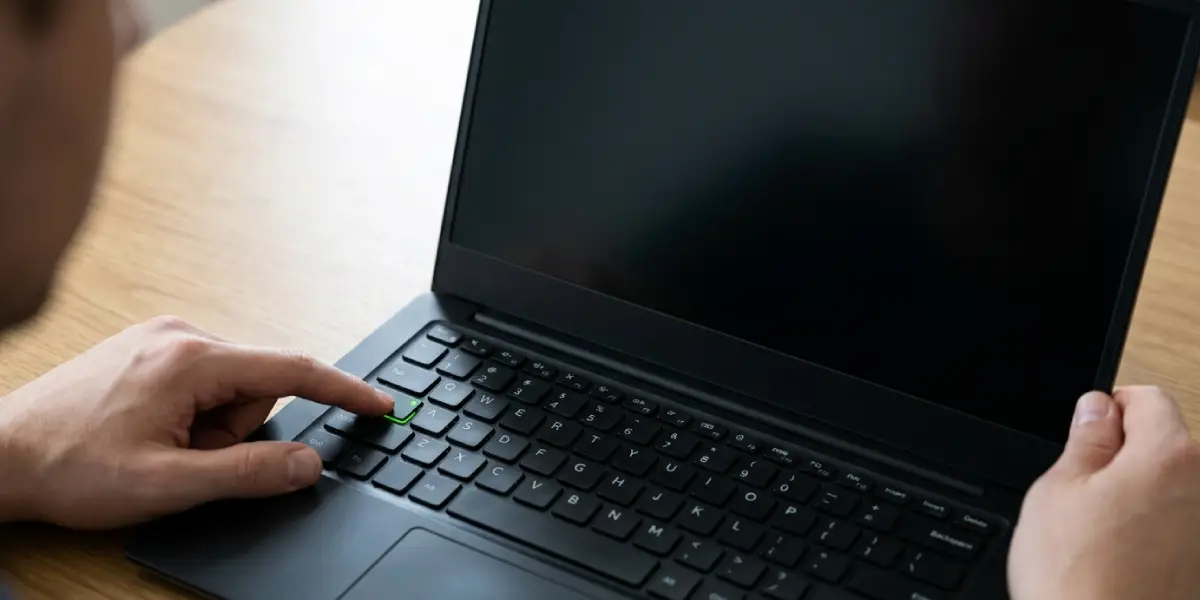
- Step 1: Work out whether the laptop is still running. The next time the screen goes dark, listen for fan noise, press Caps Lock and watch for the indicator light, and tap the keyboard to see if anything wakes. A running system with a dark screen is a display or graphics problem. A silent, unresponsive machine is a power, thermal, or hardware shutdown – jump to Step 8.
- Step 2: Force Windows to re-detect the display. Press the Windows key plus Ctrl plus Shift plus B. This restarts the graphics driver, and the screen should beep or flicker back. Then press Windows plus P and confirm the mode is set to PC screen only or Extend rather than Second screen only. A stray key combination or a disconnected dock can leave output pointed at a monitor that is no longer there.
- Step 3: Connect an external monitor over HDMI, DisplayPort, or USB-C. If the external display stays on while the built-in panel blacks out, the fault lives in the panel, the backlight, or the display cable. If both go dark together, the problem is the GPU, the drivers, or the system itself. This single test saves hours.
- Step 4: Reinstall the graphics drivers cleanly. Download the current driver directly from the laptop maker’s support page for the exact model, or from Intel, AMD, or NVIDIA for the graphics hardware in use. Uninstall the existing driver through Settings, then install the fresh package and reboot. On hybrid laptops, update both the integrated and discrete graphics drivers so the two stay in step.
- Step 5: Check Event Viewer for evidence. Right-click Start, open Event Viewer, and look under Windows Logs and System around the time of a blackout. Entries about the display driver stopping and recovering confirm a driver-level crash and point the investigation squarely at Step 4 and Step 6.
- Step 6: Tighten up the power and panel settings. Open Settings, then System, then Power and battery, and set the screen and sleep timeouts to something longer than the gaps between blackouts. In Control Panel under Power Options, open the advanced settings for the active plan and disable adaptive brightness. If the machine uses Intel graphics, open Intel Graphics Command Center and turn off Panel Self-Refresh and Display Power Saving. Finally, disable Fast Startup under Power Options and Choose what the power buttons do.
- Step 7: Rule out a software conflict. Boot into Safe Mode by holding Shift while choosing Restart, then Troubleshoot, Advanced options, Startup Settings. Use the laptop normally for a while. If the screen never blacks out in Safe Mode, a driver, utility, or overlay is to blame – run a clean boot with startup apps disabled and reintroduce them in small batches until the culprit appears.
- Step 8: Deal with heat. Blow compressed air through the exhaust vents in short bursts, holding the fans still with a toothpick or plastic tool so they do not over-spin. Brush dust out of the intake grilles. Raise the laptop on a stand so the underside vents can breathe. Watch temperatures with a monitoring utility during the tasks that trigger the blackout. If the machine is several years old and still running hot with clean fins, fresh thermal paste on the CPU and GPU is the next move.
- Step 9: Test the power side. Try a different known-good charger rated for the model, and test the laptop on battery alone as well as on mains. Then run a battery health check: open Command Prompt as administrator, enter powercfg /batteryreport, and open the HTML file it creates to compare full charge capacity against design capacity. A heavily degraded pack can cause sudden shutdowns under load.
- Step 10: Perform a hard reset and update the firmware. Power off, unplug, remove the battery if it is removable, and hold the power button for around thirty seconds to drain residual charge. Reassemble and boot. Then install the latest BIOS or UEFI firmware from the manufacturer’s support page – display timing and power management fixes ship in these updates more often than people expect. Keep the laptop plugged in for the entire flash.
- Step 11: Reseat the memory. With the machine off, unplugged, and the battery disconnected, remove the bottom panel and release the metal clips on each RAM module. Lift each stick out, check for dust or residue on the gold contacts, and press it back in firmly at an angle until the clips snap. If two sticks are fitted, test with one at a time to rule out a faulty module.
- Step 12: Inspect the display cable and hinge. With the panel still open, locate the eDP connector on the motherboard – usually near the hinge – and check that it is fully seated and its tape or latch is secure. Look along the hinge channel for pinched, creased, or frayed cable. Open and close the lid slowly while the laptop is running and watch for flicker at specific angles. A worn cable is an inexpensive part, but routing it correctly through the hinge takes patience.
Tip: keep a simple log of each blackout – what was running, whether it was on battery or mains, how long the machine had been on, and the lid position. Patterns emerge fast, and that pattern is usually the diagnosis.
A note for MacBook owners
On Apple Silicon MacBooks, a full shutdown and restart handles what an SMC reset used to do. On older Intel MacBooks, resetting the SMC and NVRAM is still worth trying. In both cases, check System Settings for display sleep timing, disable automatic graphics switching where the option exists, and run Apple Diagnostics by holding D during startup on Intel models or holding the power button and selecting Options on Apple Silicon.
Common Problems and Fixes
The screen still goes black after updating the graphics driver
The old driver may not have been fully removed. Uninstall it again, restart, and install the manufacturer’s package rather than letting Windows Update supply its own. If the blackouts started immediately after an update, roll back to the previous driver through Device Manager – open the display adapter properties, go to the Driver tab, and choose Roll Back Driver.
The screen only blacks out when the lid moves
That is mechanical, not software. The display cable is chafed or the connector has worked loose in the hinge channel. Reseat the eDP connector first. If flicker persists at the same lid angle, the cable needs replacing.
It only happens on battery power
Check the battery power plan for a more aggressive display timeout or a lower performance ceiling, and disable adaptive brightness. If the settings are already relaxed, run a battery report – a worn pack that cannot hold voltage during load spikes will drop the system without warning.
The screen goes black only during games or video rendering
This is almost always heat or a driver crash under sustained GPU load. Clean the cooling system, elevate the laptop, and cap the frame rate to lower the load. If temperatures stay high after cleaning, the thermal paste has likely dried out and needs replacing.
The screen is dark but a faint image is visible with a flashlight
The panel is working and the backlight is not. Either the backlight circuit inside the panel has failed or the cable feeding it is damaged. This needs a replacement panel or cable – it is not fixable through settings.
The blackouts returned after a Windows update
Feature updates often replace graphics drivers and reset power settings. Reinstall the manufacturer’s driver and recheck the power plan, adaptive brightness, and Panel Self-Refresh options – those tend to snap back to default.
Nothing appears on an external monitor either
If both displays are dark while the system still runs, suspect the GPU or motherboard rather than the panel. Reseat the RAM, run the manufacturer’s built-in hardware diagnostic from the boot menu, and if the machine keeps failing, book a technician.
Frequently Asked Questions
Why does a laptop screen go black randomly but the laptop stays on?
That pattern points to the display path rather than the system. A graphics driver crash, an aggressive power-saving feature, or a loose display cable can all kill the image while the processor, fans, and storage keep running normally.
Does pressing Windows key plus Ctrl plus Shift plus B actually fix it?
It restarts the graphics driver and often brings the picture straight back, which is useful for recovering a session immediately. It is a recovery tool rather than a cure, though – if it is needed regularly, the underlying driver or hardware issue still needs fixing.
Can overheating cause a laptop screen to go black randomly?
Yes. When the graphics chip runs too hot, it throttles hard and the driver can fail to recover, dropping the display. The tell is timing – blackouts that arrive after sustained load and loud fan noise rather than at idle.
How can the panel be told apart from the graphics card as the cause?
Connect an external monitor. If the external display keeps working while the built-in panel blacks out, the panel, backlight, or display cable is at fault. If both go dark together, the graphics hardware or drivers are the issue.
Is a random black screen a sign the laptop is dying?
Usually not. Most cases come down to drivers, power settings, dust, or a loose cable, all of which are repairable. Only when the blackouts are paired with full shutdowns, burning smells, a swollen battery, or a failed hardware diagnostic does it suggest a serious board or GPU fault.
Could a bad charger cause the screen to black out?
It can, particularly under load. A failing adapter or a worn charging port cannot deliver steady power during spikes, which can drop the whole system including the display. Testing with a known-good charger rated for the model settles this quickly.
Why does the screen go black when the lid is moved slightly?
The display cable running through the hinge has almost certainly worn or worked loose. Years of opening and closing damage the shielding and can crack the wiring, so the signal cuts out at particular lid angles.
Does updating the BIOS help with random black screens?
Often, yes. Manufacturers ship display timing, sleep behaviour, and power management fixes in firmware updates. Install the update from the official support page for the exact model, and keep the laptop plugged in throughout the process.
Should Fast Startup be turned off?
It is worth disabling while troubleshooting. Fast Startup preserves part of the previous session, which can carry a broken driver or display state over into the next boot. Turning it off gives a genuinely clean start every time.
How much does it cost to have this repaired professionally?
Prices vary widely by region, model, and part availability, so a local quote is the only reliable figure. As a rule, a display cable is one of the cheaper repairs, a replacement panel sits in the middle, and a motherboard or GPU fault is the most expensive outcome.
