
Knowing how to use Resource Monitor for diagnostics turns a vague complaint like ‘my PC feels slow’ into a specific answer. Resource Monitor shows exactly which process is eating CPU time, memory, disk bandwidth, or network capacity at any moment. This guide walks through each tab and shows how to read what it reports.
Key Takeaways
- Resource Monitor is a built-in Windows tool that breaks down live CPU, memory, disk, and network activity by process.
- Open it by pressing Windows key + R, typing resmon, and pressing Enter.
- Ticking a process checkbox filters every tab to that process, which makes it easy to trace one troublemaker.
- Sustained high disk response times or constant hard faults usually point to a storage or memory bottleneck.
- The Analyze Wait Chain option can reveal why a frozen program is stuck.
How to Use Resource Monitor for Diagnostics Step by Step
Opening Resource Monitor
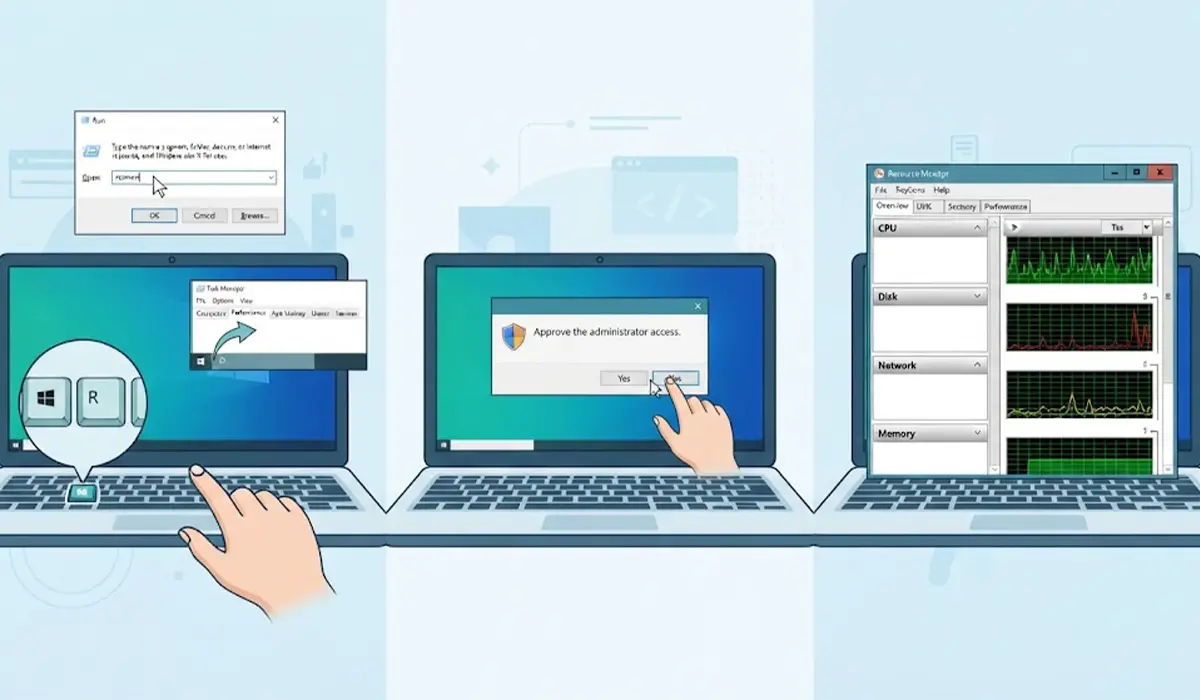
- Step 1: Press Windows key + R, type resmon, and press Enter. Another route is to open Task Manager, go to the Performance tab, and choose Open Resource Monitor.
- Step 2: Approve the administrator prompt if one appears. Elevated access gives the fullest view of system processes.
- Step 3: Start on the Overview tab. It shows four collapsible sections (CPU, Disk, Network, and Memory) with live graphs on the right. A quick glance shows which resource is under the most strain.
Tip: Run Resource Monitor while the problem is actually happening. A freeze that lasts ten seconds will not show up in a snapshot taken ten minutes later, so keep the window open and watch it during the slowdown.
Checking the CPU Tab
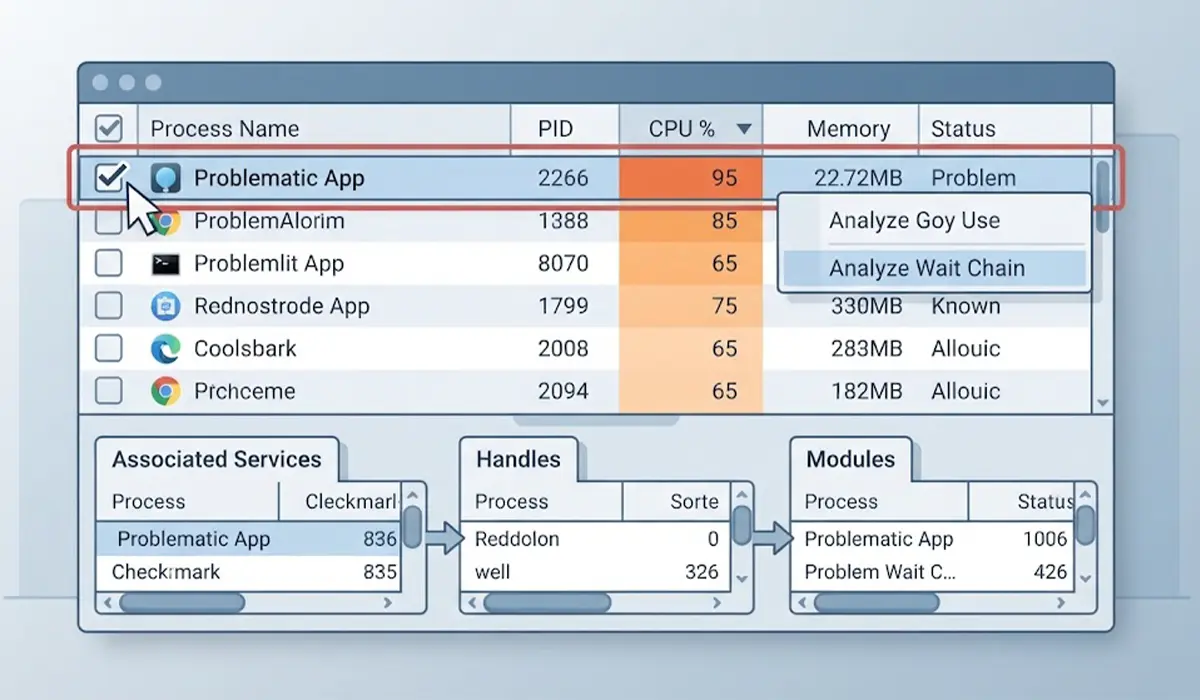
- Step 4: Click the CPU tab and then click the Average CPU column header to sort the Processes list from highest to lowest.
- Step 5: Look for a single process that stays high while the system sits idle. Brief spikes during app launches are normal, but one process pinned near the top for minutes at a time deserves attention.
- Step 6: Tick the checkbox beside that process. The Services, Associated Handles, and Associated Modules panels below now show only what belongs to it, which helps identify the service or file behind the load.
- Step 7: For a program that has stopped responding, right-click it and choose Analyze Wait Chain. If the window reports that the process is waiting on another process, that second process is often the real cause of the freeze.
Checking the Memory Tab
- Step 8: Open the Memory tab and study the colored bar at the bottom. It splits RAM into Hardware Reserved, In Use, Modified, Standby, and Free. Standby memory is cached data that Windows can reclaim instantly, so a small Free section alone is not a problem.
- Step 9: Sort the Processes list by Commit or Working Set to find which programs hold the most memory.
- Step 10: Watch the Hard Faults/sec column. Hard faults happen when Windows has to fetch data from the drive instead of RAM. Occasional hard faults are routine, but a constant stream while In Use memory is high suggests the system is short on RAM.

Checking the Disk Tab
- Step 11: Open the Disk tab and sort Processes with Disk Activity by the Total (B/sec) column to see which program is reading or writing the most.
- Step 12: Expand Disk Activity and check the Response Time column. Consistently long response times, combined with a Disk Queue Length graph that stays elevated, point to a drive that cannot keep up. This is a common cause of slow boots and laggy app launches on older hard drives.
- Step 13: Check the Storage section to confirm free space on each drive. A nearly full system drive can slow Windows noticeably.
Checking the Network Tab
- Step 14: Open the Network tab and sort Processes with Network Activity by Total (B/sec). An unexpected program sending or receiving heavy traffic is easy to spot here.
- Step 15: Use the TCP Connections and Listening Ports sections to see which remote addresses and ports a process is using. This helps when a background updater or sync tool is quietly saturating the connection.
Acting on What You Find
- Step 16: Right-click the suspect process on the CPU tab. Choose End Process only for apps that are clearly safe to close, such as a stuck browser or a runaway third-party program.
- Step 17: To pause a heavy process without closing it, choose Suspend Process, then Resume Process when ready. This is handy for confirming whether that process is really the cause of the slowdown.
- Step 18: Never end unfamiliar system processes just because they look busy. If a Windows service appears to be the problem, restarting the PC or searching for the exact process name is safer than forcing it closed.
Common Problems and Fixes
Resource Monitor Will Not Open
Try opening it from Task Manager instead of the Run box. If both fail, run the System File Checker by opening Command Prompt as administrator and entering sfc /scannow, since a damaged system file is a frequent culprit.
A Process Shows High Usage but Nothing Seems Wrong
Many background tasks, such as indexing, updates, and antivirus scans, use plenty of resources for a short time. Check whether the usage drops after a few minutes before taking action.
System Interrupts or System Shows Constant Disk or CPU Load
These entries represent Windows and driver activity rather than a normal app. Persistent high load there often traces back to a faulty driver or a failing device, so updating drivers and unplugging nonessential USB devices is a sensible first test.
Memory Looks Full but Programs Run Fine
Windows deliberately uses spare RAM as cache. If hard faults stay low and the PC feels responsive, there is nothing to fix.
Disk Response Times Stay High at Every Startup
Check the Storage section for low free space and look at the top disk processes. If the system runs on a traditional hard drive and the load never settles, moving Windows to a solid-state drive is the lasting fix.
Frequently Asked Questions
What is Resource Monitor used for?
Resource Monitor is a Windows tool that shows real-time CPU, memory, disk, and network usage in detail, including which individual processes and services are responsible for it.
How do I open Resource Monitor in Windows?
Press Windows key + R, type resmon, and press Enter. It can also be opened from the Performance tab in Task Manager by choosing Open Resource Monitor.
What is the difference between Task Manager and Resource Monitor?
Task Manager gives a quick overview and handles basic tasks like ending programs. Resource Monitor goes deeper, showing handles, modules, disk response times, network connections, and wait chains.
What does a hard fault mean in Resource Monitor?
A hard fault occurs when Windows needs data that is not in RAM and has to read it from the drive. Occasional hard faults are normal, but a constant high rate can indicate not enough memory.
How can Resource Monitor find which program is slowing my PC?
Sort the Processes list on the CPU, Memory, or Disk tab by usage while the slowdown is happening. The process at the top that stays high is the main suspect.
What does Analyze Wait Chain do?
It shows whether a frozen program is waiting on another process or resource. Right-click the unresponsive process on the CPU tab and choose Analyze Wait Chain to see what it is blocked by.
Is it safe to end processes from Resource Monitor?
It is safe for ordinary apps you recognize. Ending unfamiliar or system-level processes can cause instability or data loss, so identify a process first before closing it.
Can Resource Monitor show which app is using my internet?
Yes. The Network tab lists every process sending or receiving data, along with its connections and listening ports, so bandwidth-heavy apps are easy to identify.
Why is my disk usage high in Resource Monitor?
Common causes include background updates, indexing, antivirus scans, a nearly full drive, or an aging hard drive. The Disk tab shows which process is responsible and how long the drive takes to respond.
