
Learning how to set up Outlook on a new Windows 11 PC takes about five minutes when the steps are done in the right order. The process comes down to updating Windows, opening Outlook, and signing in with the email address you already use. After that, mail, calendar, and contacts load automatically.
Key Takeaways
- Outlook for Windows is usually ready to open from the Start menu, and it can be installed free from the Microsoft Store if it is missing.
- Signing in with an email address is all it takes to add a Microsoft, Gmail, Yahoo, iCloud, or work account.
- Installing Windows updates first prevents most sign-in and sync errors on a fresh PC.
- Extra accounts and signatures can be added any time from the Settings gear inside Outlook.
Step-by-Step Guide to Set Up Outlook on a New Windows 11 PC
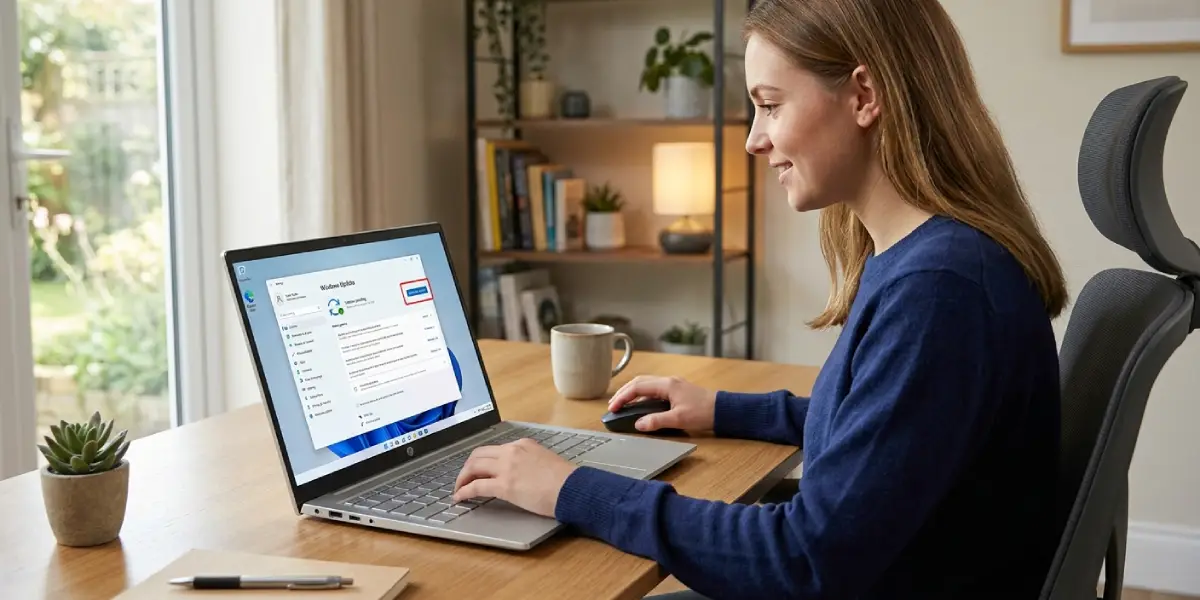
- Step 1: Install pending Windows updates. Select Start, open Settings, choose Windows Update, and click Check for updates. Brand-new PCs often ship with outdated components, and updating first avoids many sign-in hiccups later. Restart if Windows asks for it.
- Step 2: Open Outlook. Select Start, type Outlook, and choose the Outlook app from the results.
- Step 3: Install Outlook if it does not appear. Open the Microsoft Store from the Start menu, search for Outlook for Windows, and select Get or Install. Once it finishes, select Open.
- Step 4: Enter the email address. On the welcome screen, type the address to be used in Outlook and select Continue.
- Step 5: Sign in. A Microsoft, Outlook.com, Hotmail, or Microsoft 365 work or school account asks for the account password. A Gmail address opens a Google sign-in window, where access must be approved so Outlook can sync mail. Yahoo and iCloud addresses follow a similar sign-in prompt. Follow each screen until the account is confirmed.
- Step 6: Let the first sync finish. Outlook downloads recent messages, calendar events, and contacts, and large mailboxes may take a few minutes. Messages already stored on the mail server reappear on their own, so nothing needs to be transferred by hand.
- Step 7: Add another account if needed. Select the Settings gear in the top right, choose Accounts, then Email accounts, and select Add account. Enter the next address and sign in the same way.
- Step 8: Create an email signature. In Settings, choose Accounts, then Signatures. Create a new signature, type the text, and set it as the default for new messages.
- Step 9: Pin Outlook for quick access. Right-click Outlook in the Start menu and select Pin to taskbar. To make Outlook open every time a mail link is clicked, go to Settings, then Apps, then Default apps, search for Outlook, and set it as the default for mail links.
Tip: Open Outlook right after the Windows update restart rather than before. Many first-launch sign-in loops on new PCs come from a pending update that never finished.
Using Classic Outlook Instead
Some Microsoft 365 installs include the classic desktop version of Outlook. The setup is quick.
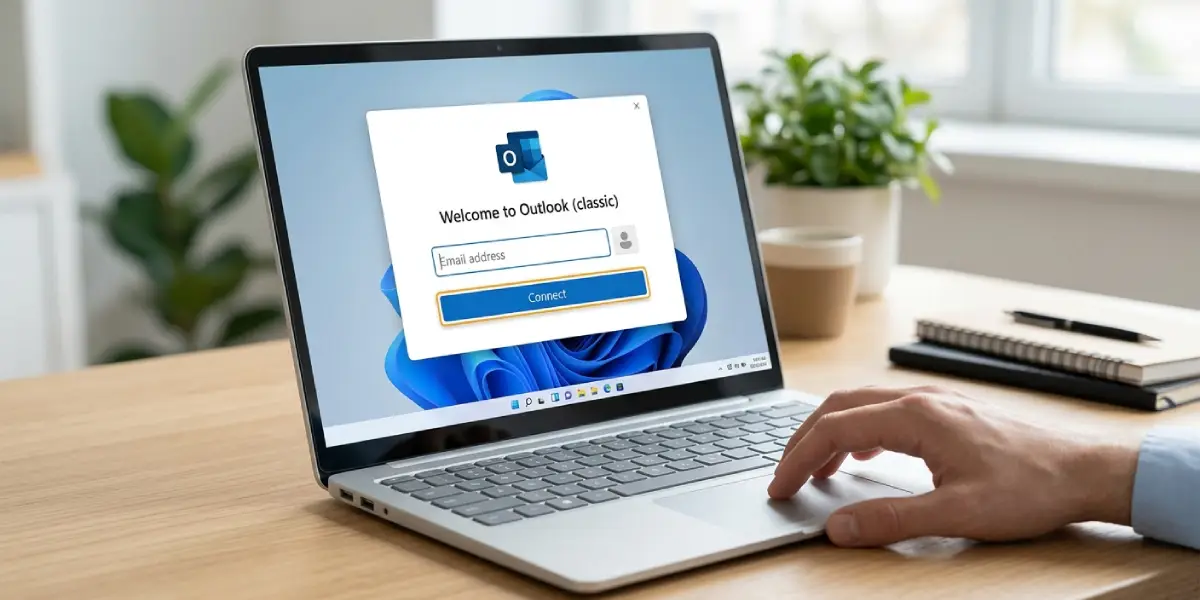
- Step 1: Select Start, type Outlook, and open Outlook (classic).
- Step 2: Type the email address on the welcome screen and select Connect.
- Step 3: Enter the password or approve the sign-in window, then select Done once the account is added.
- Step 4: To add more accounts later, select File, then Add Account.
Tip: A signed-in Microsoft 365 subscription is what activates classic Outlook. If an activation prompt appears, sign in with the account tied to the subscription.
Common Problems and Fixes
Outlook Does Not Appear in the Start Menu
Open the Microsoft Store, search for Outlook for Windows, and install it. After installation, search for Outlook in Start again.
The Sign-In Window Keeps Looping
Check that the internet connection is working and that the PC clock shows the correct date, time, and time zone. Run Windows Update, restart the PC, and try again. An incorrect system clock is a frequent cause of sign-in failures.
A Gmail Password Is Rejected
Outlook signs in to Gmail through a Google window, so the regular Google account password should be entered there. If 2-Step Verification is on, approve the prompt on the phone linked to the Google account.
A Work or School Account Is Blocked
Some organizations require administrator approval before new devices can connect. Contact the IT administrator and ask for access to be allowed for Outlook on a Windows 11 PC.
Mail Is Not Syncing After Setup
Go to Settings, choose Accounts, then Email accounts, and check the account status. If an error shows, remove the account and add it again using the steps above.
Outlook Asks for Activation
This prompt belongs to classic Outlook. Sign in with the Microsoft account that holds the Microsoft 365 subscription or Office license. The new Outlook app does not ask for a product key.
Frequently Asked Questions
Is Outlook free to set up on Windows 11?
The new Outlook for Windows app is free to download and use with personal email accounts. Classic Outlook requires a Microsoft 365 subscription or an Office license.
Can Gmail be set up in Outlook on a new Windows 11 PC?
Yes. Enter the Gmail address on the welcome screen, then sign in through the Google window that opens and approve access.
Is a Microsoft account required to use Outlook?
No. Outlook accepts email addresses from several providers, including Gmail, Yahoo, and iCloud, and a Microsoft account is not needed for those.
How many email accounts can be added to Outlook?
Multiple accounts can be added. Go to Settings, then Accounts, then Email accounts, and select Add account for each additional address.
Will old emails show up after setting up Outlook on the new PC?
Messages stored on the mail server reappear automatically after sign-in and sync. Mail that only existed on the old computer needs to be moved from that computer.
How can Outlook be made the default mail app?
Open Settings, choose Apps, then Default apps, search for Outlook, and set it as the default for mail links.
How can Outlook be found again after setup?
Select Start and type Outlook. Right-click the result and choose Pin to taskbar for one-click access.
Can an email signature be added during setup?
Yes. In Outlook, open Settings, choose Accounts, then Signatures, create the signature, and set it as the default for new messages.
