
A laptop headphone jack not working is one of the most common audio complaints, and it almost always traces back to a driver conflict, a wrong output setting, or debris sitting inside the port. This guide walks through the exact order of checks a technician would run, starting with the quick software fixes and moving into the physical port itself.
Key Takeaways
- Most headphone jack issues come from Windows sound settings or an outdated audio driver, not a broken port.
- Testing with a second pair of headphones and a second device is the fastest way to isolate the real cause.
- Dust and lint buildup inside the jack is a frequent, easily fixable culprit.
- A jack that stays silent after every software fix usually points to a hardware failure that needs professional repair.
- Jack detection settings in the audio control panel can block sound even when everything else is set up correctly.
Common Causes of a Laptop Headphone Jack Not Working
Before jumping into fixes, it helps to understand what usually causes this. The problem tends to fall into one of a few categories.
- Windows is still routing audio to the internal speakers instead of the headphone jack.
- The audio driver is outdated, corrupted, or was affected by a recent Windows update.
- Audio enhancements or exclusive mode settings are interfering with jack detection.
- Dust, lint, or pocket debris is physically blocking the port.
- The headphones themselves are damaged, which is easy to mistake for a laptop problem.
- The internal jack sensor or solder connection has failed, which is less common but does happen over time.
Before You Start
Most of the fixes below are software-based and need no preparation. Only the physical cleaning step requires a bit of setup.
- Shut the laptop down completely and unplug the charger before cleaning the port.
- Work in a dry area and avoid touching internal components with bare hands if the laptop’s bottom panel needs to come off.
- Gather a can of compressed air, a soft-bristle brush, and 90 percent or higher isopropyl alcohol with cotton swabs or a lint-free cloth.
- Never insert metal tools, toothpicks, or paperclips into the jack, since this can bend the internal contacts or scratch the housing.
If the port shows visible damage such as a bent contact pin or a cracked housing, that is a sign to stop and hand the repair to a qualified technician, since forcing anything further can turn a simple fix into a motherboard-level repair. Opening the laptop’s chassis may also affect the manufacturer’s warranty, so check that before removing any panels.
How to Fix a Laptop Headphone Jack Not Working
Software and Settings Checks
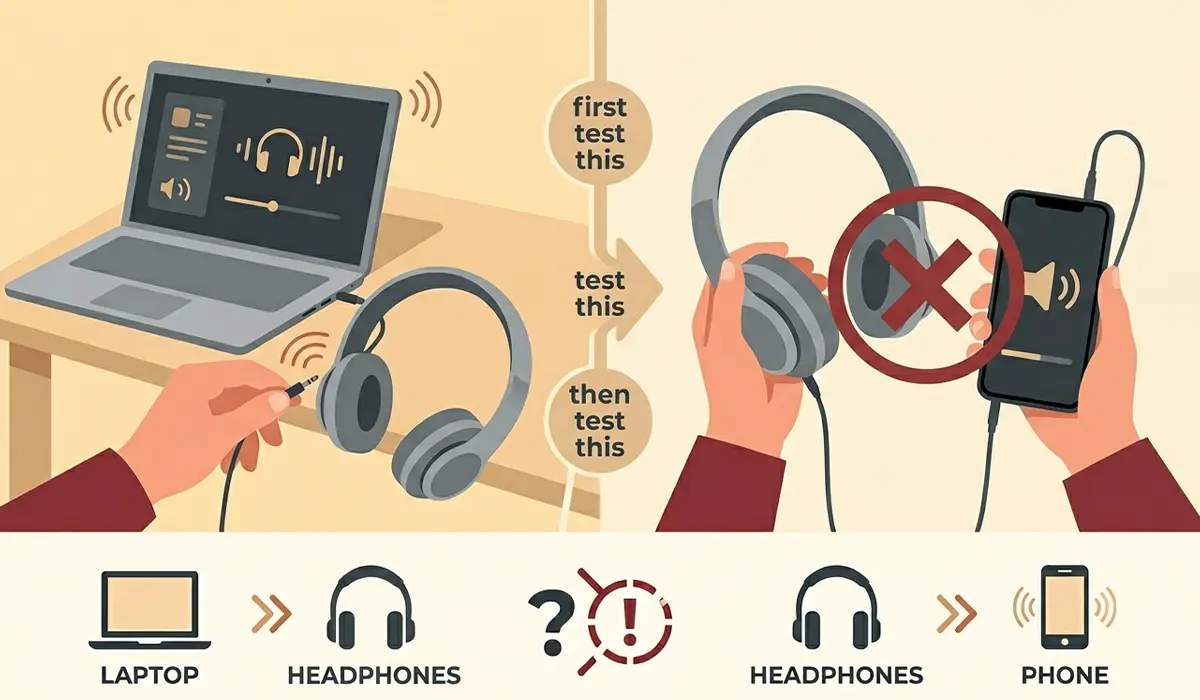
- Step 1: Plug a different pair of headphones into the laptop, and try the original headphones on another device such as a phone. This narrows down whether the laptop, the port, or the headphones themselves are at fault.
- Step 2: Right-click the speaker icon in the taskbar, select ‘Sound settings’, and confirm the headphones appear as the active output device. If they show up but are not selected, click to set them as default.
- Step 3: Open ‘Sound settings’, click ‘Manage sound devices’, and make sure the headphone output is not disabled. A grayed-out device usually means it was turned off at some point.
- Step 4: Open Device Manager, expand ‘Sound, video and game controllers’, right-click the audio driver, and choose ‘Update driver’. If a recent update caused the problem, right-click the same driver and select ‘Roll back driver’ instead.
- Step 5: Run the built-in troubleshooter by going to Settings, then ‘System’, then ‘Troubleshoot’, then ‘Other troubleshooters’, and running the ‘Playing Audio’ tool. It catches several common misconfigurations automatically.
- Step 6: Open the audio control panel that came with the laptop, such as Realtek Audio Console, and check for a jack detection or ‘front panel jack detection’ setting. Some laptops need this enabled for the headphone jack to register a connection at all.
- Step 7: Right-click the active playback device, open ‘Properties’, go to the ‘Enhancements’ tab, and check the box for ‘Disable all enhancements’. Enhancements occasionally interfere with jack sensing on certain audio chipsets.
Tip: Restart the laptop after each driver-related change rather than testing immediately. Windows sometimes needs a full reboot to properly reload the audio stack.
Physical Port Checks
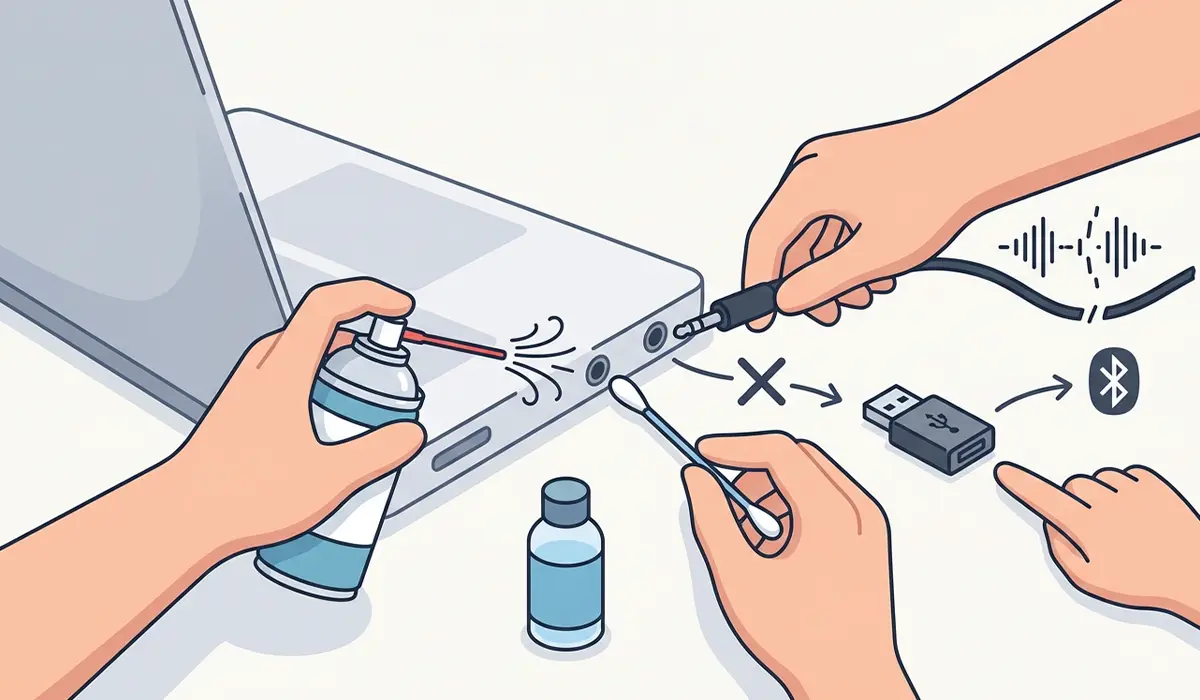
- Step 8: Aim a can of compressed air at the jack opening in short bursts to dislodge loose dust or lint.
- Step 9: Lightly dampen a cotton swab with isopropyl alcohol and gently clean the visible rim of the port, letting it air dry fully for a few minutes before plugging anything back in.
- Step 10: Insert the headphone plug slowly and wiggle it gently while watching for sound to cut in and out. Intermittent sound during this test usually points to a loose internal connection rather than a driver issue.
- Step 11: If the jack still shows no signal after every check above, treat it as a likely hardware failure and move on to a USB or Bluetooth audio adapter as a workaround, or schedule a repair with a qualified technician for jack replacement.
Common Problems and Fixes
Sound still plays through the laptop speakers with headphones plugged in
This almost always means jack detection is not registering the connection. Reinstalling the audio driver from Device Manager and checking the jack detection setting in the audio control panel resolves this in most cases.
Only one earbud or one channel produces sound
This points to a partial connection inside the jack rather than a full failure. Gently rotating and reseating the plug while playing audio often restores the missing channel; if it does not, the port’s internal contact for that channel has likely worn out.
Audio cuts out when the laptop is moved or the cord is touched
This is a classic sign of a loose internal solder joint on the jack itself. Software fixes will not resolve this, and it typically calls for a technician to reseat or replace the jack assembly.
Headphones work but the built-in microphone on the headset does not
Many laptops use a combined audio and microphone jack, and Windows sometimes defaults to the wrong input device. Checking the ‘Recording’ tab in Sound settings and setting the headset microphone as default usually fixes this.
Crackling or static sound after cleaning the port
This is often leftover moisture from cleaning. Letting the port air dry for a full 10 to 15 minutes before use, rather than plugging in right away, generally clears it up.
Frequently Asked Questions
Why does a laptop headphone jack suddenly stop working with no warning?
It is usually tied to a Windows update that changed the default audio driver or output device, rather than sudden hardware failure. Checking driver status and default output settings first is the quickest way to confirm this.
Can dust really cause a headphone jack to stop working?
Yes. Lint and dust buildup inside the port can prevent the plug from making a full electrical connection, which produces symptoms that look identical to a driver problem.
Is it safe to clean a laptop headphone jack with isopropyl alcohol?
High-percentage isopropyl alcohol, applied lightly with a cotton swab and allowed to fully air dry, is safe for cleaning the visible rim of the port. Water or other liquids should never be used, since they do not evaporate as cleanly and can leave residue.
Why do headphones work fine on a phone but not on the laptop?
This points to a laptop-side issue rather than damaged headphones, most commonly an output setting, a driver problem, or debris inside the laptop’s own port.
Should the audio driver be updated or reinstalled first?
Updating through Device Manager is the right first step. If updating does not help, uninstalling the driver entirely and letting Windows reinstall it fresh on restart often resolves conflicts that a simple update misses.
Why does only one side of the headphones play sound?
This is typically caused by a worn or slightly misaligned internal contact inside the jack rather than a driver issue, and it often improves temporarily by rotating the plug, though it may point to a hardware fix down the line.
Can a laptop headphone jack be repaired instead of replacing the whole laptop?
In most cases, yes. The jack is a small, replaceable component on the motherboard, and a technician can usually swap it without needing to replace any other part.
Is a USB or Bluetooth audio adapter a good permanent workaround?
It works well as a bridge while waiting for a repair or as a longer-term solution if replacing the jack is not worth the cost. Audio quality through a decent USB DAC or Bluetooth adapter is generally on par with, or better than, a built-in jack.
