
Quick Answer: Right-click an empty spot on the taskbar, open Taskbar settings, expand Taskbar behaviors, and check the box for “Automatically hide the taskbar.” It disappears right away, and hovering at the bottom edge brings it back whenever it’s needed.
Here’s the thing… the taskbar sits there permanently, and sometimes that’s just not what a screen needs. Watching a video, presenting slides, or just wanting a cleaner desktop are all good reasons to tuck it away. Most people find the whole setup takes less time than it does to explain.
Hide the Taskbar (Easiest Method)
This is the quickest route and works the same across every Windows 11 edition.
- Right-click any empty area of the taskbar.
- Select Taskbar settings.
- Scroll down and click Taskbar behaviors to expand it.
- Check the box next to Automatically hide the taskbar.
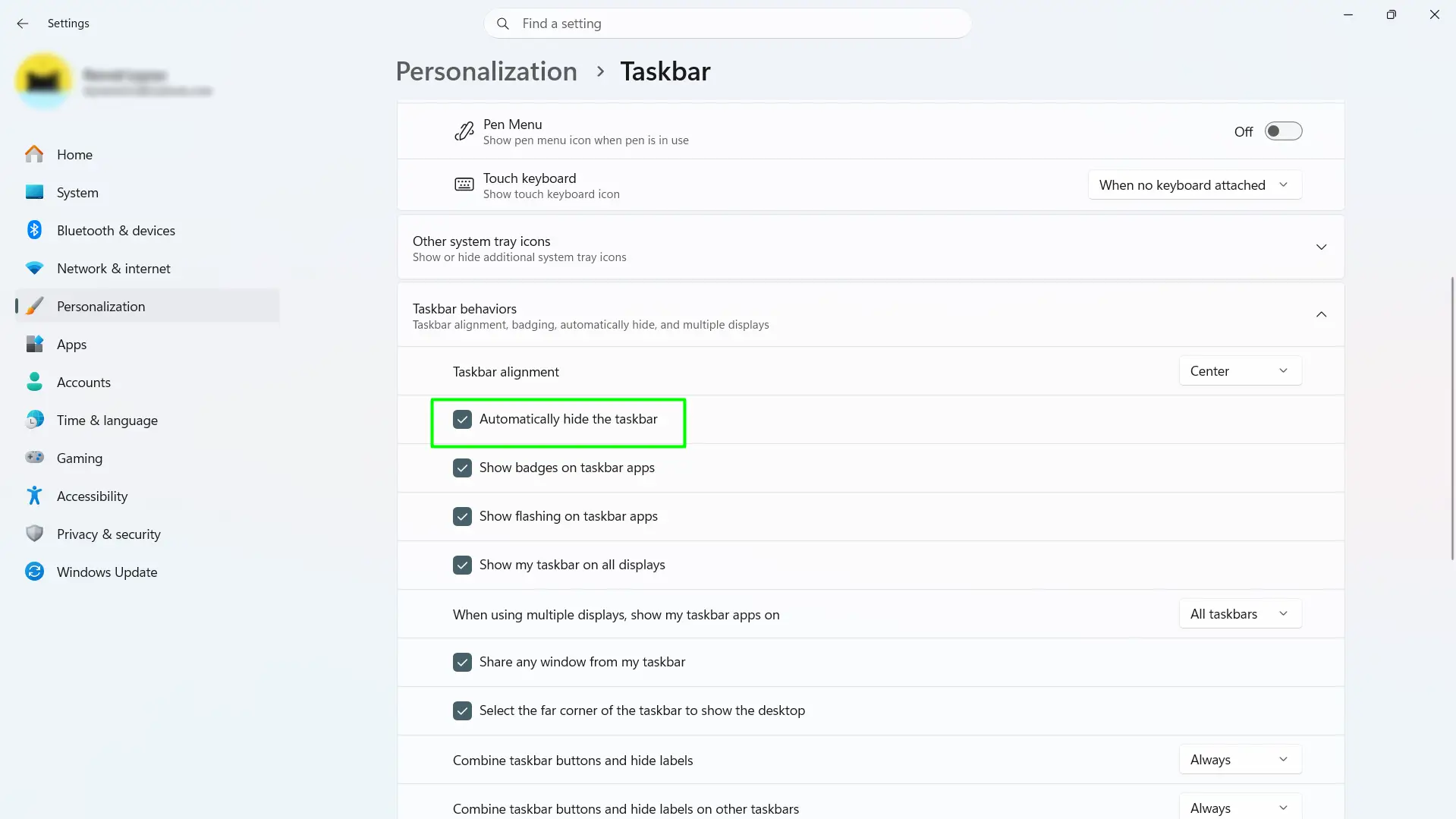
The taskbar slides off screen immediately. No restart needed. To bring it back at any moment, move the mouse cursor all the way down to the very bottom edge of the screen. It slides up instantly, then disappears again once the mouse moves away.
Alternative Method: Through the Settings App
If right-clicking the taskbar doesn’t bring up the menu, or the option feels inconsistent, this path lands in the exact same place.
- Press Windows key + I to open Settings.
- Click Personalization in the sidebar.
- Scroll down and click Taskbar.
- Expand Taskbar behaviors.
- Check Automatically hide the taskbar.
How to Turn Off Auto-Hide
Reversing it takes the same amount of effort as turning it on.
- Hover at the bottom edge of the screen so the taskbar appears, then right-click it (or open Settings > Personalization > Taskbar directly).
- Expand Taskbar behaviors.
- Uncheck Automatically hide the taskbar.
The taskbar returns to its permanent spot right away.
Tips for Using a Hidden Taskbar
- Use the Windows key instead of hovering. Pressing it opens the Start menu directly, without needing to bring the taskbar up first.
- Aim for the very bottom pixel. The trigger zone is a thin strip right at the edge of the screen — getting close isn’t quite enough.
- Notifications still break through. Even hidden, the taskbar will pop up briefly for new alerts, so nothing important gets missed.
- Multi-monitor setups work fine. Auto-hide applies to all taskbars across connected displays at once.
- Full-screen apps and games rarely need this. They already push the taskbar out of view on their own, so auto-hide matters most in regular desktop use.
The key is that this setting is completely reversible, so there’s no risk in trying it out for a day and deciding it’s not a fit.
Frequently Asked Questions
Does hiding the taskbar slow down or affect Windows 11 performance?
No. Auto-hide only changes what’s visible on screen. The taskbar still runs in the background exactly as before, so there’s no impact on speed or resource use.
Can the taskbar be removed completely instead of just hidden?
Not through standard settings. Windows 11 only offers auto-hide natively. Fully removing the taskbar requires third-party tools or registry changes, which carry a real risk of system issues and aren’t worth it for most people.
Will notifications still show up when the taskbar is hidden?
Yes. The taskbar briefly slides into view whenever an app sends a notification, then hides again once it’s dismissed. This can’t be turned off separately from the notifications themselves.
How do you open the Start menu without the taskbar visible?
Press the Windows key. It opens Start instantly without needing to hover over the bottom of the screen first.
Does auto-hide work the same way with two or more monitors?
Yes. The setting applies to every connected display at once, so all visible taskbars hide and reappear together rather than independently.
Is there a keyboard shortcut to show or hide the taskbar instantly?
There’s no dedicated shortcut for toggling it on and off. The fastest options are hovering at the bottom edge or pressing Windows key + T to force it into focus.
Can only part of the taskbar be hidden, like the clock or system tray?
Yes. Under Settings > Personalization > Taskbar, there are separate toggles for “Taskbar corner icons” and “System tray icons” that hide specific elements without hiding the whole bar.
Does hiding the taskbar also hide the Start button and search bar?
Yes. The entire bar slides away together — Start button, search, pinned apps, and system tray all included. Everything comes back at once when the taskbar reappears.
Does the auto-hide setting carry over to other PCs signed into the same Microsoft account?
No. Taskbar behavior settings are stored locally and don’t sync across devices, even when the same Microsoft account is used everywhere. Each machine needs the setting turned on separately.
