
Outlook error 0x8004010F usually pops up during a send/receive attempt and stops mail from moving in or out of the mailbox. This guide walks through the exact steps needed to clear it, starting with the quickest fixes and moving toward deeper repairs if the error keeps coming back.
Key Takeaways
- Outlook error 0x8004010F is almost always tied to a stuck item, a bloated Deleted Items folder, or a damaged data file.
- Clearing hidden system folders and emptying Deleted Items resolves the issue in most cases.
- Antivirus email scanning and outdated add-ins are common hidden triggers.
- The Inbox Repair Tool (SCANPST.EXE) fixes corruption inside the PST or OST file.
- A fresh Outlook profile solves the problem when nothing else works.
Step-by-Step Guide to Fix Outlook Error 0x8004010F
These steps are listed in the order most technicians try them, from the simplest checks to the more involved repairs. Working through them in sequence saves time and avoids unnecessary data file changes.
Quick Checks First
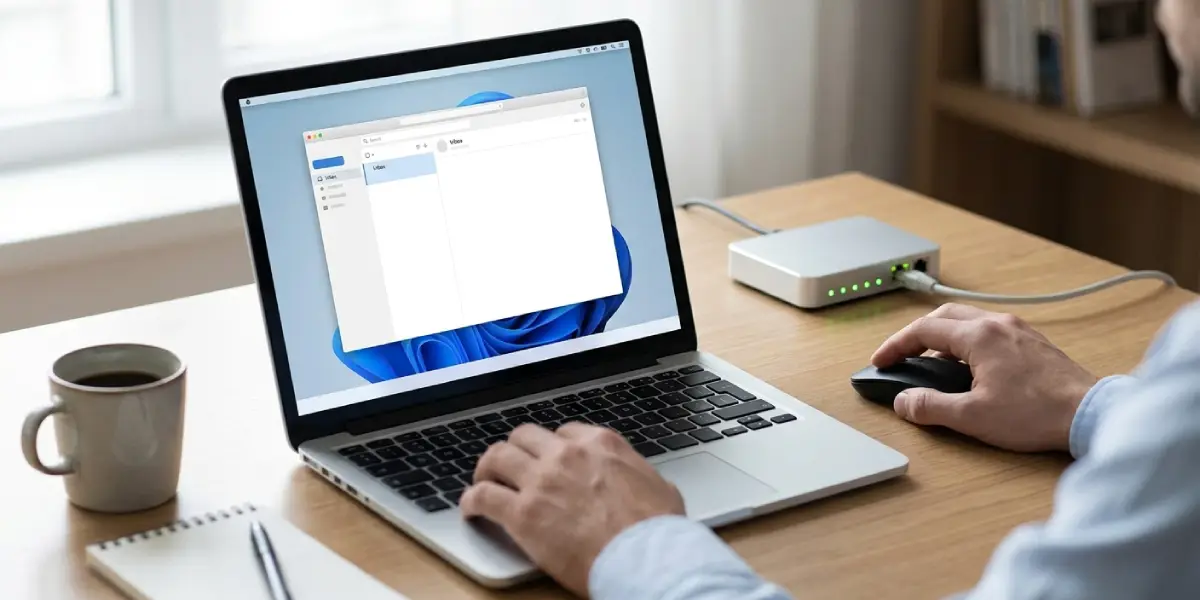
- Step 1: Close Outlook completely, confirm the internet connection is stable, then reopen the app. A dropped connection mid-sync is one of the most common reasons this error appears in the first place.
- Step 2: Press F9 to force a manual send/receive and watch the Outbox. If a message sits there without moving, right-click it and select ‘Move to’ followed by ‘Other Folder,’ then move it to the Drafts folder. This clears the jam without losing the message.
- Step 3: Open the Deleted Items folder and empty it completely. Outlook sometimes struggles to sync when this folder holds a large number of items or one item that has become corrupted during a previous sync attempt.
Clear Hidden System Folders
- Step 4: Go to the Folder pane, right-click the mailbox name, and choose ‘Show All Folders’ (in newer versions this sits under View settings). Look for a folder called ‘Sync Issues’ or ‘Dead Letters.’ Right-click each item inside and delete it permanently using Shift+Delete. These leftover sync records are a frequent, overlooked cause of 0x8004010F.
Tip: If the Sync Issues folder does not appear right away, close and reopen Outlook once after enabling ‘Show All Folders’ – it sometimes needs a restart to populate.
Rule Out Software Interference
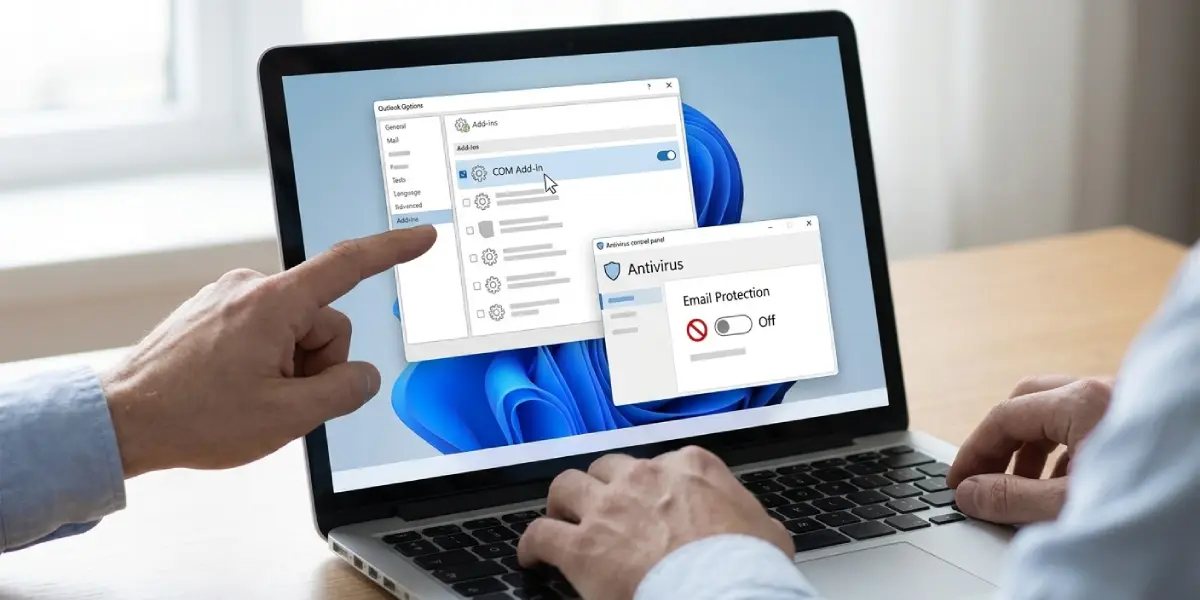
- Step 5: Open the antivirus program and temporarily disable email or attachment scanning. Some security suites intercept outgoing mail and block the sync process, which triggers this exact error code. Test a send/receive with scanning off before re-enabling it.
- Step 6: Hold Ctrl and click the Outlook icon to launch it in Safe Mode. If the error disappears, a third-party add-in is the culprit. Go to File, then Options, then Add-ins, select COM Add-ins from the Manage dropdown, and disable them one at a time to isolate the problem add-in.
Repair the Data File
- Step 7: Close Outlook and locate SCANPST.EXE (the path varies by Office version, typically under Program Files, Microsoft Office, root, OfficeXX). Run the tool, browse to the .pst or .ost file used by the affected account, and click Start. Let the scan finish, then repair any errors it finds. A damaged data file is a leading cause of persistent 0x8004010F errors.
Tip: Back up the data file before running SCANPST, since repairs on badly damaged files can occasionally remove unreadable items.
Recreate the Outlook Profile
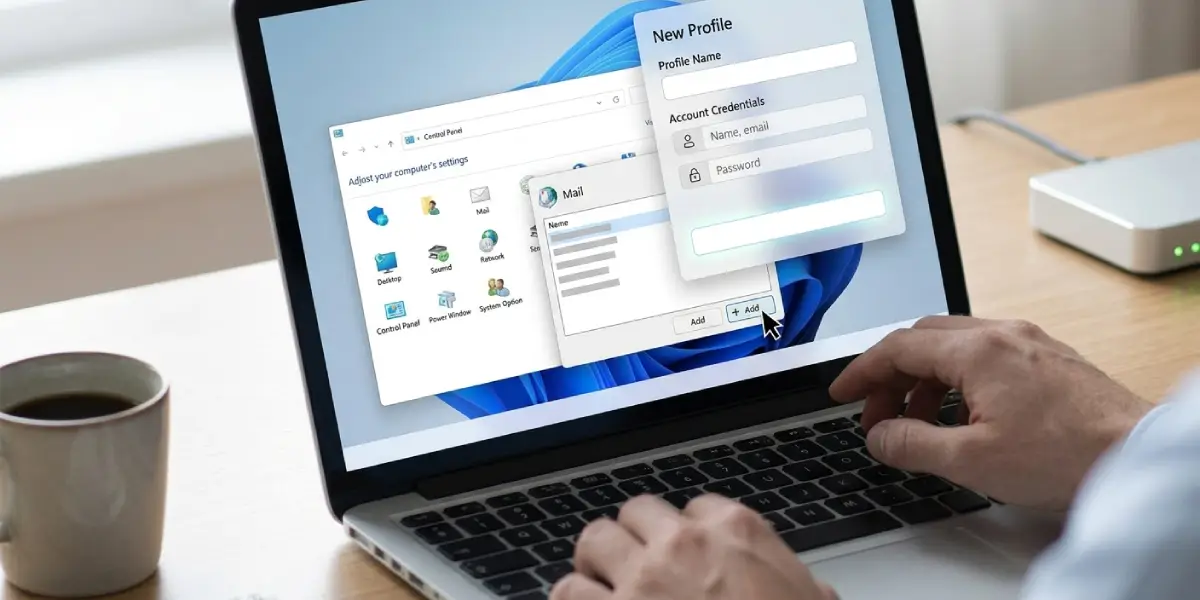
- Step 8: If the error survives every step above, open Control Panel, select Mail, then Show Profiles. Click Add to build a new profile, sign back into the account, and set the new profile as default. This forces Outlook to rebuild the connection and the local data file from scratch, clearing corruption that manual fixes could not reach.
Common Problems and Fixes
- The error returns right after a successful send/receive: Check the Outbox and Sync Issues folder again. A new stuck item often reappears within minutes if the underlying data file still has minor corruption; running SCANPST a second time usually finishes the job.
- The error only affects one account in a multi-account profile: Remove that single account from File, Account Settings, then re-add it. This avoids rebuilding the entire profile just for one problem mailbox.
- SCANPST cannot locate the data file: Open File, Account Settings, then Data Files inside Outlook to see the exact file path, since the default location differs between Windows versions and installation types.
- Safe Mode does not resolve the issue: This points away from add-ins and toward the data file or server connection, so move straight to Step 7 and Step 8.
Frequently Asked Questions
What causes Outlook error 0x8004010F?
It typically comes from a full or corrupted Deleted Items folder, a stuck message in the Outbox, leftover sync records in hidden system folders, or a damaged PST or OST data file.
Does deleting emails fix error 0x8004010F?
Emptying the Deleted Items folder and clearing stuck messages in the Outbox resolves the error in many cases, especially when the folder has grown very large.
Is 0x8004010F related to a corrupt PST or OST file?
Yes, data file corruption is one of the leading causes, and running the Inbox Repair Tool (SCANPST.EXE) directly targets that issue.
Can antivirus software cause this error?
Yes. Email scanning features in some antivirus programs interfere with the send/receive process and can trigger this exact error code.
Will creating a new Outlook profile fix it permanently?
In most stubborn cases, yes. A new profile rebuilds the connection and local data file, which clears corruption that other steps cannot reach.
Does this error affect only one email account?
It can affect a single account within a multi-account profile or the entire profile, depending on whether the cause is account-specific or tied to the shared data file.
How long does SCANPST take to run?
The scan usually takes a few minutes for smaller files, though very large data files can take considerably longer depending on file size and disk speed.
Can outdated Outlook cause 0x8004010F?
An outdated version can contribute to sync problems, so checking for updates under File, Office Account, Update Options is a reasonable step if the error persists after the fixes above.
Is this error linked to mailbox storage limits?
A mailbox that is near or over its storage limit can trigger sync failures, including this error code, so checking mailbox size is worth doing if the account is hosted on an Exchange or Microsoft 365 server.
