
The Outlook Not Implemented error usually pops up when a feature, add-in, or command tries to run something Outlook cannot process at that moment. This guide walks through the exact steps needed to clear the error and get Outlook running normally again.
Key Takeaways
- The Outlook Not Implemented error is most often triggered by a corrupted add-in, an outdated Outlook profile, or a damaged data file.
- Disabling recently installed add-ins resolves the majority of cases within minutes.
- Running Outlook in Safe Mode helps confirm whether an add-in is the root cause.
- Repairing the Office installation fixes deeper issues tied to missing or broken program files.
- Creating a new Outlook profile is a reliable last-resort fix when the error persists.
Step-by-Step Guide to Fix the Outlook Not Implemented Error
Work through these steps in order. Most users find the problem clears up well before reaching the final step, so there is no need to jump ahead.
Start With Safe Mode and Add-ins
- Step 1: Close Outlook completely, then press Windows key + R, type ‘outlook.exe /safe’, and press Enter to launch Outlook in Safe Mode.
- Step 2: If Outlook opens without the error in Safe Mode, an add-in is very likely the cause. Go to File, then Options, then Add-ins.
- Step 3: At the bottom of the window, select ‘COM Add-ins’ from the Manage dropdown and click Go. Uncheck any add-ins installed or updated recently, click OK, then restart Outlook normally.
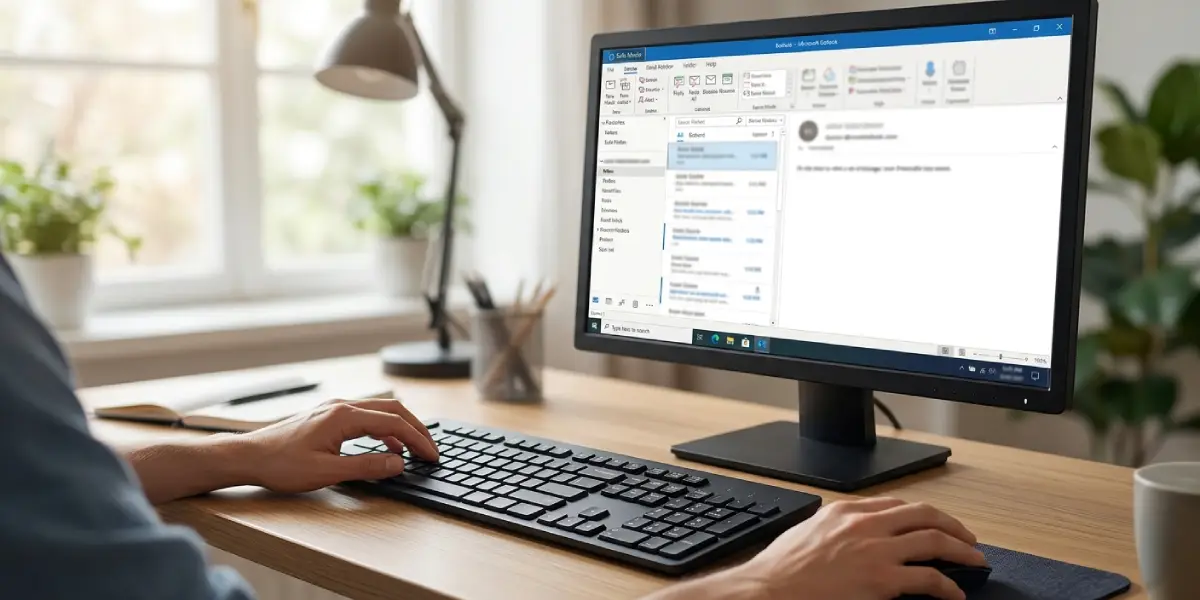
Tip: If several add-ins are listed, disable them one at a time and reopen Outlook after each change. This makes it easy to pinpoint exactly which add-in is triggering the error instead of guessing.
Update and Repair Outlook
- Step 4: Open any Office app, go to File, then Account, then click Update Options, and select Update Now to install the latest Outlook fixes.
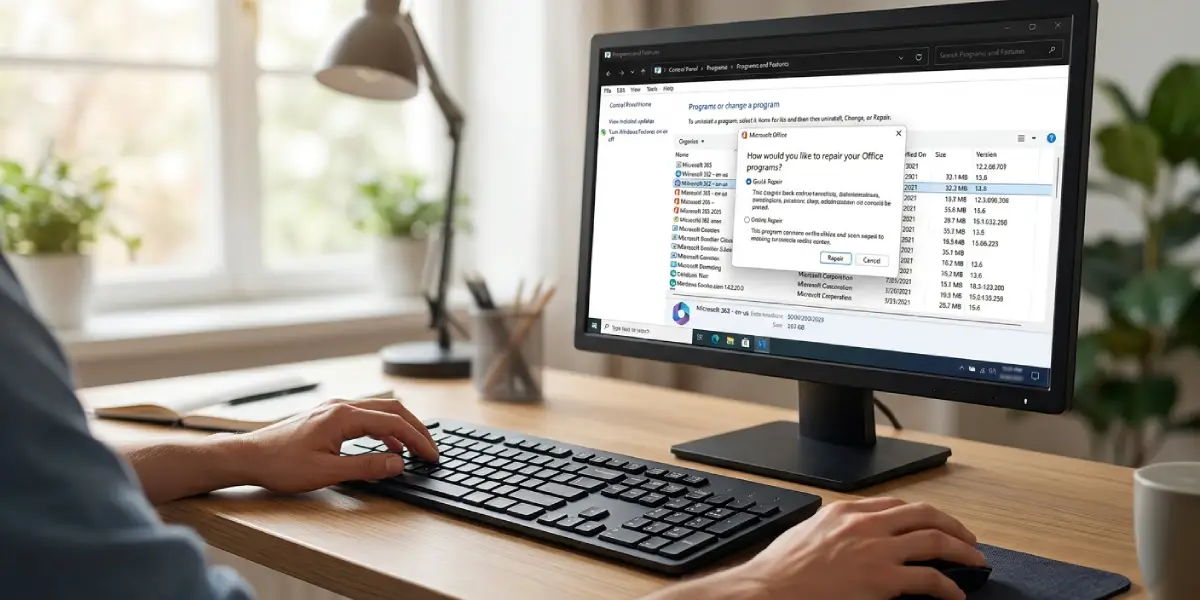
- Step 5: If the error continues, open the Control Panel, go to Programs and Features, select Microsoft Office, and choose Change.
- Step 6: Pick Quick Repair and let it finish. If the error still shows up afterward, run the process again and choose Online Repair instead, since it replaces more files than the quick version.
Rebuild the Outlook Profile
- Step 7: Open Control Panel, search for Mail, click Show Profiles, then Add, and create a new profile name. Set it as the default profile when prompted.
- Step 8: Restart Outlook and sign back into the account. This is similar to giving Outlook a clean slate, so it forgets whatever setting or cached data was causing the conflict.
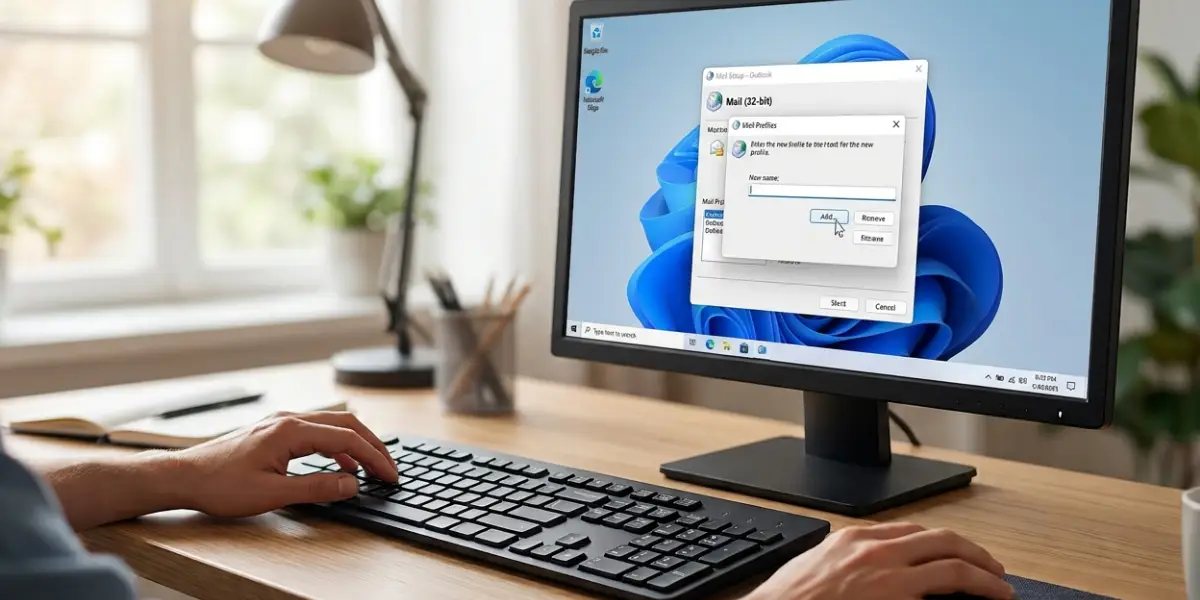
Tip: Before rebuilding a profile, note down any custom send/receive groups or signature settings, since a new profile starts with Outlook’s default configuration.
Common Problems and Fixes
- The error reappears right after re-enabling an add-in: That add-in is the source. Check the developer’s website for an updated version compatible with the current Outlook build.
- Safe Mode also shows the error: This points away from add-ins and toward a corrupted data file. Run the Inbox Repair Tool (scanpst.exe) on the affected PST or OST file.
- Repair options are grayed out in Control Panel: Outlook may still be running in the background. Open Task Manager, end any outlook.exe processes, then try the repair again.
- The error only happens with one specific email or calendar item: The item itself may be damaged. Try opening it from a different device or ask the sender to resend it.
- A new profile does not remove the error: This usually means the issue sits at the Office installation level, so an Online Repair or full reinstall becomes the next logical step.
Frequently Asked Questions
What causes the Outlook Not Implemented error?
It is typically caused by a conflicting or outdated add-in, a corrupted Outlook data file, or missing program files from an incomplete Office update.
Does restarting the computer fix the Outlook Not Implemented error?
A restart occasionally clears a temporary glitch, but it rarely fixes the underlying cause. Working through the add-in and repair steps above gives a much more reliable result.
Is it safe to disable all Outlook add-ins at once?
Yes, disabling every add-in is safe and simply turns off extra features temporarily. Add-ins can be re-enabled individually once the faulty one is identified.
How long does an Online Repair of Office take?
An Online Repair typically takes between 15 and 30 minutes, depending on internet speed, since it downloads fresh copies of Office program files.
Will creating a new Outlook profile delete existing emails?
No. Emails stored on a mail server, such as Exchange or Microsoft 365 accounts, remain untouched. Locally stored PST files stay on the computer and can be reattached to the new profile.
Can a damaged PST or OST file cause this error?
Yes, a corrupted data file is a common trigger. Running the built-in Inbox Repair Tool (scanpst.exe) scans and fixes structural damage in these files.
Does the Outlook Not Implemented error affect the mobile app?
This error is specific to the Outlook desktop application on Windows and does not typically appear in the mobile or web versions of Outlook.
What if none of these steps fix the error?
If the error persists after a profile rebuild and an Online Repair, a full uninstall and reinstall of Office usually resolves any remaining corruption in the installation files.
