
Learning how to find and remove duplicate emails in a PST file is one of those small maintenance jobs that quietly saves a lot of frustration later. Duplicate messages bloat the file, slow down search, and make an already crowded inbox harder to manage. This guide walks through a safe, methodical way to clean things up without deleting anything that actually matters.
Key Takeaways
- Always back up the PST file before touching a single message.
- Sort and group by Subject and Received date to spot duplicates visually.
- Move suspected duplicates to a review folder instead of deleting them outright.
- Outlook’s Clean Up feature trims redundant messages inside conversation threads.
- Compact the PST file afterward to reclaim the freed-up space.
How to Find and Remove Duplicate Emails in a PST
The steps below use Outlook’s built-in tools, so there is nothing to install and nothing that touches the original file until confirmation happens at the end.
Step-by-Step Process
- Step 1: Back up the PST file first. Close Outlook, locate the .pst file (usually under Documents/Outlook Files or via File > Open & Export > Import/Export > Export to a file), and copy it to a safe location. This single step is what makes the whole process reversible if anything looks off later.
- Step 2: Reopen Outlook and select the folder where duplicates keep showing up, most often the Inbox or a large project folder. Click the ‘Subject’ column heading to sort messages alphabetically by subject line, which naturally clusters duplicates next to each other.
- Step 3: Add a secondary sort by received date. Right-click the column header row, choose ‘View Settings’, then ‘Sort’, and add ‘Received’ as the second sort field. Messages with the same subject and nearly identical timestamps are almost always the true duplicates.
- Step 4: Create a new folder and name it something clear, like ‘Duplicate Review’. Right-click the mailbox name, select ‘New Folder’, and give it that name so it stays separate from everything else.
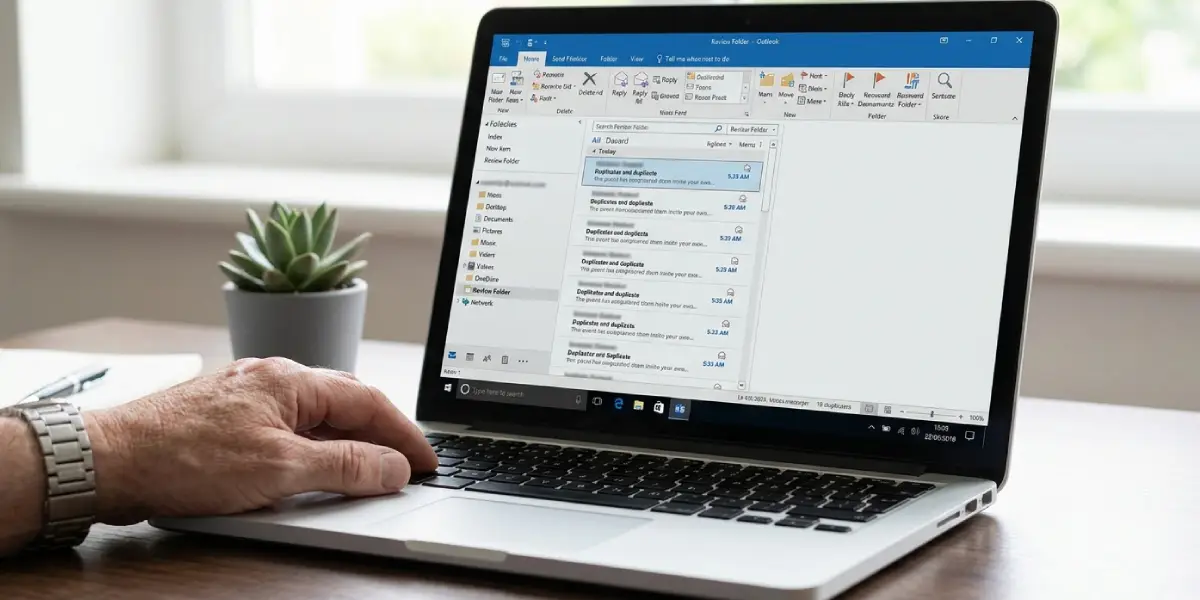
- Step 5: Move the suspected duplicate emails into that review folder using drag-and-drop or the ‘Move’ button on the Home tab. Nothing gets deleted at this stage, which is exactly the point.
- Step 6: Turn on Outlook’s Clean Up tool for an extra pass on conversation threads. Go to the Home tab, select ‘Clean Up’, then ‘Clean Up Folder’. This automatically removes redundant messages within a thread while keeping the most complete version of the conversation intact.
- Step 7: Open the Duplicate Review folder and check each item carefully. Compare sender, subject, timestamp, and attachments side by side before deciding anything is truly redundant.
- Step 8: Once confirmed, permanently delete the genuine duplicates from the review folder. Right-click each one and choose ‘Delete’, then empty the Deleted Items folder to finish clearing them out.
- Step 9: Compact the PST file to reclaim the space that deleted duplicates left behind. Go to File > Account Settings > Account Settings, click the Data Files tab, select the PST, choose ‘Settings’, then ‘Advanced’, and click ‘Outlook Data File Settings’ followed by ‘Compact Now’.
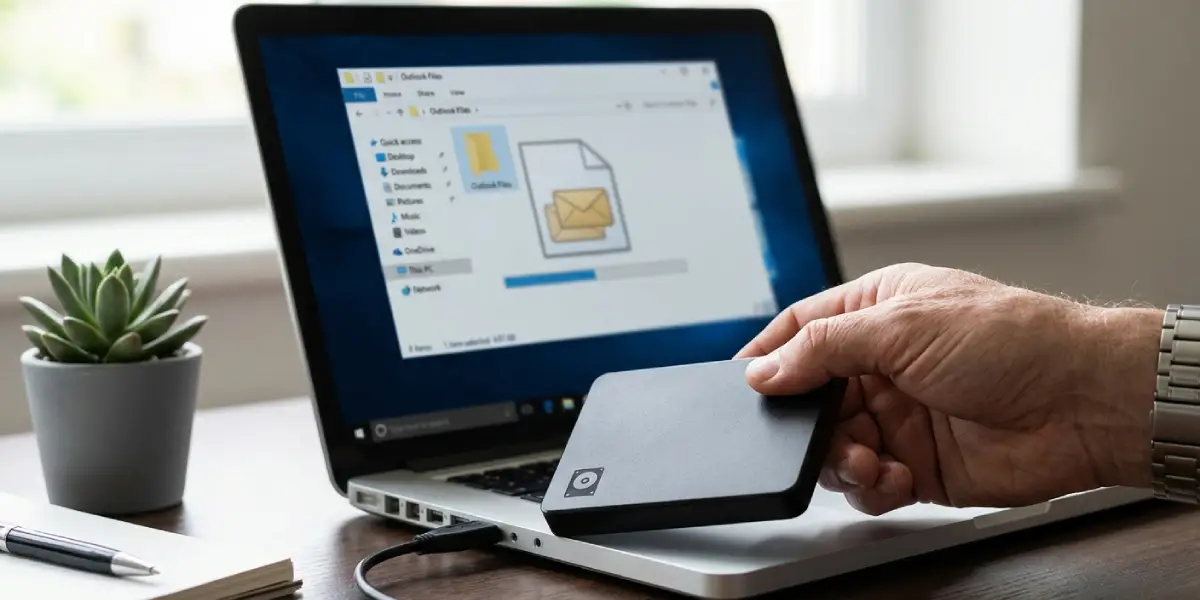
Tip: Keep the backup copy from Step 1 until the compacted PST has been used for a few days without issues. Most people find that a short waiting period catches anything that got mistakenly flagged as a duplicate before it becomes a real problem.
Why Moving Before Deleting Matters
Skipping straight to deletion is where most data loss actually happens. Two emails can look identical at a glance but differ in an attachment size, a CC line, or a follow-up reply buried in the thread. Reviewing everything from a dedicated folder first turns an irreversible action into a reversible one, which is the whole idea behind doing this without data loss.
Common Problems and Fixes
A few issues tend to come up while working through this process, and each one has a straightforward fix.
- Sorting by Subject does not group duplicates together: the column may be sorted in reverse order, or messages have slightly different subject lines due to ‘RE:’ or ‘FW:’ prefixes. Clear those prefixes from the sort criteria by adding a second sort field for Sender instead.
- Clean Up removes more than expected: this tool works on entire conversation threads, so pause and review the Clean Up settings under File > Options > Mail > Conversation Clean Up before running it on a folder with mixed, unrelated threads.
- The Duplicate Review folder keeps growing faster than it can be checked: work through it in smaller batches, such as one sender or one week at a time, rather than trying to clear it all in one sitting.
- PST file size does not shrink after deleting duplicates: the Compact Now step in Step 9 was likely skipped. Outlook does not reclaim space automatically until that step runs.
- Outlook becomes slow or unresponsive while sorting a very large folder: close other folders and search panes first, since sorting thousands of items at once is resource-intensive on larger PST files.
Frequently Asked Questions
Is it safe to delete duplicate emails directly from the Inbox?
It is safer to move suspected duplicates to a separate review folder first. Reviewing them there before permanent deletion prevents accidentally removing an email that only looks like a duplicate.
Does Outlook have a built-in duplicate finder?
Outlook does not include a dedicated ‘find duplicates’ button, but sorting by Subject and Received date, combined with the Clean Up feature, achieves the same result manually and reliably.
Will compacting the PST file delete any emails?
No. Compacting only reclaims disk space left behind after items are deleted. It does not remove or alter any remaining emails in the file.
What does the Clean Up feature actually remove?
Clean Up scans conversation threads and removes earlier messages that are fully contained within a later reply, keeping the most complete version of each conversation.
How long should the backup PST be kept before deleting it?
A few days of normal use after compacting is usually enough to confirm nothing important was lost. Once everything checks out, the backup can be safely removed.
Can this process be done on a shared or archived PST file?
Yes, the same steps apply. Just make sure the file is closed by any other Outlook profile or user before starting, since PST files can only be edited by one session at a time.
Why do some duplicate emails have slightly different sizes?
This usually happens when one copy includes an attachment or embedded image that did not fully load in the other. Always check attachment size before deleting either copy.
Is there a risk of losing attachments during this process?
Only if a duplicate is deleted without checking it first. Reviewing each item in the Duplicate Review folder before permanent deletion is what prevents this.
Does this method work for both .pst and .ost files?
This guide applies specifically to PST files, which are typically used for archives or manually created data files. OST files sync directly with a mail server and are handled differently.
