
Outlook not syncing new email is one of the most common frustrations for daily users, especially when messages seem to stop arriving without warning. This guide walks through the exact steps needed to get Outlook receiving mail again, from checking connection status to resetting the send/receive settings that control syncing.
Key Takeaways
- Most sync issues trace back to Outlook’s connection status or a paused send/receive group.
- Checking the Work Offline setting solves the problem in a surprising number of cases.
- Rebuilding the send/receive schedule often fixes delayed or stalled syncing.
- Corrupted Outlook profiles or data files can block new mail from coming through.
- A quick account repair inside Outlook resolves most stubborn sync failures.
Step-by-Step Guide to Fix Outlook Not Syncing New Email
These steps follow the order most likely to resolve the issue quickly, starting with the simplest checks before moving into deeper fixes.
Check Outlook’s Connection Status
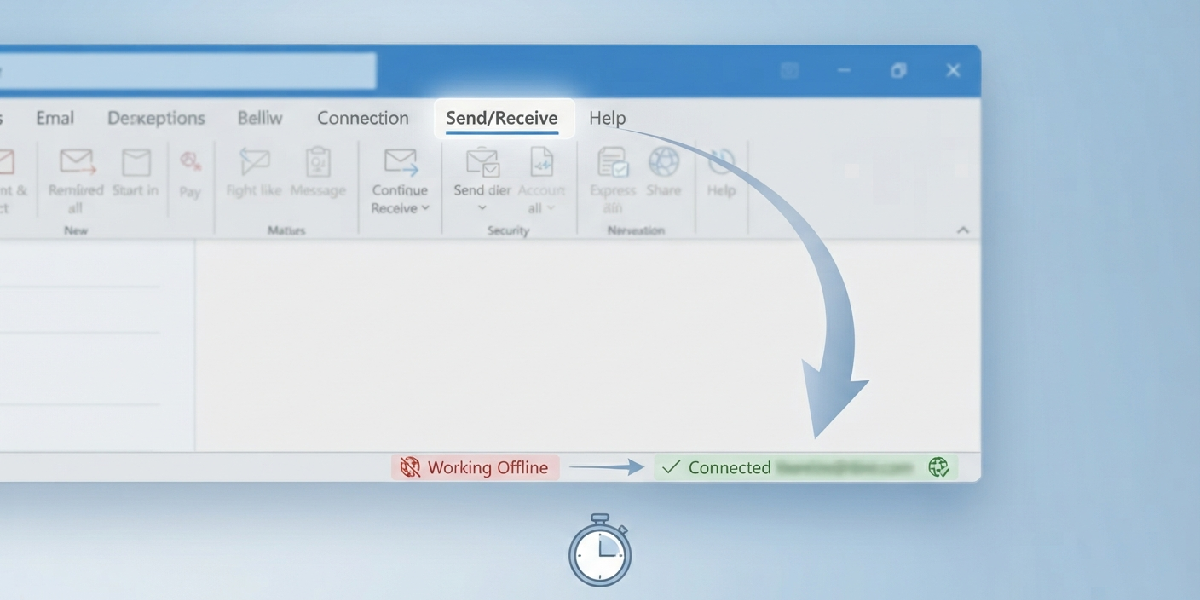
- Step 1: Look at the bottom of the Outlook window for the connection status bar. It should say ‘Connected’ or ‘All folders are up to date.’
- Step 2: If it says ‘Working Offline,’ click the Send/Receive tab at the top ribbon, then select ‘Work Offline’ to toggle it off. This single click fixes the problem more often than people expect.
- Step 3: Wait a few seconds and watch the status bar again to confirm Outlook reconnects to the mail server.
Tip: A greyed-out ‘Work Offline’ button with a highlighted box around it usually means offline mode is active, even if nothing on screen says so directly.
Force a Manual Send/Receive
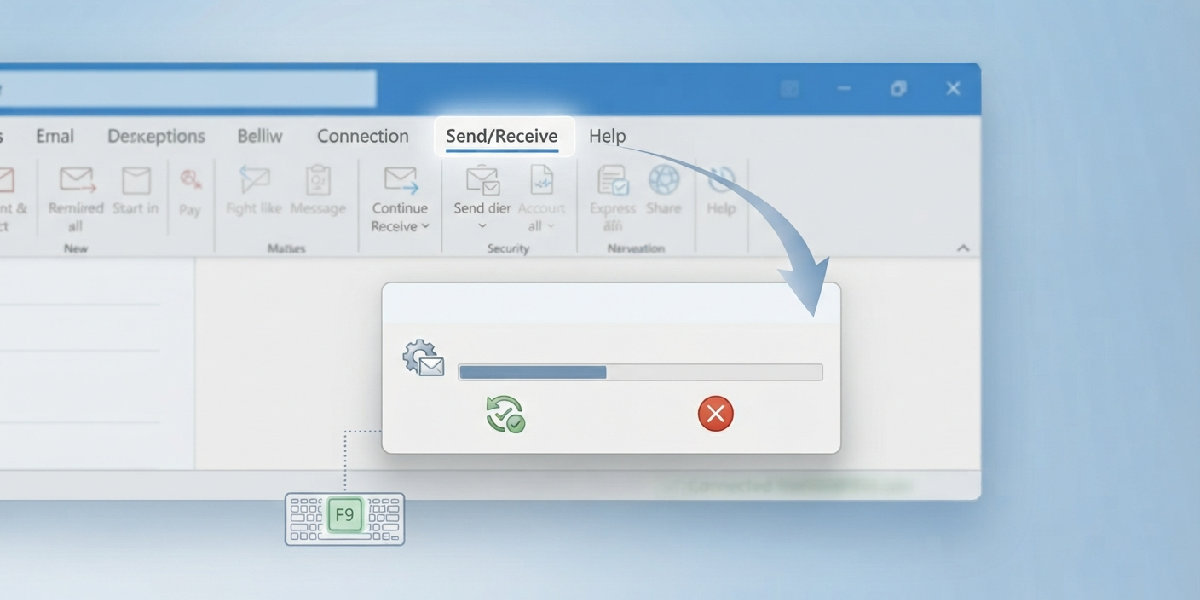
- Step 4: Go to the Send/Receive tab and click ‘Send/Receive All Folders,’ or press F9 on the keyboard.
- Step 5: Watch for a progress window. If an error appears, note the exact wording, since it usually points directly to the setting that needs fixing.
Check the Send/Receive Group Settings
- Step 6: Click File, then Options, then Advanced.
- Step 7: Under ‘Send and Receive,’ select ‘Send/Receive.’
- Step 8: Confirm the account is included in the default group and that ‘Schedule an automatic Send/Receive every’ is checked, ideally set to 1 to 5 minutes.
- Step 9: Make sure ‘Include this group in Send/Receive (F9)’ is also checked, then click Close and OK.
Repair the Outlook Account
- Step 10: Go to File, then Account Settings, then Account Settings again.
- Step 11: Select the affected email account and click Repair.
- Step 12: Follow the prompts, which may require re-entering the account password, then restart Outlook once the repair finishes.
Tip: A repair resets the connection between Outlook and the mail server without deleting existing messages, so it is safe to try before more drastic fixes.
Recreate the Outlook Profile
- Step 13: Close Outlook completely, then open the Control Panel and search for Mail.
- Step 14: Click ‘Show Profiles,’ then ‘Add’ to create a new profile and follow the setup wizard to re-add the account.
- Step 15: Set Outlook to always use the new profile, then reopen Outlook and check if new mail starts syncing.
Common Problems and Fixes
- Outlook shows ‘Connected’ but mail still does not arrive: Close and reopen Outlook, since the status bar sometimes lags behind the actual connection state.
- Send/Receive errors mentioning a timeout: A slow or unstable internet connection is usually the cause; switching networks briefly often confirms this.
- New mail syncs on webmail but not in Outlook: This points to a local Outlook issue rather than a server problem, so the account repair step above is the right next move.
- Sync works after restarting Outlook but stops again later: The automatic send/receive interval may be set too long or disabled entirely; revisit the send/receive group settings to correct it.
- Antivirus or firewall software blocking sync: Some security tools scan email traffic and interfere with the connection; temporarily disabling email scanning helps confirm whether this is the cause.
Frequently Asked Questions
Why has Outlook suddenly stopped syncing new email?
This usually happens because Outlook switched to Work Offline mode, the send/receive schedule was changed, or a temporary server connection issue interrupted the sync process.
Does restarting Outlook fix syncing problems?
Restarting Outlook resolves many temporary sync glitches, particularly when the connection status bar is out of sync with the actual server connection.
Will repairing the Outlook account delete existing emails?
No, repairing an account only resets the connection settings between Outlook and the mail server; existing messages remain untouched.
How long should automatic send/receive be set to?
Setting the interval to 1 to 5 minutes keeps new mail syncing promptly without placing excessive load on the connection.
Can a slow internet connection cause Outlook to stop syncing?
Yes, an unstable or slow connection often causes send/receive timeouts, which show up as new mail arriving late or not at all.
Is it safe to recreate an Outlook profile?
Recreating a profile is safe since account data lives on the mail server; the process simply rebuilds the local connection between Outlook and that account.
Why does new mail appear on the phone but not in Outlook on the desktop?
This typically indicates a local sync issue on the desktop, such as offline mode being enabled or a send/receive group excluding that account.
Does antivirus software affect Outlook syncing?
Some antivirus programs scan incoming email traffic and can delay or block syncing, so temporarily disabling email scanning helps identify this as the cause.
What should be checked first when Outlook stops syncing new email?
Checking whether Work Offline mode is active is the fastest first step, since it accounts for a large share of sync complaints.
