
Adding a Gmail account in New Outlook for Windows only takes a few minutes once the right menu is open. This guide walks through the exact steps, from opening account settings to confirming Gmail messages show up in the inbox.
Key Takeaways
- Gmail accounts connect to New Outlook through the built-in ‘Add Account’ option, no separate app needed.
- Sign-in happens through a secure Google window, not directly inside Outlook.
- Two-step verification or an app password may be required, depending on the Google account’s security settings.
- Initial sync can take several minutes for accounts with a large mail history.
- Once added, Gmail appears as its own folder set in the Outlook navigation pane.
Step-by-Step Guide to Adding a Gmail Account in New Outlook
These steps apply to the current version of New Outlook for Windows. The process is nearly identical whether Outlook is being set up for the first time or a second account is being added to an existing profile.
Open Account Settings
- Step 1: Open New Outlook for Windows.
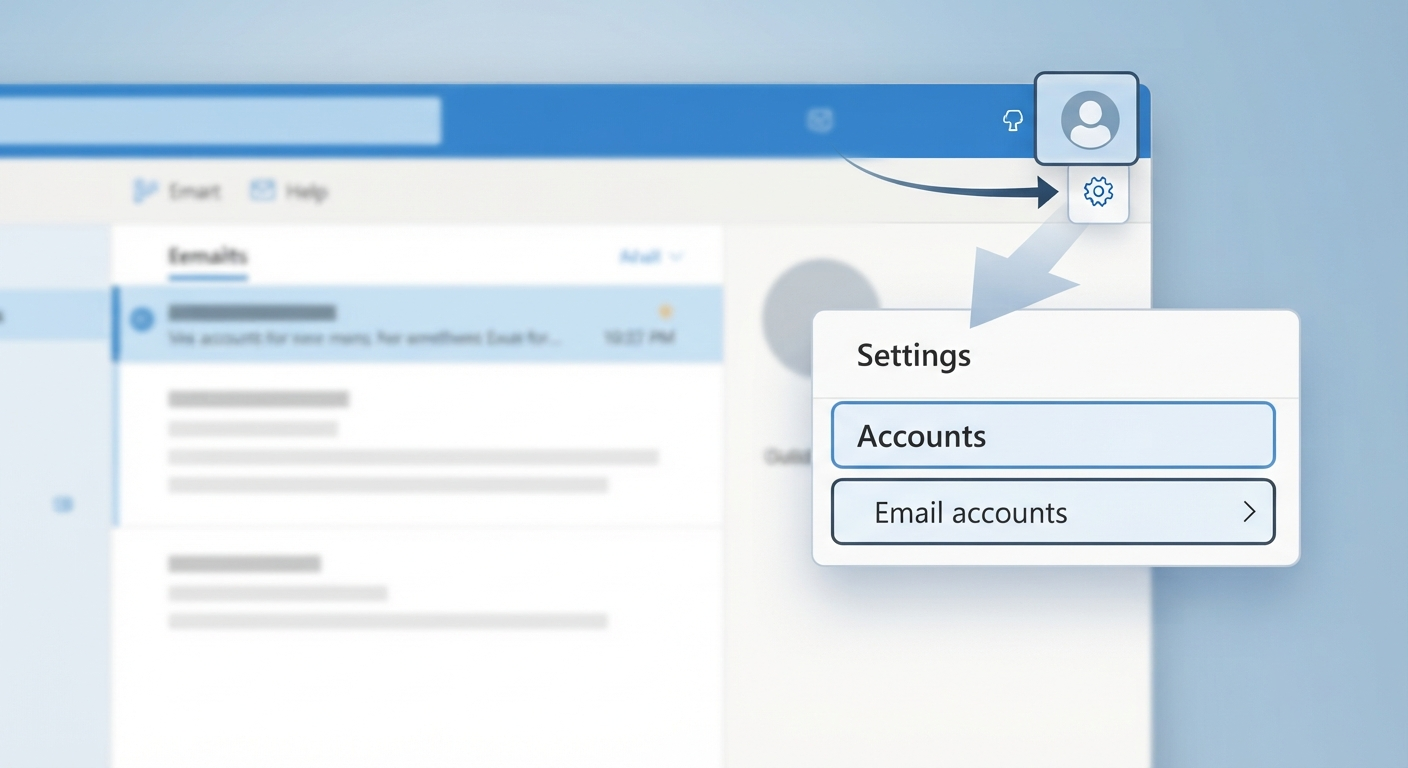
- Step 2: Select the gear icon in the top-right corner to open Settings, or click the profile icon and choose ‘Add account’.
- Step 3: In Settings, go to ‘Accounts’ and select ‘Email accounts’.
Enter the Gmail Address
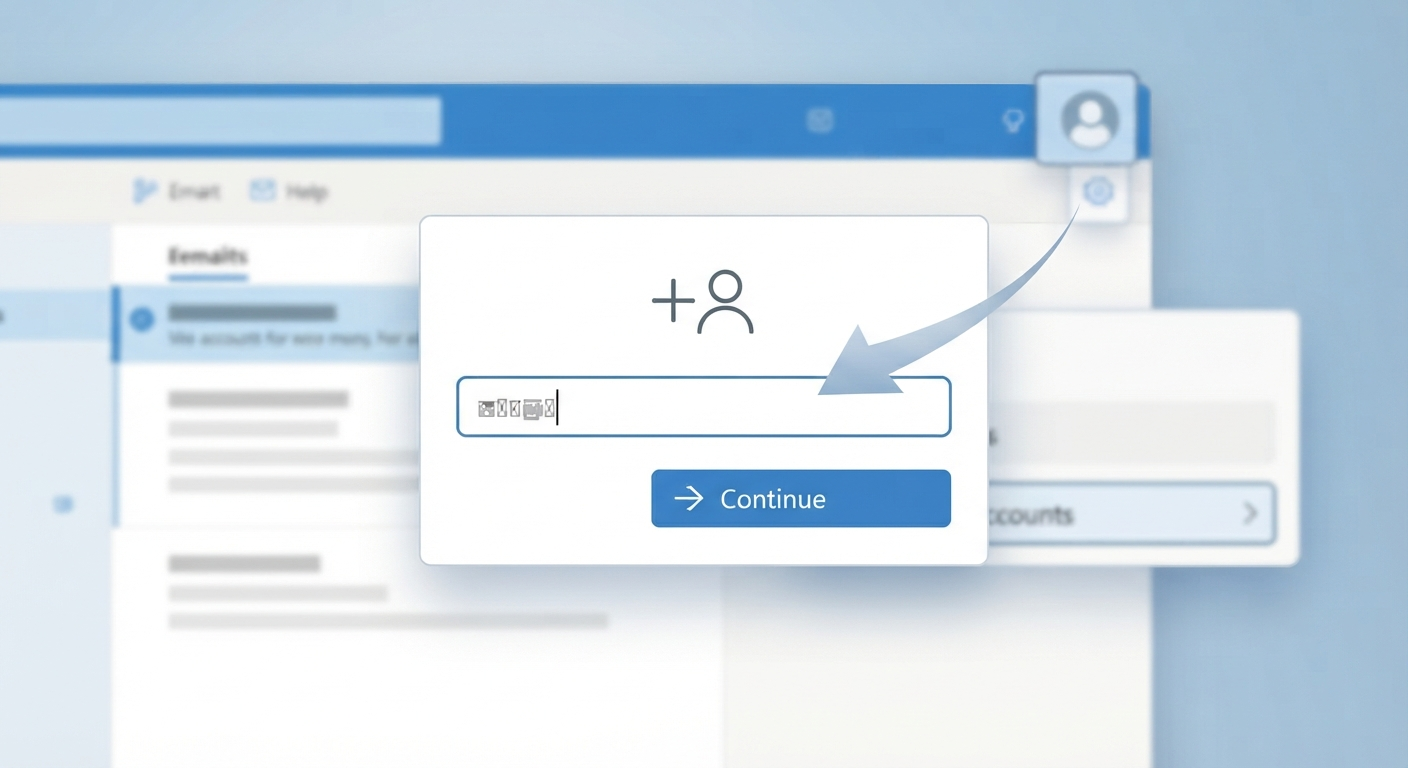
- Step 4: Click ‘Add account’.
- Step 5: Type the full Gmail address in the field provided and select ‘Continue’.
Tip: Double-check the email address before continuing. A single typo here sends the sign-in request to the wrong provider and the Google window never appears.
Sign In Through Google
- Step 6: A Google sign-in window opens automatically. Enter the Gmail password when prompted.
- Step 7: If two-step verification is turned on, approve the sign-in on a phone or enter the verification code sent by Google.
- Step 8: Review the permissions Google lists for Outlook, such as reading, sending, and managing mail, then select ‘Continue’ or ‘Allow’.
Finish Setup and Confirm Sync
- Step 9: Outlook displays a confirmation that the account was added successfully. Select ‘Done’.
- Step 10: Watch the navigation pane on the left. The Gmail account appears as a new section with its own Inbox, Sent, and other folders.
- Step 11: Give Outlook a few minutes to pull in existing mail, especially if the Gmail account has years of message history.
Tip: If folders like ‘All Mail’ or ‘Important’ show up alongside the standard ones, that’s normal. Gmail’s own folder structure carries over into Outlook rather than being replaced by it.
Common Problems and Fixes
The Google Sign-In Window Never Opens
This usually happens when a pop-up blocker or an outdated Outlook build interferes with the process. Close and reopen Outlook, then try ‘Add account’ again. Checking for Outlook updates through Settings beforehand also clears up most cases.
‘Couldn’t Sign You In’ Error
This message typically points to an incorrect password or an account that has two-step verification enabled without an approved sign-in method ready. Confirm the password directly on a Google sign-in page first, then retry adding the account in Outlook.
Gmail Account Added but No Emails Appear
Give the sync process time, particularly for accounts with a large amount of stored mail. If nothing appears after 15 to 20 minutes, remove the account from Settings and add it again, since an interrupted first sync sometimes needs a fresh start.
Permission Screen Keeps Reappearing
Google occasionally re-prompts for permissions if a step was skipped or a browser session expired mid-process. Restart the ‘Add account’ flow from the beginning and select ‘Allow’ on every permission screen without closing the window early.
Frequently Asked Questions
Does adding Gmail in New Outlook require an app password?
Not for most accounts. Standard Gmail accounts sign in through Google’s regular sign-in window. An app password is only needed if the Google account has specific security restrictions that block standard sign-in methods.
Can more than one Gmail account be added to New Outlook?
Yes. Repeating the same steps with a different Gmail address adds a second account, and each one appears as a separate section in the navigation pane.
Will old Gmail messages transfer over automatically?
Yes. Once the account is added, Outlook syncs existing mail automatically. Larger mailboxes simply take longer to fully populate.
Is a Microsoft 365 subscription required to add Gmail?
No. New Outlook for Windows supports adding Gmail and other non-Microsoft accounts without a Microsoft 365 subscription.
Why does Outlook ask for permission to manage the Gmail account?
Google requires this confirmation so account owners know exactly what access Outlook has, such as reading and sending mail. Approving it is a standard part of connecting any third-party email app to Gmail.
Can the Gmail account be removed later if needed?
Yes. Go back to Settings, select ‘Email accounts’, choose the Gmail account, and select ‘Remove account’. This disconnects it from Outlook without affecting the Gmail account itself.
Does adding Gmail also add Google Calendar and Contacts?
In most setups, yes. Adding the Gmail account typically brings its Calendar and Contacts into Outlook along with the mail, since they’re tied to the same Google account.
What should be done if the Gmail account was already added to classic Outlook?
The account still needs to be added separately in New Outlook, since account setup doesn’t automatically carry over between the classic and new versions.
