
When Outlook search not working strikes, finding a single email in a crowded inbox can feel impossible. This usually happens because of a broken search index, a corrupted profile, or a Windows indexing glitch. The good news is that most cases get resolved in under fifteen minutes using the steps below.
Key Takeaways
- Outlook search issues are almost always tied to Windows Search indexing, not Outlook itself.
- Rebuilding the search index fixes the majority of cases.
- Checking indexing options and file location settings prevents the problem from returning.
- A quick repair or profile reset solves it when indexing alone does not work.
- Running Outlook as an administrator can clear permission-related search glitches.
Step-by-Step Guide to Fix Outlook Search Not Working
Work through these steps in order. Most people find that the first two or three steps resolve the issue completely.
Rebuild the Search Index
- Step 1: Close Outlook completely, including any background processes running in the system tray.
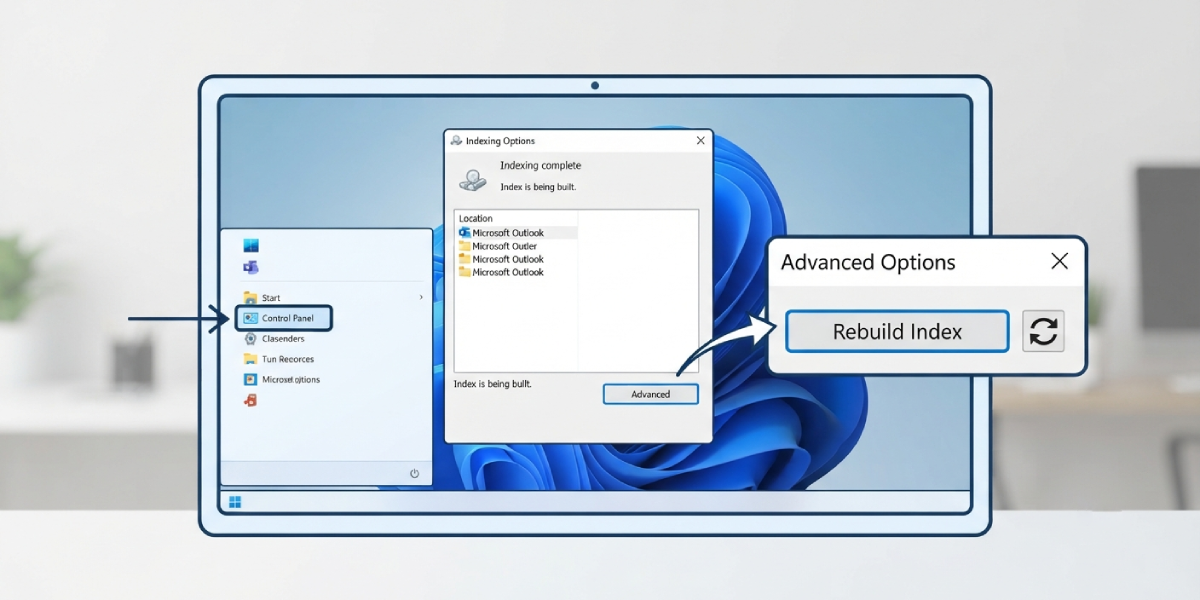
- Step 2: Open the Windows Control Panel and select ‘Indexing Options’. On Windows 11, this can also be reached by typing ‘Indexing Options’ into the taskbar search box.
- Step 3: Click ‘Advanced’, then choose ‘Rebuild’ under the Troubleshooting section. Confirm the action when prompted.
- Step 4: Allow the rebuild to run in the background. This can take anywhere from a few minutes to several hours depending on mailbox size, so leave the computer on and connected to power during this time.
- Step 5: Reopen Outlook once the rebuild finishes and test a search using a known keyword.
Tip: A large mailbox with years of archived mail takes longer to reindex. Running the rebuild overnight avoids the frustration of watching a progress bar during the workday.
Confirm Outlook Is Included in the Index
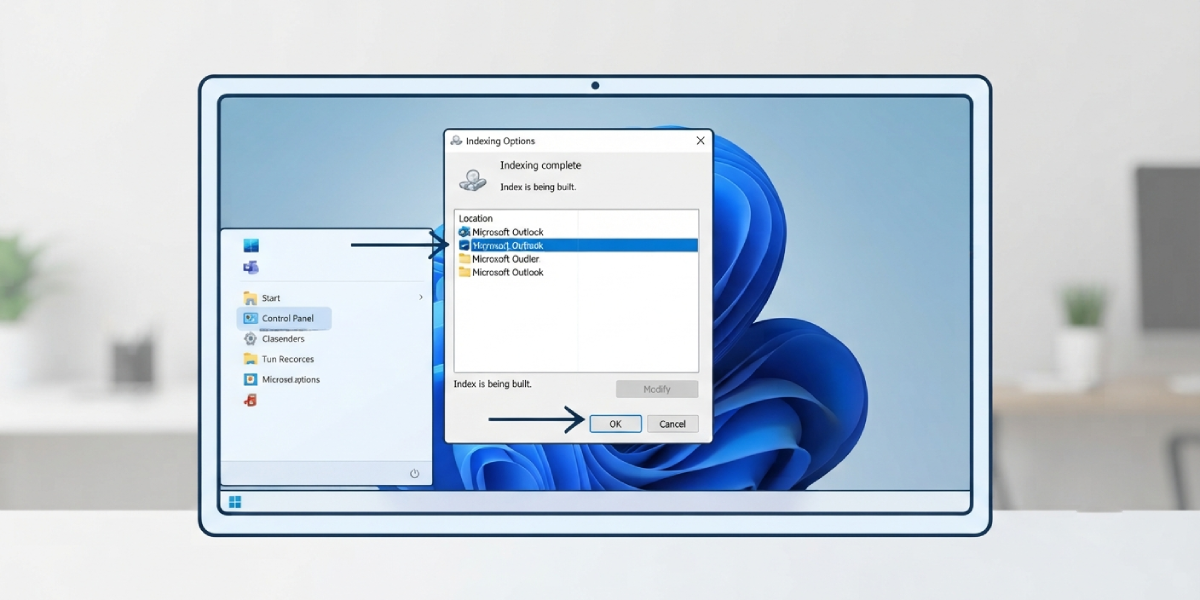
- Step 6: Return to ‘Indexing Options’ and click ‘Modify’.
- Step 7: Scroll through the list and make sure the checkbox next to ‘Microsoft Outlook’ is selected.
- Step 8: Click ‘OK’ to save changes, then close the Indexing Options window.
Check Outlook Search Settings Directly
- Step 9: In Outlook, go to ‘File’, then ‘Options’, then select ‘Search’ from the left menu.
- Step 10: Click ‘Indexing Options’ inside this menu to double-check the same settings from within the app.
- Step 11: Under ‘Sources’, confirm the mailbox and any additional PST or OST files are listed and checked.
Run a Quick Repair
- Step 12: Open the Windows Control Panel and go to ‘Programs and Features’ (or ‘Apps’ on Windows 11).
- Step 13: Find Microsoft 365 or Office in the list, right-click it, and choose ‘Change’.
- Step 14: Select ‘Quick Repair’ and click ‘Repair’. This process fixes corrupted files without removing personal settings or data.
- Step 15: Restart the computer once the repair finishes and test search again.
Tip: If Quick Repair does not resolve the issue, an Online Repair goes deeper by reinstalling Office components, though it takes longer and requires an active internet connection.
Common Problems and Fixes
- Search returns no results at all: This typically points to a corrupted index. Rebuilding the index, as covered above, almost always brings results back.
- Search only finds old emails, not recent ones: Indexing is likely still catching up after a rebuild. Give it more time, especially with large mailboxes.
- ‘Outlook is Indexing’ message appears constantly: This means indexing has not caught up. Leave Outlook open and connected to the internet until the status bar clears.
- Search works in one folder but not others: This usually means certain folders were excluded from indexing. Revisit the Modify screen in Indexing Options and check that all relevant folders are included.
- Search bar is missing or grayed out: Close and reopen Outlook first. If that fails, running Outlook as an administrator often restores full functionality.
Frequently Asked Questions
Why does Outlook search stop working suddenly?
A corrupted or outdated search index is the most common cause. Windows updates, abrupt shutdowns, or a large influx of new mail can all interrupt the indexing process.
How long does rebuilding the search index take?
It depends on mailbox size. Smaller mailboxes finish in minutes, while accounts with years of archived email and attachments can take several hours.
Is it safe to rebuild the Outlook search index?
Yes. Rebuilding the index only affects how quickly items are found; it does not delete or alter any emails, contacts, or calendar items.
Does Outlook search work while the index is rebuilding?
Partially. Results may be incomplete or missing until the rebuild finishes, since the index is still catching up on newer or unindexed items.
Can a corrupted PST or OST file cause search problems?
Yes. A damaged data file can prevent proper indexing. Running the Inbox Repair Tool (scanpst.exe) can fix a corrupted PST file when other steps do not help.
Does a Quick Repair delete emails or settings?
No. Quick Repair only fixes corrupted installation files. Emails, account settings, and preferences remain untouched.
Why does search only work when Outlook is running as administrator?
This points to a permissions conflict between Outlook and the Windows Search service. Running Outlook as an administrator temporarily bypasses the conflict while the underlying permissions get corrected.
Should search be limited to certain folders to save time?
It can help on very large mailboxes, but excluding folders means those items will not show up in search results, so it is best only for folders that are rarely searched.
What if none of these steps fix Outlook search?
Creating a new Outlook profile often resolves deeper corruption issues that a repair or index rebuild cannot fix. This can be done through Control Panel under the Mail settings.
