
Bluetooth audio delay or lag turns a simple video or game session into a frustrating mismatch between sound and picture. This happens because Bluetooth audio has to be compressed, sent wirelessly, and decoded before it reaches the speaker, and each of those steps takes time. The good news is that most delay problems come down to a handful of settings, codecs, and connection issues that can be fixed without buying new hardware.
Key Takeaways
- Bluetooth lag is almost always caused by codec mismatches, driver issues, interference, or an overloaded wireless connection.
- Switching to a low-latency codec like aptX Low Latency or updating to a newer Bluetooth standard often solves the problem instantly.
- Interference from Wi-Fi routers, USB 3.0 devices, and other Bluetooth gadgets is a common and overlooked cause.
- Outdated Bluetooth drivers or firmware are responsible for a large share of stubborn delay issues.
- Some delay is unavoidable with certain codecs, but it can usually be reduced to a point where it is barely noticeable.
Common Causes of Bluetooth Audio Delay
Before jumping into fixes, it helps to understand where the lag is actually coming from. Most cases trace back to one of the following.
Codec Mismatch or an Inefficient Codec
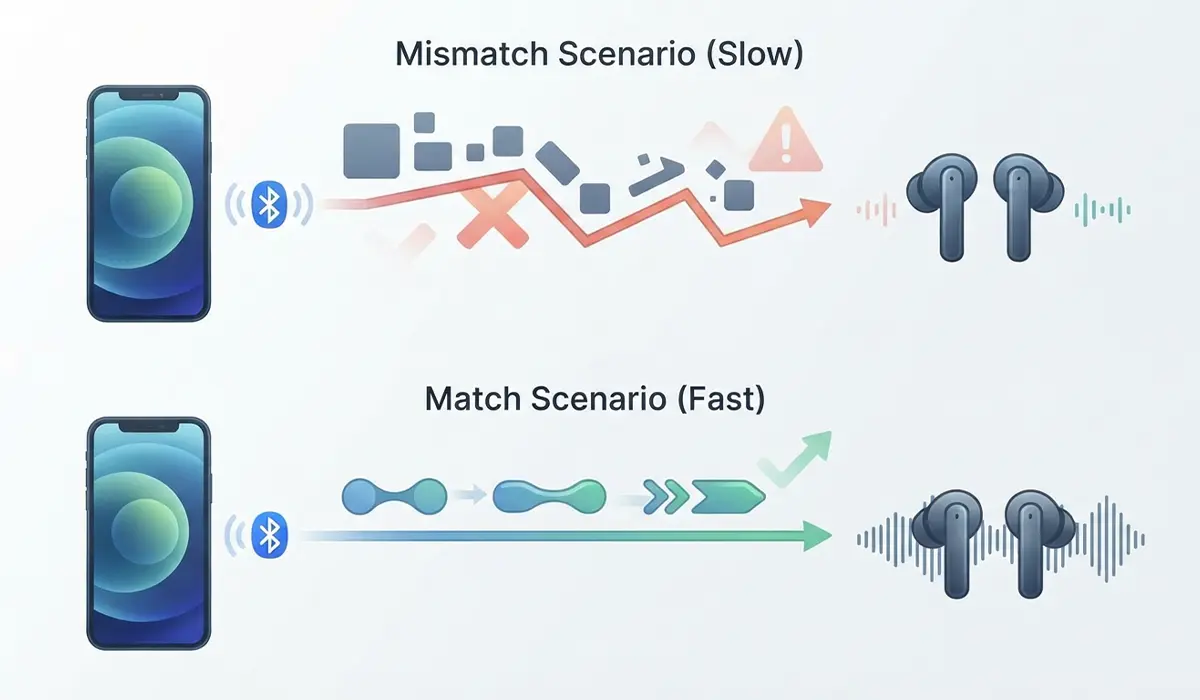
Bluetooth devices negotiate a codec when they pair, and some codecs process audio faster than others. Basic codecs like SBC tend to introduce more delay than newer, low-latency codecs. When a phone or PC and a headset do not share a fast codec in common, they fall back to the slowest option that both support.
Outdated Bluetooth Drivers or Firmware
Bluetooth adapters, whether built into a laptop or added through a USB dongle, run on drivers that get updated periodically. An outdated driver can mishandle audio buffering, which shows up as a noticeable delay between action and sound.
Wireless Interference
Bluetooth shares the same 2.4GHz frequency band as many Wi-Fi routers, microwaves, and other wireless peripherals. A crowded wireless environment forces devices to retransmit data more often, and every retransmission adds a small amount of lag that stacks up quickly.
Distance and Physical Obstructions
Bluetooth signal strength drops off with distance and gets worse when walls, metal furniture, or even a body standing between the source and the headset are in the way. A weaker signal means more error correction, and more error correction means more delay.
Background Processes and System Load
A phone or computer under heavy load, whether from multiple apps or background updates, can struggle to process and send audio data smoothly. This shows up as stutter or lag that comes and goes rather than staying constant.

How to Fix Bluetooth Audio Delay or Lag
Work through these steps in order. Most people find that the fix appears within the first three or four steps.
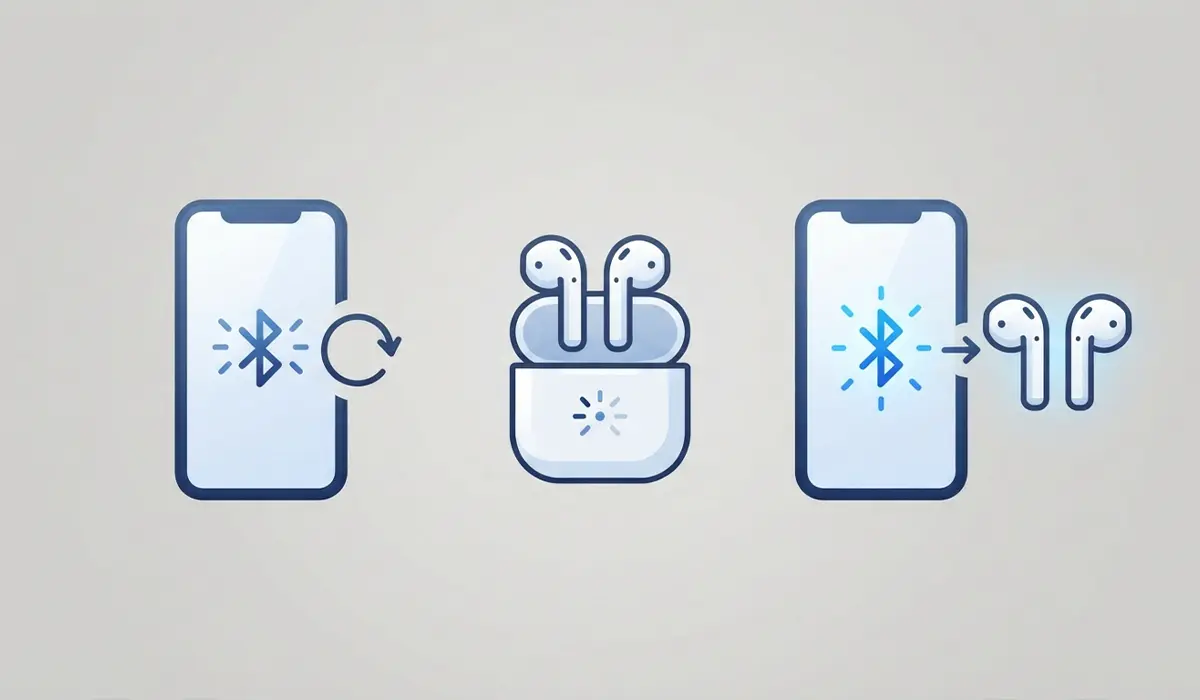
- Step 1: Restart both devices and the Bluetooth connection. Turn off Bluetooth on the source device, power the headset or speaker off and back on, then reconnect. This clears out minor glitches in the current session and is worth doing before anything else.
- Step 2: Forget the device and re-pair it. Go into the Bluetooth settings, remove the paired device entirely, then pair it again from scratch. This forces both devices to renegotiate the connection, including the codec, rather than reusing old cached settings that may be causing the delay.
- Step 3: Check and switch the Bluetooth codec if possible. On Android, developer options often expose a Bluetooth codec setting where a faster option such as aptX or aptX Low Latency can be selected if the headset supports it. On Windows, codec selection is usually handled automatically, but updating the Bluetooth driver, as covered in the next step, gives the system access to better codec support.
- Step 4: Update the Bluetooth driver or adapter firmware. On a Windows PC, open Device Manager, expand the Bluetooth section, right-click the adapter, and choose to update the driver. For headphones or speakers with their own companion app, check that app for a firmware update, since manufacturers frequently patch latency issues through firmware.
- Step 5: Move closer and remove obstructions. Bring the source device and the audio device within a few feet of each other with a clear line of sight, at least for testing. If the delay disappears at close range, distance and interference were the main culprit.
- Step 6: Reduce nearby wireless interference. Turn off other Bluetooth devices that are not in use, move away from an active Wi-Fi router, and avoid placing the audio source right next to a USB 3.0 hub or drive, since USB 3.0 is a known source of 2.4GHz interference.
- Step 7: Close unnecessary background apps. On both phones and PCs, shut down apps that are streaming, syncing, or updating in the background. This frees up processing power and wireless bandwidth for the audio stream itself.
- Step 8: Adjust in-app or in-device audio sync settings. Many video players, streaming apps, and game consoles include an audio delay or sync offset setting under their audio options. Nudging this setting can compensate for a small, consistent lag that other fixes do not fully remove.
- Step 9: Test with a different device. Pair the same headset or speaker with another phone, tablet, or computer. If the lag disappears, the issue lives with the original source device rather than the audio hardware itself, which narrows down where to focus further troubleshooting.
Tip: Gaming-focused Bluetooth headsets and dongles that advertise a dedicated low-latency mode are built specifically to shrink this delay, and switching one on, where available, often has a bigger impact than any single software tweak.
Common Problems and Fixes
Delay Only Happens With Video, Not Music
This points to a sync issue between the app and the audio device rather than a Bluetooth connection problem. Check for an audio sync or delay slider inside the specific video or streaming app.
Lag Appears After a Windows Update
Windows updates occasionally reset or replace Bluetooth drivers with a generic version. Reinstalling the manufacturer’s driver instead of the Windows default version usually resolves this.
One Earbud Lags Behind the Other
This is typically a sync issue between the two earbuds rather than the source device. Placing both earbuds back in the charging case for a full reset, then reconnecting, clears up most cases.
Delay Returns After a Few Minutes of Use
Intermittent delay that builds up over time often points to battery-saving features throttling the Bluetooth radio. Disabling battery optimization for Bluetooth in the phone’s settings, or switching the PC’s power plan away from a power-saving mode, keeps the connection running at full performance.
Frequently Asked Questions
Why does Bluetooth audio lag more than wired audio?
Wired audio is transmitted as an uncompressed analog or digital signal with almost no processing delay. Bluetooth audio has to be compressed, transmitted wirelessly, and decoded on the receiving end, and each of those steps adds a small amount of time that adds up to noticeable lag.
What is the best Bluetooth codec for low latency?
aptX Low Latency and similar low-latency codecs are built specifically to reduce delay, but both the source device and the headset or speaker need to support the same codec for it to actually kick in.
Does a Bluetooth version upgrade reduce delay?
Newer Bluetooth standards generally improve connection stability and can support faster codecs, which indirectly reduces delay, though the codec in use still matters more than the Bluetooth version number alone.
Can a cheap Bluetooth headset ever have low latency?
Yes, as long as it explicitly supports a low-latency codec or a dedicated gaming mode. Price alone does not determine latency performance nearly as much as codec support does.
Will a Bluetooth adapter or dongle fix delay on an older PC?
Often yes, especially if the PC’s built-in Bluetooth hardware is old or does not support newer codecs. A modern USB Bluetooth adapter can bring low-latency codec support to a computer that otherwise lacks it.
Does distance really make a difference indoors?
Yes. Walls, furniture, and even a person standing in the signal path weaken the Bluetooth connection, which increases error correction and adds to the delay.
Why does Bluetooth lag get worse in crowded places?
Public spaces are often full of other Bluetooth and Wi-Fi devices competing for the same 2.4GHz frequency band, which increases interference and forces more retransmissions.
Is there a way to eliminate Bluetooth delay completely?
Not entirely, since some processing time is unavoidable with wireless audio. The goal with these fixes is to reduce the delay to a level low enough that it is not noticeable during normal use.
Should the Bluetooth headset or the source device be updated first?
Update both if possible, but start with whichever one has not been updated more recently, since either an outdated headset firmware or an outdated device driver can be the bottleneck.
Does turning off Wi-Fi help with Bluetooth lag?
Temporarily turning off Wi-Fi can help diagnose whether interference is the cause, since Bluetooth and Wi-Fi share the same frequency band. If lag disappears with Wi-Fi off, reducing router interference or switching the router to a 5GHz band for other tasks can help.
