
PowerPoint Designer for instant layouts turns a plain slide full of bullet points into a polished, professional design in a single click. Instead of manually aligning text boxes and picking colors, Designer analyzes the slide’s content and suggests ready-to-use layouts on the spot. The steps below cover enabling the feature and generating those layouts from scratch.
Key Takeaways
- Designer requires an active Microsoft 365 subscription on desktop, though it works for everyone in PowerPoint for the web.
- The feature must be enabled once through Options before it starts suggesting layouts automatically.
- Adding text, images, or a bulleted list to a slide triggers Designer to generate layout suggestions in a side panel.
- Selecting a suggested design applies it to the slide instantly, with no manual formatting required.
- Designer works one slide at a time, so each slide needs its own review to get a matching layout.
Step-by-Step Guide to Using PowerPoint Designer
Enable Designer
- Step 1: Open PowerPoint and go to File, then Options.
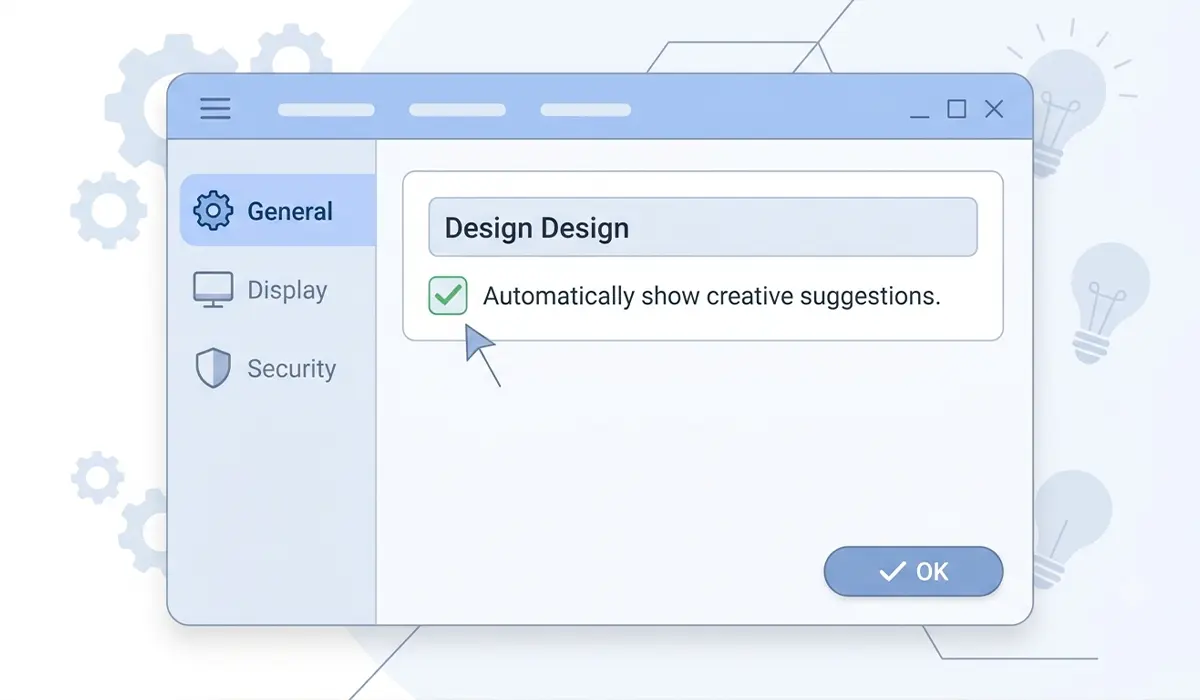
- Step 2: Select the General tab on the left side of the Options window.
- Step 3: Scroll down to the PowerPoint Designer section and check the box for ‘Automatically show me design ideas.’
- Step 4: Click OK to save the setting. On Mac, this same option sits under PowerPoint, then Preferences, then General.
Tip: If the Designer button stays grayed out after enabling it, confirm Microsoft 365 connected experiences are turned on under File, then Account, then Manage Settings under Account Privacy. This setting has to be active for Designer to analyze slide content.
Generate a Layout
- Step 1: Select the slide that needs a design, then add the text, bullet points, or image that should appear on it.
- Step 2: Go to the Design tab on the ribbon.
- Step 3: Click the Designer button, sometimes labeled Design Ideas, on the right side of the ribbon.
- Step 4: Review the layout suggestions that appear in the panel on the right side of the screen.
- Step 5: Click any suggested design to apply it. The slide updates immediately with the new layout.
- Step 6: If none of the visible options fit, scroll to the bottom of the panel and select ‘See more Design Ideas’ for additional variations.

Tip: A slide with a single high-resolution photo and a short headline tends to produce the strongest Designer suggestions, since the tool has clear content to build a layout around.
Common Problems and Fixes
- The Designer button does not appear on the ribbon – this usually means the PowerPoint version lacks a Microsoft 365 subscription, since standalone versions like PowerPoint 2019 or 2021 do not include Designer unless connected to an active subscription.
- Design suggestions never load in the side panel – check the internet connection first, since Designer needs an active connection to generate layout ideas, then confirm connected experiences are enabled under Account Privacy.
- The feature is grayed out even with an active subscription – an IT administrator may have disabled it through group policy at the organization level; contacting IT or checking the specific Microsoft 365 plan resolves this.
- Designer does not trigger automatically after adding content – manually click the Designer button on the Design tab, since automatic triggering depends on the ‘Automatically show me design ideas’ setting being enabled in Options.
- Layout suggestions look generic or do not fit the content – simplify the slide to one clear idea, such as a single image with a short headline or a short bulleted list, since Designer produces stronger results from focused content.
Frequently Asked Questions
Does PowerPoint Designer require a Microsoft 365 subscription?
Yes, for desktop versions of PowerPoint. PowerPoint for the web offers Designer to everyone, regardless of subscription status.
Why is the Designer button missing from the ribbon?
This typically happens when using a standalone, perpetual license like PowerPoint 2019 or 2021 without an active Microsoft 365 connection, since Designer is not included in those versions on their own.
What kind of content works best with Designer?
A slide with a clear focus, such as a short bulleted list, a single high-resolution image, or a brief headline, produces the most polished layout suggestions.
Can Designer be used on every slide in a presentation?
Yes, but it works one slide at a time. Each slide needs to be selected individually to generate its own set of layout suggestions.
Why does Designer not generate any suggestions at all?
An inactive internet connection or disabled connected experiences setting are the most common reasons. Checking both under File, then Account, then Manage Settings usually resolves it.
Can a Designer layout be undone after applying it?
Yes. Pressing Ctrl+Z immediately after applying a design reverts the slide back to its previous layout.
Does Designer work with images that have already been edited?
Yes. Designer analyzes whatever version of the image is currently on the slide, including any cropping or edits already applied.
Why does an organization’s version of PowerPoint not show the Designer feature?
An IT administrator may have disabled Designer through group policy, or the specific Microsoft 365 plan in use may not include AI-powered features. Checking with IT clarifies which applies.
