
To print only specific pages in Word, open the Print screen and type the page numbers you need before sending the job to the printer. It takes less than a minute, and it saves paper when a 40-page report has just two pages worth handing out. The steps below cover Windows, Mac, and Word for the web.
Key Takeaways
- In Word for Windows, go to File, select Print, choose Custom Print, and enter the numbers in the Pages box.
- Use a hyphen for a continuous range (2-5) and commas for separate pages (1, 4, 7).
- Choose Print Current Page when only the page shown in the preview is needed.
- Documents with restarted page numbering need the page-and-section format, such as p1s2-p3s2.
- In Word for Mac, use the Current Page, From, or Page Range option in the Print window.
How to Print Only Specific Pages in Word Step by Step
Word for Windows
- Step 1: Open the document and note the page numbers you want to print.
- Step 2: Select File, then Print. Pressing Ctrl + P opens the same screen.
- Step 3: Check that the correct printer appears under Printer.
- Step 4: Under Settings, open the drop-down menu that shows Print All Pages.
- Step 5: Select Custom Print.
- Step 6: In the Pages box, type the page numbers or ranges, such as 3, 6-8.
- Step 7: Select the Print button.
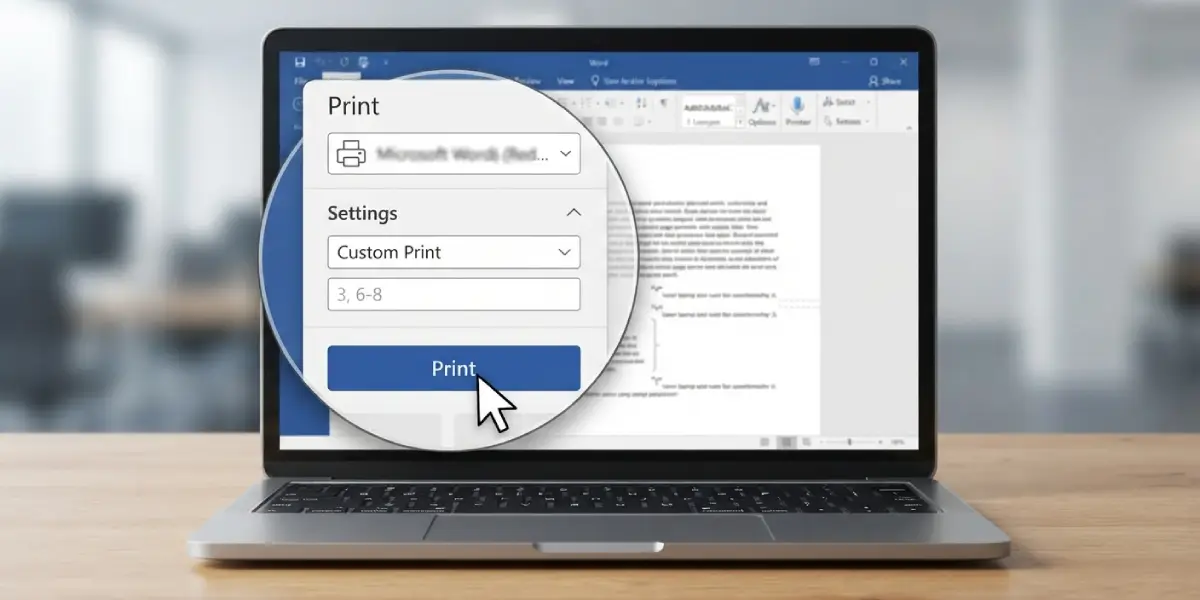
Tip: The preview arrows at the bottom of the Print screen let you flip to each page first. A ten-second check there can catch a table that has slipped onto the next page.
Word for Mac
- Step 1: Open the document, then select Print on the File menu, or press Command + P.
- Step 2: Confirm the correct printer is selected.
- Step 3: Under Pages, choose Current Page for the page in the Quick Preview, From for one continuous range, or Page Range for a mix of pages.
- Step 4: Enter the numbers. For From, fill in the first and last page. For Page Range, type an entry such as 3, 6-8.
- Step 5: Select Print.
Word for the Web
- Step 1: Open the document in your browser and select File, then Print. In Reading view, select Print near the top of the screen.
- Step 2: Wait for Word to generate the PDF copy, then follow the prompt to print it.
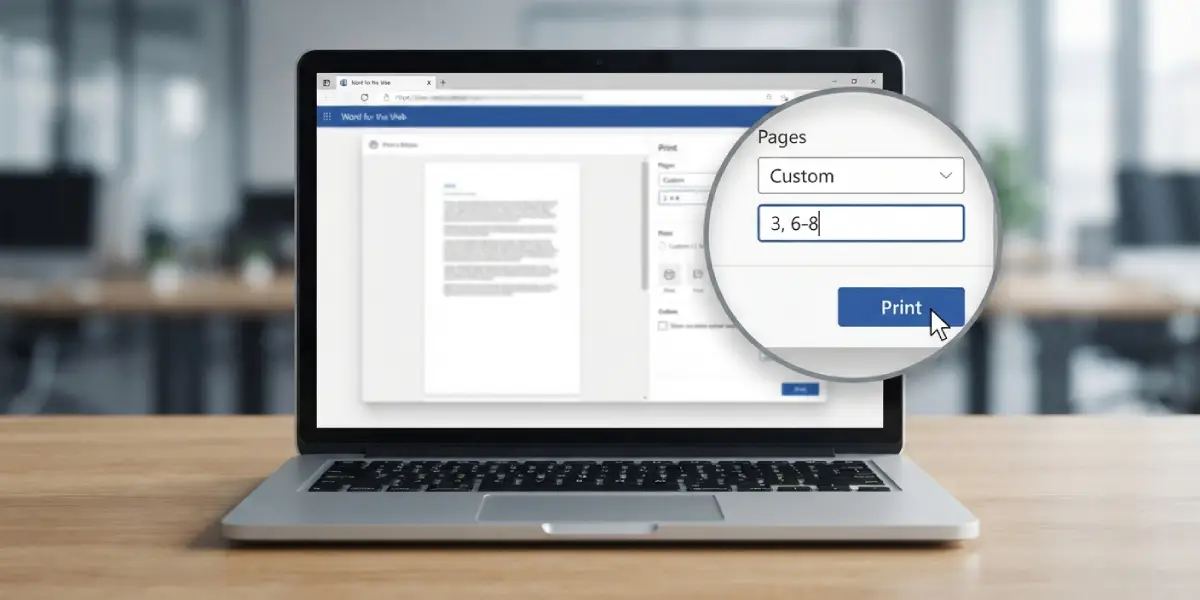
- Step 3: In the print window, find the Pages setting and choose the custom range option.
- Step 4: Type the pages you need, check the preview, and select Print.
Choose the Right Page Selection
Page Number Formats That Work
Think of the Pages box as a shopping list: Word prints exactly what is written on it. These entries cover most jobs in Word for Windows:
- One page: 5
- A continuous range: 2-6
- Separate pages: 1, 4, 9
- Pages and ranges together: 1, 3-5, 10
Print the Current Page or Selected Text
Need just one page, such as a signature page? In Word for Windows, click anywhere on it, go to File and Print, open the Print All Pages menu, and pick Print Current Page. Check the preview before printing.
To print a single passage instead of a full page, highlight it first. Then open the same menu, choose Print Selection, and select Print.
Print Pages From Numbered Sections
Long files such as theses, manuals, and proposals are often split into sections, and page numbering may restart in each one. As a result, a document can have several pages labeled 1. The key is to tell Word both the page (p) and the section (s) in the Pages box.
- Page 2 of section 3: p2s3
- Pages 1 to 4 of section 2: p1s2-p4s2
- Page 3 of section 1 through page 2 of section 2: p3s1-p2s2
- All of section 3: s3
- Separate items: p1s1, p4s2
Tip: In Word for Windows, right-click the status bar and turn on Section and Formatted Page Number. Click any page, and the bar shows the exact numbers to use.
Common Problems and Fixes
Word Prints the Wrong Pages
Word reads the page numbers assigned in the document, which may differ from a page’s physical position. A cover page numbered 0, for example, shifts the count. Check the formatted page number on the status bar and enter that value. If the document has sections, use the p and s format.
The Entire Document Prints
Return to File and Print, and confirm that the menu under Settings shows Custom Print instead of Print All Pages. Make sure the Pages box contains your numbers before selecting Print.
Print Selection Is Unavailable
This option needs highlighted content. Close the Print screen, drag across the text you want, and open File and Print again.
The Same Page Number Prints More Than Once
Restarted numbering is the usual cause. Replace a plain entry such as 1-2 with a section-specific one such as p1s2-p2s2.
Selected Pages Share One Sheet of Paper
Two-sided printing places pages on the front and back. For separate sheets, choose Print One Sided on the Print screen. If several pages appear on one side, set the pages-per-sheet menu to 1 Page Per Sheet.
Frequently Asked Questions
How is only one page printed in Word?
In Word for Windows, click on the page, select File, then Print, open the Print All Pages menu, and choose Print Current Page. On a Mac, choose Current Page in the Print window.
Can Word print non-consecutive pages?
Choose Custom Print in Windows, or Page Range on a Mac, and separate the page numbers with commas, such as 2, 5, 9.
What is the format for a page range in Word?
Enter the first and last page numbers with a hyphen between them, such as 4-8. Word for Mac also provides From and To boxes for this.
Can Word print only the highlighted text?
Yes. In Word for Windows, highlight the text, go to File and Print, open the Print All Pages menu, choose Print Selection, and select Print.
Is it possible to print only odd or even pages in Word?
In Word for Windows, go to File and Print, open the Print All Pages menu, and select Only Print Odd Pages or Only Print Even Pages.
What does p1s2 mean in the Pages box?
It means page 1 of section 2. This format identifies the correct page when numbering restarts in different sections.
Can only certain Word pages be saved as a PDF?
Yes. In Word for Windows, go to File and Print, choose Microsoft Print to PDF as the printer, enter the pages under Custom Print, and select Print. Then name the file and save it.
Why does Word print different pages from the numbers entered?
The Pages box follows the document’s page numbering rather than the physical page count. Check the formatted page number and section number, then enter those values.
