
Knowing how to fix a microphone picking up background noise saves a lot of embarrassment on calls, streams, and recordings. Most of the hiss, hum, fan roar, and keyboard clatter comes from a handful of settings, a worn driver, or poor mic placement. All of these can be sorted out in a few minutes without buying anything.
Key Takeaways
- Background noise usually comes from input volume or boost set too high, a mic positioned too far from the mouth, or a driver and app setting working against each other.
- Lowering input gain and moving the mic closer to the mouth fixes more problems than any software add-on.
- Windows audio enhancements and in-app noise suppression can cut steady sounds like fans and air conditioners.
- Exclusive mode conflicts, outdated drivers, and the wrong input device selected are common reasons the noise keeps returning.
- A headset or external microphone with a directional pickup pattern beats a built-in laptop mic in noisy rooms.
Common Causes of Microphone Background Noise
Before changing anything, it helps to know what is actually feeding the noise. A microphone does not understand which sounds matter. It simply converts everything within reach into a signal, and the louder that signal is amplified, the more junk comes along with it.
Input Volume and Boost Set Too High
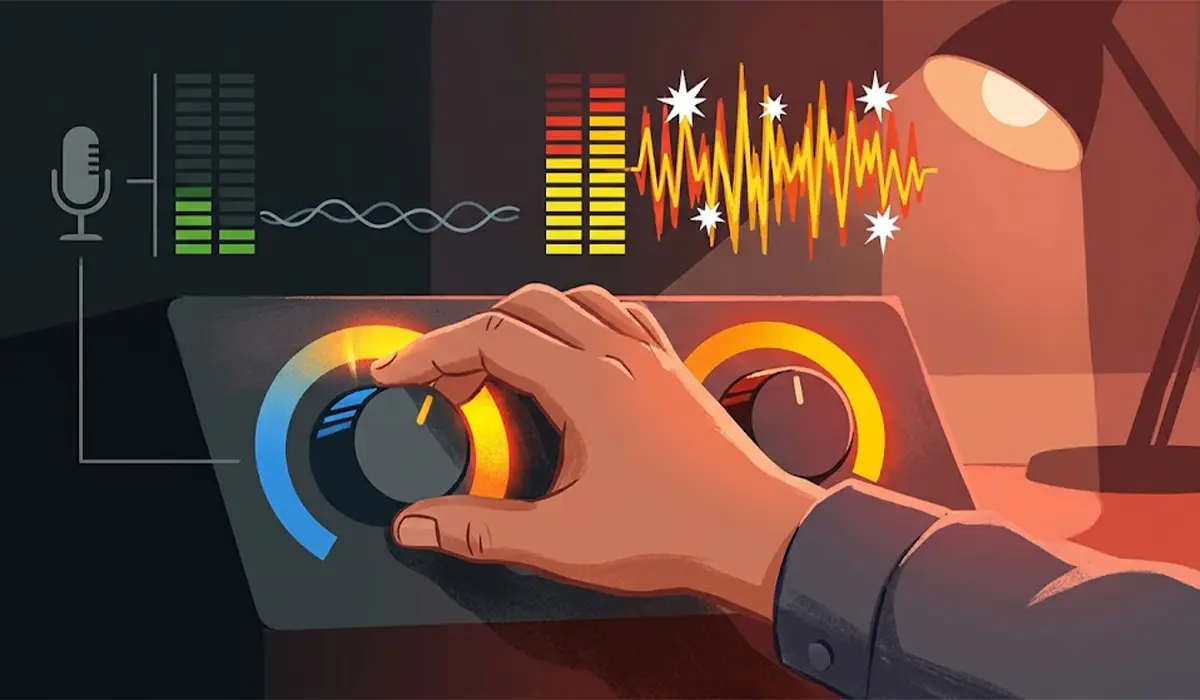
This is the number one culprit. When input volume or Microphone Boost is pushed up, the quiet room noise gets amplified right alongside the voice. The result is a constant hiss that sits underneath every word.
Mic Too Far from the Mouth
A mic sitting at arm’s length hears the room almost as clearly as the speaker. To compensate, the gain gets raised, and the noise floor climbs with it. Think of it like trying to hear a friend across a crowded cafe: the further away they are, the more the background takes over.
Built-In Laptop Microphones
Laptop mics are tiny and sit close to the keyboard, fan vents, and speakers. They tend to pick up typing, fan whine, and desk vibrations along with the voice.
Driver or Enhancement Conflicts
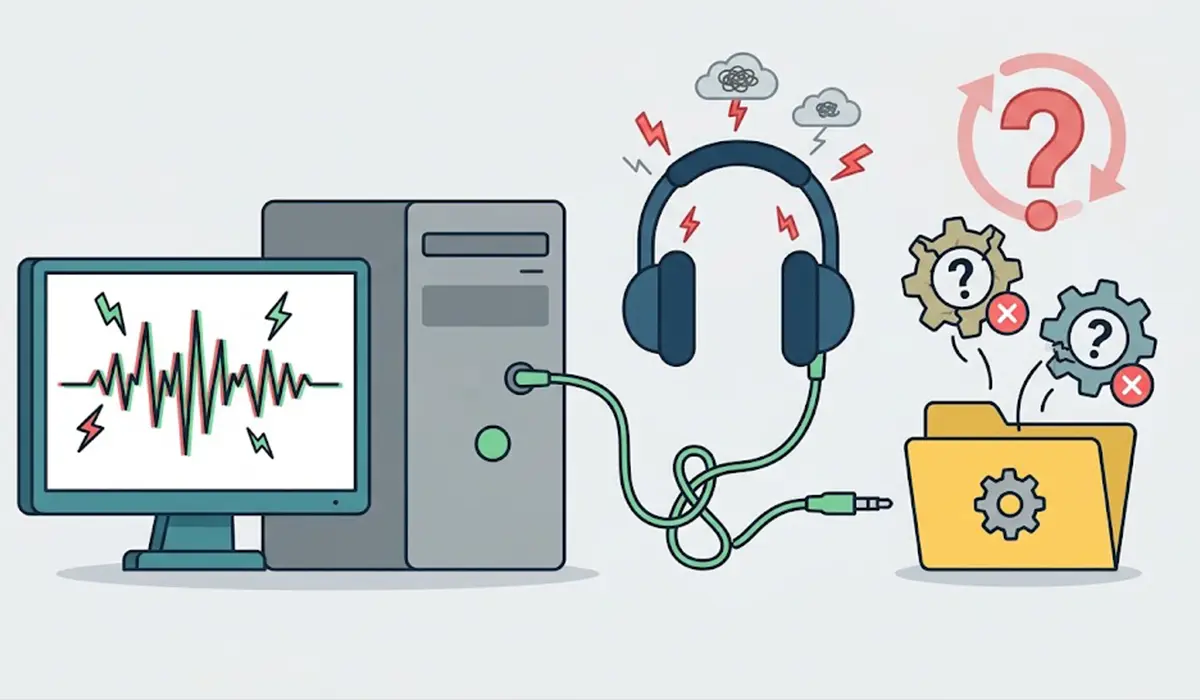
An outdated or generic audio driver can skip noise handling features entirely. A misconfigured enhancement or exclusive mode setting can also introduce crackle, echo, or constant static.
Electrical Interference
Cheap USB hubs, nearby chargers, monitors, and unshielded cables can add a buzz or whine. This shows up as a steady hum that does not change when the room gets quiet.
Steps to Fix a Microphone Picking Up Background Noise
Work through these in order. Most people find the problem is solved by the first three or four steps, so test the mic after each one.
- Step 1: Select the correct input device. Open Settings, go to System, then Sound, and look under Input. Pick the microphone that is actually in use. Laptops often list several, such as a built-in array, a headset, and a webcam mic, and the wrong one may be active.
- Step 2: Lower the input volume. Under the selected microphone, lower the Input volume slider until the voice is clear without being loud. A moderate level with the mic close to the mouth sounds far cleaner than a high level with the mic far away.
- Step 3: Check Microphone Boost. Open the classic Sound settings by searching for ‘Sound settings’ in the Start menu and choosing ‘More sound settings’. On the Recording tab, double-click the microphone, open the Levels tab, and reduce or disable Microphone Boost if the option is present. Boost amplifies noise as much as voice.
- Step 4: Turn on audio enhancements. In the microphone’s Properties, look for an Audio enhancements toggle or an Enhancements tab. If a noise suppression or similar option is listed, enable it and test. The available options depend on the audio driver installed.
- Step 5: Disable exclusive mode. In the microphone’s classic Properties window, open the Advanced tab and clear the checkboxes under Exclusive Mode. This prevents apps from fighting over the device, which can cause crackle and static.
- Step 6: Turn on noise suppression inside the app. Zoom, Microsoft Teams, Discord, Google Meet, and OBS all include their own noise suppression or filters. Enable the option in the app’s audio settings. This is often the most effective fix for steady sounds like fans and air conditioners.
- Step 7: Update the audio driver. Open Device Manager, expand Audio inputs and outputs, and right-click the microphone to choose Update driver. Running Windows Update, or downloading the latest audio driver from the laptop or motherboard manufacturer, is also reliable. If the problem began after an update, right-click the device and use Properties, then the Driver tab, to roll back.
- Step 8: Run the Windows troubleshooter. In Settings, go to System, then Sound, and choose the troubleshoot option for input devices. It can catch disabled devices, wrong defaults, and basic driver faults.
- Step 9: Reposition the microphone. Place it a few finger widths from the mouth, slightly off to the side to reduce breath pops. Keep it away from fans, vents, speakers, and the keyboard. On a desk, a mic arm or stand also reduces vibration from typing and bumps.
- Step 10: Rule out hardware interference. Plug a USB mic directly into a port on the PC rather than a hub. Move chargers and power bricks away from the mic cable. If the buzz changes when a nearby device is switched on or off, that device is the source.

Tip: After each change, record a short clip with the built-in Voice Recorder app and play it back through headphones. This shows exactly what others hear and makes it easy to tell which step made the difference.
Choosing a Better Microphone for Noisy Rooms
When software fixes are not enough, the microphone itself is usually the limit. A built-in laptop mic is designed for convenience, not for filtering a busy room.
Headsets with a Boom Microphone
A boom mic sits right next to the mouth, so the voice is naturally much louder than the room. That means the gain can stay low and the background stays quiet. For calls in shared spaces, this is the most dependable option.
Directional External Microphones
Microphones with a cardioid pickup pattern mainly capture sound from the front and reject sound from the sides and back. This is the pattern to look for in a desktop USB mic for recording, streaming, or meetings. Dynamic microphones are generally less sensitive to room noise than condenser microphones, which makes them a good fit for untreated rooms.
Tip: Pointing the back of a cardioid mic toward the noisiest source, such as a fan or open window, uses the pattern to the best advantage.
Pop Filters and Foam Covers
A pop filter or foam cover softens breath blasts and plosive sounds. It does not remove room noise, but it lets the mic sit closer to the mouth without distortion, and being closer is what lowers the noise floor.
Common Problems and Fixes
Noise Is Still Present After Lowering Input Volume
Check that Microphone Boost is off and that the mic is close enough to the mouth. If the voice is too quiet at a lower volume, the mic is too far away. Moving it closer is better than raising the level.
Noise Suppression Option Is Missing
The Enhancements options come from the audio driver. Install the latest driver from the PC or motherboard manufacturer, then check again. If the option is still missing, use the noise suppression built into the calling or recording app instead.
Voice Sounds Robotic or Cut Out After Enabling Suppression
Aggressive noise suppression can clip the beginning of words or make the voice sound processed. Turn the setting to a lower level if the app offers one, or switch it off and rely on better placement and lower gain.
Constant Buzz or Hum Remains
A steady electrical hum points to interference. Connect the mic straight to the PC, try a different USB port, and keep the cable away from power adapters and monitors. A faulty or low-quality cable can also cause this, so swapping it is a quick test.
Noise Appears in One App Only
If other apps sound fine, the problem is inside that app. Open its audio settings, confirm the correct input device is chosen, and review its noise suppression and automatic gain options. Automatic gain control can raise the volume during pauses and bring up background noise.
Noise Appeared After a Windows Update
An update can replace a working audio driver with a generic one. Reinstall the manufacturer’s driver, or roll back the driver in Device Manager if that option is available.
Built-In Laptop Mic Still Sounds Poor
If every setting is correct and the built-in mic is still noisy, the hardware is likely the limit. A wired or wireless headset, or a small external USB microphone, is the most practical solution. A mic that was working earlier and suddenly became noisy may have a hardware fault, and a repair technician should take a look. Opening a laptop to inspect the mic can also affect the warranty.
Frequently Asked Questions
Why does a microphone pick up so much background noise?
The most common reasons are input volume or Microphone Boost set too high, the mic being too far from the mouth, and a built-in laptop mic sitting close to fans and the keyboard. Driver issues and electrical interference can add to it.
Does turning down the microphone volume reduce background noise?
Yes, in most cases. Lower input volume means less amplification of everything the mic hears, including room noise. It works best when the mic is also moved closer to the mouth so the voice stays strong.
Is Microphone Boost good or bad for background noise?
Boost makes the whole signal louder, including noise. It is only useful when the mic is very quiet and cannot be moved closer. If background noise is the problem, reducing or disabling boost is the better choice.
Can noise suppression be turned on in Windows?
Often, yes. Open the microphone’s Properties in the Sound settings and look for an Audio enhancements toggle or an Enhancements tab. The options available depend on the audio driver, so updating the driver may reveal more choices.
Do USB microphones pick up less background noise than built-in laptop microphones?
A good USB mic with a cardioid pattern, placed close to the mouth, usually picks up far less room noise than a built-in laptop mic. Placement and gain still matter, so a poorly positioned USB mic can still sound noisy.
Why does the microphone pick up keyboard clicks and fan noise?
Built-in mics sit near the keyboard and cooling vents, so those sounds travel straight into the mic. Using a headset or an external mic placed away from the laptop usually solves it. A stand or arm helps by reducing vibration from the desk.
Will updating the audio driver help with background noise?
It can. A newer driver from the PC or motherboard manufacturer may add noise handling options and fix static or crackling caused by compatibility problems. If the noise started after an update, rolling back to the previous driver can also help.
Does a pop filter or foam cover help with background noise?
It helps with breath pops and plosive sounds rather than room noise. Its real benefit is allowing the mic to sit closer to the mouth without distortion, which improves the voice-to-noise balance.
Why does background noise only appear in one app?
That app likely has its own input device choice, automatic gain control, or noise suppression setting. Check the audio settings inside the app and make sure the correct microphone is selected.
