
Learning how to reset network adapter settings is one of the fastest ways to fix a stubborn Wi-Fi or Ethernet connection that refuses to behave normally. This guide walks through every reliable method, from a simple adapter restart to a full command-line reset, so a working connection gets restored without reinstalling anything unnecessary. Each method below works whether the issue is slow speeds, dropped connections, or a network adapter that has simply stopped responding correctly.
Key Takeaways
- Resetting a network adapter clears corrupted settings, cached IP data, and misconfigured protocols without touching personal files.
- Windows offers three main reset options: disabling and re-enabling the adapter, using the built-in Network Reset tool, and running command-line resets.
- Command Prompt resets using netsh and ipconfig give the most thorough fix for stubborn connectivity problems.
- A reset will remove saved Wi-Fi passwords and VPN configurations, so those need to be reentered afterward.
- Most connection issues resolve after a reset and restart, but a driver reinstall is the next step if problems continue.
Before You Start
A network reset is a software-level task, so there is no need to open the case or handle any internal hardware. A little preparation still saves a headache afterward.
- Write down any Wi-Fi network names and passwords that matter, since a full reset clears saved wireless profiles.
- Note any static IP address, DNS server, or proxy settings currently in use, especially on a work or school network.
- Close any VPN client before starting, since VPN adapters and configurations are often affected by a reset.
- Make sure administrator access is available on the computer, since most reset commands require it.
- Save any open work, since some reset methods trigger an automatic restart.
How to Reset Network Adapter Settings on Windows
Windows gives a few different ways to reset network adapter settings, ranging from a quick toggle to a deeper command-line reset. Starting with the simplest method and working down the list is usually the most efficient approach, since many connection problems clear up without needing the more advanced steps.
Method 1: Disable and Re-Enable the Adapter
This is the network equivalent of turning something off and on again, and it genuinely fixes a surprising number of minor glitches.
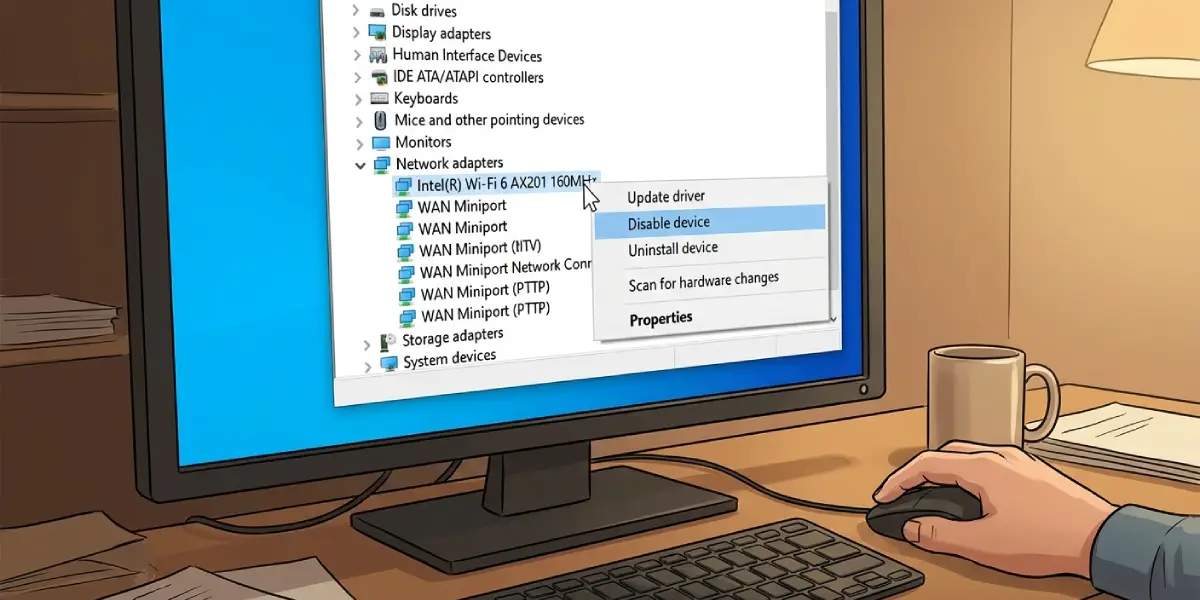
- Step 1: Right-click the Start button and open Device Manager.
- Step 2: Expand the Network adapters section.
- Step 3: Right-click the active adapter, such as a Wi-Fi or Ethernet controller, and select Disable device.
- Step 4: Wait about ten seconds, then right-click the same adapter and select Enable device.
- Step 5: Check whether the connection has returned to normal before moving to a deeper reset.
Method 2: Use the Built-In Network Reset Tool
Windows includes a dedicated Network Reset feature that reinstalls network adapters and restores their settings to factory defaults in one pass.
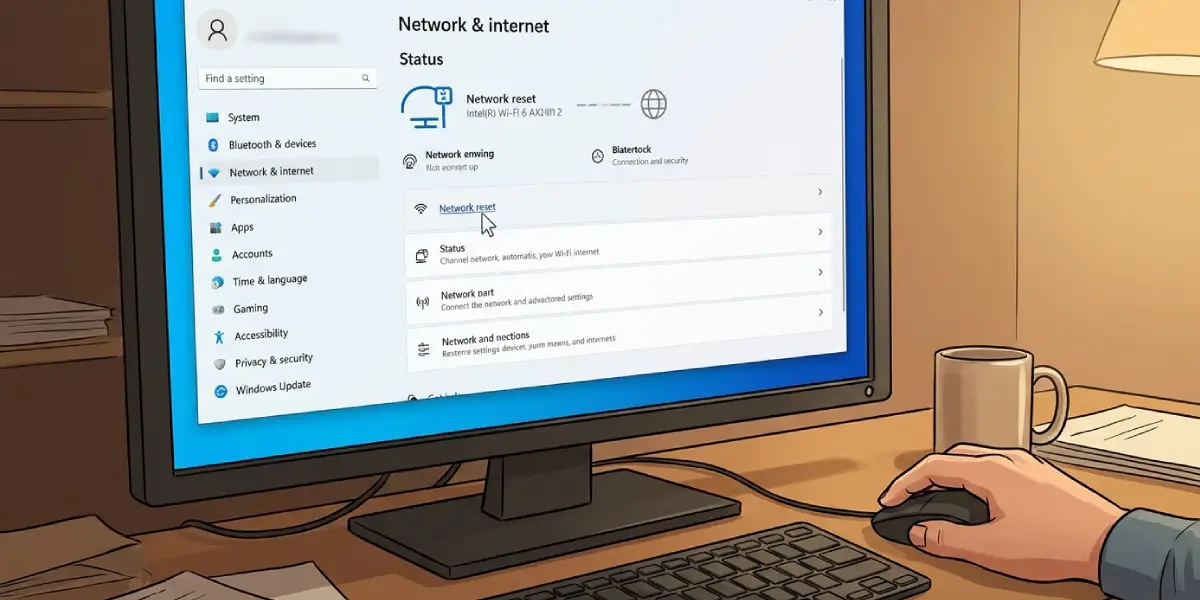
- Step 1: Open Settings and go to Network and Internet.
- Step 2: Scroll down to Advanced network settings.
- Step 3: Select Network reset.
- Step 4: Click Reset now and confirm the prompt.
- Step 5: Allow the computer to restart automatically, since this step is required to complete the process.
Tip: after a network reset, Wi-Fi adapters may briefly disappear from the list of connections while Windows reinstalls them, so give the system a minute or two after restarting before assuming something went wrong.
Method 3: Reset Using Command Prompt
For a more thorough reset, especially when IP configuration or the network stack itself seems corrupted, Command Prompt offers the most complete fix.
- Step 1: Search for Command Prompt, right-click it, and choose Run as administrator.
- Step 2: Type netsh winsock reset and press Enter to reset the Winsock catalog.
- Step 3: Type netsh int ip reset and press Enter to reset TCP/IP settings.
- Step 4: Type ipconfig /release followed by Enter, then ipconfig /renew to refresh the IP address.
- Step 5: Type ipconfig /flushdns to clear the DNS cache.
- Step 6: Restart the computer to apply all changes.
Method 4: Reinstall the Network Adapter Driver
If the connection is still unstable after the resets above, the driver itself may need a clean reinstall rather than just a toggle.
- Step 1: Open Device Manager and expand Network adapters.
- Step 2: Right-click the adapter and select Uninstall device.
- Step 3: Check the box for Attempt to remove the driver, if it appears, then confirm.
- Step 4: Restart the computer, which prompts Windows to automatically detect and reinstall the adapter and its driver.
How to Reset Network Adapter Settings on Mac
MacOS handles this a little differently, focusing on removing and recreating the network service rather than issuing command-line resets.
- Step 1: Open System Settings and select Network.
- Step 2: Select the active connection, such as Wi-Fi, and click the details or info icon.
- Step 3: Use the minus button to remove the network service, then click Apply.
- Step 4: Click the plus button to add the interface back, choose the correct type, and click Create.
- Step 5: Reconnect to the desired Wi-Fi network and confirm the connection is stable.
Common Problems and Fixes
No Internet Access After Resetting
This usually means the router and adapter are out of sync. Restarting the router alongside the computer, or manually running the renew and flush DNS commands again, typically resolves it.
Wi-Fi Networks Missing After Reset
Saved wireless profiles are cleared during a full reset, so this is expected behavior. Reconnecting manually and reentering the password restores the connection permanently.
VPN Stops Working After Reset
Since a network reset removes virtual adapters created by VPN software, reinstalling or repairing the VPN client after a reset usually brings it back.
Static IP or Custom DNS Settings Lost
A reset restores default automatic IP and DNS settings. Reentering the static IP address and DNS servers that were noted down beforehand fixes this quickly.
Adapter Still Not Working After All Methods
If the connection issue persists after every software reset, the adapter hardware itself, a loose internal wireless card, or a failing router may be the real cause, and that point is worth involving a professional technician rather than continuing to reinstall software.
Frequently Asked Questions
Will resetting network adapter settings delete personal files?
No. A network reset only affects network configurations, drivers, and saved connections. Personal files, documents, and installed programs are not touched.
Does resetting the network adapter fix slow internet speeds?
It often helps when slow speeds are caused by corrupted settings or a misbehaving driver, though it will not fix slow speeds caused by the internet plan itself or router hardware limitations.
How long does a network reset take?
The process itself takes only a few minutes, though the required restart adds a little extra time before the connection is fully back online.
Is it safe to reset the network adapter on a work computer?
It is generally safe, but any custom network settings such as a static IP or proxy configured by an IT department should be noted down first so they can be reentered afterward.
What is the difference between resetting an adapter and reinstalling its driver?
Resetting restores configuration settings to default values, while reinstalling the driver replaces the actual software that lets the operating system communicate with the hardware. Reinstalling is a deeper fix used when resetting alone does not solve the problem.
Can resetting network adapter settings fix a ‘limited connectivity’ error?
Yes, this is one of the most common issues a reset resolves, since it usually stems from a corrupted IP configuration that the reset process clears out.
Does a network reset affect Bluetooth?
No. Bluetooth is a separate wireless technology from network adapters and is not affected by a network reset.
Why did the network adapter disappear after a reset?
This is usually temporary while the operating system reinstalls the driver automatically. Restarting the computer typically brings the adapter back within a few minutes.
Should the router also be reset when resetting the network adapter?
It is not required, but restarting the router at the same time often clears up any remaining connectivity issues faster.
