
Setting up a Comcast/Xfinity email account in New Outlook for Windows takes just a few minutes once the right server details are on hand. This guide walks through the exact steps needed to get Xfinity mail flowing into Outlook without guesswork or wasted time.
Key Takeaways
- New Outlook connects to Xfinity email using IMAP for incoming mail and SMTP for outgoing mail.
- An Xfinity email password (not a Comcast account recovery code) is required during setup.
- Manual server settings are sometimes needed if automatic setup does not detect the account type correctly.
- The correct IMAP server is imap.comcast.net and the SMTP server is smtp.comcast.net.
- Two-step verification on the Xfinity account may require an app-specific password instead of the regular one.
Step-by-Step: Add a Comcast/Xfinity Email Account in New Outlook for Windows
These steps apply to the New Outlook for Windows app, which replaced the classic Mail app on many Windows 11 systems and is gradually rolling out to Windows 10 as well.
- Step 1: Open New Outlook for Windows from the Start menu or taskbar.
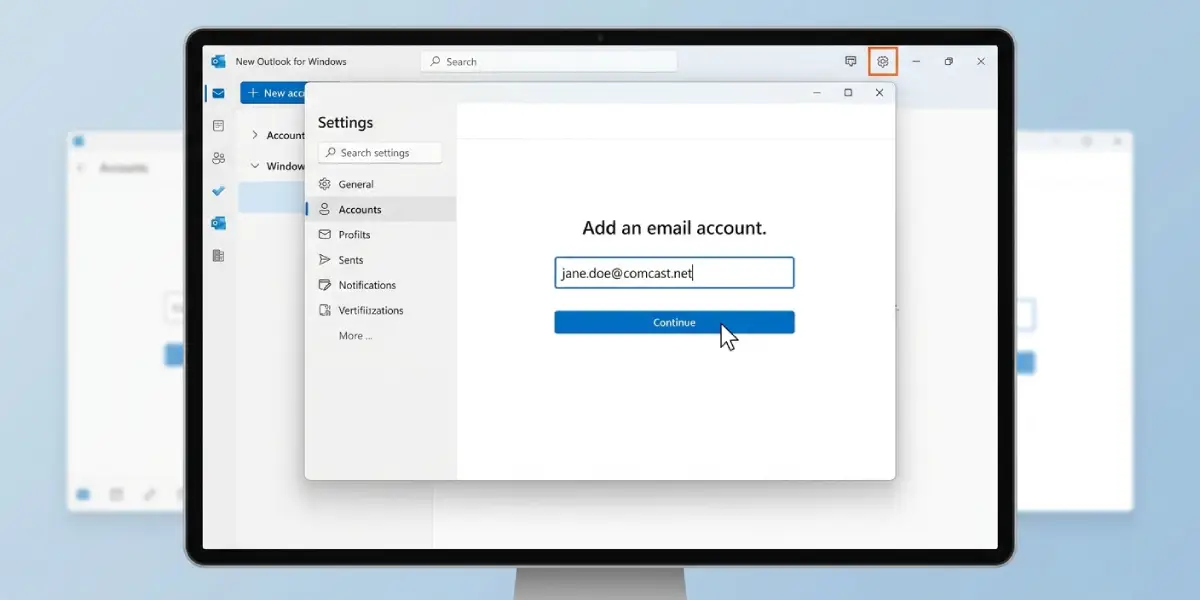
- Step 2: Select the gear icon in the top-right corner to open Settings, then choose ‘Accounts’ from the left-hand menu.
- Step 3: Click ‘Add Account’ and, when prompted, type the full Xfinity email address (for example, yourname@comcast.net) into the field.
- Step 4: Select ‘Continue’ and enter the Xfinity account password when asked. This is the same password used to sign in to Xfinity webmail, not a router or Wi-Fi password.
- Step 5: Wait while Outlook attempts to detect the account settings automatically. In most cases this finishes within a minute and the account connects without further input.
- Step 6: If automatic setup fails or Outlook asks for manual configuration, choose ‘IMAP’ as the account type and enter the following details:
- Incoming mail server: imap.comcast.net, Port 993, Security type SSL/TLS
- Outgoing mail server: smtp.comcast.net, Port 587, Security type STARTTLS
- Username: the full Xfinity email address
- Step 7: Select ‘Sign In’ or ‘Connect’ to finish linking the account.
- Step 8: Once the account appears in the left-hand folder pane, give it a moment to sync. Existing messages and folders from Xfinity webmail should start appearing shortly.
Tip: If a security prompt from Comcast appears asking to approve the sign-in from a new app, approve it right away. Outlook will stall on ‘Setting up your account’ until that approval is confirmed.
Enabling Third-Party Access on Xfinity’s Side
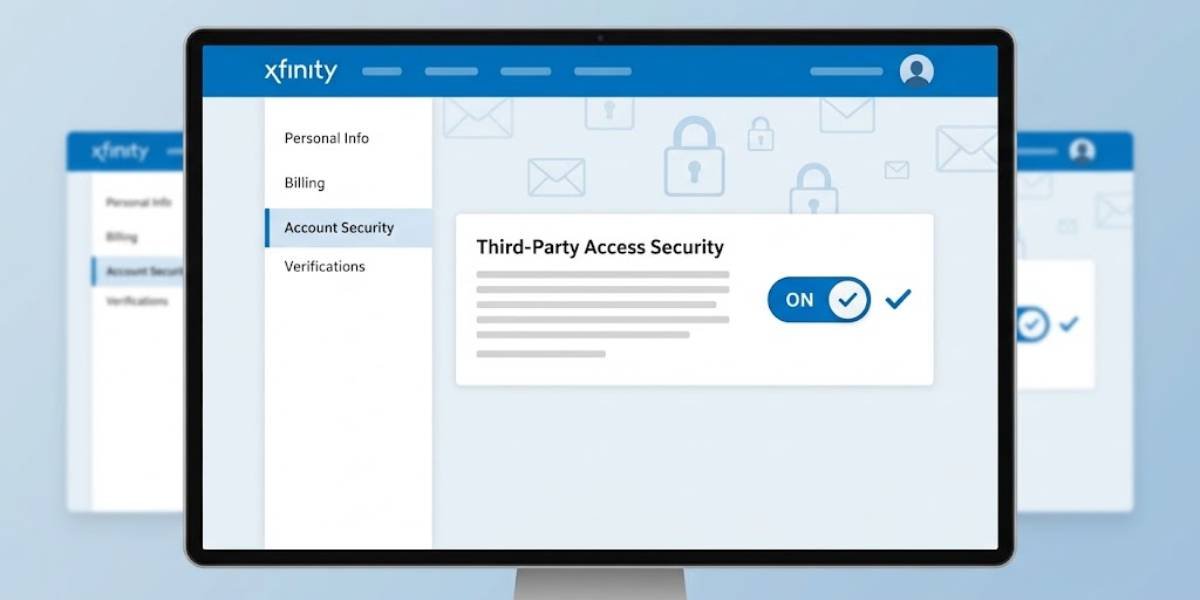
Xfinity sometimes blocks third-party mail apps by default. Before adding the account in Outlook, signing in to Xfinity webmail and checking the email security settings for a ‘Third Party Access Security’ option is worth doing. Turning this on prevents Outlook from being rejected during the connection attempt.
Common Problems and Fixes
- Outlook keeps asking for the password repeatedly: This usually means Third Party Access Security is disabled on the Xfinity account. Log in to Xfinity webmail, enable third-party access, then try adding the account again.
- Automatic setup fails with a generic error: Switch to manual setup and enter the IMAP and SMTP details listed above instead of relying on autodiscovery.
- Emails are not syncing after the account connects: Check the internet connection first, then remove and re-add the account if syncing still does not start within a few minutes.
- Outgoing mail fails while incoming mail works fine: Double-check that the SMTP port is set to 587 with STARTTLS rather than SSL/TLS on port 465, since New Outlook handles these differently depending on the setup path used.
- Login rejected even with the correct password: If two-step verification is turned on for the Xfinity account, generate an app-specific password from account security settings and use that instead of the regular password.
Frequently Asked Questions
What password should be used when adding an Xfinity account to New Outlook?
The Xfinity email password used for Xfinity webmail login is required, not the router admin password or Wi-Fi password.
Does New Outlook support Xfinity email natively?
Yes, New Outlook connects to Xfinity email through standard IMAP and SMTP protocols, the same method used by most third-party mail programs.
Why does Outlook ask for manual server settings instead of finding them automatically?
Automatic detection occasionally fails due to network conditions or account security settings on the Xfinity side, in which case entering imap.comcast.net and smtp.comcast.net manually resolves the issue.
Is IMAP or POP3 better for adding Xfinity email in New Outlook?
IMAP is the recommended choice because it keeps mail synced across the Xfinity webmail interface, phone apps, and Outlook at the same time.
What port should be used for outgoing Xfinity mail?
Port 587 with STARTTLS security is the standard setting for the smtp.comcast.net outgoing server.
Why does Outlook show a ‘third party access’ error when adding the account?
Xfinity blocks external mail apps by default for some accounts, so third-party access needs to be enabled from the Xfinity webmail security settings before Outlook can connect.
Can multiple Xfinity email addresses be added to the same New Outlook profile?
Yes, repeating the ‘Add Account’ steps for each additional Xfinity address adds them all to the same Outlook profile, and each appears as a separate folder set in the left pane.
What should happen if the Xfinity account uses two-step verification?
An app-specific password generated from Xfinity account security settings should be used in place of the regular password during setup.
How long does it take for old emails to appear after adding the account?
Initial sync time depends on mailbox size, but most accounts with a typical amount of mail finish syncing within a few minutes of connecting.
