
GPU usage stuck at 0% in games usually means the game is running entirely on the CPU or integrated graphics instead of the dedicated card, and it can happen even on a powerful gaming rig. Low frame rates, choppy visuals, and a graphics card that barely spins up its fans are the usual signs. The good news is that this issue almost always traces back to a setting rather than a hardware failure, and it can be fixed in a few focused steps.
Key Takeaways
- A dedicated GPU showing 0 percent usage in games is almost always a configuration issue, not a dead card.
- The most common cause is Windows or the game defaulting to the integrated graphics chip instead of the dedicated GPU.
- Outdated, corrupted, or conflicting graphics drivers are another frequent culprit.
- Power settings, laptop ‘Optimus’ style switching, and background overlay software can all interfere with GPU usage.
- Monitoring tool bugs sometimes report 0 percent even though the card is actually working.
Common Causes of GPU Usage Stuck at 0%
Before jumping into fixes, it helps to understand what typically causes this. On laptops with both an integrated chip and a dedicated GPU, the system may quietly hand game rendering duties to the weaker integrated graphics to save power. On desktops, a monitor cable plugged into the motherboard’s video output instead of the graphics card port will bypass the dedicated GPU entirely. Driver corruption, outdated GPU drivers, incorrect Windows graphics preferences, and even certain overlay or recording software can also cause this behavior. Occasionally, the issue is not real at all – the monitoring tool being used to check usage is simply misreading the sensor data.
How to Fix GPU Usage Stuck at 0% in Games
Step 1: Confirm the Monitor Cable Is Connected to the GPU
- Step 1: Check the back of the desktop case and find where the monitor cable plugs in.
- Step 2: Make sure the cable runs from the monitor to a port on the graphics card itself, not to a port on the motherboard’s built-in video output.
- Step 3: If the cable is in the motherboard port, move it to the corresponding port on the dedicated GPU and restart the PC.
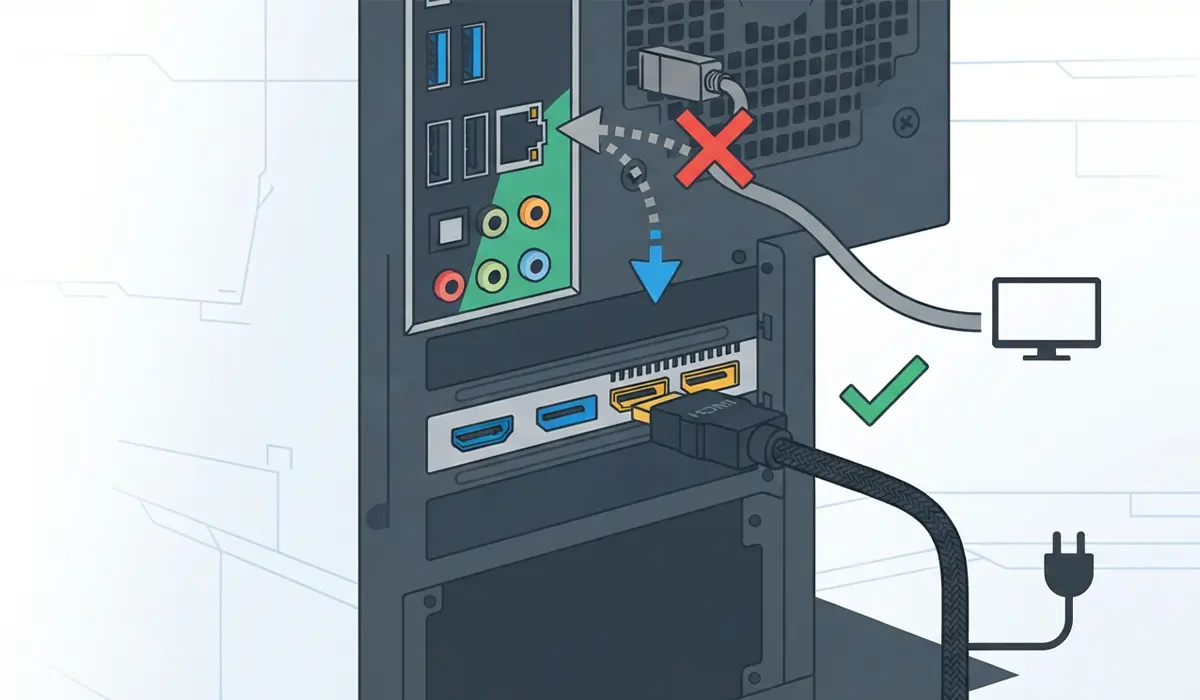
Tip: This single mix-up is one of the most common reasons a perfectly healthy graphics card shows 0 percent usage during gameplay, since the motherboard’s video output only uses the integrated chip.
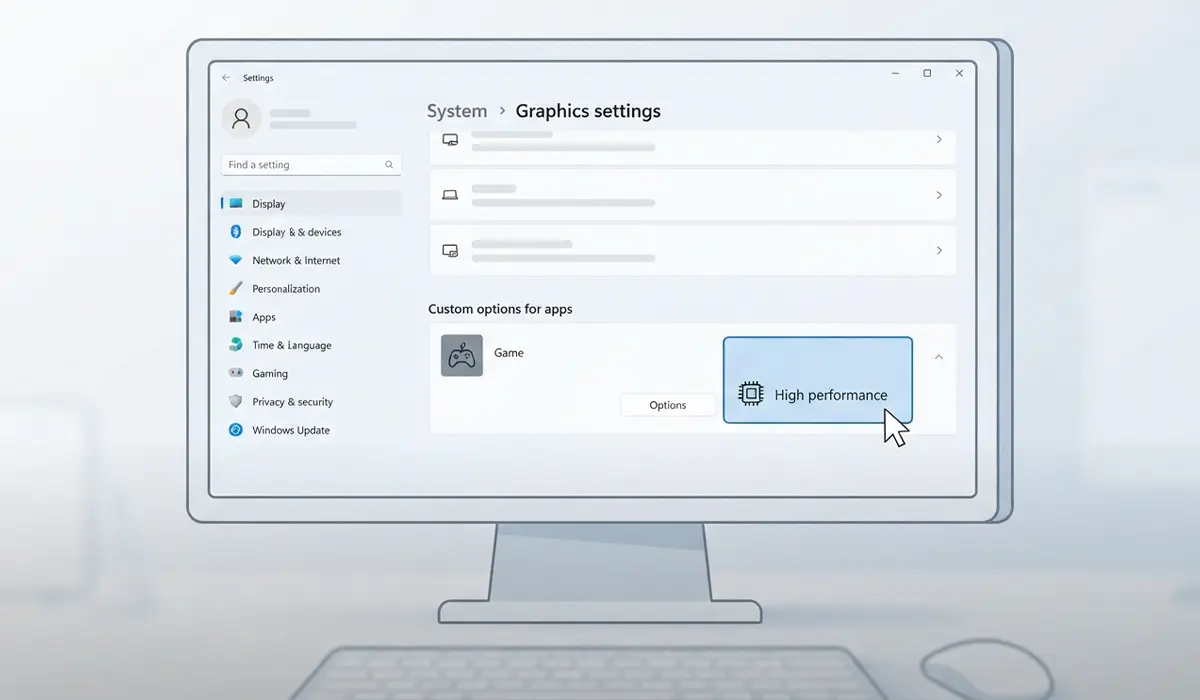
Step 2: Set the Game to Use the Dedicated GPU in Windows Graphics Setting
- Step 1: Open Windows Settings and go to System, then Display.
- Step 2: Scroll down and select Graphics.
- Step 3: Find the game in the list, or add it manually using Browse if it is not listed.
- Step 4: Select the game, click Options, and choose High Performance to force it onto the dedicated GPU.
- Step 5: Save the changes and relaunch the game.
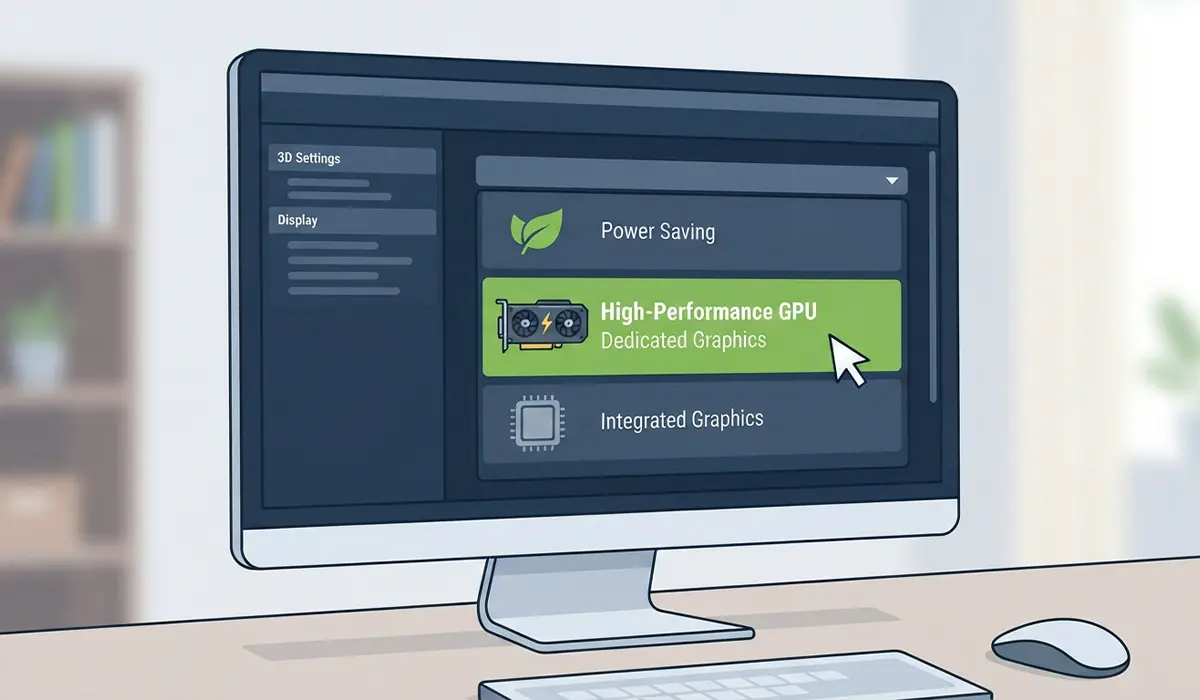
Step 3: Check the GPU Control Panel Settings
- Step 1: Open the graphics card’s control panel from the desktop right-click menu or the system tray.
- Step 2: Look for a global or program-specific setting that controls which GPU handles rendering, sometimes labeled as graphics preference or power mode.
- Step 3: Set the game, or the global default, to use the high-performance dedicated GPU rather than an automatic or power-saving option.
- Step 4: Apply the changes and restart the game to confirm the setting took effect.
Step 4: Update or Reinstall the Graphics Driver
- Step 1: Open Device Manager and expand the Display adapters section to confirm the dedicated GPU is listed and shows no warning icon.
- Step 2: Visit the graphics card manufacturer’s official website and download the latest driver for the exact model.
- Step 3: Run the installer and choose a clean or fresh installation option if it is offered, which clears out old configuration files that can cause conflicts.
- Step 4: Restart the computer after installation completes, then launch the game again.
Tip: A driver that installed incorrectly or was never fully removed from a previous version is a frequent hidden cause of GPU detection problems, so a clean reinstall solves more cases than a simple update.
Step 5: Disable Conflicting Overlay or Recording Software
- Step 1: Close any recording, streaming, or overlay applications running in the background, including in-game overlays from launchers.
- Step 2: Relaunch the game with these programs fully closed, not just minimized.
- Step 3: Check GPU usage again during gameplay to see if it now registers correctly.
Step 6: Verify the Reading With a Different Monitoring Tool
- Step 1: Install a second, reputable GPU monitoring utility separate from the one currently being used.
- Step 2: Run the game and compare the usage readings between both tools.
- Step 3: If the second tool shows normal usage, the original 0 percent reading was a monitoring glitch rather than an actual GPU problem.
Common Problems and Fixes
- GPU usage still shows 0 percent after updating drivers: Confirm the game was actually set to high performance in both the Windows graphics settings and the GPU control panel, since one setting can override the other.
- Frame rate improves but usage monitor still reads 0 percent: This points to a monitoring software bug rather than an actual issue, so cross-check with a second tool.
- Laptop keeps switching back to integrated graphics: Look for a laptop-specific hybrid graphics setting in the manufacturer’s control software and lock it to the dedicated GPU for gaming.
- GPU usage is normal in some games but not others: Add the specific game manually in the Windows Graphics settings, since auto-detection sometimes misses newer or non-standard executable files.
Frequently Asked Questions
Why is my GPU usage stuck at 0 percent even in demanding games?
This almost always means the game is being rendered by the CPU or integrated graphics instead of the dedicated GPU, usually because of a graphics preference setting or a monitor cable plugged into the wrong port.
Does 0 percent GPU usage mean the graphics card is broken?
Not usually. A broken GPU typically causes display errors, crashes, or the system failing to detect the card at all, rather than a clean 0 percent reading during gameplay.
Can a monitor cable really cause this issue?
Yes. On a desktop, plugging the monitor into the motherboard’s video port instead of the graphics card routes all rendering through the integrated graphics, leaving the dedicated GPU idle.
Why does my laptop use integrated graphics instead of the dedicated GPU for games?
Laptops with hybrid graphics are designed to save battery life by defaulting to the integrated chip unless a game is specifically set to use the dedicated GPU.
Will updating drivers fix GPU usage stuck at 0 percent?
It fixes many cases, especially when the current driver is outdated, corrupted, or was not fully removed during a previous update.
Why does a monitoring tool sometimes show 0 percent even though the game runs fine?
Some monitoring utilities misread certain sensor data or fail to track newer GPU architectures correctly, producing an inaccurate 0 percent reading despite normal performance.
Should overlay software be uninstalled or just closed?
Closing it before launching the game is usually enough to test whether it is the cause. If problems continue, a full uninstall and reinstall can resolve deeper conflicts.
Can Windows power settings affect GPU usage in games?
Yes. A power plan set to balanced or power saver mode can encourage the system to favor the integrated graphics chip over the dedicated GPU during gameplay.
Why does GPU usage stay low in one specific game but not others?
The game may not be recognized automatically by the graphics settings, so it defaults to integrated graphics until it is added manually as a high-performance application.
