
Quick Answer: Plug the second monitor into an available HDMI or DisplayPort on the PC, then press Windows + P and select Extend. That’s it — Windows handles the rest automatically.
Setting up dual monitors on Windows is easier than most people expect. There’s no need to install special software or dig through complicated menus. Windows 10 and Windows 11 both detect a second monitor almost instantly once it’s plugged in.
Here’s the thing — the whole process comes down to three things: the right cable, a quick keyboard shortcut, and a few tweaks in Display Settings. This guide walks through each one, step by step, in plain language.
What Is Needed Before Starting
- A second monitor
- A cable to connect it (HDMI is the most common)
- An open video port on the PC or laptop
That’s genuinely all it takes. Most modern monitors and computers use HDMI, so chances are a spare HDMI cable is all that’s needed. If the ports don’t match — say the PC has DisplayPort but the monitor has HDMI — a simple adapter cable works fine.
What Cable to Use
- HDMI — The go-to choice for most setups. Carries both video and audio. Works with almost every modern monitor and PC.
- DisplayPort — A step up for gaming or high-refresh-rate monitors. Supports smoother visuals at higher resolutions.
- USB-C / Thunderbolt — Common on newer laptops. Double-check that the USB-C port supports video output before buying a cable — not all of them do.
- VGA — An older option. Still works for basic tasks but doesn’t handle high resolutions as cleanly as HDMI.
When in doubt, HDMI is the safest and simplest pick.
How to Set Up Dual Monitors in Windows
Step 1: Plug In the Second Monitor
- Check the back or side of the PC or laptop for an available HDMI, DisplayPort, USB-C, or VGA port
- Check the back of the second monitor for a matching input port
- Connect the cable between the PC and the monitor
- Power on the second monitor and make sure it’s set to the correct input (for example, HDMI 1 or DisplayPort) using the monitor’s own menu buttons

Windows should detect the second screen within a few seconds. The screen may flash black for a moment — that’s completely normal.
Step 2: Choose How the Screens Work Together
This is the fastest part. Press Windows + P on the keyboard. A small panel pops up on the right side of the screen with four options:
- PC screen only — Only the main monitor stays on. The second screen is ignored.
- Duplicate — Both screens show the exact same thing. Good for presentations.
- Extend — The desktop spreads across both monitors. This is the one most people want for everyday use.
- Second screen only — Only the second monitor is active. The main screen turns off.
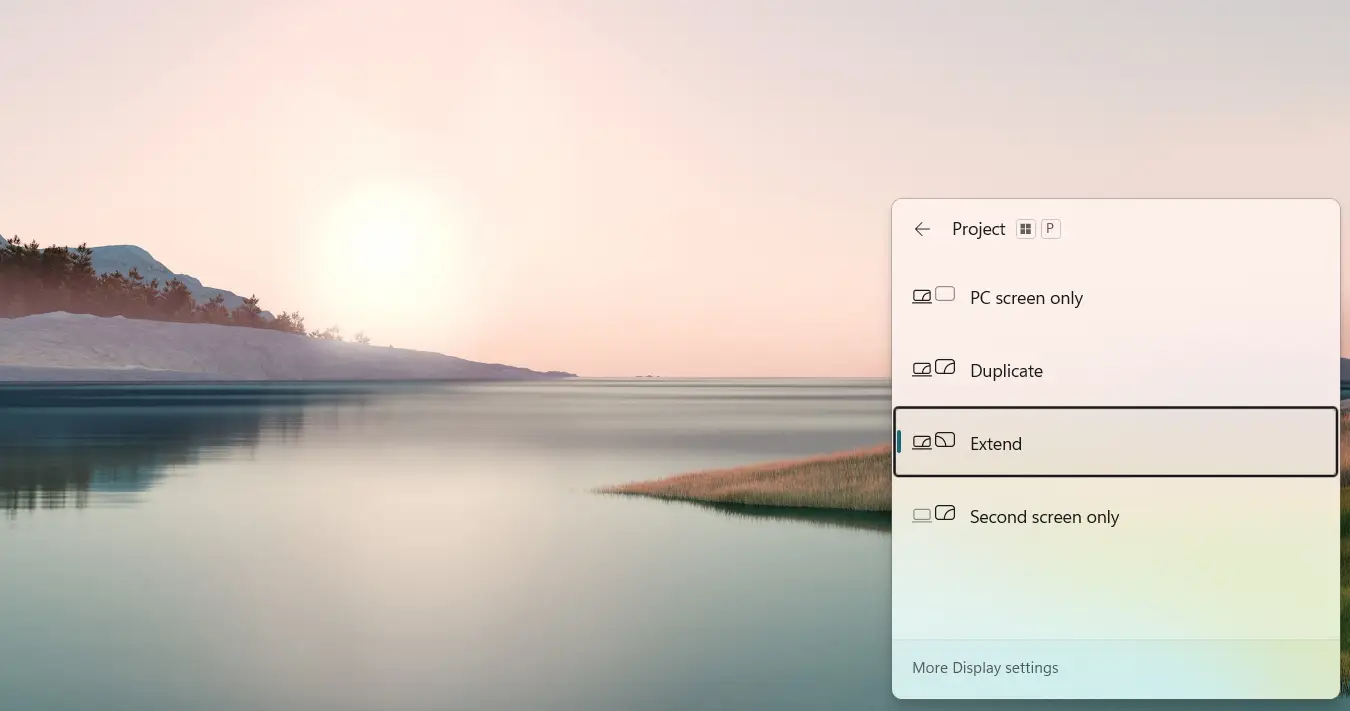
Click Extend. The desktop will now stretch across both screens, and any window can be dragged between them freely.
Step 3: Arrange and Adjust the Displays
The key is making sure Windows knows which monitor is physically on the left and which is on the right. If this isn’t set correctly, moving the mouse from one screen to the other will feel off.
- Right-click anywhere on the desktop and select Display settings
- At the top, two numbered boxes (1 and 2) represent each monitor. Drag them so their position matches how the monitors are actually placed on the desk
- Click on each monitor box to select it, then set the Resolution (choose the recommended option), Orientation (Landscape or Portrait), and Refresh rate
- Scroll down to Multiple displays to confirm the display mode if needed
- To choose which monitor shows the Start Menu and taskbar, click that monitor’s box and check Make this my main display
- Click Apply, then Keep changes when prompted

That’s the full setup done.
Tips for a Better Dual Monitor Setup
- Use matching resolutions when possible. Monitors with different resolutions can feel awkward when dragging windows between them. Setting them to the same resolution (if both support it) makes the experience much smoother.
- Drag monitor boxes to match the physical layout. This single step prevents the confusing “cursor jumping to the wrong side” problem that trips up a lot of new users.
- Use Windows + Shift + Arrow key to move windows instantly. Pressing Windows + Shift + Left or Right arrow moves the active window to the other monitor without touching the mouse.
- Show the taskbar on both screens. In Windows 11, go to Settings > Personalization > Taskbar > Taskbar behaviors and turn on Show my taskbar on all displays.
- Set each monitor to its native resolution. If one screen looks blurry or soft, that’s usually a sign it’s not running at its native resolution. Fix it in Display Settings under Resolution.
- Use a monitor arm to align both screens at eye level. Misaligned monitors cause neck strain during long sessions. Getting both screens at the same height makes a real difference over time.
Frequently Asked Questions
Does Windows automatically detect a second monitor when plugged in?
Yes, in most cases Windows 10 and Windows 11 will detect the second monitor within a few seconds of plugging it in. If it doesn’t show up right away, go to Display Settings and click Detect under the Multiple displays section. Also confirm the monitor is powered on and set to the right input.
What’s the difference between Extend and Duplicate?
Extend gives more screen space — the desktop spreads across both monitors so different apps can sit side by side. Duplicate mirrors the same content on both screens, which is handy for presentations or casting to a TV. Most people use Extend for everyday work.
Can a laptop run two external monitors?
It depends on the laptop. Many laptops support one external monitor via HDMI or USB-C alongside the built-in screen. To drive two external monitors, a docking station or a USB display adapter is usually needed. Check the laptop’s specifications for the maximum number of supported displays.
Why does the second monitor say “No Signal”?
This usually means the monitor isn’t receiving a video signal from the PC. Check that the cable is firmly plugged in at both ends, that Windows recognizes the monitor in Display Settings, and that the monitor’s input source matches the cable being used (for example, set to HDMI 1 if the cable is in the HDMI 1 port).
How do you move a window from one monitor to the other?
Just drag the window toward the edge of the screen and it’ll slide onto the second monitor. The faster way is the keyboard shortcut Windows + Shift + Left or Right Arrow, which instantly snaps the active window to the other screen.
Why does the cursor jump to the wrong side when moving between screens?
This happens when the monitor boxes in Display Settings don’t match the physical layout of the screens on the desk. Go to Display Settings, drag the numbered boxes to reflect where each monitor actually sits, and click Apply. After that, mouse movement will feel natural.
Can both monitors have different resolutions?
Yes. Windows handles monitors with different resolutions independently. Each screen can be configured separately in Display Settings. That said, matching resolutions tends to make the setup feel more seamless when moving windows back and forth.
Does using two monitors slow down the computer?
For most people, the impact is barely noticeable on modern hardware. Running two monitors does put a bit more load on the GPU, but everyday tasks like browsing, documents, and video calls won’t feel slower. Very high resolutions like 4K on older graphics cards may show some performance difference.
How do you make the Start Menu appear on the second monitor?
The Start Menu always appears on the primary display. To move it to the second monitor, go to Display Settings, click on that monitor’s box, scroll down to Multiple displays, and check Make this my main display. Click Apply and the taskbar and Start Menu will shift to that screen.
Is a docking station required for dual monitors on a laptop?
Not always. If the laptop has both a built-in screen and an HDMI or USB-C port, one external monitor can be added without a docking station. A dock becomes useful when the laptop only has one video output and a second external display is needed, or when adding monitors without cluttering the desk with cables.
