
A USB keyboard not working at boot is one of the most frustrating hardware issues a PC owner can run into, especially when it blocks access to BIOS settings entirely. The good news is that this problem almost always comes down to a handful of common causes, and most of them can be fixed without opening the case.
Key Takeaways
- USB keyboards often fail at boot because of USB port power settings, Legacy USB Support being disabled, or a faulty port and cable.
- Switching to a rear USB port on the motherboard usually solves the issue faster than any software fix.
- Enabling Legacy USB Support (sometimes called USB Legacy Mode) in the BIOS or UEFI is the single most common fix.
- A PS/2 keyboard, if the motherboard supports one, is a reliable fallback for reaching BIOS settings.
- Wireless USB keyboards are more prone to this issue than wired ones, since the receiver depends on stable pre-boot USB initialization.
Common Causes of a USB Keyboard Not Working at Boot
Before jumping into fixes, it helps to understand why this happens in the first place. A keyboard that works perfectly once Windows loads but goes silent during the boot screen points to a pre-operating-system issue, not a driver problem.
Legacy USB Support Disabled
Most motherboards need a setting called Legacy USB Support, or USB Keyboard Support, enabled in the BIOS or UEFI firmware. Without it, USB input devices are only recognized after the operating system loads its own USB drivers, which is far too late to access BIOS menus or boot selection screens.
Front-Panel USB Ports
Front-panel ports on a desktop case connect to the motherboard through an internal header, and that connection is not always as stable or as fully powered as the ports built directly into the motherboard’s rear I/O panel. A loose header cable or a cheaply wired case can cause a keyboard to be missed during the earliest stage of boot.
USB Port Power or Selective Suspend Issues
Some systems have USB power management settings, either in the BIOS or in Windows, that reduce power to ports when they are not actively needed. This rarely affects normal use but can interfere with the split-second window during POST when the keyboard needs to be detected.
A Faulty Keyboard, Cable, or Port
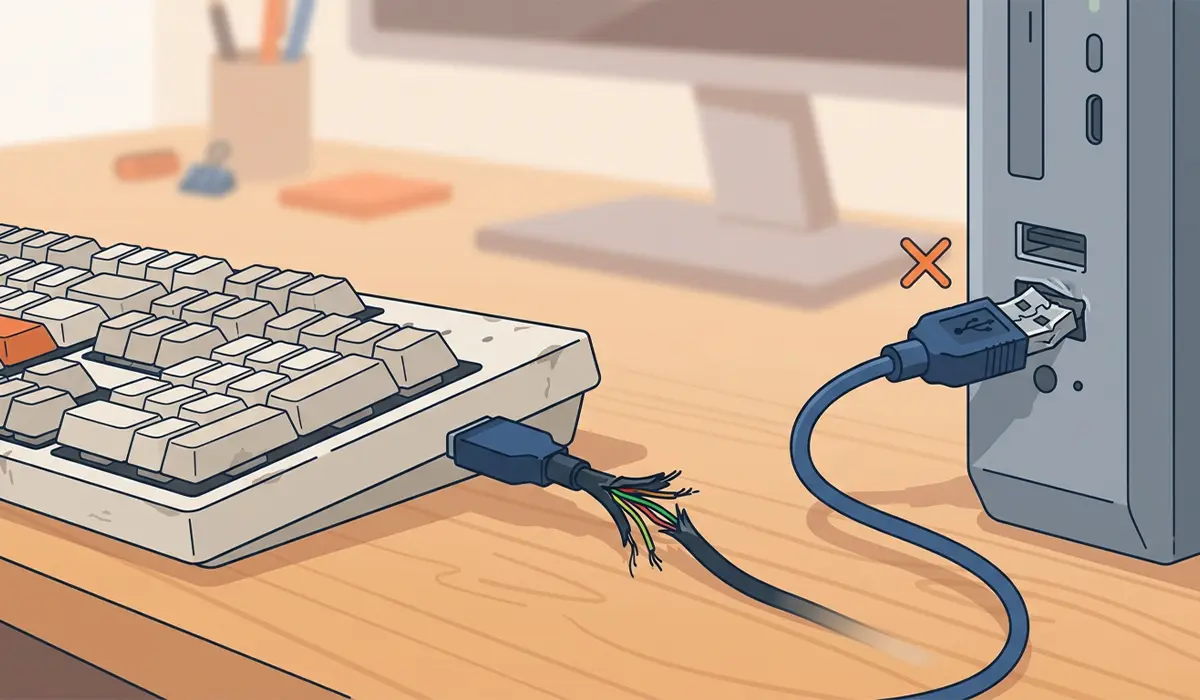
Physical damage is often overlooked. A worn USB cable, a keyboard with an internal fault, or a damaged USB port on the motherboard can all produce symptoms that look identical to a settings problem.
Wireless Receiver Initialization Delays
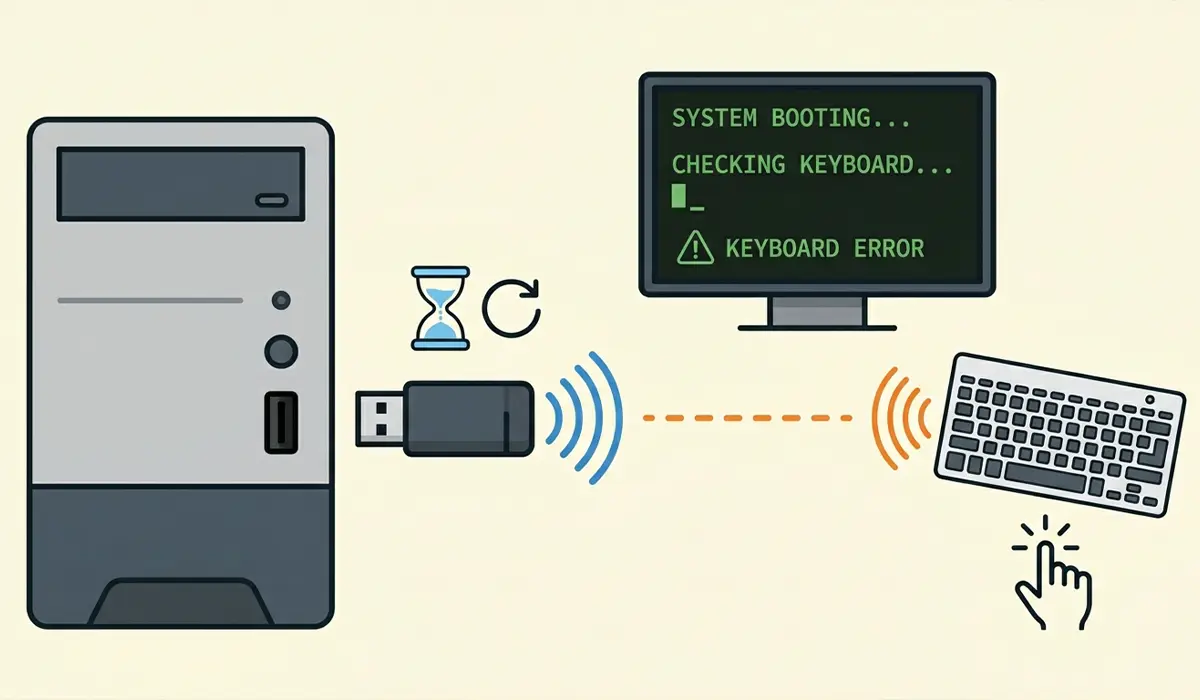
Wireless keyboards rely on a USB receiver dongle that needs to establish a connection before the keyboard becomes active. That handshake takes a moment longer than a wired connection, and on some systems the BIOS moves past the keyboard detection window before the receiver is ready.
How to Fix a USB Keyboard Not Working at Boot
Work through these fixes in order, starting with the simplest. Most people find that the very first two steps resolve the issue without needing to touch any BIOS settings at all.
- Step 1: Unplug the keyboard and plug it into a different USB port, ideally one of the USB ports built directly into the motherboard’s rear I/O panel rather than a front-panel or hub-connected port.
- Step 2: If using a USB hub or docking station, connect the keyboard directly to the PC instead. Some hubs are not powered early enough in the boot sequence to pass through keyboard input.
- Step 3: Restart the computer and enter the BIOS or UEFI setup screen, usually by pressing Delete, F2, F10, or Esc repeatedly right after powering on. The exact key is typically shown briefly on the first boot screen or listed in the motherboard or laptop manual.
- Step 4: Locate the Legacy USB Support setting, sometimes labeled USB Keyboard Support or USB Legacy Mode. This is commonly found under an Advanced, Boot, or Peripherals tab depending on the motherboard brand.
- Step 5: Set Legacy USB Support to Enabled, save the changes, and exit the BIOS. On most systems this is done by pressing F10 and confirming the save.
- Step 6: If the keyboard still is not detected, check for a separate setting called USB Configuration or XHCI Hand-off and make sure it is also enabled, since some boards split legacy support across two settings.
- Step 7: Test with a different USB keyboard if one is available. This quickly confirms whether the original keyboard or its cable is the actual source of the problem.
- Step 8: If a wireless keyboard is in use, swap in a wired keyboard temporarily to rule out receiver pairing or power-up timing as the cause.
- Step 9: Update the motherboard’s BIOS or UEFI firmware to the latest version available from the manufacturer’s support page, since USB detection bugs are a known target for firmware fixes.
- Step 10: If the keyboard works fine once Windows fully loads but still fails at the boot screen, check USB power management settings in Windows Device Manager and disable “Allow the computer to turn off this device to save power” for each USB Root Hub entry.
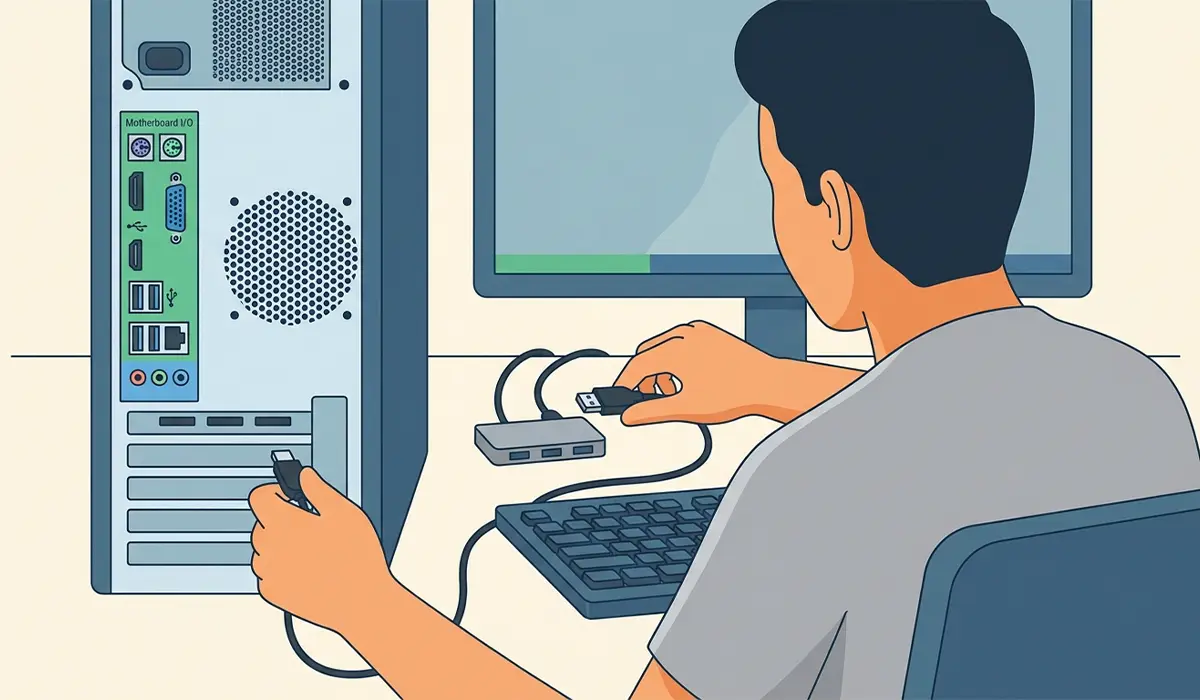
Tip: If BIOS access is needed urgently and none of the above solves it right away, a PS/2 keyboard connected to a motherboard’s PS/2 port, where one is present, will almost always be recognized at boot since it does not depend on USB initialization at all.
Common Problems and Fixes
Keyboard Works in Windows but Not in BIOS
This nearly always points to Legacy USB Support being disabled rather than a hardware fault, since the operating system loads its own drivers that the BIOS does not use. Enabling Legacy USB Support as described above resolves this in most cases.
Keyboard Stops Working Only During Boot Selection Menus
Some systems detect the keyboard during POST but lose it by the time a boot menu, such as one triggered by F12, appears. This is often tied to a fast boot setting. Disabling Fast Boot in the BIOS gives USB devices more time to initialize before the boot menu loads.
Keyboard Works After Enabling Legacy USB Support but Feels Delayed
A short lag between powering on and the keyboard responding is normal behavior for legacy USB emulation and is not a sign of a fault. Waiting a few extra seconds before pressing the BIOS entry key usually solves this.
Wireless Keyboard Still Not Detected After Trying a Different Port
Try moving the receiver to a rear USB port directly on the motherboard rather than an extension cable or hub, since wireless receivers are especially sensitive to power delivery during early boot.
Keyboard Works in One Port but Not Another, Even With Legacy Support Enabled
This usually indicates a damaged or underpowered USB port rather than a settings issue. Testing the same keyboard across several ports helps confirm whether one specific port is at fault.
Frequently Asked Questions
Why does a USB keyboard work in Windows but not at boot?
This happens because Windows loads its own USB drivers, while the BIOS relies on a separate feature called Legacy USB Support to recognize keyboards before the operating system starts. If that setting is disabled, the keyboard stays inactive until Windows finishes loading.
What is Legacy USB Support in the BIOS?
Legacy USB Support is a BIOS or UEFI feature that allows USB keyboards and mice to function during POST and in BIOS menus, before any operating system drivers are available. Most motherboards ship with it enabled by default, but it can be turned off manually or reset during a BIOS update.
Why does the keyboard work in some USB ports but not others?
Front-panel ports and USB hubs are less consistent during early boot than the rear ports built directly into the motherboard, since they depend on additional internal wiring or powered components that are not always active that early in the boot process.
Can a USB hub cause a keyboard to fail at boot?
Yes. Many hubs, especially unpowered ones, are not fully initialized during POST, which can prevent a connected keyboard from being detected. Connecting the keyboard directly to the PC avoids this entirely.
Does a wireless keyboard have more trouble working at boot than a wired one?
Generally, yes. A wireless keyboard depends on its USB receiver completing a connection handshake, which takes slightly longer than a simple wired connection and can occasionally miss the BIOS detection window.
What should be done if no keyboard works in the BIOS at all?
If even a known-working keyboard fails to respond in the BIOS, the issue is more likely tied to the motherboard’s USB controller, firmware, or a PS/2 port if one is available and untried. At that point, checking with a professional technician is a reasonable next move.
Is a BIOS update risky just to fix a keyboard issue?
A BIOS update carries some inherent risk if interrupted, so it should be treated as a later step rather than a first attempt. Following the motherboard manufacturer’s official update instructions closely and avoiding any power interruption during the process keeps that risk low.
Can a laptop have this same USB keyboard boot issue?
Laptops with a built-in keyboard rarely have this problem, since that keyboard is not connected through USB. However, an external USB keyboard plugged into a laptop can run into the exact same Legacy USB Support and port-related issues described here.
Does Fast Boot affect USB keyboard detection?
Yes. Fast Boot settings skip or shorten certain hardware initialization steps to speed up startup, which can sometimes prevent a USB keyboard from being ready in time for a boot menu or BIOS prompt. Disabling it often resolves timing-related detection issues.
When does this point to a hardware failure rather than a settings problem?
If a different keyboard also fails in the same port after Legacy USB Support is confirmed enabled, and the keyboard works normally on another computer, the motherboard’s USB port or controller is the more likely culprit.
