
When the GPU not detected in Device Manager issue shows up, the screen usually looks fine at first glance, but the system is actually leaning on integrated graphics instead of the dedicated card sitting right there on the motherboard. This is one of the most common hardware frustrations PC builders and upgraders run into, and it almost always traces back to a handful of predictable causes. The fixes below move from the simplest checks to the more involved hardware steps, so working through them in order saves time.
Key Takeaways
- A GPU not detected in Device Manager is usually caused by a loose connection, a driver conflict, incorrect BIOS settings, or insufficient power delivery.
- Reseating the card and checking the power cables solves the problem in a large share of cases.
- BIOS settings like Primary Display or CSM/UEFI mode can hide a working card from Windows.
- Driver corruption often shows the card as a “Microsoft Basic Display Adapter” instead of its real name.
- Testing the GPU in another system, or testing another GPU in the current system, quickly confirms whether the card itself has failed.
Common Causes of a GPU Not Detected in Device Manager
Before diving into fixes, it helps to understand why Windows loses track of a graphics card in the first place. The most frequent culprits include a card that has shifted slightly out of its PCIe slot, a missing or loose PCIe power cable, a monitor plugged into the motherboard’s video output instead of the GPU, outdated or corrupted drivers, a BIOS configured to prioritize the integrated graphics, or in less common cases, a failing PCIe slot or a dead graphics card. Static discharge during a previous install can also damage the card’s connection pins, so handling the card carefully matters just as much as the fix itself.
Before You Start
A few basic precautions prevent a simple troubleshooting session from turning into a bigger repair job.
- Shut the PC down completely and unplug the power cable from the wall.
- Press and hold the power button for several seconds after unplugging to drain any residual power from the capacitors.
- Discharge static electricity by touching a bare metal part of the case, or wear an anti-static wrist strap before touching any internal components.
- Let the system cool down for a few minutes if it was recently running, especially before touching the GPU heatsink.
- Have a Phillips-head screwdriver on hand for removing the case panel and the GPU’s bracket screws.
Tip: Keep the original screws in a small dish or magnetic tray while the case is open, since losing one bracket screw is a common and avoidable annoyance.
Step-by-Step Fixes for a GPU Not Detected in Device Manager
Reseat the Graphics Card
- Step 1: Open the side panel of the case and locate the graphics card in its PCIe x16 slot.
- Step 2: Unclip the PCIe slot latch, gently release the card, and lift it straight out.
- Step 3: Inspect the gold connector pins on the bottom of the card for dust, debris, or visible damage, and wipe them gently with a dry lint-free cloth if needed.
- Step 4: Line the card back up with the slot and press down firmly and evenly until the latch clicks into place.
- Step 5: Reattach the bracket screws so the card sits flush and doesn’t sag over time.
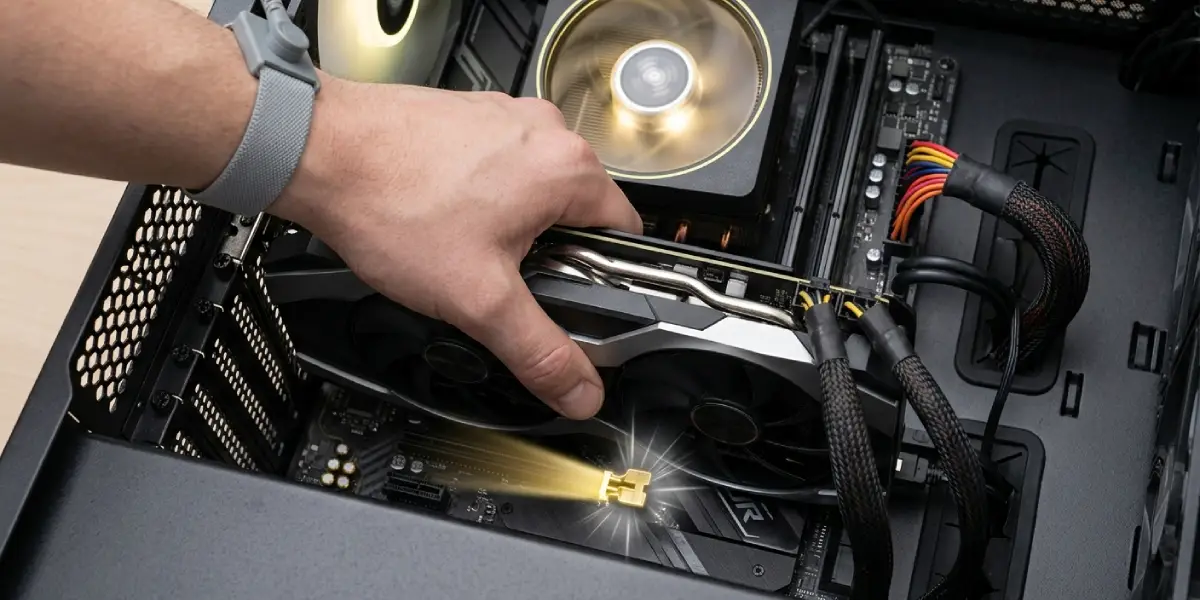
A card that isn’t fully seated is one of the most common reasons Windows fails to see it at all, so this step alone resolves a surprising number of cases.
Check the Power Connections
- Step 1: Trace the PCIe power cable (or cables, on higher-end cards) from the power supply to the graphics card.
- Step 2: Confirm each connector is pushed in until it clicks, not just resting against the socket.
- Step 3: For cards requiring multiple power connectors, verify every connector is populated. A partially powered card can fail to initialize even though the fans spin.
- Step 4: If using a 12VHPWR or 12V-2×6 connector, make sure it’s fully seated and not at an angle.
Verify the Monitor Cable Is in the Right Port
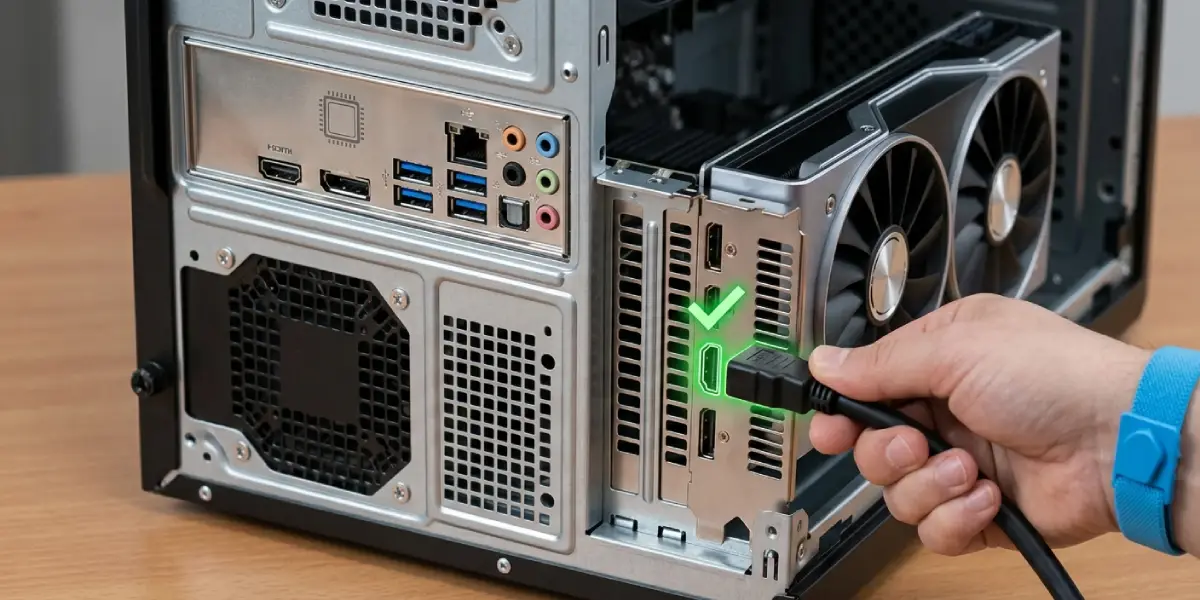
- Step 1: Look at the back of the case and identify which set of video ports the monitor cable is plugged into.
- Step 2: The GPU’s ports are on the expansion slot bracket near the bottom of the case; the motherboard’s built-in video ports are higher up, near the CPU I/O panel.
- Step 3: Move the cable to the GPU’s output if it’s currently connected to the motherboard, since a monitor plugged into onboard graphics won’t show the dedicated card as the active display device.
Check BIOS Settings
- Step 1: Restart the PC and enter the BIOS or UEFI setup, usually by pressing Delete or F2 during boot.
- Step 2: Locate the setting often labeled Primary Display, Initial Display Output, or Graphics Configuration.
- Step 3: Set this option to PCIe or PEG rather than Integrated Graphics or Auto, if Auto is not correctly selecting the dedicated card.
- Step 4: Save changes and exit, then boot into Windows and check Device Manager again.
Tip: If the BIOS itself doesn’t display any video when the monitor is connected to the GPU, that’s a strong sign the issue is happening before Windows even loads, which points toward a seating, power, or hardware problem rather than a software one.
Update or Reinstall the Graphics Driver
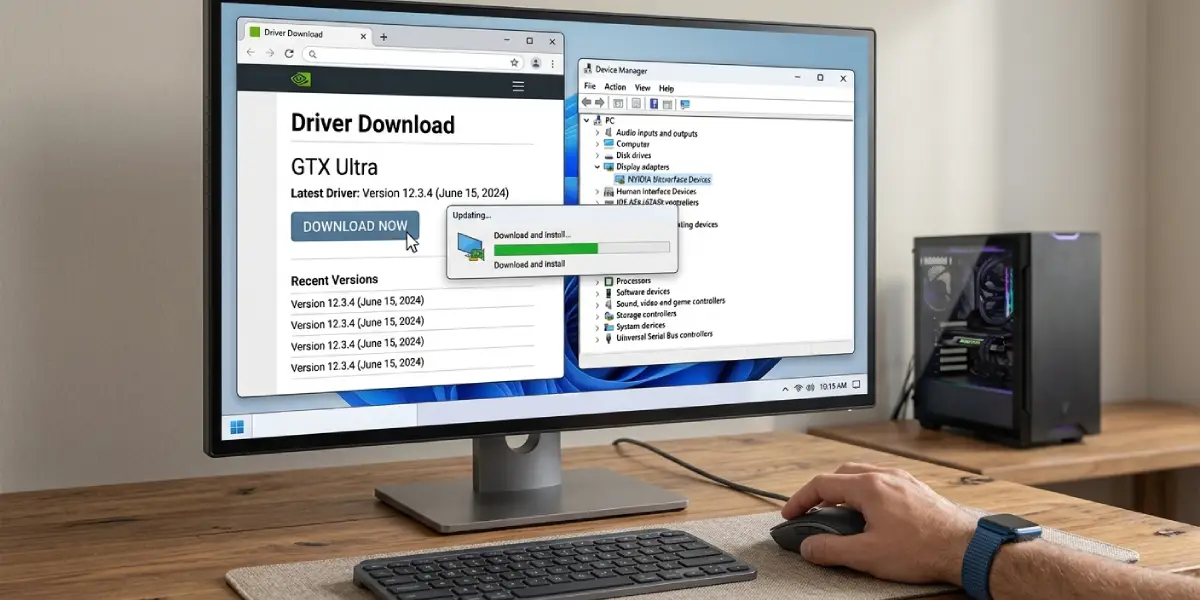
- Step 1: Open Device Manager and check under Display Adapters. If the card shows as “Microsoft Basic Display Adapter” or has a yellow warning icon, the driver is the likely issue.
- Step 2: Download the latest driver directly from the GPU manufacturer’s website for the exact model in use.
- Step 3: Uninstall the current driver, restart the system, then install the freshly downloaded driver.
- Step 4: Restart once more and confirm the card now shows its correct name in Device Manager.
Test in a Different Slot or System
- Step 1: If the motherboard has more than one PCIe x16 slot, move the GPU to the secondary slot and test again.
- Step 2: If available, install the GPU into a different, known-working computer to see if it’s detected there.
- Step 3: If possible, test the original system with a different graphics card to rule out a motherboard or power supply issue.
This cross-testing step is the clearest way to isolate whether the card, the slot, or the power supply is actually at fault.
Common Problems and Fixes
- The card is detected after reseating but disappears again after a reboot: This usually points to a failing PCIe slot or a connector that isn’t making consistent contact. Try the secondary PCIe slot if the motherboard has one, and inspect the primary slot for bent pins.
- Device Manager shows the GPU with a yellow exclamation mark (Code 43): This typically indicates a driver or power delivery problem rather than a dead card. A clean driver reinstall combined with confirming all power connectors are seated usually clears it.
- The card works in another PC but still isn’t detected in the original system: This points toward the motherboard’s PCIe slot, a BIOS setting, or a power supply that isn’t delivering enough wattage to the GPU under load.
- No display at all, even in BIOS, with the GPU installed: Try clearing the CMOS to reset BIOS settings to default, since a misconfigured display priority setting can block video output before Windows ever loads.
- The GPU is detected but performance is far below expectations: This is usually a separate issue from detection itself, often related to power limits or driver configuration rather than the card not being recognized.
Frequently Asked Questions
Why does my GPU show up in the case but not in Device Manager?
This almost always comes down to a connection issue, a BIOS setting favoring integrated graphics, or a driver problem. The card can be fully installed and still stay invisible to Windows if the display setting or power connection isn’t right.
Can a loose PCIe power cable cause a GPU not detected in Device Manager?
Yes. Many cards require full power delivery just to initialize during boot, so a loose or missing power connector can prevent the card from being recognized at all, even though the fans may still spin briefly.
Does clearing the CMOS help fix a GPU not detected in Device Manager?
It can. Clearing the CMOS resets BIOS settings to factory defaults, which removes any misconfigured display priority setting that might be forcing the system to use integrated graphics instead of the installed card.
Why does the GPU show as a Microsoft Basic Display Adapter?
This label appears when Windows can’t load the correct driver for the card, often due to corruption or an incomplete driver installation. Reinstalling the manufacturer’s driver typically resolves it.
Should the monitor be connected to the motherboard or the graphics card?
The monitor cable should be connected to the graphics card’s video output, not the motherboard’s built-in ports, whenever a dedicated GPU is installed and in use.
Can a weak power supply cause a GPU not detected in Device Manager?
Yes, an underpowered or aging power supply may fail to deliver stable power to a demanding graphics card, which can prevent proper initialization even if every cable appears connected correctly.
How can it be confirmed that the graphics card itself has failed?
Testing the card in a different, known-working system is the most reliable way to confirm a hardware failure. If it isn’t detected there either, and a different card works fine in the original system, the card itself is likely the problem.
Is it safe to reseat a graphics card without professional help?
Reseating a GPU is a routine task that most PC owners can safely handle by following basic anti-static precautions. If the card shows physical damage, burnt components, or the issue persists after all troubleshooting steps, it’s worth having a professional technician inspect it, and note that opening the case may affect warranty coverage on pre-built systems.
Does updating BIOS firmware help with GPU detection issues?
In some cases, yes. An outdated BIOS may not properly support newer graphics cards or PCIe configurations, so checking the motherboard manufacturer’s site for a firmware update is a reasonable step if other fixes don’t resolve the issue.
