
Knowing how to optimize SSD performance in Windows can be the difference between a computer that feels instant and one that quietly slows down over time. Most performance loss on a solid state drive comes from a handful of settings that are easy to overlook, not from the drive wearing out. This guide walks through the exact steps that keep an SSD running at its intended speed.
Key Takeaways
- TRIM needs to be enabled so the drive can manage deleted data efficiently.
- Windows should recognize the drive as a solid state drive, not a hard disk, inside the Optimize Drives tool.
- Keeping at least 10 to 20 percent of the drive free preserves consistent speed.
- Firmware and storage drivers should stay current, since manufacturers release real performance and stability fixes.
- Manual defragmentation should never be run on an SSD.
Steps to Optimize SSD Performance in Windows
Step-by-Step Optimization Process
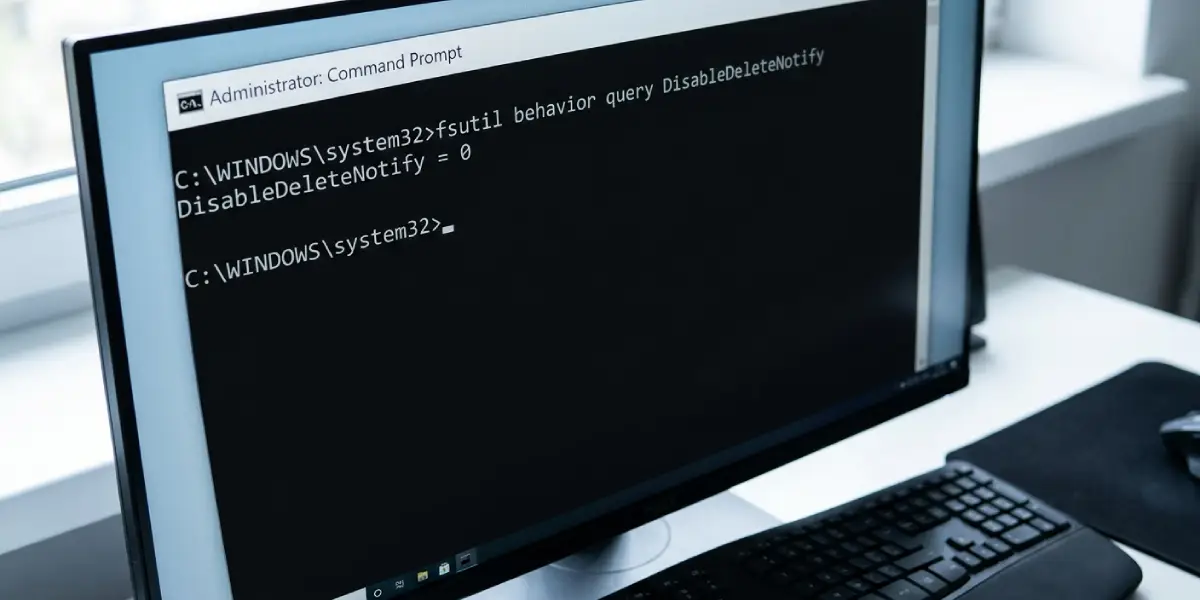
- Step 1: Open Command Prompt as an administrator and type ‘fsutil behavior query DisableDeleteNotify’. A result of 0 means TRIM is active. A result of 1 means TRIM is disabled and should be turned back on with ‘fsutil behavior set DisableDeleteNotify 0’.
- Step 2: Open the Start menu, search for ‘Defragment and Optimize Drives’, and confirm the SSD is listed under Media Type as ‘Solid state drive’. If it shows as ‘Hard disk drive’, the drive letter assignment or driver may need attention before continuing.
- Step 3: In that same Optimize Drives window, select the SSD and click Optimize once. On a solid state drive this triggers a TRIM pass rather than a traditional defrag, which helps the drive stay efficient without unnecessary wear.
- Step 4: Check that the optimization schedule is turned on and set to run weekly. This keeps TRIM running automatically without requiring manual attention going forward.
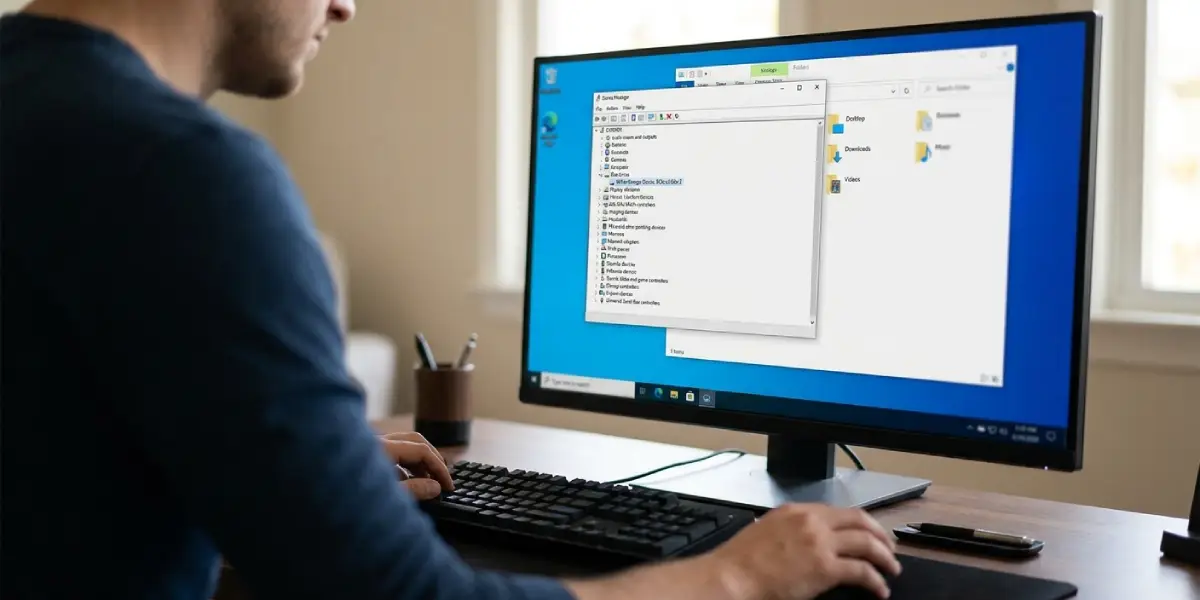
- Step 5: Open Device Manager, expand Disk drives and Storage controllers, and check for any pending driver updates through Windows Update or the manufacturer’s website. Many SSDs also perform well with the standard Microsoft NVMe driver already built into Windows.
- Step 6: Download the manufacturer’s management tool if one exists for the drive, such as those offered by Samsung, Crucial, Western Digital, or Kingston, and check for a firmware update. Firmware updates often resolve performance dips and compatibility quirks that show up months after purchase.
- Step 7: Open Settings, go to System, then Power, and review the active power plan. Balanced mode works well for most systems. Avoid power plans that aggressively throttle the storage controller, since that can introduce noticeable lag during heavier file transfers.
- Step 8: Open Settings, go to System, then Storage, and turn on Storage Sense. This automatically clears temporary files and frees up space without needing to remember to do it manually.
- Step 9: Check available free space in File Explorer. If the drive is above 80 to 90 percent full, moving large files elsewhere or removing unused programs helps the SSD maintain steady write speeds.
Tip: Never run a manual defragmentation tool on an SSD. Defragging is designed for spinning hard drives and offers no benefit here. On a solid state drive it only adds unnecessary write cycles.
Confirming the Drive Is Running at Full Speed
Once the steps above are complete, it helps to verify the drive is actually performing as expected. A quick way to check is opening Device Manager and confirming the drive is connected through the correct interface, such as NVMe over PCIe rather than a slower legacy mode. A drive that suddenly runs cooler and quieter than expected under load, or one reporting speeds far below its rated specification, is often a sign it dropped into a lower link speed and may need a driver refresh or a reseat if it is a removable module.
Common Problems and Fixes
TRIM Shows as Disabled After Checking
This usually happens after a clean install with a third-party storage driver, or on some RAID configurations. Re-enable it with the fsutil command from Step 1, then restart the computer and confirm the setting held.
Windows Still Lists the SSD as a Hard Disk Drive
This is often tied to the connection type or an outdated storage driver rather than the drive itself. Updating the chipset and storage drivers through Windows Update or the motherboard manufacturer’s site typically corrects the classification.
Performance Feels Slower Over Time
The most common cause is a drive that has crept above 85 to 90 percent capacity. Solid state drives rely on having a pool of free blocks to write to efficiently, so freeing up space, even by moving a large media library to another drive, often restores the snappy feel.
Boot Times Are Slow Despite an SSD Being Installed
This is frequently unrelated to the drive itself and comes from too many startup programs loading at once. Opening Task Manager, selecting the Startup tab, and disabling unnecessary entries usually helps far more than any drive-level tweak.
A New SSD Feels Slower Than Expected
Confirm the drive is seated in the correct slot for its interface, since some motherboards share bandwidth between an M.2 slot and a SATA port or a PCIe slot. Check the motherboard manual for lane-sharing notes if speeds seem noticeably below the drive’s rated performance.
Frequently Asked Questions
Does TRIM need to be run manually on a regular basis?
No. Once TRIM is enabled, Windows handles it automatically through the scheduled Optimize Drives task, so there is no need to trigger it by hand on a routine basis.
Is it safe to defragment a solid state drive?
No. Defragmenting an SSD provides no speed benefit and adds unnecessary write cycles to the drive. Windows automatically avoids traditional defragmentation on drives it recognizes as solid state.
How much free space should be kept on an SSD?
Keeping roughly 10 to 20 percent of the total capacity free generally preserves consistent write speeds and gives the drive room for efficient wear leveling.
Do SSDs need firmware updates?
Yes, when the manufacturer releases one. Firmware updates can fix performance inconsistencies, improve compatibility, and resolve bugs that were not present at launch.
Should Superfetch or SysMain be disabled to improve SSD performance?
Generally no. Modern versions of Windows already adjust this service’s behavior for solid state drives. Disabling it is rarely necessary and is best reserved for specific troubleshooting situations rather than routine optimization.
Does the power plan setting actually affect SSD speed?
It can, particularly on laptops where aggressive power saving settings throttle the storage controller to save battery. Balanced or a performance-oriented plan usually avoids this issue on a desktop or plugged-in laptop.
Why does Windows sometimes show an SSD as a hard disk drive?
This misclassification is typically tied to driver or connection issues rather than the physical drive. Updating storage and chipset drivers usually resolves it.
Can using a manufacturer’s SSD toolbox improve performance?
These tools can help by delivering firmware updates and health monitoring in one place, but they are not required for day to day optimization once TRIM and drivers are properly configured.
Will encrypting the drive with BitLocker slow it down?
Modern SSDs with hardware encryption support handle BitLocker with minimal impact. On older drives without that hardware support, a small performance difference is possible, though it is rarely noticeable in daily use.
How often should SSD optimization steps be repeated?
Checking free space and driver updates every few months is a reasonable routine. TRIM and the optimization schedule, once configured correctly, continue running automatically in the background.
