
A corrupt PST file can stop Outlook from opening, freeze it mid-sync, or trigger error messages the moment the app launches. The good news is that Microsoft’s built-in Inbox Repair Tool, known as ScanPST, can fix most of these problems in a few minutes without touching any third-party software.
Key Takeaways
- ScanPST (scanpst.exe) is a free tool that ships with every version of Outlook and lives in the Office installation folder.
- Outlook must be fully closed before running a scan, or the tool will not be able to access the file.
- Always make a backup copy of the PST file before repairing it, since the process can strip out unreadable items.
- Running ScanPST more than once often catches damage that the first pass missed.
- After a successful repair, Outlook may create a ‘Lost and Found’ folder for recovered items.
Step-by-Step Guide to Repairing a Corrupt PST File with ScanPST
Method 1: Close Outlook Completely
- Step 1: Exit Outlook, then check the Windows Task Manager to confirm outlook.exe is not still running in the background. This matters because ScanPST cannot open a file that Outlook has locked.
Method 2: Locate scanpst.exe
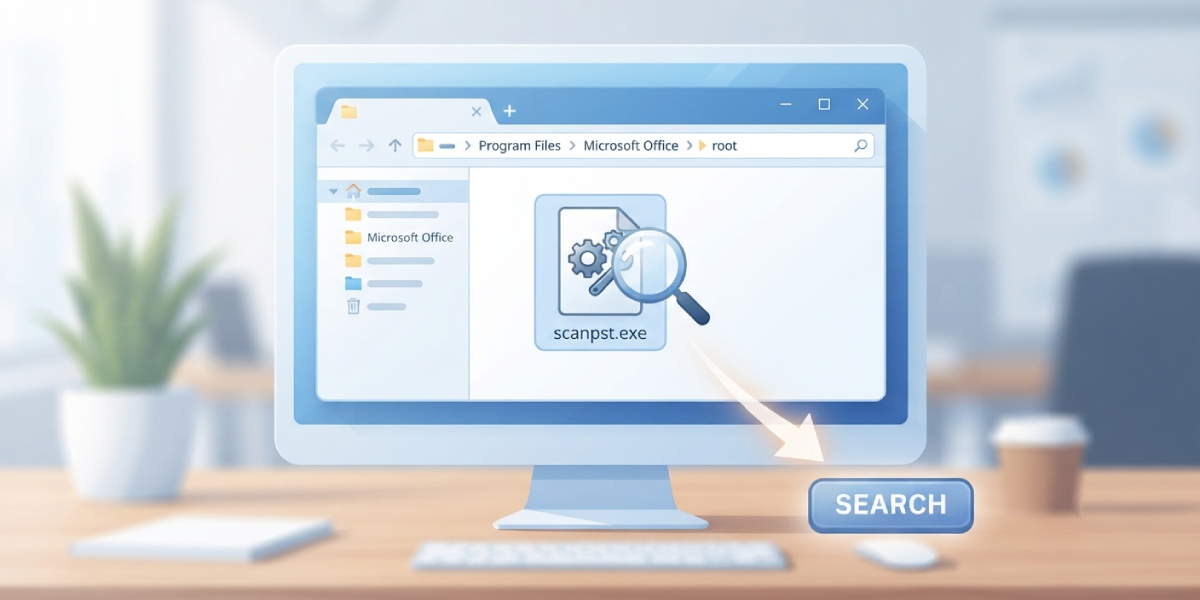
- Step 2: Open File Explorer and type scanpst.exe into the search bar, or browse directly to the Office installation folder. On most modern installs of Outlook (Microsoft 365, Outlook 2021, or Outlook 2019), the file sits at C:\Program Files\Microsoft Office\root\Office16\SCANPST.EXE for 64-bit Office, or C:\Program Files (x86)\Microsoft Office\root\Office16\SCANPST.EXE if Outlook is the 32-bit version. Older installs such as Outlook 2016 (MSI-based) or Outlook 2010 may show Office16 or Office14 instead, so a quick search is often faster than guessing the path.
Method 3: Select the Damaged PST File
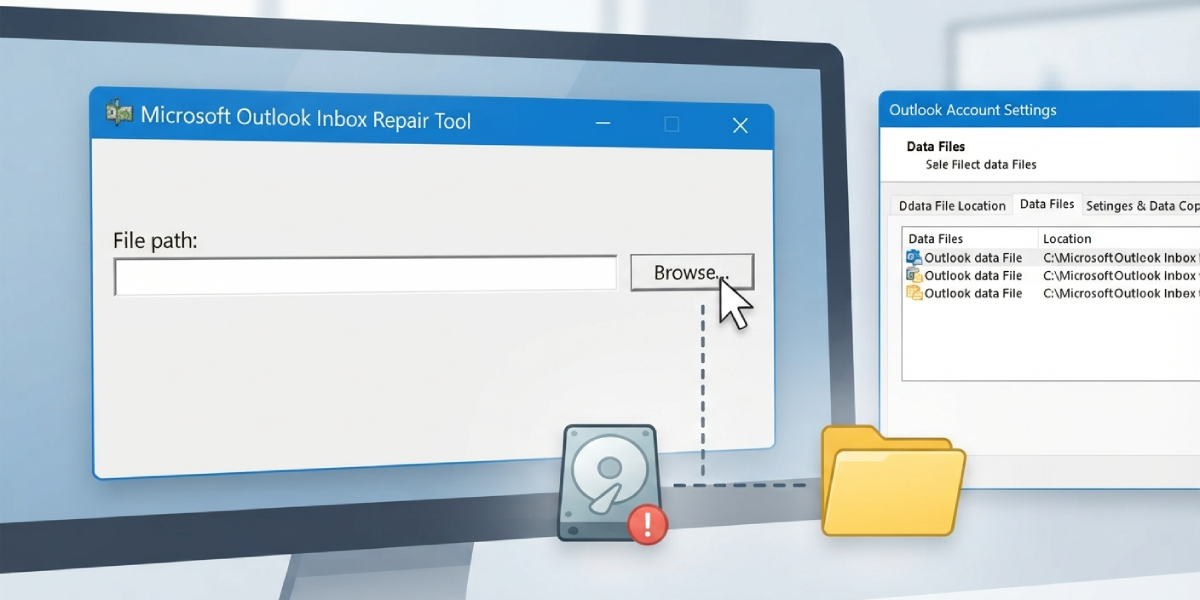
- Step 3: Double-click scanpst.exe to launch it, then click Browse next to the ‘Enter the name of the file you want to scan’ field. Navigate to the PST file causing trouble. If the exact file location is unknown, it can usually be found by opening Outlook’s Account Settings and checking the Data Files tab before closing Outlook again.
Method 4: Run the Scan
- Step 4: Click Start. ScanPST will read through the file structure and flag any errors it finds. Large PST files, especially ones over a few gigabytes, can take several minutes to scan, so this is a good moment to let it run uninterrupted.
Method 5: Back Up Before Repairing
- Step 5: When the scan finishes, a summary window lists any errors detected. Before clicking Repair, check the box for ‘Make backup of scanned file before repairing’ and confirm a save location. Tip: keeping this backup box checked is the single easiest way to avoid losing data if the repair does not go as expected.
Method 6: Repair the File
- Step 6: Click Repair and let the tool rebuild the file’s internal structure. Once it completes, a confirmation message appears. Close ScanPST and reopen Outlook to check whether the file loads normally.
Method 7: Check for a Lost and Found Folder
- Step 7: Open Outlook and look in the folder pane for a folder named ‘Lost and Found.’ ScanPST places any recovered items here that it could not restore to their original location, so it is worth sorting through this folder and moving items back where they belong.
Method 8: Run a Second Scan if Needed
- Step 8: If Outlook still shows errors or the file will not open, run ScanPST again on the same file. Tip: a second or even third pass often clears up damage that the first scan could not fully repair, since ScanPST fixes issues in layers rather than all at once.
Common Problems and Fixes
ScanPST Cannot Find the File
This usually happens when the PST file is hidden in a nested AppData folder. Copying the exact file path from Outlook’s Account Settings before closing Outlook avoids this guesswork entirely.
The Repair Finishes but Outlook Still Won’t Open the File
Running ScanPST a second time resolves this in most cases. If the problem continues, the PST file itself may be too large or too fragmented, and creating a new Outlook data file to import the repaired items into can help.
Scan Takes an Unusually Long Time
Large mailboxes and files stored on a network drive both slow the process down considerably. Copying the PST file to a local drive before scanning speeds things up noticeably.
Missing Emails After Repair
Check the Lost and Found folder first, since recovered items often land there instead of their original folder. If items are still missing, restoring from the backup copy created in Step 5 and trying the repair again sometimes recovers more data.
Error Message About File Permissions
Right-clicking scanpst.exe and choosing ‘Run as administrator’ usually clears this up, particularly on work computers with restricted user permissions.
Frequently Asked Questions
What is ScanPST used for?
ScanPST, also called the Inbox Repair Tool, checks a PST file for structural damage and repairs errors that prevent Outlook from opening it.
Where is scanpst.exe located?
It is inside the Office installation folder, typically under C:\Program Files\Microsoft Office\root\Office16 for 64-bit installs, though the exact path varies by Office version.
Does ScanPST delete emails?
It can remove items that are too corrupted to recover, which is why creating a backup before repairing is strongly recommended.
How long does a PST repair take?
Small files finish in a minute or two, while files several gigabytes in size can take 20 minutes or longer depending on the drive speed.
Is it safe to run ScanPST more than once?
Yes. Running it multiple times is a normal part of the process and often fixes issues a single scan missed.
Why does Outlook create a Lost and Found folder?
ScanPST places recovered items here when it cannot determine their original folder location, so they are not lost permanently.
Can ScanPST fix an Outlook data file that won’t open at all?
In most cases yes, since that is exactly the scenario the tool is designed to handle, though severely damaged files may need a second scan or a fresh data file for the recovered items.
Does ScanPST work on OST files too?
Yes, the same tool can scan and repair OST files using the identical steps outlined above.
What version of Outlook includes ScanPST?
Every version from Outlook 2010 through Microsoft 365 includes it as a built-in tool, with no separate download required.
