
Learning how to fix PC not turning on after power outage is usually less stressful than it first appears. In most cases, the sudden loss or surge of power tripped a protection circuit, wore out a surge protector, or scrambled the BIOS settings rather than destroying the whole machine. This guide walks through the checks in the right order, from the wall outlet to the motherboard, so the real cause gets found without buying parts that were never faulty.
Key Takeaways
- Start at the outlet, surge protector, and power supply switch, because a broken power path causes most no-power cases after an outage.
- Unplugging the PC and holding the power button drains leftover charge and resets a power supply that has locked itself into protection mode.
- Clearing the CMOS fixes BIOS settings that were corrupted when the power dropped mid-operation.
- Swapping in a known-good power supply is the most reliable way to confirm or rule out a dead one.
- A burning smell, visible scorching, or swollen capacitors mean it is time to stop and hand the PC to a technician.
Common Causes of a PC That Will Not Turn On After a Power Outage
Power outages rarely kill a PC by themselves. The trouble usually comes from what happens when electricity drops out or returns in a rush. These are the causes seen most often, roughly from most to least common:
- A tripped breaker, a GFCI outlet that shut off, or a power strip that cut power to protect its load.
- A surge protector or UPS that absorbed a spike and no longer passes power.
- A power supply unit (PSU) that latched into protection mode, which works much like a breaker panel inside the PSU, or one that failed outright when a spike arrived.
- BIOS or CMOS settings scrambled because the PC lost power in the middle of a task or a BIOS write.
- Surge damage to the motherboard, RAM, or a drive, which is less common than PSU trouble but does happen.
- A BIOS power-recovery setting that keeps the PC off after power returns, which is normal behavior rather than a fault.
Before You Start
Most of the checks below are safe for a beginner, but a few minutes of preparation prevents mistakes.
- Shut the PC down, flip the switch on the back of the power supply to the off position, and unplug the power cable from the wall or power strip.
- Press and hold the case power button for about 10 seconds to drain leftover charge from the components.
- Touch a bare metal part of the case or wear an anti-static wrist strap before touching anything inside.
- Never open the power supply casing. It can hold a dangerous charge even when unplugged.
Tools and materials worth having nearby: a Phillips screwdriver, a flashlight, a lamp or phone charger to test the outlet, a known-good PC power cable, a PSU tester, the motherboard manual, and a phone to photograph cable positions before anything gets unplugged. A plastic pry tool or a fingernail is enough to release the CMOS battery, so avoid metal tools near the board.
Opening the case of a pre-built PC can affect its warranty depending on the brand, so check the terms first. If there is a burning smell, smoke, or any visible scorch marks, stop right there and let a professional handle it.
How to Fix PC Not Turning On After Power Outage Step by Step
Work through these in order. The steps move from the cheapest, easiest checks to the more involved ones, and most people find that the fix appears within the first few.
Start Outside the PC
- Step 1: Test the wall outlet and breaker. Plug a lamp or phone charger into the same outlet and confirm it works. Check the breaker panel for a tripped switch, and press the reset button on any GFCI outlet nearby. Outages often trip a breaker when power comes back with a jolt.
- Step 2: Bypass the surge protector and UPS. Plug the PC power cable straight into a working wall outlet. If the PC starts, the power strip or UPS is the culprit. Surge protectors wear out after absorbing big spikes, and many have an indicator light that goes dark when protection is used up. A UPS may show a battery fault or need a reset according to its manual.
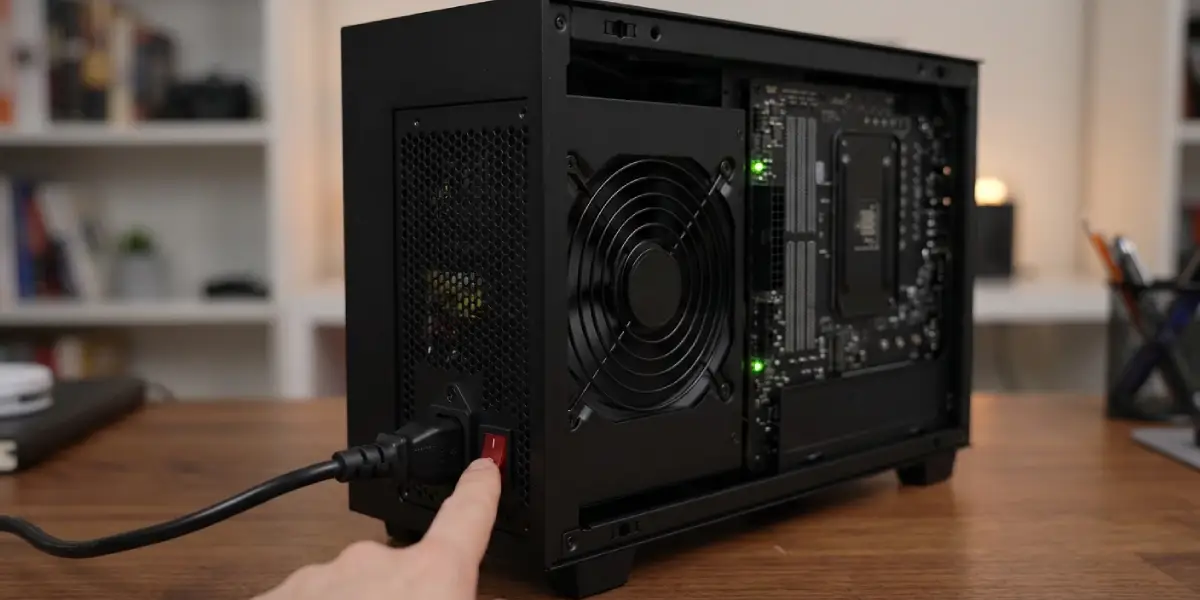
- Step 3: Check the power supply switch and cable. Make sure the rocker switch on the back of the PSU is set to on, and that the power cable is fully seated at both ends. Try a different known-good cable, since a damaged one can look perfectly normal. Look at the motherboard for a small standby light, which shows the board is receiving standby power. Some power supplies also keep the fan still until they warm up, so a motionless fan does not prove the unit is dead.
- Step 4: Reset the power supply protection. With the PC unplugged and the PSU switch off, hold the case power button for 10 to 30 seconds. Leave everything disconnected for a few minutes, then switch the PSU on, plug in, and press the power button. This clears a protection latch that tripped during the outage.
Tip: A quick rule of thumb is that a PC with no lights, no fan movement, and no sound at all points toward the power path, while a PC that spins for a second and dies points toward the components.
Move Inside the Case
- Step 5: Strip the PC down to the basics. Unplug USB devices, external drives, and optional add-in cards. If the CPU has no integrated graphics, leave the graphics card in place. A single faulty peripheral can hold back a boot after a surge.
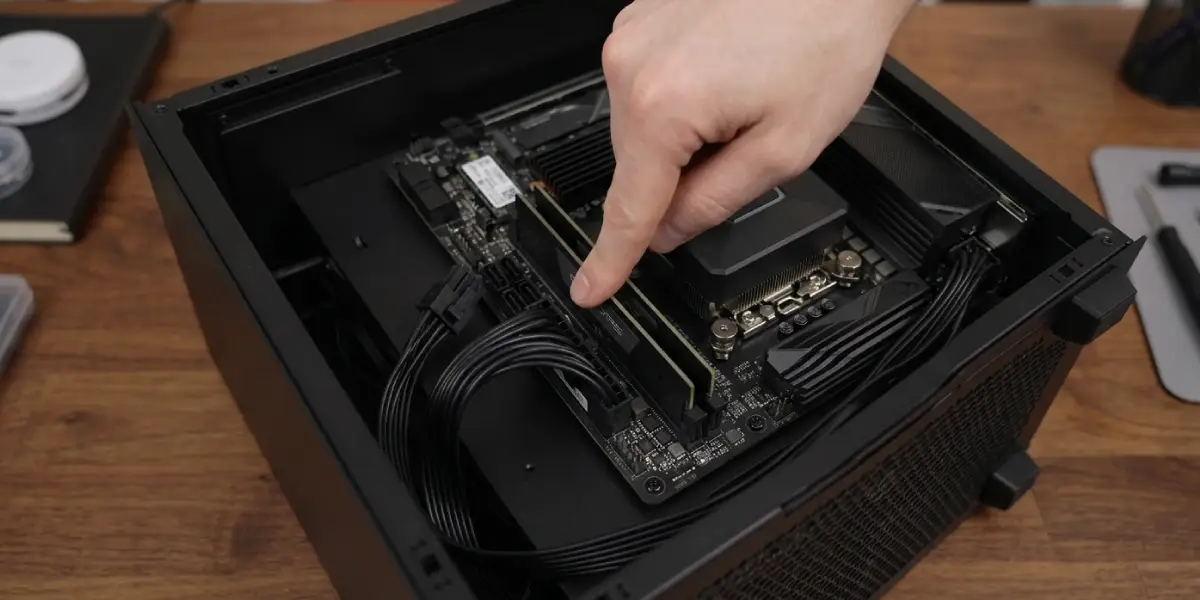
- Step 6: Reseat the power cables and RAM. Open the side panel and press the 24-pin motherboard connector and the CPU power connector (4-pin, 8-pin, or 4+4-pin) firmly until the latches click. Then remove each RAM stick and press it back in until both clips snap shut. Try booting with a single stick in the slot the motherboard manual recommends.
- Step 7: Clear the CMOS. With the PC unplugged and the PSU switch off, either use the clear CMOS jumper or button described in the motherboard manual, or gently release the coin cell battery (usually a CR2032) with a plastic tool, wait a few minutes, and place it back with the same side facing up. Then plug in and try again. The BIOS will return to defaults, so the date, time, and boot order may need to be set afterward. If the coin cell is old, replacing it is cheap and sensible.
- Step 8: Inspect for surge damage. Look for swollen or leaking capacitors, brown or black discoloration, scorch marks, or a burnt smell near the PSU and motherboard. Any of these is a sign to stop and get professional help.
- Step 9: Test the power supply. Connect a PSU tester to the 24-pin connector and check its readings, or borrow a known-good PSU with enough capacity for the build and try it. If the PC starts with the borrowed unit, the original PSU is finished and should be replaced.
- Step 10: Test components one at a time. Many motherboards have small debug lights labeled for the CPU, memory, graphics, and boot device, and the one that stays lit points to the suspect. Try a different RAM slot, then a different graphics card if one is available. If the PC stays dead with a confirmed-good PSU, the motherboard is the likely casualty and needs professional testing.
Tip: Photograph the cable layout before Step 6. A clear picture makes reconnecting everything correctly far easier, especially for the small front panel connectors.
How to Protect a PC From the Next Power Outage
A little protection goes a long way. A surge protector with a recognized safety listing such as UL 1449 blocks most spikes, and a UPS (uninterruptible power supply) adds battery backup so the PC shuts down cleanly instead of dropping dead. Line-interactive and online double-conversion designs offer the best protection for desktops. During storms or planned outages, unplugging the PC from the wall is the safest option, and any surge protector that took a big hit is worth replacing even if its light still glows.
Common Problems and Fixes
The Fans Spin for a Second Then Everything Shuts Off
This usually means the power supply is tripping its protection or a component is causing a short. Disconnect extra drives and cards, reseat the RAM, clear the CMOS, and then test with a known-good PSU.
The PC Powers On but There Is No Display
Reseat the RAM and the graphics card, clear the CMOS, and check that the monitor cable is in the correct port. If the CPU has integrated graphics, try the motherboard video output with the graphics card removed.
The PC Restarts in a Loop or Shows a CMOS Checksum Error
The BIOS settings or the CMOS battery are the usual cause. Clear the CMOS, load the default settings in the BIOS, and replace the coin cell battery if the error keeps returning.
The PC Powers On but Windows Will Not Load
A sudden power loss can interrupt a disk write and leave system files damaged. Let ‘Automatic Repair’ or Startup Repair finish, and if it fails, boot into the recovery environment and try again. Backing up important files before further troubleshooting is a smart precaution.
The PC Works From One Outlet but Not Another
The outlet or its circuit is the problem, not the PC. Use a working outlet and have an electrician check the faulty one, especially after an outage.
A New Power Supply Still Does Not Start the PC
With a confirmed-good PSU and a cleared CMOS, the fault is inside the motherboard, CPU, or RAM. A repair shop can test each part properly, which is safer than guessing and swapping expensive components.
Frequently Asked Questions
Can a power outage damage a PC?
Yes, though the outage itself is rarely the problem. The damage usually comes from the surge or flicker when power returns, and the power supply is the most common casualty, followed by the motherboard, RAM, or drives. A surge protector or UPS lowers that risk considerably.
Why will a PC not turn on after a power outage?
The usual reasons are a tripped breaker or worn-out surge protector, a power supply stuck in protection mode or damaged by a spike, or BIOS settings scrambled by the sudden shutdown. Working from the outlet inward finds the cause fastest.
How long should a PC stay unplugged to reset the power supply?
Unplug it, hold the power button for 10 to 30 seconds to drain leftover charge, and leave it disconnected for a few minutes before plugging back in. Longer does no harm, but the extra time rarely changes the result.
Does clearing the CMOS delete files?
No. Clearing the CMOS resets BIOS settings such as boot order, date and time, and custom overclocking profiles to their defaults. Files on the drives are untouched.
How can a dead power supply be identified?
Testing with a PSU tester or swapping in a known-good power supply is the most reliable method. If the PC starts with the borrowed unit, the original is the fault.
Why does a PC not start by itself when power returns?
Many motherboards have a BIOS setting called Restore on AC Power Loss or AC Back, depending on the manufacturer. If it is set to stay off, the PC waits for the power button after an outage. Changing it to Power On makes the PC start automatically.
Is it safe to keep pressing the power button when nothing happens?
A few presses are fine. Repeated attempts are pointless, and if there is a burning smell, a popping sound, or smoke, they can make damage worse. Unplug the PC and inspect it instead.
Can a surge protector stop working after an outage?
Yes. Surge protectors absorb spikes with components that wear out, and a big surge can use up the protection or trip the strip’s own breaker. If the PC works when plugged directly into the wall, replace or reset the strip.
When is it time to call a technician?
When there is a burning smell, visible damage or swollen capacitors, or the PC stays dead with a known-good power supply, a working outlet, and a cleared CMOS. At that point the fault is inside the motherboard, CPU, or another component that needs proper testing.
