
Outlook error 0x80040610 usually shows up right when an email is stuck mid-send, often with a message about an unknown error or a size limit being exceeded. It typically points to a corrupted PST file, an oversized attachment, or a mail server connection that dropped at the wrong moment. The steps below walk through the exact causes and the fixes that clear the error for good.
Key Takeaways
- Error 0x80040610 is a send and receive failure, most often tied to a corrupted or oversized PST file.
- Large attachments and an unstable internet connection are two of the most common day-to-day triggers.
- Running the built-in Inbox Repair tool (ScanPST.exe) resolves the error in the majority of cases.
- Conflicting add-ins and an outdated Outlook version can also produce this exact error code.
- Recreating the Outlook profile is the last resort when repair and settings checks do not clear it.
Fix 1: Repair the Outlook Data File with ScanPST
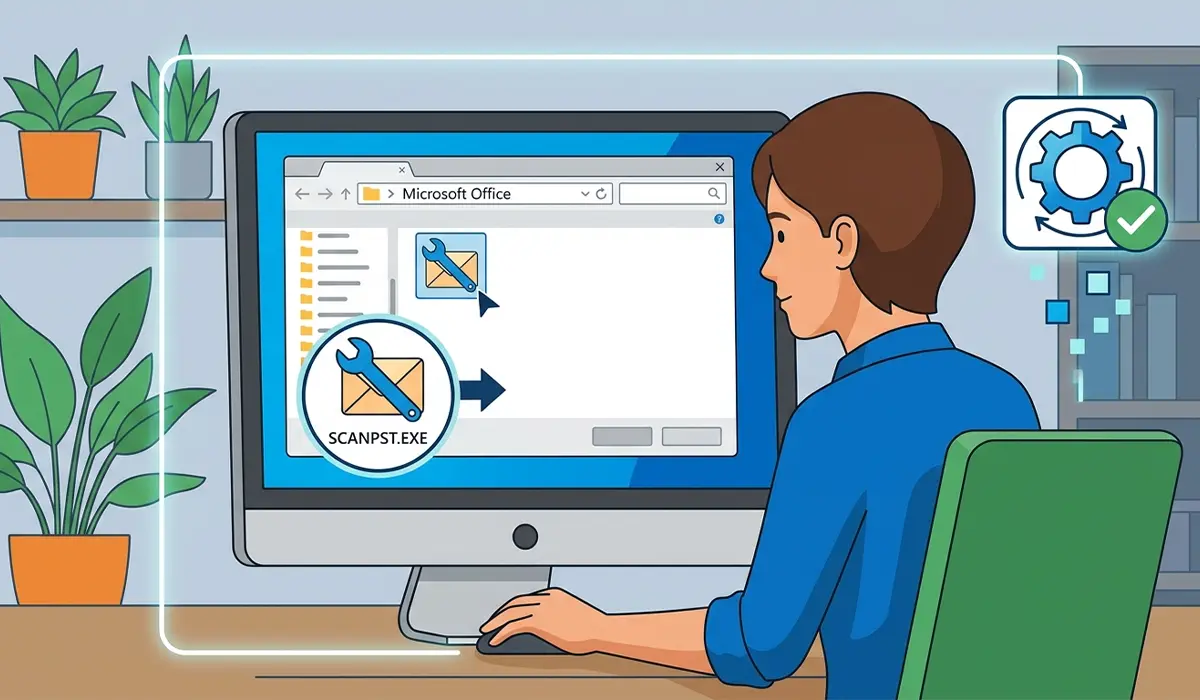
A damaged or inconsistent PST file is the single most common reason Outlook throws error 0x80040610. Microsoft ships a free repair utility called ScanPST.exe with every Office installation, and it is the first thing worth trying.
- Step 1: Close Outlook completely, including any background processes still running in Task Manager.
- Step 2: Locate ScanPST.exe. On most modern installs it sits at C:\Program Files\Microsoft Office\root\Office16\SCANPST.EXE, though the folder name changes depending on the Office version installed.
- Step 3: Open ScanPST.exe and click ‘Browse’ to select the PST file linked to the affected account. The file is usually found under C:\Users\[username]\AppData\Local\Microsoft\Outlook.
- Step 4: Click ‘Start’ to begin the scan. A large mailbox can take several minutes, so let it finish without closing the window.
- Step 5: If the scan finds errors, click ‘Repair’ and let the tool make a backup before applying fixes.
- Step 6: Reopen Outlook and try sending or receiving a test email to confirm the error is gone.
Tip: Run ScanPST a second time right after the first repair finishes. Some PST corruption is layered, and a second pass often catches errors the first scan missed.
Fix 2: Reduce Attachment Size Before Sending
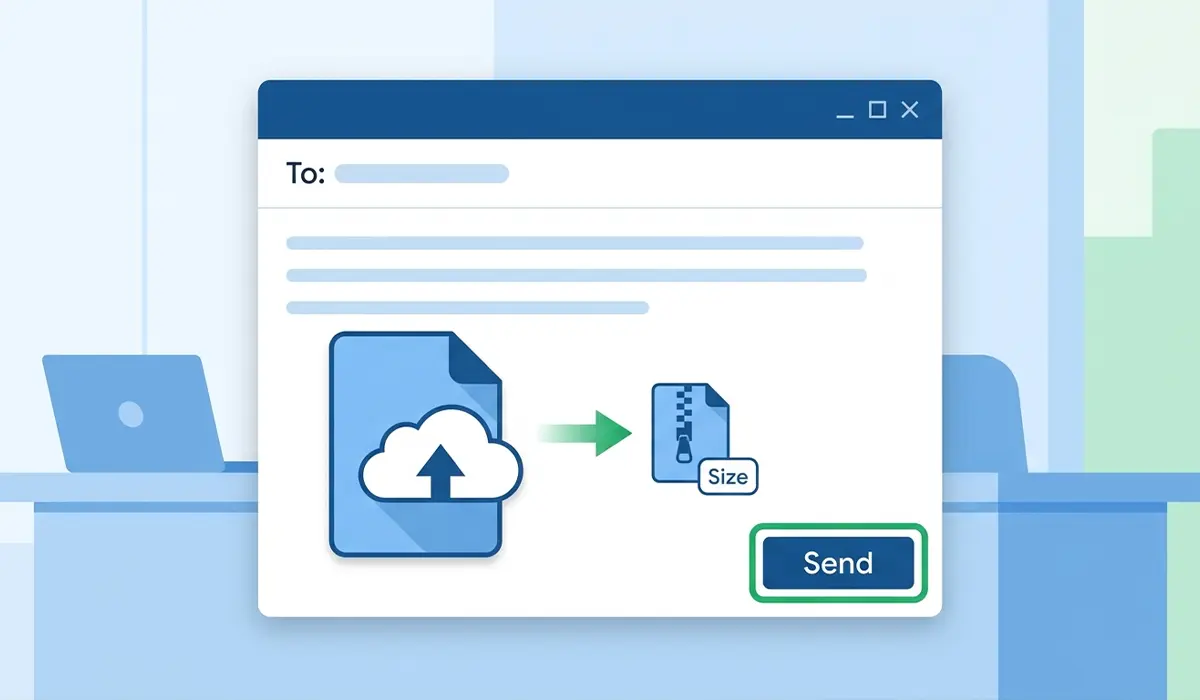
Outlook error 0x80040610 frequently appears the moment a message with a large attachment tries to leave the outbox. Most mail servers, including Exchange and Gmail-connected accounts, cap outgoing messages somewhere between 20 MB and 25 MB.
- Step 1: Open the stuck message in the Outbox folder.
- Step 2: Remove or compress any attachment larger than 20 MB before resending.
- Step 3: For files that cannot be shrunk, upload them to OneDrive and share a link instead of attaching the file directly.
- Step 4: Click ‘Send’ again and confirm the message clears the outbox without triggering the error.
Fix 3: Check the Internet Connection and Server Settings
A dropped or unstable connection interrupts the handshake between Outlook and the mail server, and that interruption often surfaces as error 0x80040610.
- Step 1: Confirm the internet connection is active by loading a webpage in a browser.
- Step 2: Restart the router if the connection feels slow or intermittent.
- Step 3: In Outlook, go to File, then Account Settings, then Account Settings again, and select the affected email account.
- Step 4: Click ‘Change’ and verify the incoming and outgoing server addresses match what the email provider lists as current.
- Step 5: Click ‘Test Account Settings’ to confirm Outlook can reach the server before closing the window.

Tip: If the account uses IMAP, double-check the outgoing port and encryption method match the provider’s latest documentation, since providers occasionally update these values.
Fix 4: Disable Conflicting Add-Ins
Third-party add-ins, especially antivirus email scanners and older PDF plugins, sometimes interfere with the send and receive process and produce this error.
- Step 1: Open Outlook, then go to File, then Options, then Add-ins.
- Step 2: At the bottom of the window, select ‘COM Add-ins’ from the Manage dropdown and click ‘Go.’
- Step 3: Uncheck all add-ins and click ‘OK.’
- Step 4: Restart Outlook and attempt to send or receive an email.
- Step 5: If the error is gone, re-enable the add-ins one at a time to identify which one caused the conflict.
Fix 5: Recreate the Outlook Profile
When the fixes above do not resolve the error, the Outlook profile itself may be the source of the problem. Creating a fresh profile clears out corrupted configuration data without touching the mailbox on the server.
- Step 1: Close Outlook, then open Control Panel and search for ‘Mail.’
- Step 2: Click ‘Show Profiles,’ then ‘Add’ to create a new profile.
- Step 3: Name the new profile and follow the prompts to add the email account.
- Step 4: Once the account finishes syncing, set the new profile as the default under ‘Always use this profile.’
- Step 5: Open Outlook with the new profile and confirm send and receive both work without the error.
Common Problems and Fixes
- ScanPST reports the PST file is too large to repair – split the mailbox into an archive PST first, then run the repair on the smaller active file.
- The error returns immediately after repair – the PST file may be nearing its size limit; archive older items to bring the file back under 20 GB for Outlook 2016 and later.
- A new profile still throws the same error – the issue likely sits on the mail server side rather than locally, so contact the email provider to check for account restrictions.
- Add-ins reappear as enabled after a restart – some antivirus suites reinstall their Outlook plugin automatically, so disable the add-in from within the antivirus software itself, not just from Outlook.
Frequently Asked Questions
What does Outlook error 0x80040610 mean?
It indicates a send and receive failure, most commonly triggered by a corrupted PST file, an oversized attachment, or an unstable connection to the mail server.
Does error 0x80040610 always mean the PST file is corrupted?
No. Corruption is the most frequent cause, but large attachments, connectivity issues, and conflicting add-ins can trigger the same error code.
Where is ScanPST.exe located?
It ships with every Office installation, typically at C:\Program Files\Microsoft Office\root\Office16\SCANPST.EXE, with the folder name varying slightly by Office version.
Will running ScanPST delete any emails?
ScanPST creates a backup copy of the PST file before applying repairs, so existing emails are preserved unless the corruption is too severe to recover.
What is the maximum attachment size Outlook allows?
Most providers cap outgoing messages between 20 MB and 25 MB, though the exact limit depends on the mail server and account type in use.
Can a weak internet connection really cause this error?
Yes. An unstable connection can interrupt the send and receive process partway through, and Outlook reports that interruption as error 0x80040610.
How long does a PST repair usually take?
Most repairs finish within a few minutes, though very large mailboxes with several gigabytes of data can take up to ten minutes or more.
Should add-ins be disabled permanently to prevent this error?
Not necessarily. Disable them temporarily to test for a conflict, then re-enable the ones that are not causing issues once the source is identified.
Does creating a new Outlook profile affect emails stored on the server?
No. A new profile only resets local configuration data; emails stored on an Exchange, IMAP, or Microsoft 365 server remain untouched.
What should be done if none of these fixes work?
Contact the email provider directly, since a persistent error after trying local fixes often points to a restriction or issue on the server side.
