
Quick Answer: Right-click an empty area of the desktop, hover over View, and click “Show desktop icons.” If system icons like This PC or Recycle Bin are still missing after that, they need to be turned on separately through Personalization settings.
Desktop icons vanishing without warning throws a lot of people off. One minute everything’s there, the next the screen looks wiped clean. Here’s the thing… it’s almost never anything serious. Most people find the fix takes less time than making a cup of coffee.
Method 1: Turn On Desktop Icons With the Right-Click Menu
This is the fastest fix and solves the problem most of the time, since accidentally hiding icons is the most common cause.
- Right-click any empty area of the desktop.
- Hover over View in the menu that appears.
- Click Show desktop icons. A checkmark next to it means icons are now visible.
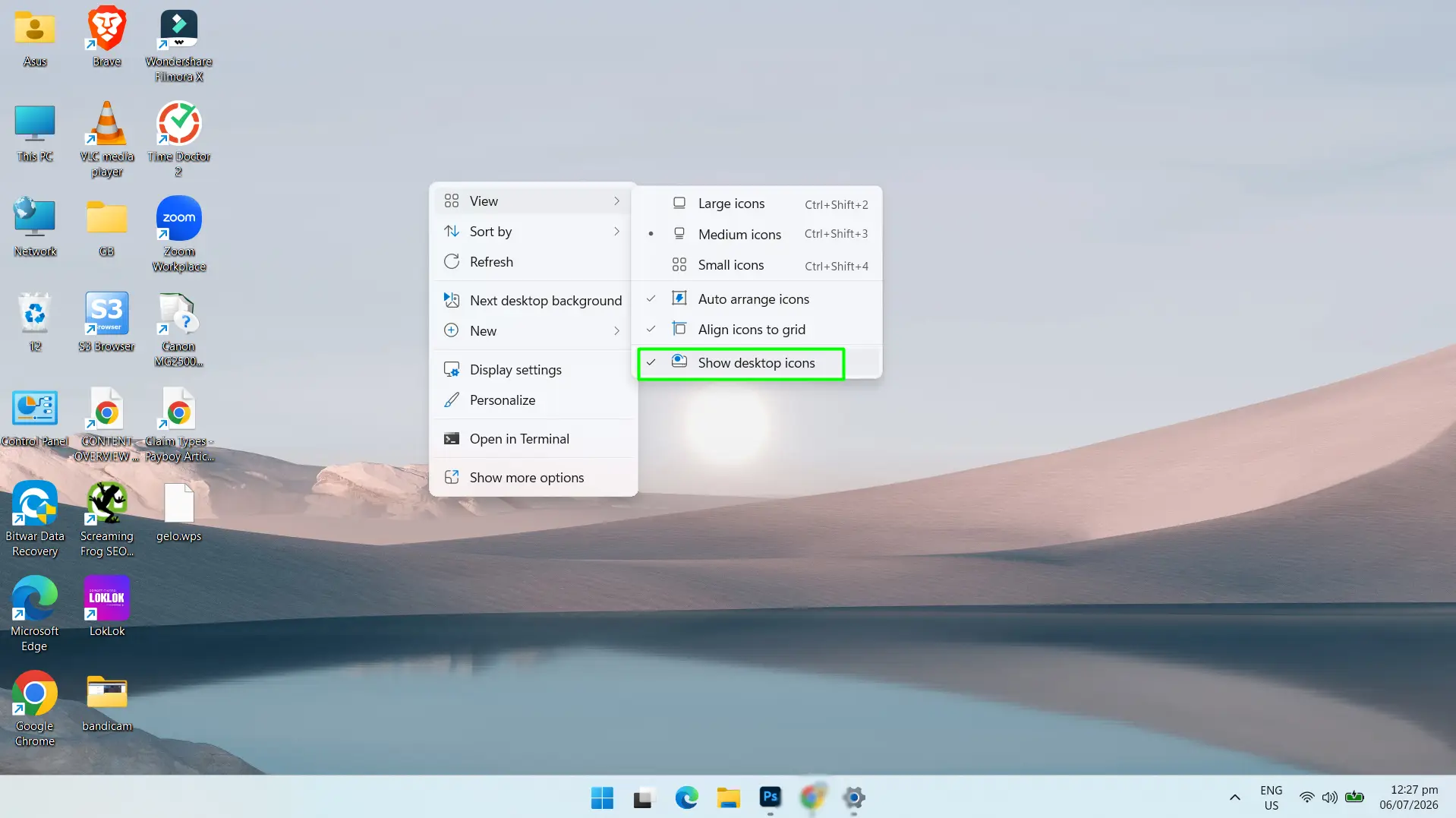
All previously placed icons reappear right away. This method works when icons were hidden, not deleted.
Method 2: Restore System Icons Through Settings
If icons like This PC, Recycle Bin, Network, or Control Panel are missing, they’re controlled from a different place than regular shortcuts.
- Press Windows + I to open Settings.
- Go to Personalization, then click Themes.
- Scroll down and select Desktop icon settings.
- Check the boxes for the icons to show — options include Computer, Recycle Bin, User’s Files, Network, and Control Panel.
- Click Apply, then OK.
The selected icons show up on the desktop immediately. This is the method most people need after a fresh Windows install or a system reset.
Alternative: Reach the Same Settings From the Desktop
There’s a shortcut path to the exact same panel that skips going through the full Settings app.
- Right-click an empty spot on the desktop and select Personalize.
- Click Themes.
- Select Desktop icon settings.
- Check the icons to enable and click Apply.
The key is remembering that shortcut icons and system icons live in two different places. Shortcuts use the right-click toggle. System icons need the Settings panel.
Tips for Managing Desktop Icons
- Adjust icon size anytime. Right-click the desktop, go to View, and pick small, medium, or large icons.
- Turn on auto arrange. Under the same View menu, “Auto arrange icons” keeps everything lined up automatically.
- Add app shortcuts fast. Find an app in the Start Menu, right-click it, and choose “Send to Desktop (create shortcut).”
- Take manual control of placement. Uncheck “Auto arrange icons” and “Align icons to grid” from the View menu if icons keep rearranging themselves.
- Keep only what’s needed. A cluttered desktop is often easier to manage by keeping just a handful of essential shortcuts instead of dozens.
Frequently Asked Questions
Why did all my desktop icons disappear in Windows 11?
The most common cause is the “Show desktop icons” toggle getting switched off by accident, usually from a stray click in the right-click View menu. A Windows update or theme change can occasionally trigger it too.
How do you show desktop icons without opening Settings?
Right-click the desktop, hover over View, and click “Show desktop icons.” That’s the entire process, and it works instantly without touching the Settings app.
How do you get This PC to show up on the desktop?
Open Settings, go to Personalization, click Themes, then Desktop icon settings. Check the box for “Computer” and click Apply. It appears on the desktop right away.
How do you add the Recycle Bin back to the desktop?
Follow the same path: Settings, Personalization, Themes, Desktop icon settings. Check the box next to Recycle Bin and click Apply.
Why are only some desktop icons missing instead of all of them?
That usually means individual shortcuts got deleted rather than hidden. Check the Recycle Bin first, since a deleted shortcut won’t come back through the visibility toggle and needs to be recreated instead.
Does Windows 11 handle desktop icon settings differently than Windows 10?
The right-click toggle works the same way in both. The main difference is that Desktop icon settings sits under Personalization > Themes in Windows 11, one extra click compared to where it lived in Windows 10.
Can desktop icons be restored after resetting Windows?
Yes. System icons need to be turned back on through Settings > Personalization > Themes > Desktop icon settings. App shortcuts typically need to be recreated by hand, since a reset can remove installed apps depending on which reset option was used.
Is there a keyboard shortcut to toggle desktop icons on or off?
No default shortcut exists for this. Right-clicking the desktop and using the View submenu remains the fastest way, and it only takes a couple of seconds either way.
Will having more desktop icons slow down the computer?
No, not in any way that’s noticeable. Desktop icons use very little in the way of system resources, even with a large number of them on screen.
