
Adding a Zoho Mail account in Classic Outlook takes just a few minutes once the correct server settings are in place. Zoho Mail isn’t a built-in provider option in Outlook, so it needs to be set up manually using IMAP. This guide walks through the exact steps, start to finish.
Key Takeaways
- Zoho Mail must be added to Classic Outlook using manual IMAP setup, not automatic account discovery.
- Incoming server is imap.zoho.com on port 993, and outgoing server is smtp.zoho.com on port 465.
- IMAP access has to be turned on inside Zoho Mail settings before Outlook can connect.
- Accounts with two-factor authentication require an app-specific password instead of the regular login password.
- A quick restart of Outlook after setup resolves most first-time sync hiccups.
How to Add a Zoho Mail Account in Classic Outlook
Before starting, make sure IMAP is enabled on the Zoho Mail side. Log in to Zoho Mail on the web, open Settings, then Mail Accounts, select the account, and turn on IMAP Access under the IMAP section. This one setting trips up more people than any other part of the process, so it’s worth confirming first.
Step-by-Step Setup in Outlook
- Step 1: Open Classic Outlook and go to the File tab, then select Add Account. If an account is already configured, this option appears under Info.
- Step 2: Type the full Zoho Mail email address into the box and click Connect. Outlook will attempt an automatic setup, which typically fails for Zoho, and that’s expected.
- Step 3: When the automatic attempt stalls or returns an error, click Advanced options, then check the box for ‘Let me set up my account manually’ before clicking Connect again.
- Step 4: On the account type screen, choose IMAP.
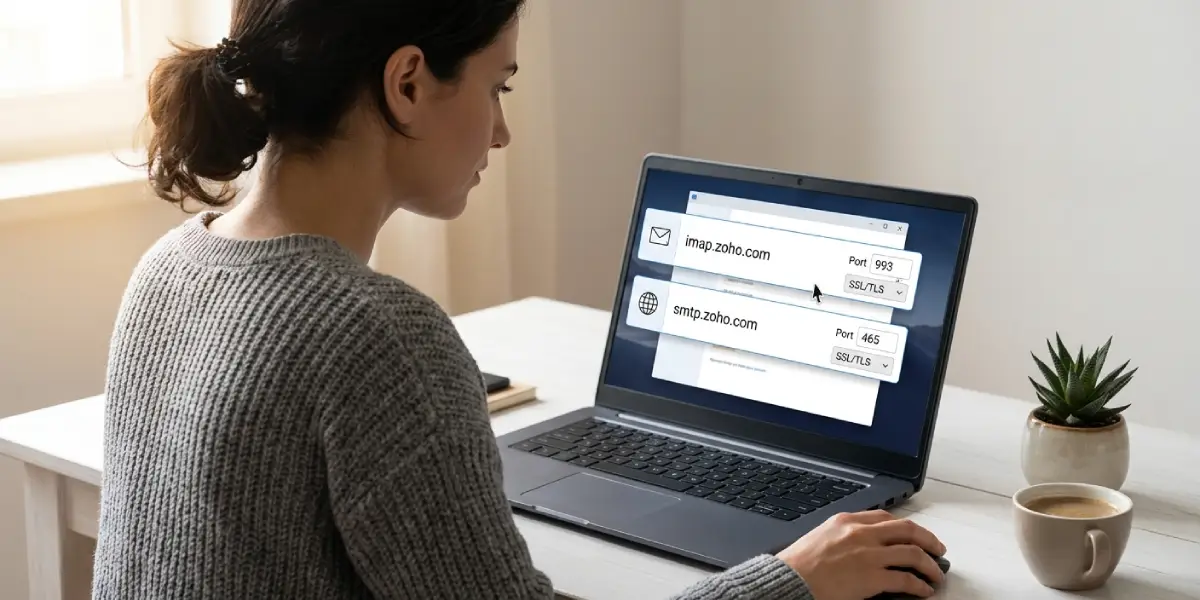
- Step 5: For the incoming mail server, enter imap.zoho.com, set the port to 993, and set encryption to SSL/TLS.
- Step 6: For the outgoing mail server, enter smtp.zoho.com, set the port to 465 with SSL/TLS, or use port 587 with STARTTLS if 465 gets blocked by a network firewall.
- Step 7: Enter the Zoho Mail password when prompted. If two-factor authentication is active on the account, generate an app-specific password from Zoho’s security settings and use that instead of the regular login password.
- Step 8: Click Connect to finish, then select Done. Close and reopen Outlook so the new account can fully sync.
Tip: Keep the Zoho Mail security settings page open in a browser tab while working through setup. It makes copying the app password over to Outlook much faster and avoids typos from re-entering a long string of characters.
Verifying the Connection
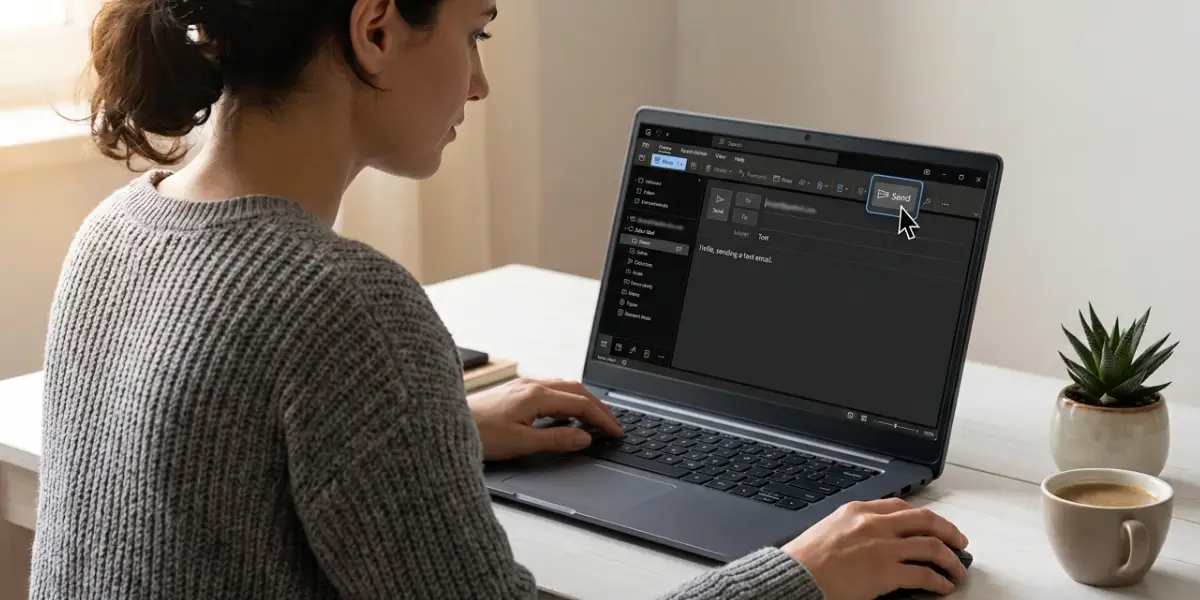
Once Outlook reopens, the new Zoho Mail account should appear in the left-hand folder pane with its inbox beginning to populate. Sending a short test email to another address confirms that both the incoming and outgoing servers are talking to each other correctly.
Common Problems and Fixes
- Outlook rejects the password: This almost always means two-factor authentication is enabled on the Zoho account. Generate an app-specific password in Zoho Mail’s security settings and use it in place of the normal password.
- Outlook can’t connect to the server: Double-check that IMAP Access is switched on inside Zoho Mail’s Mail Accounts settings. Outlook can’t reach an inbox where IMAP is still turned off.
- Emails send but never arrive, or don’t send at all: Confirm the outgoing port. Some office or hotel networks block port 465, so switching to port 587 with STARTTLS often clears this up.
- Account connects but nothing downloads: Give Outlook a few minutes for the initial sync, especially with a large mailbox. If it still shows nothing, remove the account and repeat the manual setup steps, since a rushed first attempt is a common cause.
- Sent messages don’t show in the Zoho Sent folder: Check the account’s folder mapping under Account Settings in Outlook and make sure the Sent Items folder is mapped to Zoho’s Sent folder rather than a local one.
Frequently Asked Questions
Can Zoho Mail be added to Classic Outlook automatically?
Not usually. Zoho isn’t part of Outlook’s automatic provider list, so the manual IMAP setup route covered above is the reliable method.
Should IMAP or POP be used for Zoho Mail in Outlook?
IMAP is recommended because it keeps folders and read status synced across every device connected to the account. POP only downloads messages to one device and doesn’t keep things in sync.
What are the correct IMAP settings for Zoho Mail?
The incoming server is imap.zoho.com on port 993 with SSL/TLS encryption.
What are the correct SMTP settings for Zoho Mail?
The outgoing server is smtp.zoho.com, typically on port 465 with SSL/TLS, or port 587 with STARTTLS if the network blocks 465.
Why does Outlook keep asking for the password again?
This usually points to two-factor authentication being enabled on the Zoho account. An app-specific password generated in Zoho’s security settings resolves it.
Where is the app-specific password generated in Zoho Mail?
It’s found in the Zoho account security settings, under the app passwords section, after logging in on the web.
Does IMAP need to be turned on inside Zoho before adding the account to Outlook?
Yes. IMAP Access has to be enabled under Mail Accounts in Zoho Mail’s settings, or Outlook won’t be able to connect at all.
Can more than one Zoho Mail account be added to the same Outlook profile?
Yes. Repeating the same File > Add Account process for each additional address adds multiple Zoho Mail accounts to one Outlook profile.
Why isn’t the Zoho Mail account syncing after setup?
Give the initial sync a few minutes, particularly on a large mailbox. If nothing appears after that, remove the account and redo the manual IMAP setup, checking the server ports carefully.
