
Outlook stuck on Trying to Connect is one of the most common desktop email problems, and it usually has nothing to do with a broken internet connection. This guide walks through the exact steps that resolve the issue, starting with the simplest fix and moving toward deeper repairs. Most users get Outlook reconnected within ten minutes by working through the list below in order.
Key Takeaways
- The ‘Trying to Connect’ message almost always points to a profile, add-in, or offline-mode conflict rather than a true network outage.
- Toggling Work Offline and restarting Outlook fixes the problem in a large share of cases.
- Safe Mode helps confirm whether a misbehaving add-in is the real culprit.
- A Quick Repair through Windows Settings solves issues that survive a restart.
- Rebuilding the Outlook profile is the last resort but works when everything else fails.
How to Fix Outlook Stuck on Trying to Connect
Work through these steps in sequence. Each one rules out a specific cause, so skipping ahead can mean missing the actual fix.
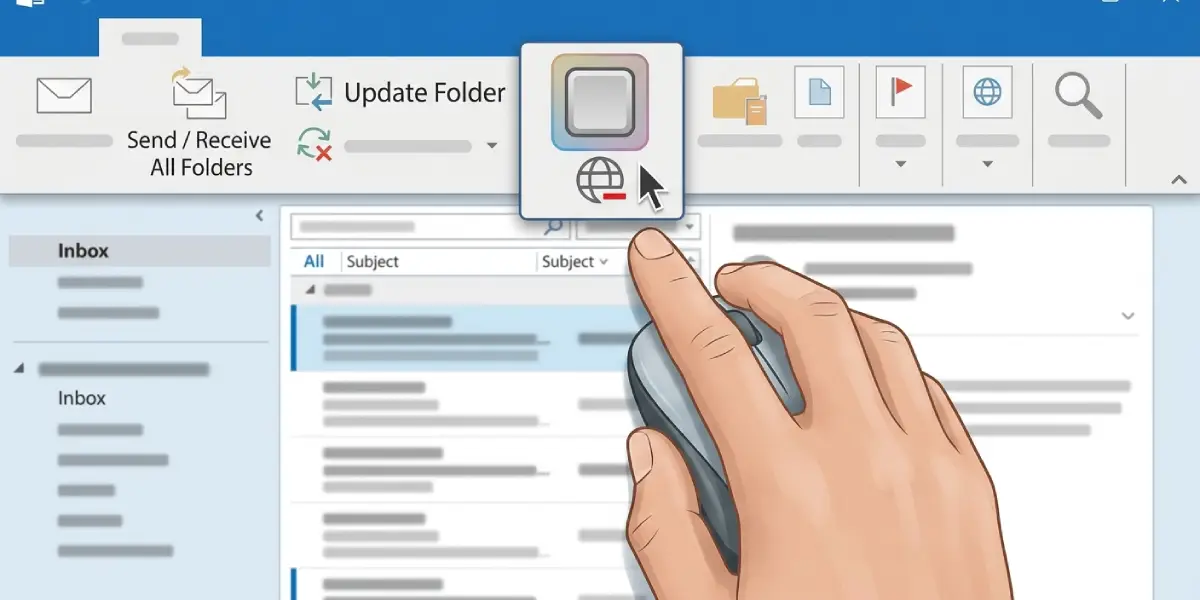
- Step 1: Check whether Outlook is set to Work Offline. Open the Send/Receive tab in the ribbon and look at the Work Offline button. If it appears highlighted or pressed in, click it once to bring Outlook back online. This single click resolves the connection status for a surprising number of users who never realized the setting had been toggled, sometimes by an accidental click or a Windows update.
- Step 2: Close Outlook completely and restart it. Right-click the taskbar, open Task Manager, and end the Outlook.exe process if it is still running in the background. A cold restart clears out a stuck connection handshake that a simple File > Exit does not always fix.
- Step 3: Confirm the internet connection is actually working. Open a browser and load any website. If the browser also struggles to connect, the issue sits with the network or VPN rather than Outlook itself, and that needs resolving first.
- Step 4: Start Outlook in Safe Mode to rule out a problematic add-in. Press Windows key + R, type outlook.exe /safe, and press Enter. If Outlook connects normally in Safe Mode, an add-in is the cause. Go to File > Options > Add-ins, select COM Add-ins from the Manage dropdown, click Go, and disable add-ins one at a time to find the offender.
- Step 5: Check for pending Outlook updates. Go to File > Office Account > Update Options > Update Now. Microsoft regularly ships fixes for connectivity bugs, and an outdated build is a frequent hidden cause of this exact error.
- Step 6: Run a Quick Repair on the Office installation. Open Windows Settings > Apps > Installed Apps, find Microsoft 365 or Office, select Modify, then choose Quick Repair and let it finish. This step fixes corrupted Outlook files without touching mailbox data.
- Step 7: Recreate the Outlook profile if the status still will not clear. Open Control Panel > Mail (32-bit) > Show Profiles, create a new profile with the same email account, and set it as the default before reopening Outlook. A corrupted profile is often the root cause once repair and Safe Mode fail to help.
Tip: run Step 4 before anything else if the problem started right after installing a new add-in, plugin, or Office update. Isolating add-ins first saves time and often points straight to the fix.
Common Problems and Fixes
- Outlook shows Trying to Connect only after a Windows update: a Quick Repair (Step 6) usually resolves this, since updates sometimes overwrite Outlook configuration files.
- The status clears briefly, then returns within minutes: this points to an unstable VPN or a flaky Wi-Fi adapter rather than Outlook itself. Test the connection on a wired network to confirm.
- Safe Mode still shows Trying to Connect: the issue is not an add-in. Move directly to the profile rebuild in Step 7.
- A brand-new profile shows the same error: this usually means saved credentials are stale. Open Credential Manager from the Windows Control Panel, remove any entries related to Outlook or Office, then reopen Outlook and sign in again.
- Antivirus or firewall software blocks the connection: some security tools intercept Outlook’s traffic. Temporarily disable the firewall to test, and if that clears the issue, add Outlook as an exception rather than leaving protection off permanently.
Frequently Asked Questions
Why does Outlook get stuck on Trying to Connect?
It typically happens because of Work Offline mode being enabled, a misbehaving add-in, a corrupted profile, an outdated Outlook build, or a security tool blocking the connection.
Does this mean the email account password is wrong?
Not usually. A wrong password normally triggers a specific sign-in prompt rather than an indefinite Trying to Connect status, though stale saved credentials can sometimes contribute.
Will restarting the computer fix Outlook stuck on Trying to Connect?
Sometimes, since a full restart clears background processes and network handles. It is worth trying, but working through the ordered steps above resolves the issue more reliably.
How long does the profile rebuild take?
Creating a new profile and re-adding the account generally takes five to ten minutes, depending on mailbox size and connection speed.
Is it safe to disable Work Offline mode?
Yes. Work Offline simply pauses the sync between Outlook and the mail server. Turning it off restores normal syncing and does not affect any saved emails or settings.
Can a VPN cause Outlook to get stuck connecting?
Yes. VPNs sometimes route traffic in a way that blocks Outlook’s connection to Exchange or Microsoft 365 servers. Disconnecting the VPN briefly helps confirm whether it is the cause.
Does Quick Repair delete any emails or settings?
No. Quick Repair only fixes the Office installation files and leaves mailbox data, rules, and settings untouched.
What if none of these steps fix the connection issue?
If the status persists after a profile rebuild, the mail server itself or the account’s authentication settings may need attention from an IT administrator or the email provider’s support team.
Should add-ins be disabled permanently after finding the culprit?
Not necessarily. Once the problematic add-in is identified, check for an updated version from its developer before removing it for good, since an update often resolves the conflict.
