
Quick Answer: To check current print jobs in Windows, press Windows key + I to open Settings, go to Bluetooth & devices (Windows 11) or Devices (Windows 10), select Printers & scanners, click your printer, then click Open print queue (Windows 11) or Open queue (Windows 10). Every document waiting to print appears in that window, along with its status.
You clicked Print, and nothing came out. Before you send the same document three more times, open the print queue. In a few seconds it tells you whether your file is waiting, printing, paused, or stuck on an error, and that usually points straight to the fix.
This guide covers five ways to check current print jobs in Windows 11 and Windows 10, starting with the easiest. It also explains what each status means and how to clear a queue that won’t budge.
What Is the Print Queue?
The print queue is a waiting list for your printer. When you print something, Windows hands the file to a background service called the Print Spooler. The spooler lines up each document and sends them to the printer one at a time, in order.
A few things are worth knowing up front:
- Each printer has its own queue. A job sent to your office printer won’t show up in your home printer’s queue.
- The queue only shows current jobs. Once a job finishes sending, it drops off the list. It’s not a print history.
- One stuck job can block everything behind it. Jobs print in order, so a single error at the top holds up the rest.
Which Method Should You Use?
| Method | Best for | Works on |
|---|---|---|
| 1. Windows Settings | Most people, most of the time | Windows 11 and 10 |
| 2. Taskbar printer icon | A quick look while something is printing | Windows 11 and 10 (icon doesn’t always appear) |
| 3. Printers folder / Control Panel | Several printers installed, or you prefer the classic view | Windows 11 and 10 |
| 4. Run command | Opening one printer’s queue directly, or making a desktop shortcut | Windows 11 and 10 |
| 5. PowerShell | Seeing jobs on every printer at once, or on a print server | Windows 11 and 10 |
Method 1: Check the Print Queue in Windows Settings
This is the easiest method, and the steps are nearly identical on both versions of Windows.
On Windows 11
- Step 1: Press Windows key + I to open Settings.
- Step 2: Click Bluetooth & devices in the left sidebar.
- Step 3: Click Printers & scanners.
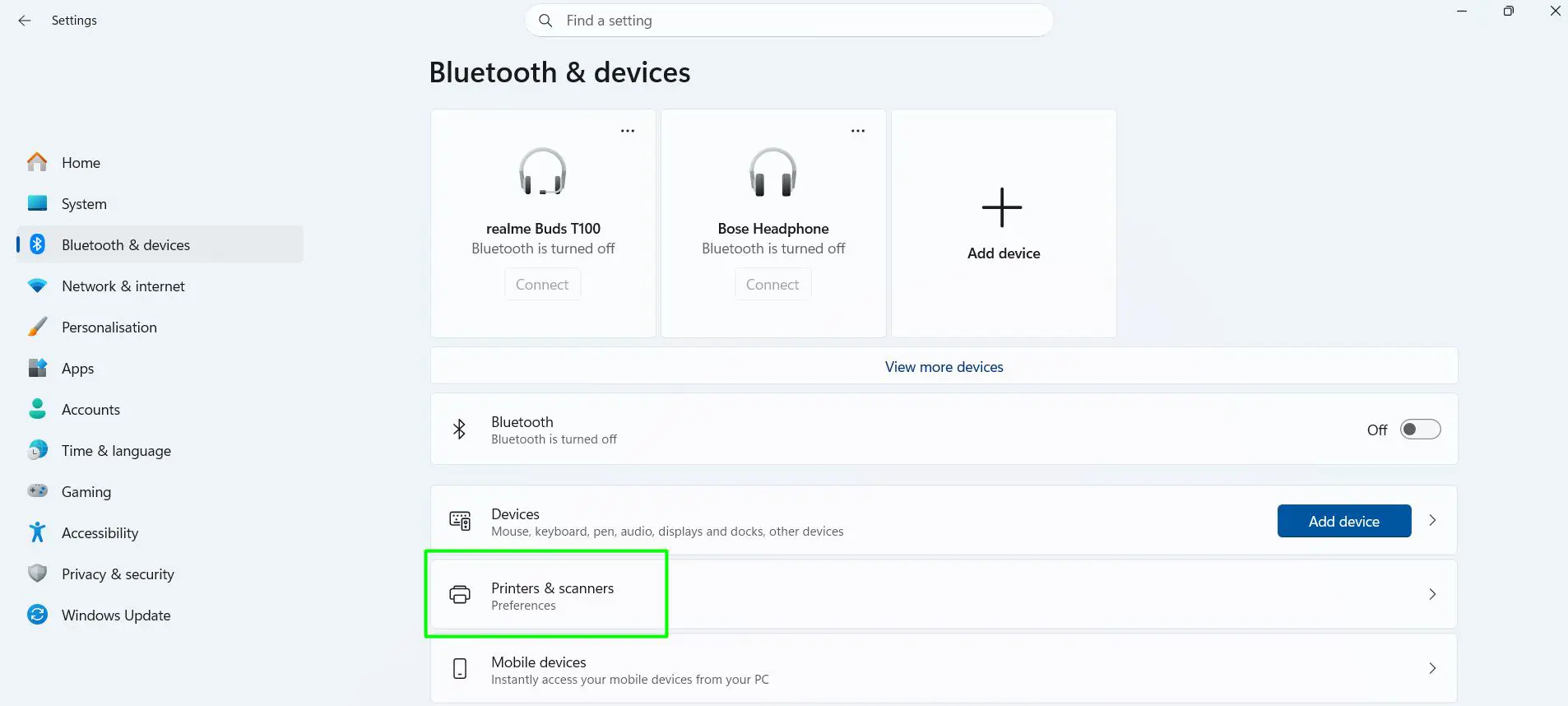
- Step 4: Click the name of your printer.
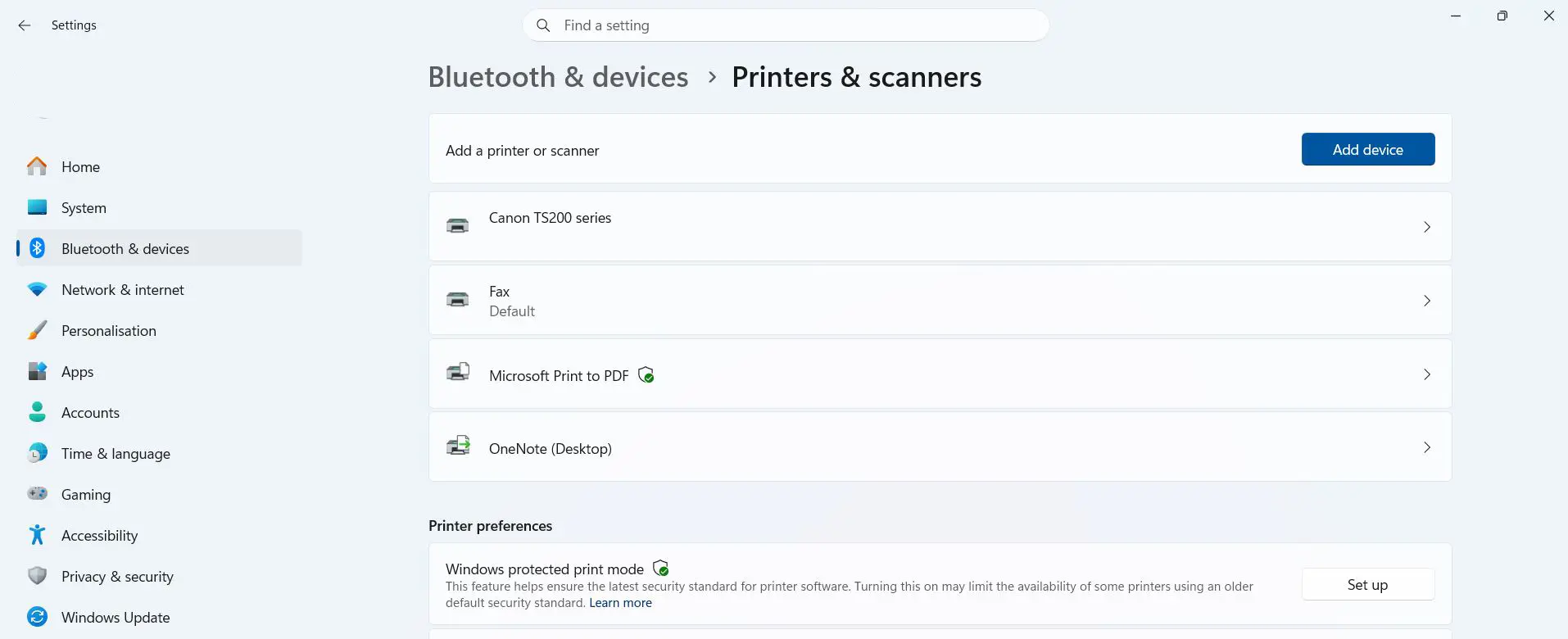
- Step 5: Click Open print queue.
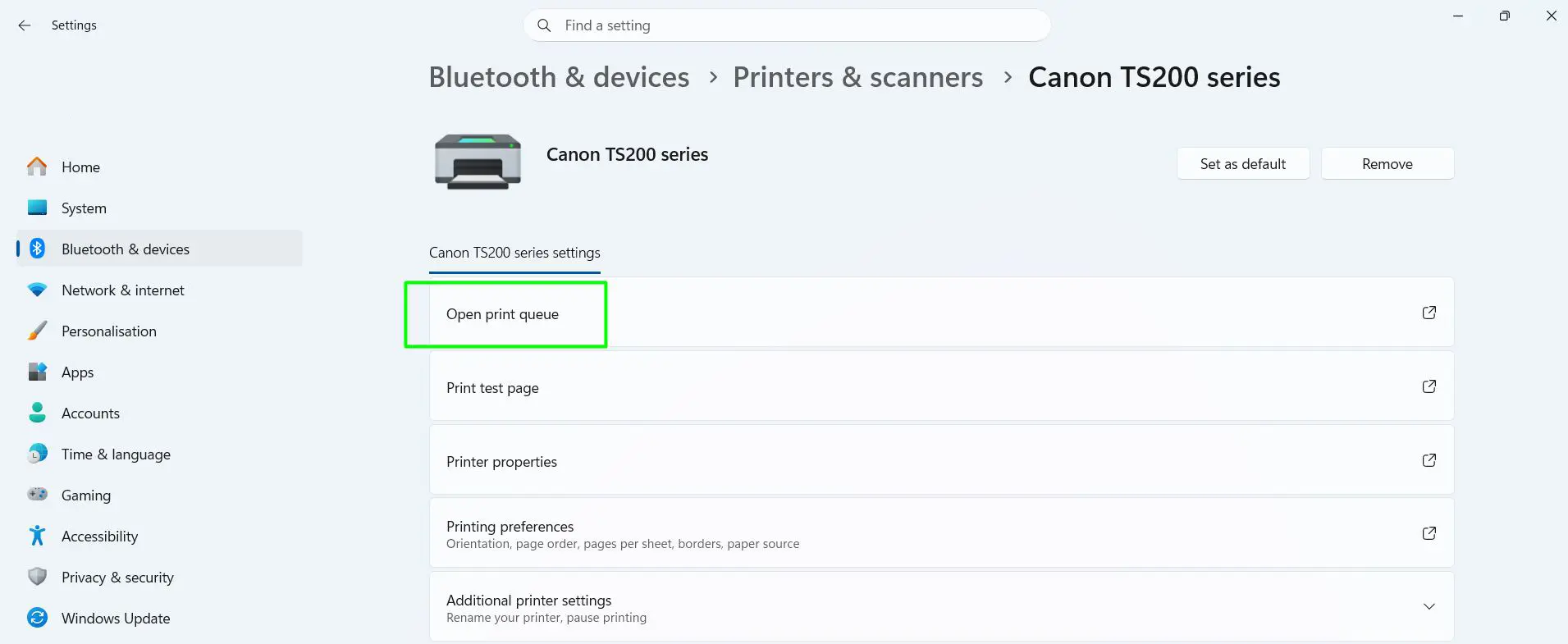
On Windows 10
- Step 1: Press Windows key + I to open Settings.
- Step 2: Click Devices.
- Step 3: Click Printers & scanners in the left sidebar.
- Step 4: Click your printer to expand it.
- Step 5: Click Open queue. On some versions, click Manage first, then Open print queue.
The window that opens lists every document waiting for that printer. If the list is empty, nothing is pending.
Shortcut: Press Windows key + R, type ms-settings:printers, and press Enter. This jumps straight to Printers & scanners on either version, skipping steps 1 to 3.
Method 2: Use the Printer Icon on the Taskbar
While a document is printing, a small printer icon often appears in the notification area near the clock.
- Step 1: Look at the bottom-right corner of the screen, next to the clock.
- Step 2: If you don’t see a printer icon, click the small up arrow to show hidden icons.
- Step 3: Double-click the printer icon to open the queue.
The icon only shows up while jobs are active, and some printers and drivers never display it. If it isn’t there, use Method 1.
Method 3: Use the Printers Folder or Control Panel
This is the classic route. It shows all your printers in one window, which makes it handy if you have several installed.
- Step 1: Press Windows key + R.
- Step 2: Type
shell:PrintersFolderand press Enter. - Step 3: Right-click your printer.
- Step 4: Click See what’s printing.
You can reach the same place through Control Panel > Hardware and Sound > Devices and Printers. Right-click the printer and choose See what’s printing. Double-clicking the printer and picking the same option also works.
Method 4: Open a Printer’s Queue With a Run Command
If you check the same printer often, this command opens its queue directly with no clicking through menus.
- Step 1: Press Windows key + R.
- Step 2: Type
rundll32 printui.dll,PrintUIEntry /o /n "Your Printer Name", replacing the name with your printer’s exact name from Settings. - Step 3: Press Enter. The queue for that printer opens.
Tip: Right-click your desktop, choose New > Shortcut, and paste the same command. You now have a one-click print queue shortcut.
Method 5: Check Print Jobs With PowerShell
This method suits people comfortable typing commands. Its big advantage: it shows jobs across every printer at once.
- Step 1: Right-click the Start button and choose Terminal (Windows 11) or Windows PowerShell (Windows 10).
- Step 2: Type
Get-Printer | Get-PrintJoband press Enter. - Step 3: Read the results. Each line shows the printer, document name, submitted time, and job status. No results means no pending jobs.
A few useful variations:
- One printer only:
Get-PrintJob -PrinterName "Your Printer Name" - A shared printer on a print server:
Get-PrintJob -ComputerName PRINTSRV01 -PrinterName "Office Printer". Whether this works depends on your account permissions. - Cancel a specific job: Note the job’s Id from the list, then run
Remove-PrintJob -PrinterName "Your Printer Name" -ID 5, replacing 5 with the real Id.
Older guides mention the wmic printjob command. Microsoft has deprecated WMIC, and newer Windows 11 versions no longer include it by default, so stick with PowerShell.
What the Print Queue Shows
The classic queue window lists each job’s Document Name, Status, Owner, Pages, Size, and Submitted time. The Windows 11 queue looks a little more modern but shows the same core details. Either way, the Status is the part to watch.
| Status | What it means | What to do |
|---|---|---|
| Printing | The job is being sent to the printer right now. | Wait. Large jobs take a while. |
| Spooling | Windows is still preparing the file. | Wait. Big photos and PDFs take longer to spool. |
| Sent to printer | Windows has finished its part. The printer has the job. | Check the printer itself if nothing comes out. |
| Paused | The job (or the whole printer) is on hold. | Right-click the job and choose Resume. Also check that the printer itself isn’t paused. |
| Error | The printer hit a problem it can’t get past. | Check paper, ink or toner, jams, and the printer’s display. Then right-click the job and choose Restart. |
| Deleting | Windows is removing the job. | If it never clears, the spooler is stuck. See the fix below. |
| Offline | Windows can’t reach the printer. | Check power, the USB cable, or the Wi-Fi connection. |
How to Clear a Stuck Print Queue
Sometimes a job refuses to cancel and sits on “Deleting” forever, blocking everything behind it. Restarting the Print Spooler usually clears it.
- Step 1: Press Windows key + R, type
services.msc, and press Enter. - Step 2: Scroll to Print Spooler, right-click it, and choose Stop.
- Step 3: Press Windows key + R again, type
%systemroot%\System32\spool\PRINTERS, and press Enter. Click Continue if Windows asks for permission. - Step 4: Delete everything inside that folder. Don’t delete the folder itself.
- Step 5: Go back to Services, right-click Print Spooler, and choose Start.
This wipes every pending job on every printer, so you’ll need to resend anything you still want printed. You need administrator rights for these steps.
Tips for Checking Print Jobs
- Switch printers without closing the window. The classic queue window has a Printer menu at the top. In Windows 11’s queue, use the printer dropdown. Either way, you can jump between printers without starting over.
- Make sure you sent it to the right printer. A “missing” job often went to Microsoft Print to PDF, OneNote, or another virtual printer that was set as the default.
- An empty queue doesn’t always mean failure. Once Windows hands a job to the printer, it can vanish from the queue while the printer is still working on it.
- Don’t keep hitting Print. Check the queue first. Resending creates duplicate jobs that will all print once the problem is fixed.
- Use the Owner column on shared printers. It shows who sent each job, so you can spot your document in a busy office queue.
- Keep finished jobs visible. In the printer’s properties, open the Advanced tab and tick Keep printed documents. Completed jobs then stay in the queue so you can reprint them.
- Want a print history? Open Event Viewer, go to Applications and Services Logs > Microsoft > Windows > PrintService, right-click Operational, and choose Enable Log. It only records jobs from that point on.
- Office printers may hold jobs elsewhere. Secure-release (badge or PIN) and cloud printing systems often keep jobs on a server until you walk up to the printer, so your local queue may look empty.
- Windows 10 still prints fine. Microsoft ended standard Windows 10 support in October 2025, but the print queue works the same way it always has.
Frequently Asked Questions
How do I check current print jobs in queue in Windows 11?
Open Settings, go to Bluetooth & devices > Printers & scanners, click your printer, and select Open print queue. Every pending job for that printer appears in the window.
How do I check the print queue in Windows 10?
Open Settings, go to Devices > Printers & scanners, click your printer, and select Open queue. On some versions, you’ll click Manage first.
What is the fastest way to open the print queue?
If a document is actively printing, double-click the printer icon near the clock. Otherwise, press Windows key + R, type shell:PrintersFolder, press Enter, then right-click your printer and choose See what’s printing.
How do I see print jobs for all printers at once?
Open PowerShell or Terminal and run Get-Printer | Get-PrintJob. It lists the current jobs on every installed printer in one go.
Why is my print queue empty when nothing printed?
The document may have gone to a different printer, already been handed off to the printer, or failed before it reached the queue. Check that the right printer is selected, and look at the printer’s own display for errors.
Why does my print job say Error in the queue?
The printer usually has a problem it can’t get past, such as no paper, low ink or toner, a paper jam, or a lost connection. Fix the issue on the printer, then right-click the job and choose Restart.
How do I cancel a print job in the queue?
Open the print queue, right-click the document, and select Cancel. To remove everything, open the Printer menu at the top of the window (or the menu in Windows 11’s queue) and choose Cancel all documents.
What do I do if a print job won’t cancel?
Stop the Print Spooler service, delete the files in C:\Windows\System32\spool\PRINTERS, and start the spooler again. The full steps are in the “How to Clear a Stuck Print Queue” section above.
Can I see documents that were already printed?
Not in the standard print queue, which only shows current jobs. To keep a record going forward, turn on the PrintService Operational log in Event Viewer or enable Keep printed documents in the printer’s Advanced properties. Neither option can recover older jobs.
Can I check print jobs on a shared office printer?
Yes. If the printer is installed on your PC, open its queue from Printers & scanners like any other printer. Whether you can see other people’s jobs depends on your permissions, and some office systems keep jobs on a central server instead.
Final Thoughts
Checking the print queue is the first step whenever a document doesn’t come out. For most people, Settings > Printers & scanners > Open print queue is all it takes. If you manage several printers, PowerShell’s Get-Printer | Get-PrintJob shows everything at once. And if a job won’t go away, restarting the Print Spooler clears the jam in under a minute.
