
Learning how to clean a monitor screen without streaks comes down to using the right materials and a light, controlled technique instead of harsh sprays or paper towels. A few smudges or dust smears can make even a brand-new display look dull, but the fix is quick once the correct method is in place. This guide walks through the safest, most effective way to get a streak-free finish every time.
Key Takeaways
- A microfiber cloth and a mix of distilled water with isopropyl alcohol handle almost every screen type safely.
- Spraying liquid directly onto the panel is one of the most common causes of streaking and moisture damage.
- Light, even, one-direction wiping motions prevent the swirl marks that cause visible streaks.
- Paper towels, tissues, and ammonia-based glass cleaners should never touch a monitor screen.
- Letting the screen air-dry fully before turning the monitor back on avoids water spots.
Before You Start
Power off the monitor completely and unplug it from the wall outlet. Cleaning a screen that is still on makes streaks and dust far easier to see, but it also raises the risk of liquid contacting live components near the edges of the panel. Let the screen cool for a minute if it has been running for a while, since a warm panel can cause cleaning solution to evaporate too fast and leave marks behind.
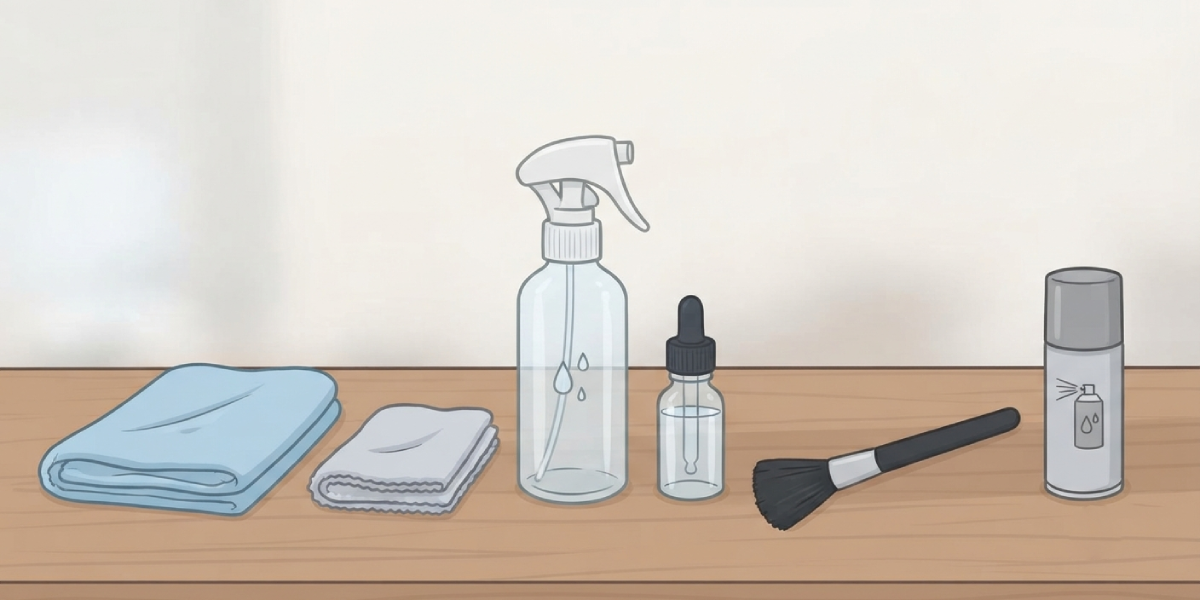
Gather a few simple supplies before starting:
- A clean, lint-free microfiber cloth (two if possible – one for cleaning, one for drying)
- Distilled water
- A small amount of 70 percent isopropyl alcohol, if the screen has stubborn smudges or fingerprints
- A soft-bristle brush or a can of compressed air for loose dust
- A small spray bottle or a second bowl for mixing solution
Tip: Tap water often contains minerals that leave faint residue on dark screens, so distilled water is worth keeping on hand specifically for electronics.
How to Clean a Monitor Screen Without Streaks
Step-by-Step Cleaning Process
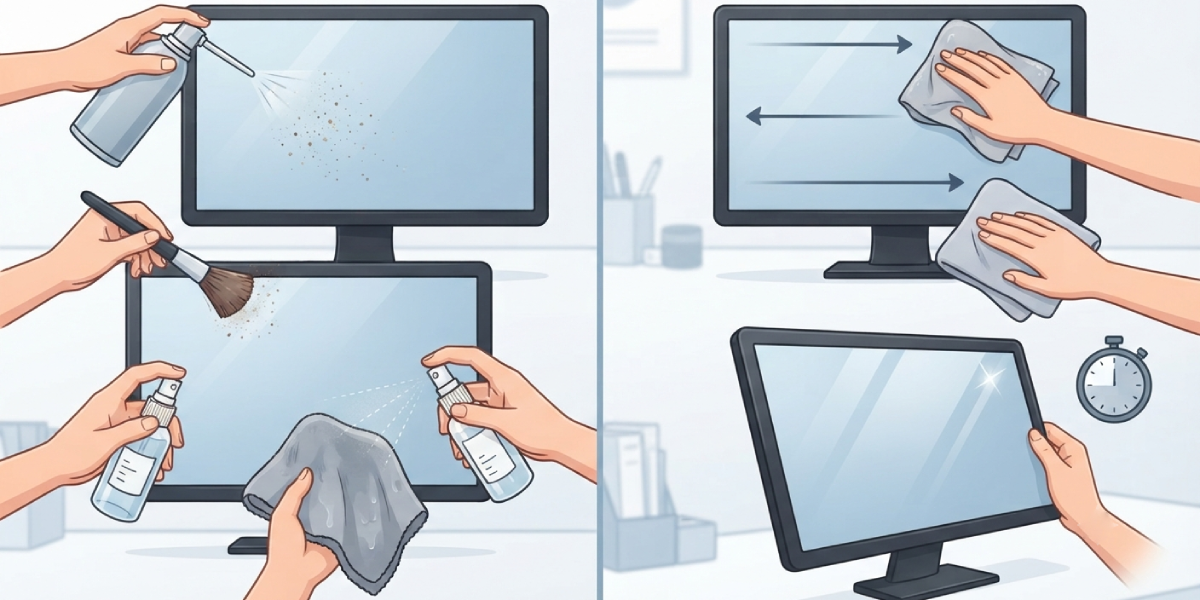
- Step 1: Remove loose dust first. Use a soft brush or short bursts of compressed air to clear dust and debris from the screen surface and bezel edges before any liquid touches the panel. Wiping over dry dust with a cloth is a common cause of fine scratches.
- Step 2: Mix the cleaning solution. Combine distilled water with a small amount of isopropyl alcohol, roughly a 1:1 ratio, in a spray bottle or small bowl. For screens with only light dust, distilled water alone is usually enough.
- Step 3: Dampen the cloth, not the screen. Spray the solution onto the microfiber cloth until it feels lightly damp, never soaking wet. Spraying liquid directly onto the display risks it running into the bezel or panel edges.
- Step 4: Wipe in one direction. Starting from the top corner, wipe gently in straight, overlapping passes rather than small circles. Circular motions tend to push dirt around instead of lifting it, which is where most streaking comes from.
- Step 5: Dry with a second cloth. Follow immediately behind the damp cloth with a dry, clean microfiber cloth to pick up any remaining moisture before it has a chance to dry on its own.
- Step 6: Check the screen at an angle. Tilt the monitor slightly and look across the surface under a light source. This makes leftover streaks or smudges far easier to spot than looking at it straight on.
- Step 7: Let it air-dry fully. Wait a minute or two before powering the monitor back on, giving any trace moisture near the bezel time to evaporate.
Tip: Always work in small sections rather than trying to wipe the whole screen in one long pass – it keeps the cloth from drying out unevenly and leaving faint lines.
Common Problems and Fixes
Streaks Appear Right After Cleaning
This usually means the cloth was too wet or the solution had too much alcohol in it. Switch to a lightly damp cloth and follow every damp pass with a dry one immediately.
Cloudy or Hazy Film on the Screen
A hazy film is often mineral residue from tap water or leftover cleaner buildup. Switch to distilled water and give the screen a final pass with a dry microfiber cloth to lift the film.
Faint Circular Marks Are Visible
Circular marks point to a circular wiping motion or a cloth that was not clean. Rewash the microfiber cloth, then use straight, overlapping strokes instead of circles on the next pass.
Static Dust Returns Within Minutes
LCD and OLED panels can build up a static charge that attracts dust back almost immediately after cleaning. A slightly damp microfiber cloth used for the final pass helps neutralize the charge better than a dry one.
Screen Looks Discolored or Damaged After Cleaning
If a cleaning solution with ammonia or a rough cloth caused visible discoloration or scratching, stop using that product immediately. This kind of damage is usually permanent, and a display professional should be consulted before attempting anything further.
Frequently Asked Questions
Can glass cleaner be used on a monitor screen?
Standard glass cleaners often contain ammonia or alcohol concentrations that can strip the anti-glare coating found on most modern monitors. A distilled water and isopropyl alcohol mix is a safer choice.
Is it safe to use isopropyl alcohol on an OLED screen?
A heavily diluted isopropyl alcohol solution, applied to the cloth rather than the screen, is generally safe for OLED panels. Checking the manufacturer’s cleaning guidance first is still a good habit.
What household items should never be used on a monitor?
Paper towels, tissues, dish soap, vinegar, and ammonia-based cleaners should all be avoided, since they can scratch the coating or leave residue that is hard to remove.
Why does a monitor streak even with a microfiber cloth?
Streaking with a microfiber cloth usually happens when the cloth is too wet, dirty, or being wiped in small circles instead of straight, overlapping lines.
How often should a monitor screen be cleaned?
Once every one to two weeks is enough for most home and office setups, though a quick dust wipe can happen more often if the monitor sits near a window or in a dusty room.
Can compressed air alone clean a monitor?
Compressed air removes loose dust well but does nothing for fingerprints, smudges, or oily residue, so a damp microfiber cloth pass is still needed for a fully clean screen.
Should the monitor be on or off while cleaning?
The monitor should always be powered off and unplugged while cleaning. A dark, off screen also makes it easier to spot remaining streaks or dust.
Is it safe to press firmly while wiping a screen?
Firm pressure should be avoided, especially on LCD and OLED panels, since it can cause pixel damage or pressure spots. A light, even touch is all that is needed.
What is the best cloth type for cleaning a monitor?
A lint-free microfiber cloth is the standard choice, since it lifts dust and oil without scratching the screen’s coating the way rougher fabrics can.
