
Knowing how to clean laptop screen safely matters more than most people realize, since a modern display is a thin, delicate layer that scratches or discolors easily under the wrong pressure or the wrong liquid.
A few smudges and a light coating of dust are normal after weeks of use, but reaching for a paper towel or a household glass cleaner is one of the fastest ways to damage the coating permanently. This guide walks through the safest method, the right materials, and the mistakes that cause the most damage.
Key Takeaways
- Always power off the laptop and let the screen cool before cleaning it.
- Use a dry microfiber cloth first, then a damp one with a mild solution for stubborn marks.
- Never spray liquid directly onto the screen or use paper towels, tissues, or household glass cleaner.
- Light, circular pressure removes smudges without risking dead pixels or coating damage.
- Anti-glare and OLED panels need gentler handling than standard glossy displays.
Before You Start
A few minutes of prep protects the screen from accidental scratches or moisture getting where it shouldn’t. This step matters just as much as the cleaning itself.
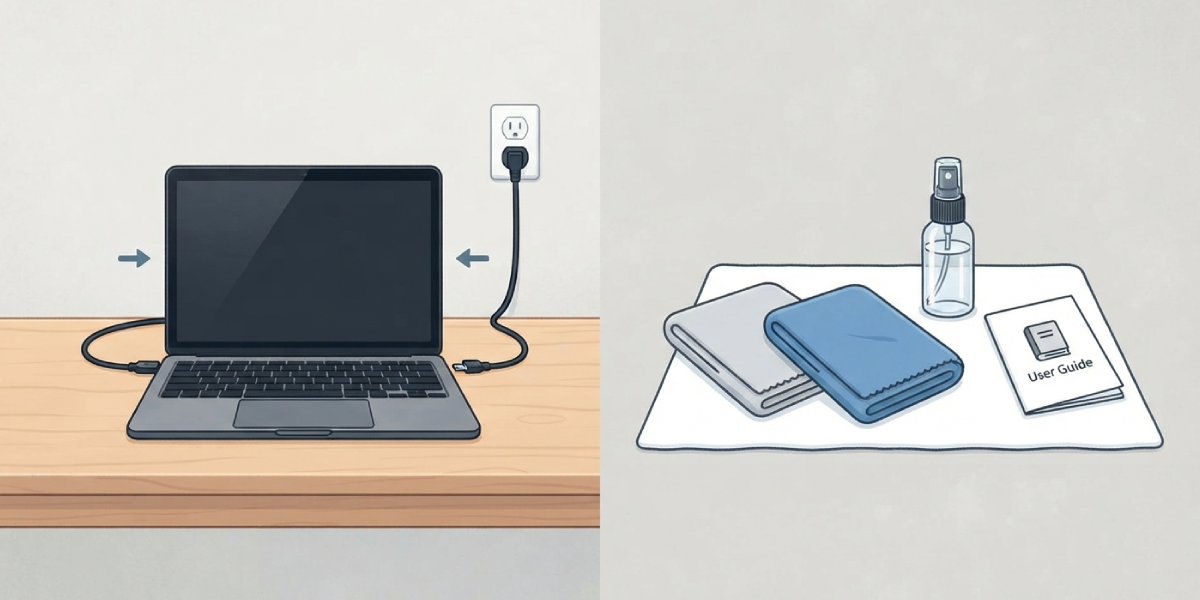
- Power off the laptop completely and unplug the charger. Never clean a screen that is on or still warm from use.
- Let the display cool for a few minutes if the laptop was just running. A cool screen is less prone to streaking and the coating handles gentle wiping better once it isn’t warm.
- Gather a clean, lint-free microfiber cloth (the kind used for eyeglasses or camera lenses works well), a second microfiber cloth for the damp step, and either distilled water or a screen-safe cleaning solution.
- Check the manufacturer’s guidance if the laptop is under warranty, since some brands specify their own approved cleaning products.
How to Clean Laptop Screen Safely: Step-by-Step
This method works for most laptop displays, including standard glossy, matte, and anti-glare coatings. The goal throughout is minimal moisture and minimal pressure.
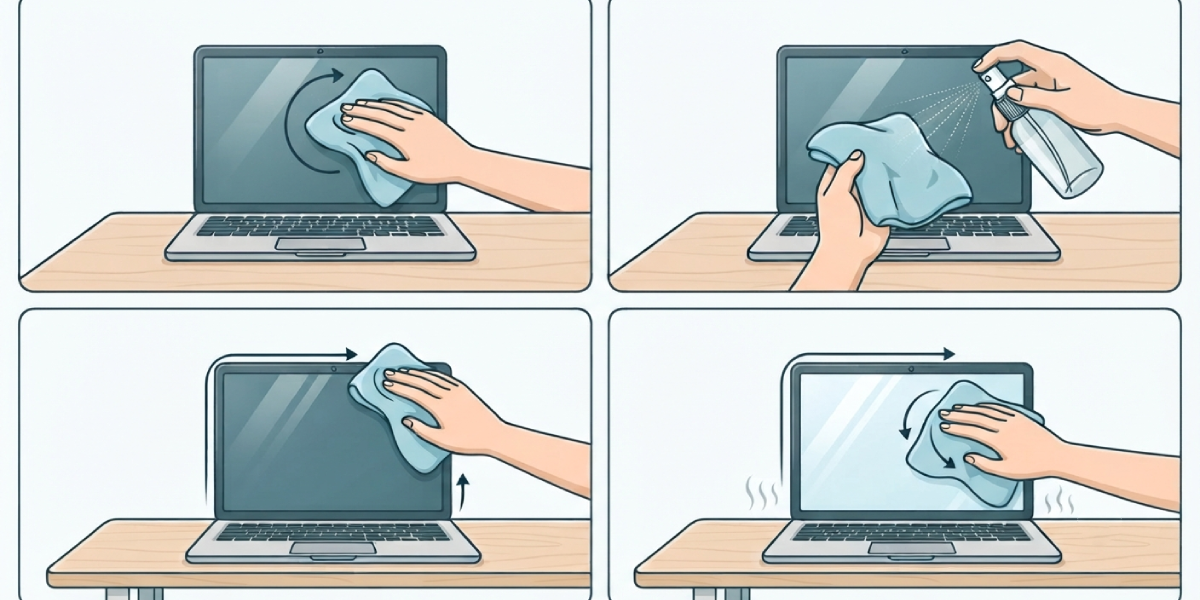
- Step 1: Wipe the entire screen with a dry microfiber cloth using light, circular motions. This alone removes loose dust and most fingerprints without any liquid at all.
- Step 2: For marks that remain, lightly dampen a second microfiber cloth with distilled water or a screen-safe cleaning solution. The cloth should feel barely moist, never wet enough to drip.
- Step 3: Wipe the screen gently in the same circular motion, working from one corner across to the other so no spot gets missed or over-wiped.
- Step 4: Pay extra attention to the edges near the bezel, where oils and dust tend to collect, but avoid pressing directly on the seam between the screen and the frame.
- Step 5: Finish with the original dry cloth to pick up any leftover moisture and buff the surface to a clean, streak-free finish.
- Step 6: Leave the laptop open for a minute or two before closing the lid, giving any residual moisture time to fully evaporate.
Tip: If isopropyl alcohol is used for tougher grime, dilute it with distilled water at a roughly 50/50 ratio and apply it to the cloth, never directly to the screen. This keeps liquid from creeping under the bezel or into any exposed edge.
Cleaning Matte and Anti-Glare Screens
Matte and anti-glare coatings are more porous than glossy panels, which means they hold onto oils differently and can show streaks more easily if too much liquid is used. Stick to the driest cloth that still gets the job done, and avoid alcohol-based solutions on these coatings unless the manufacturer specifically approves them, since some anti-glare layers are more sensitive to solvents.
Cleaning OLED Laptop Screens
OLED panels use organic materials that are more sensitive to pressure and moisture than standard LCD screens. A dry microfiber wipe handles most day-to-day dust, and when moisture is needed, less is better. Pressing firmly on an OLED panel risks uneven pixel wear that shows up later as a faint image or discoloration in that spot, so a light touch matters even more here than on a typical laptop display.
Common Problems and Fixes
- Streaks left behind after cleaning: This usually means too much liquid was used or the cloth wasn’t clean to begin with. Re-wipe with a dry microfiber cloth, and next time use less moisture and a fresh cloth.
- A cloudy or hazy patch that won’t wipe away: This can be a small area of coating damage from a harsh chemical or rough cloth. It generally cannot be reversed, which is exactly why household glass cleaner and ammonia-based products should stay away from laptop screens entirely.
- Dust reappearing quickly after cleaning: Static charge on the screen surface attracts dust. Wiping with a slightly damp cloth instead of a bone-dry one, and keeping the laptop away from dusty surfaces, cuts down on how fast it returns.
- Moisture appears to have seeped near the bezel: Power the laptop off immediately if it isn’t already, and let it sit open in a dry area for several hours before turning it back on. If any display issue shows up after that, it may be time to consult a professional rather than risk further damage.
Frequently Asked Questions
Can glass cleaner be used on a laptop screen?
No. Most glass cleaners contain ammonia or alcohol concentrations strong enough to strip the anti-glare or anti-reflective coating on a laptop screen. Stick to distilled water or a solution specifically labeled as safe for electronics.
Is it safe to use isopropyl alcohol on a laptop screen?
Diluted isopropyl alcohol, mixed roughly 50/50 with distilled water and applied to a cloth rather than the screen, is generally safe for standard glossy and LCD displays. It is best avoided on OLED panels and some anti-glare coatings unless the manufacturer confirms it is safe.
What household items should never be used on a laptop screen?
Paper towels, tissues, dish soap, vinegar, and ammonia-based cleaners should all be avoided. Paper products can scratch the coating, and harsh chemicals can strip it permanently.
Why does the screen streak after cleaning?
Streaking typically comes from using too much liquid, a dirty cloth, or a cloth with a rough weave. A clean, dry microfiber cloth used right after the damp pass usually clears it up.
How often should a laptop screen be cleaned?
Once every week or two is enough for most people, though anyone eating or drinking near the laptop regularly may want to wipe it down more often to prevent buildup.
Can water alone be used instead of a cleaning solution?
Distilled water works well for light dust and most everyday smudges. Tap water is best avoided since it can leave mineral spots behind as it dries.
Is it safe to press firmly while cleaning a laptop screen?
No. Firm pressure can cause dead or stuck pixels, and on OLED panels it can lead to lasting discoloration. Light, even pressure is all that’s needed to lift dust and oils.
What is the best cloth to use for cleaning a laptop screen?
A clean, lint-free microfiber cloth is the safest option. The same type used for eyeglasses or camera lenses works well and won’t scratch the display.
Does spraying liquid directly on the screen cause damage?
Yes, it can. Liquid sprayed directly onto the screen can run down into the bezel or hinge area and reach internal components. Applying liquid to the cloth first keeps moisture controlled and away from the edges.
