
Windows Update keeps saying “Pending” and nothing happens? Here’s the thing: Windows often waits for you to click a button, restart, or fix one small setting. Here’s how to install pending Windows updates easily, starting with the simplest fix:
- Install from Windows Update in Settings (works for most people)
- Use “Update and restart” from the Start menu
- Turn off metered connection (fixes “Pending download”)
- Resume paused updates
- Free up disk space
- Run the Windows Update troubleshooter
- Reset Windows Update
- Repair system files
Using Windows 10? Skip to the Windows 10 quick guide below.
What “Pending” Means in Windows Update
Each status tells you exactly what Windows is waiting for.
| Status | What it means | What to do |
|---|---|---|
| Pending download | Windows found the update but hasn’t downloaded it yet. | Click Download & install, or turn off metered connection. |
| Pending install | The update is downloaded and ready. | Click Install all or Install now. |
| Pending restart | The update is installed but needs a restart to finish. | Click Restart now. |
Method 1: Install Pending Updates from Windows Update (Easiest)
This is the fastest way to install pending Windows updates on Windows 11.
- Press Windows + I to open Settings.
- Click Windows Update at the bottom of the left menu.
- Click Check for updates to refresh the list.
- Click Download & install all, or Install all if the updates are already downloaded.
- Wait for each update to reach 100%. You can keep using your PC during this part.
- When you see Pending restart, save your work and click Restart now.
- Let Windows finish “Working on updates.” It may restart more than once.
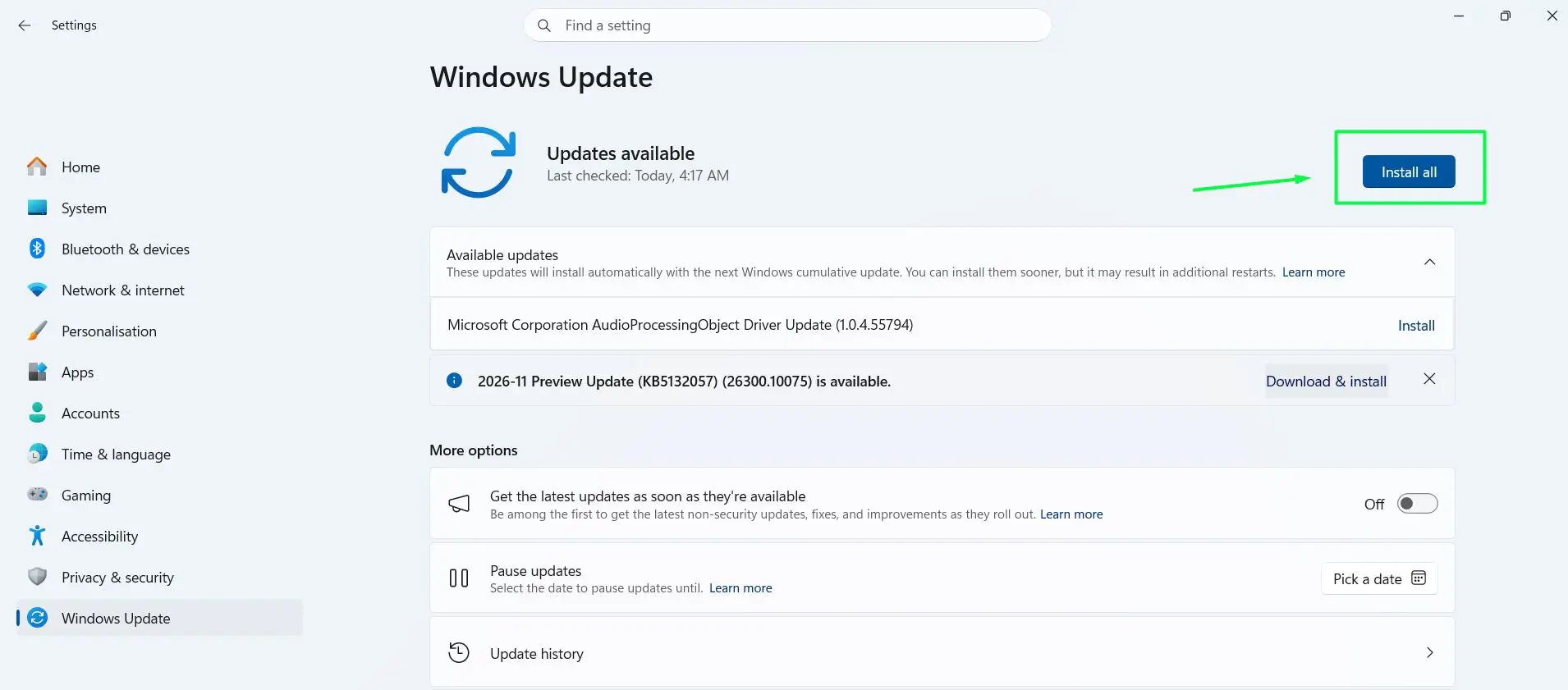
After you sign in, go back to Windows Update and click Check for updates one more time. When it shows You’re up to date, you’re done.
Shortcut: Press Windows + R, type ms-settings:windowsupdate, and press Enter to open Windows Update directly.
Install Optional Updates (Windows and Driver Updates)
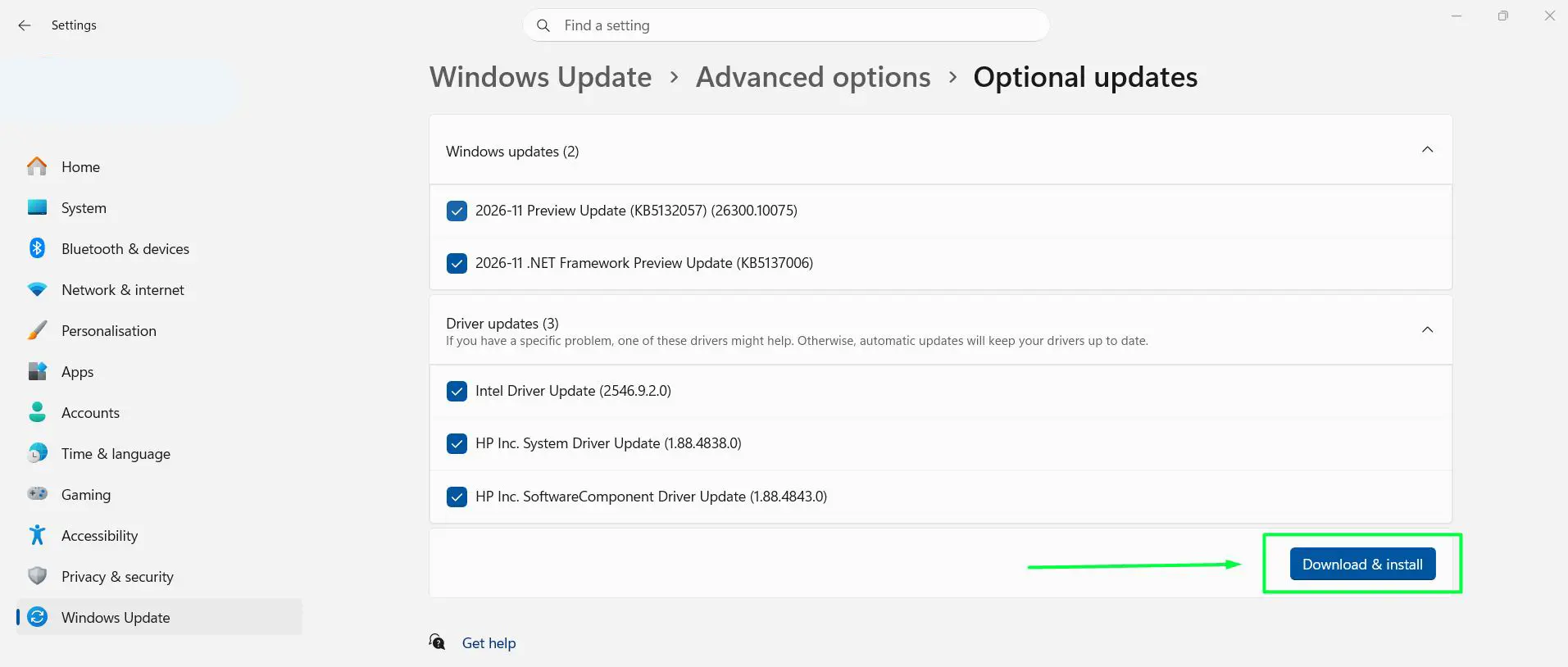
Optional updates don’t install on their own. Windows only shows them, so they can sit there for weeks unless you install them yourself. The page has two sections:
- Windows updates: The monthly Preview Update (for example, “2026-11 Preview Update”) and the .NET Framework Preview Update. These bring next month’s bug fixes and small new features a few weeks early.
- Driver updates: New drivers for parts like your Intel chipset, graphics, Wi-Fi, or HP and Dell system components.
To install them:
- Go to Settings > Windows Update > Advanced options.
- Scroll down and click Optional updates.
- Expand Windows updates and tick the preview updates you want.
- Expand Driver updates and tick the drivers you want.
- Click Download & install.
- Restart your PC when asked.
Method 2: Use “Update and Restart” from the Start Menu
Updates stuck on Pending restart? This is the quickest way to finish them.
- Save your open files.
- Click Start, then the Power button.
- Choose Update and restart.
Method 3: Turn Off Metered Connection (Fixes “Pending Download”)
The key is this: if your Wi-Fi is set as metered, Windows holds back big downloads to save data. That’s the most common reason updates sit on “Pending download.”
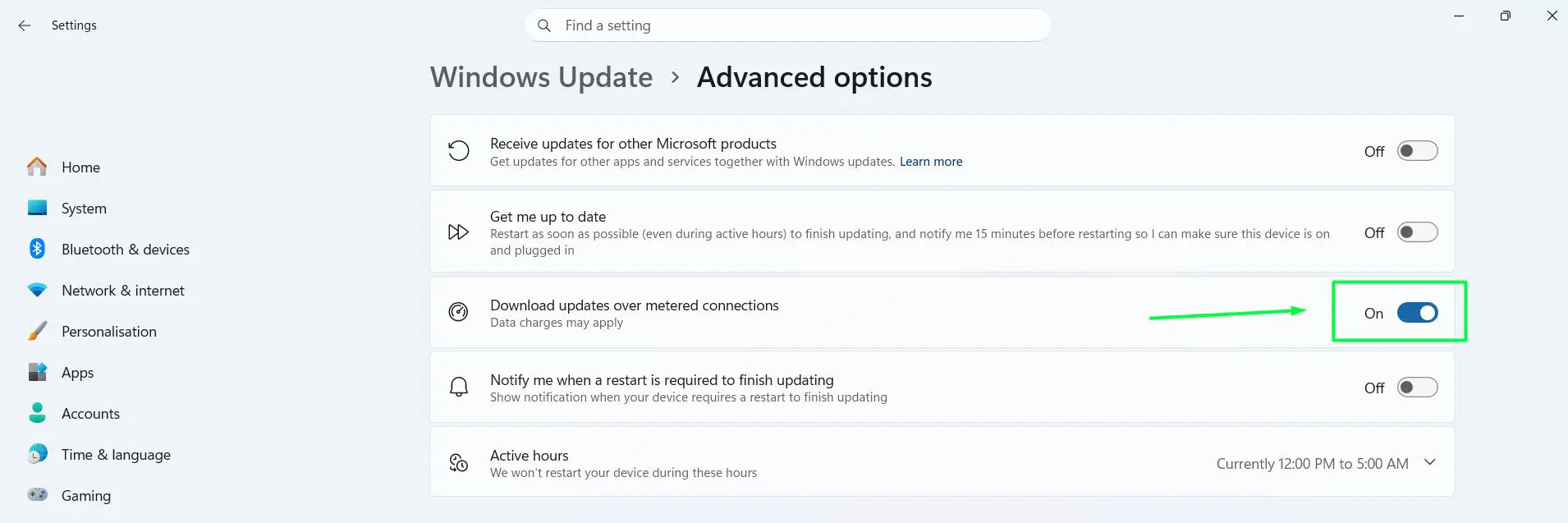
Option A: Allow updates on metered connections
- Go to Settings > Windows Update > Advanced options.
- Turn on Download updates over metered connections.
- Go back and click Download & install all.
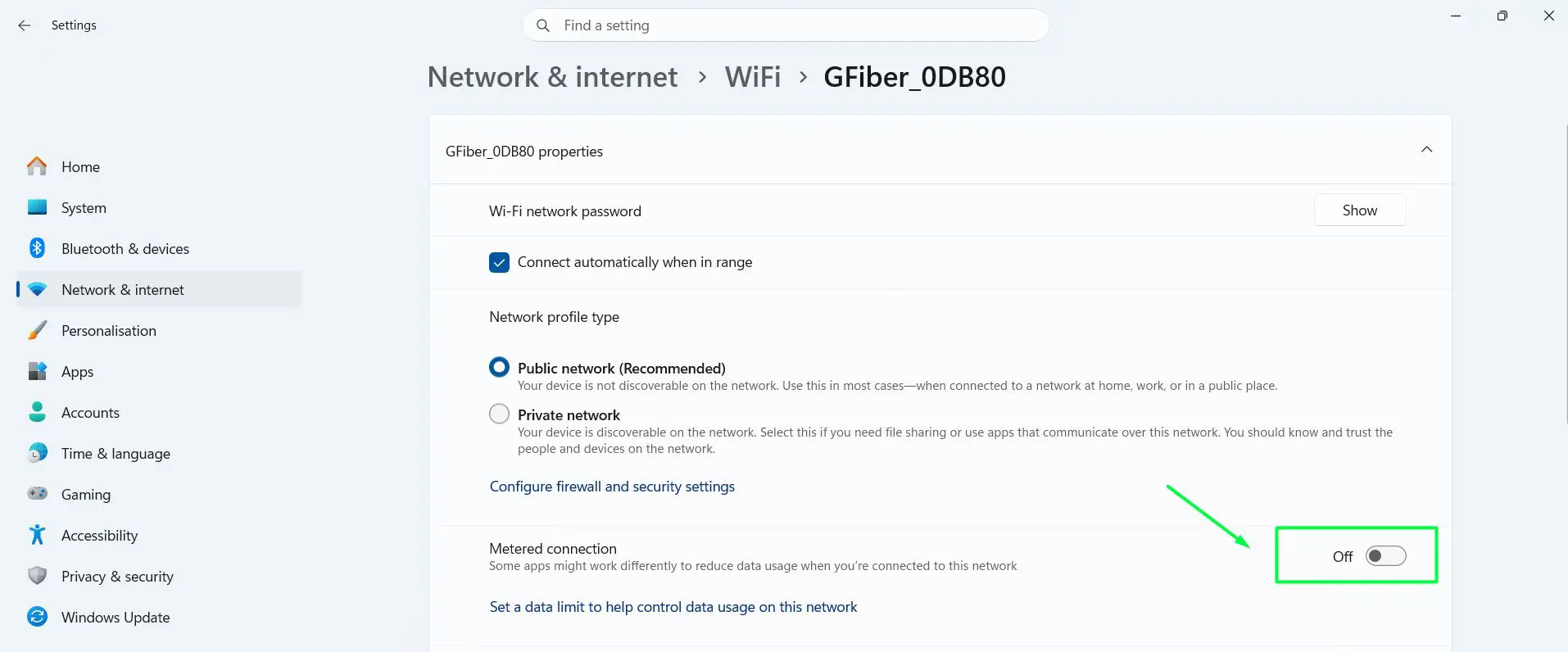
Option B: Turn off metered connection for your network
- Go to Settings > Network & internet.
- Click Wi-Fi (or Ethernet), then your network’s properties.
- Turn off Metered connection.
Method 4: Resume Paused Updates
If updates were paused, they’ll show as pending but won’t install until you resume them.
- Open Settings > Windows Update.
- If you see Updates paused, click Resume updates.
- Click Check for updates, then Download & install all.
Method 5: Free Up Disk Space
Monthly updates need a few GB of free space. The yearly feature update can need about 20 GB. Low space can freeze updates on “Pending” with no clear message.
- Go to Settings > System > Storage.
- Click Cleanup recommendations and remove what you don’t need.
- Click Temporary files, tick Windows Update Cleanup and Recycle Bin, and click Remove files.
- Go back to Windows Update and try again.
Method 6: Run the Windows Update Troubleshooter
Windows can find and fix many update problems by itself.
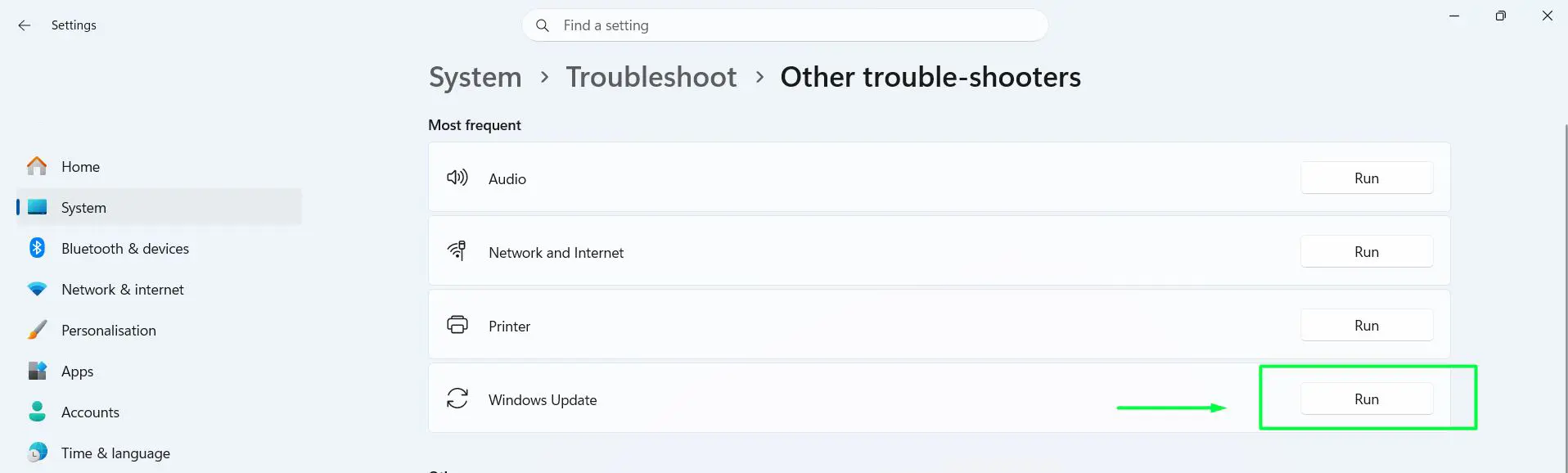
- Go to Settings > System > Troubleshoot > Other troubleshooters.
- Click Run next to Windows Update.
- Follow the prompts in the Get Help app and accept any fixes.
- Restart your PC and check for updates again.
Method 7: Reset Windows Update
Still stuck? The update files may be damaged. These commands clear them so Windows downloads fresh copies. Don’t worry, this doesn’t delete your files.
- Click Start, type
cmd, right-click Command Prompt, and choose Run as administrator. - Type each line below and press Enter after each one:
net stop wuauserv
net stop bits
net stop cryptsvc
ren C:\Windows\SoftwareDistribution SoftwareDistribution.old
ren C:\Windows\System32\catroot2 catroot2.old
net start cryptsvc
net start bits
net start wuauserv - Close Command Prompt and restart your PC.
- Open Windows Update and click Check for updates.
Your update history list may look empty afterward. That’s normal, and updates still work.
Method 8: Repair System Files
Try this last. Damaged Windows files can stop updates from installing at all.
- Open Command Prompt as administrator.
- Type
DISM /Online /Cleanup-Image /RestoreHealthand press Enter. Wait until it finishes. It can take 10 to 20 minutes. - Type
sfc /scannowand press Enter. - Restart your PC and install the pending updates again.
Windows 10 Quick Guide: Install Pending Updates
On Windows 10, the steps are almost the same.
- Press Windows + I and click Update & Security.
- Click Windows Update, then Check for updates.
- Click Install now or Download and install for each pending update.
- When it’s done, click Restart now.
For optional updates on Windows 10, click View optional updates on the Windows Update page. For “Pending download,” go to Settings > Network & Internet > Wi-Fi, click your network, and turn off Set as metered connection. For the troubleshooter, go to Update & Security > Troubleshoot > Additional troubleshooters > Windows Update. Methods 2, 7, and 8 above work the same way on Windows 10.
Tips to Keep Updates Installing Smoothly
- Plug in your laptop. Windows may hold back updates on low battery.
- Set your active hours. In Windows Update > Advanced options > Active hours, tell Windows when you use your PC so it doesn’t restart in the middle of your work.
- Use “Get me up to date.” In Advanced options, this lets Windows restart sooner to finish pending updates, even during active hours.
- Turn on restart alerts. Turn on Notify me when a restart is required to finish updating so updates don’t sit on “Pending restart” for days.
- Check Optional updates once a month. Preview updates and drivers never install on their own, so a quick look keeps them from piling up.
- Don’t turn off the PC during “Working on updates.” Wait for the sign-in screen, even if it seems slow.
- Check once a week. A few updates install much faster than a big pile from months ago.
- Keep 20 GB free. That covers the yearly feature update with room to spare.
- Unplug extra USB drives. Some external drives and docks can confuse the installer during big updates.
- Remove a bad update if needed. Go to Windows Update > Update history > Uninstall updates.
Frequently Asked Questions
How do I install pending updates on Windows 11?
Open Settings > Windows Update, click Check for updates, then Download & install all. When it says Pending restart, click Restart now.
What does “Pending install” mean?
The update is downloaded and ready to go. Click Install all or Install now in Windows Update to start it.
What does “Pending download” mean?
Windows found the update but hasn’t downloaded it. Usually it’s waiting for your click, or your network is set as metered. Click Download & install, or turn off metered connection.
What does “Pending restart” mean?
The update is installed but needs a restart to finish. Save your work and click Restart now, or choose Update and restart from the Start menu.
Why are my Windows updates stuck on pending?
The usual causes are a metered connection, paused updates, low disk space, or damaged update files. Work through Methods 3 to 7 above, in order.
How do I force pending updates to install?
Click Check for updates, then Download & install all. If nothing happens, run the Windows Update troubleshooter or reset Windows Update with the commands in Method 7.
Can I use my PC while updates install?
Yes. You can keep working while updates download and install. You only have to stop during the restart.
How long do pending updates take to install?
Monthly updates usually take 5 to 20 minutes. Feature updates can take an hour or more on older PCs.
Is it safe to turn off my PC while updates are installing?
No. Turning it off during “Working on updates” can damage Windows. Wait until you see the sign-in screen.
What are optional Windows updates?
They’re updates Windows shows but doesn’t install on its own. They include the monthly Preview Update, the .NET Framework Preview Update, and driver updates. Find them in Windows Update > Advanced options > Optional updates.
Should I install optional updates?
Only if you need them. Install a preview update if it fixes a bug you have now, or a driver update if a device isn’t working right. Otherwise, the fixes come in the next regular monthly update.
Why don’t optional updates install automatically?
Windows leaves preview updates and drivers for you to choose, since your PC doesn’t need them to stay secure. They stay in the Optional updates list until you install them.
How do I uninstall an update that caused problems?
Go to Settings > Windows Update > Update history, click Uninstall updates, and remove the latest one.
Does Windows 10 still get updates?
Only security updates, and only through the Extended Security Updates program, which runs until October 12, 2027. Upgrading to Windows 11 is the best option if your PC supports it.
