
Knowing how to check network adapter speed in Windows takes about thirty seconds once the right screen is open, and it answers a question that trips up a lot of people: is the hardware itself holding the connection back? The adapter reports a link speed, which is the maximum rate it has negotiated with the router or switch, and that number is very different from what an internet speed test shows.
Key Takeaways
- The quickest check is Settings, where the Link speed (Receive/Transmit) value appears under the adapter properties.
- The classic Network Connections window (ncpa.cpl) shows a Speed line, and PowerShell shows a LinkSpeed column for every adapter at once.
- Link speed is the rate between the PC and the router or switch, not the speed of the internet plan.
- A wired adapter stuck at 100 Mbps on a Gigabit setup usually points to a cable, port, or driver issue.
How to Check Network Adapter Speed in Windows
Four reliable methods exist, and each one reads the same value from the adapter. Pick the one that fits the situation. Settings is the friendliest, Control Panel is the fastest on older builds, and PowerShell is best when several adapters need comparing.
Method 1: Check Speed in Windows Settings
- Step 1: Press the Windows key + I to open Settings, then select Network and internet.
- Step 2: Choose Ethernet for a wired connection or Wi-Fi for a wireless one.
- Step 3: On Windows 11, open the connection and look for the properties area (for Wi-Fi, select Hardware properties). On Windows 10, select Status, then Properties under the active connection.
- Step 4: Scroll down to Link speed (Receive/Transmit). The value is shown in Mbps or Gbps.
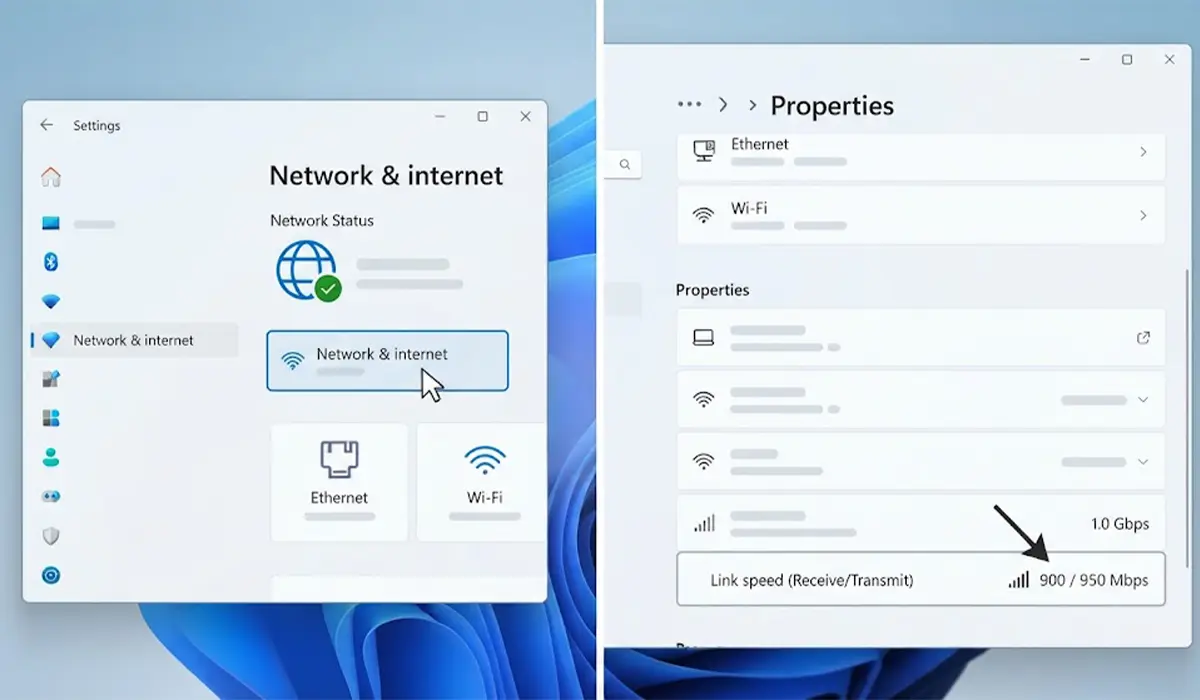
Tip: Receive and Transmit can differ slightly on Wi-Fi because each direction is negotiated separately. On a healthy wired link, both values normally match.
Method 2: Check Speed in Network Connections (Control Panel)
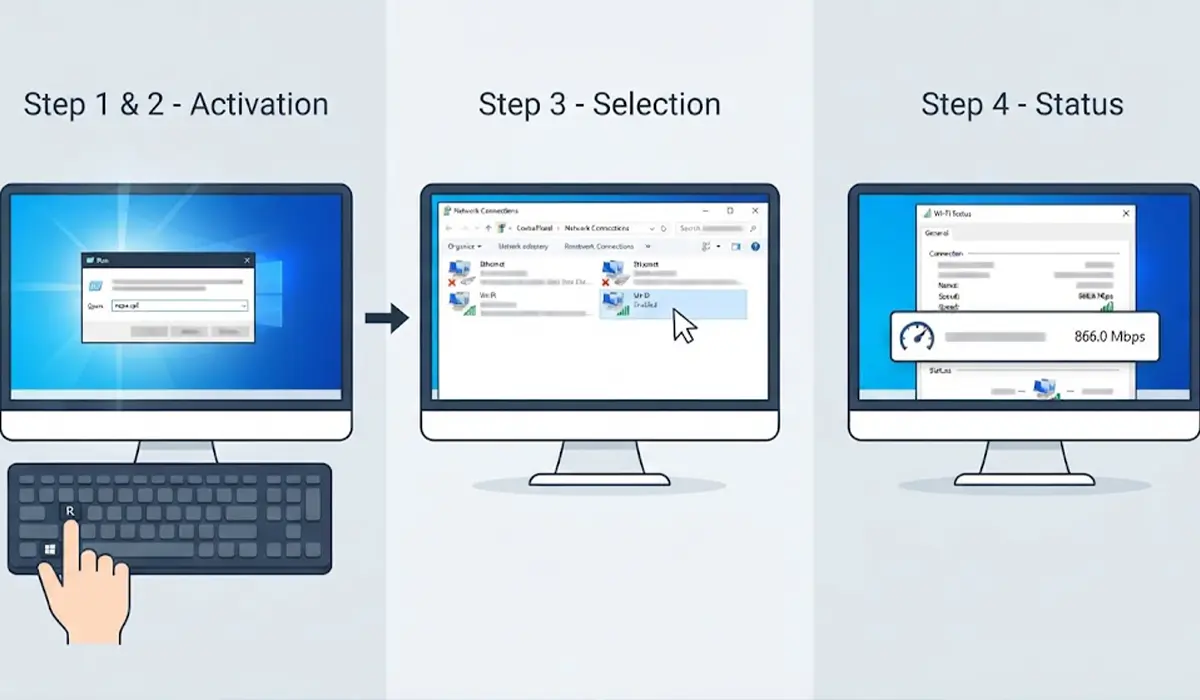
- Step 1: Press the Windows key + R, type ncpa.cpl, and press Enter.
- Step 2: Find the active adapter, which will show as Enabled and connected to a network name.
- Step 3: Double-click the adapter to open its Status window.
- Step 4: Read the Speed line in the Connection section.
Method 3: Check Speed with PowerShell
- Step 1: Right-click the Start button and open Terminal or Windows PowerShell.
- Step 2: Type Get-NetAdapter and press Enter.
- Step 3: Find the adapter in the Name column and read the LinkSpeed column beside it. Adapters that are disconnected show a Status of Disconnected or Not Present.
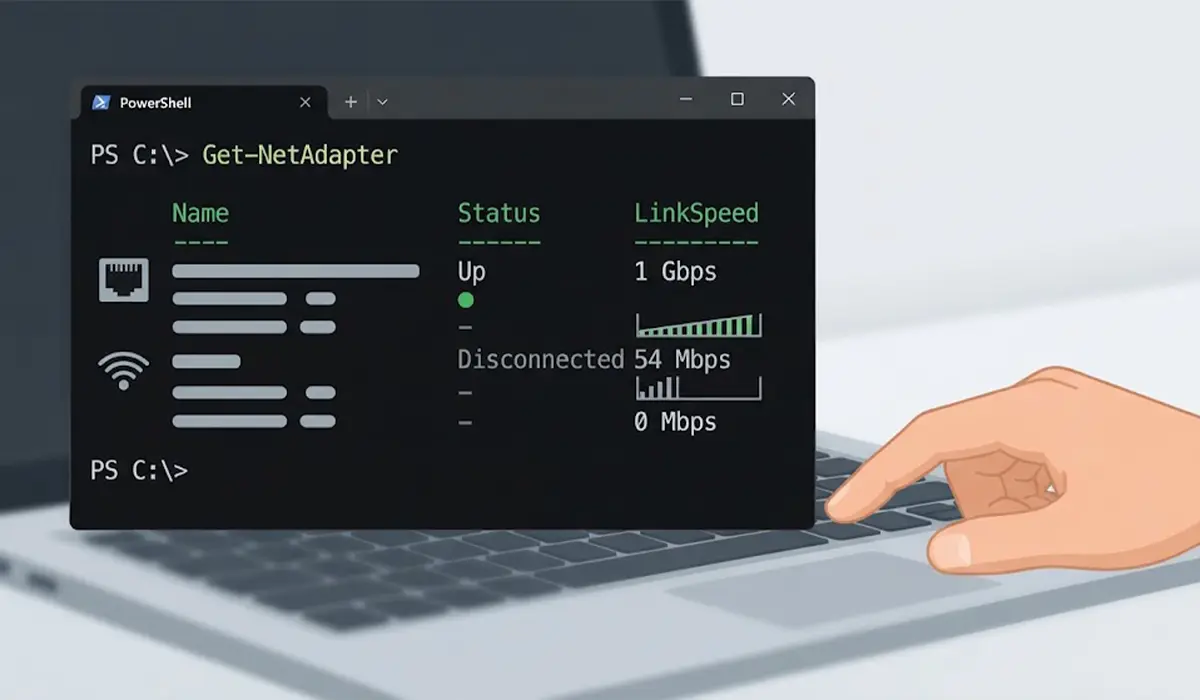
This method is handy on a PC with several adapters, such as a desktop with both Ethernet and a Wi-Fi card, because every adapter appears in one table.
Method 4: Check Wi-Fi Speed with Command Prompt
- Step 1: Open Command Prompt or Terminal.
- Step 2: Type netsh wlan show interfaces and press Enter.
- Step 3: Look at the Receive rate (Mbps) and Transmit rate (Mbps) lines. The same output also lists the radio type, band, channel, and signal percentage, which helps explain why the rate is high or low.
Check What the Adapter Is Capable Of
The current link speed only tells half the story. To see how the adapter is configured, open Device Manager, expand Network adapters, and double-click the adapter. On the Advanced tab, select Speed and Duplex (wired adapters). Auto Negotiation is the normal setting, because it lets the adapter and the router agree on the fastest speed both can handle.
Tip: Forcing a fixed speed and duplex value can cause a connection that drops or crawls when the other device expects negotiation. Leave it on Auto Negotiation unless a specific network requirement says otherwise.
How to Read the Result
Link speed is a ceiling, not a measurement of real downloads. Common wired values are 100 Mbps (Fast Ethernet), 1 Gbps (Gigabit Ethernet), and 2.5 Gbps on newer adapters and routers. Wi-Fi values move up and down with distance, walls, interference, and the Wi-Fi standard in use, so a rate that changes from minute to minute is normal.
Think of it like the speed limit on a road. A 1 Gbps link is a road that allows fast traffic, but the internet plan, the router, and the website being visited still decide how quickly the trip actually goes.
Common Problems and Fixes
Ethernet shows 100 Mbps instead of 1 Gbps
This is the most common surprise. A damaged cable, an older cable, or a worn connector often forces the link down to 100 Mbps because Gigabit needs all four wire pairs to work. Swap in a known good Ethernet cable, try a different port on the router or switch, and reseat both ends firmly. If the speed stays low, set Speed and Duplex back to Auto Negotiation and update the network driver.
The Speed or Link speed line is missing
The adapter is probably disconnected or disabled. Confirm the cable is plugged in or that Wi-Fi is connected, then make sure the adapter shows as Enabled in ncpa.cpl. If it still does not appear, restart the PC and check Device Manager for a warning icon on the adapter.
Wi-Fi link speed is low or keeps changing
Move closer to the router, check which band the connection is using, and remove obstacles between the PC and the access point. The 5 GHz band generally offers higher rates at shorter range, while 2.4 GHz travels farther but is usually slower. Updating the Wi-Fi driver from the PC or adapter manufacturer also resolves many odd rate drops.
Link speed is high but internet feels slow
The adapter is not the bottleneck in this case. Test the connection with a wired speed test, restart the modem and router, and check whether other devices on the network are using heavy bandwidth.
Wrong adapter is being read
PCs with virtual adapters, VPN software, or virtual machines can list several entries. Use the adapter that shows as connected with a real network name, and ignore entries with virtual in the description.
Frequently Asked Questions
What is network adapter speed in Windows?
It is the data rate the network adapter has negotiated with the router or switch, shown as link speed. It describes the connection between the PC and the local network device, not the internet plan.
How can you check network adapter speed in Windows 11?
Open Settings, go to Network and internet, select Ethernet or Wi-Fi, and open the adapter properties. The Link speed (Receive/Transmit) value shows the current rate. The ncpa.cpl window and PowerShell work too.
How can you check network adapter speed in Windows 10?
Open Settings, select Network and internet, then Status, and choose Properties under the active connection. Scroll to Link speed (Receive/Transmit). The Network Connections window also shows a Speed line in the adapter Status box.
Is link speed the same as internet speed?
No. Link speed is the rate between the PC and the router or switch. Internet speed depends on the plan, the modem, the router, and the server being reached, and is measured with a speed test.
What is a good network adapter speed?
For a wired connection, 1 Gbps is the standard expectation on a modern Gigabit adapter and router. For Wi-Fi, a good rate depends on the Wi-Fi standard, signal strength, and band, and it can vary during use.
Why does the Ethernet adapter show 100 Mbps instead of 1 Gbps?
The most likely causes are a faulty or low-quality cable, a damaged connector, a router port limited to 100 Mbps, or a driver problem. Testing with a different cable and port usually identifies the cause quickly.
Why does the Wi-Fi speed keep changing?
Wi-Fi adjusts its rate constantly based on signal quality, distance, interference, and network load. Small changes are normal, while large constant drops suggest a weak signal or interference.
Can network adapter speed be checked from Command Prompt?
Yes, for Wi-Fi. The command netsh wlan show interfaces displays the Receive rate and Transmit rate in Mbps. For all adapters, wired and wireless, PowerShell with Get-NetAdapter shows the LinkSpeed.
Can network adapter speed be changed manually?
The Speed and Duplex setting on the Advanced tab in Device Manager allows fixed values on many wired adapters. Auto Negotiation is the recommended setting, since a forced mismatch with the router can cause a slow or unstable connection.
