
Learning how to disable specific keys on a keyboard is a common fix for a sticky Caps Lock, an accidental Windows key press during gaming, or a laptop key that types on its own. The good news is that this rarely requires any hardware changes at all. A couple of built in Windows tools and one free Microsoft utility can remap or fully disable almost any key in a few minutes, and every method below can be undone just as easily.
Key Takeaways
- Most annoying or malfunctioning keys can be disabled entirely through software, with no need to open the laptop or desktop case.
- Microsoft PowerToys Keyboard Manager is the simplest and safest option for most people, since it works without editing the registry.
- The Windows Registry Scancode Map method works on any version of Windows without installing extra software, but it requires a restart to take effect.
- Disabling a key is fully reversible, which makes it a low-risk way to troubleshoot before assuming the keyboard itself is faulty.
- If a key still misbehaves after software fixes, dust or debris under the keycap is often the real cause.
How to Disable a Specific Keyboard Key
There are two reliable ways to disable specific keys on a keyboard, and the right one depends on how much control is needed and whether extra software can be installed.
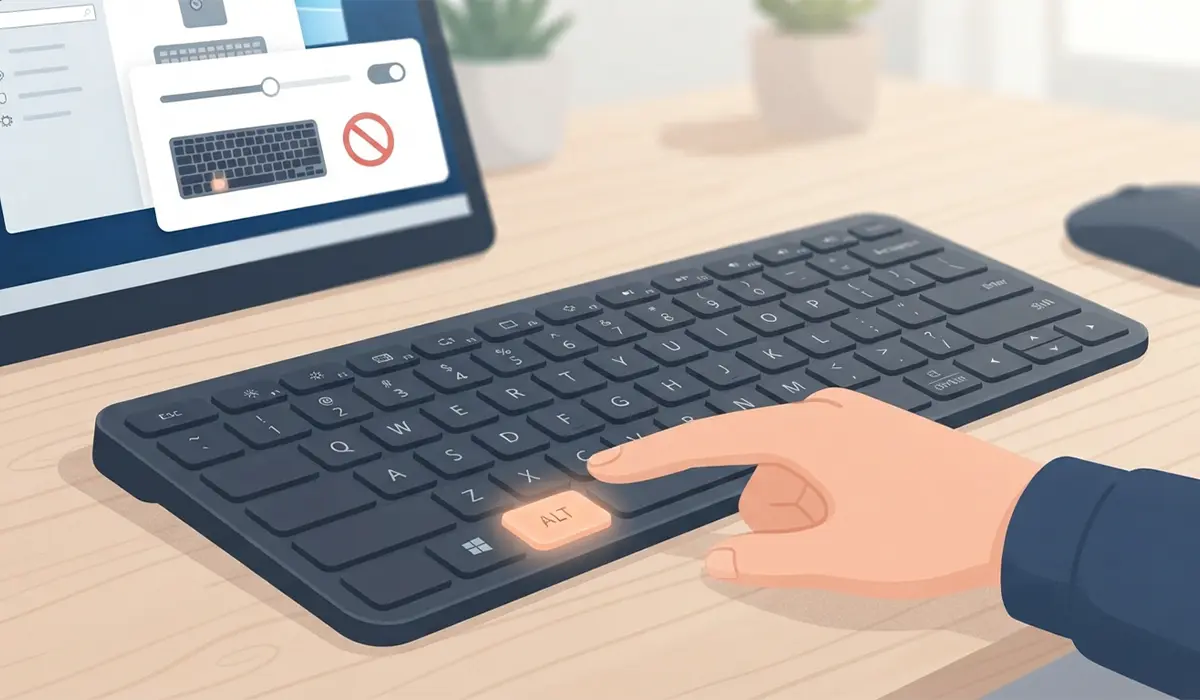
Method 1: Use Microsoft PowerToys (Recommended)
PowerToys is a free, official set of utilities from Microsoft, and its Keyboard Manager module is built specifically for remapping or disabling keys without touching the registry.
- Step 1: Download and install Microsoft PowerToys from the official Microsoft GitHub releases page.
- Step 2: Open PowerToys and select ‘Keyboard Manager’ from the left-hand menu, then enable the toggle at the top.
- Step 3: Click ‘Remap a key’ to open the remapping window.
- Step 4: Click the plus icon, then click the box under ‘Select’ and press the physical key that needs to be disabled.
- Step 5: In the ‘Mapped to’ box, choose ‘Disable’ from the dropdown list instead of assigning another key.
- Step 6: Click ‘OK’ to save the change. The key stops functioning immediately, with no restart required.
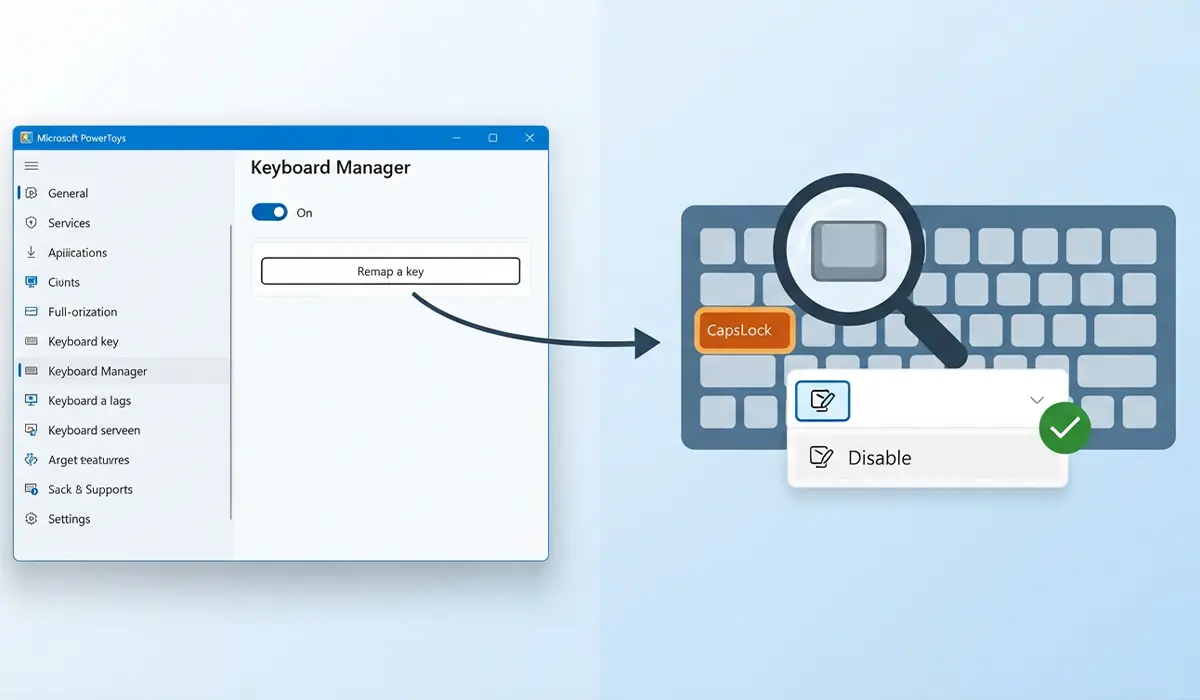
Tip: PowerToys can also remap a key to something harmless, like another Shift key, instead of fully disabling it, which is useful if the key is only annoying in certain apps.
Method 2: Edit the Registry with a Scancode Map
This method uses a setting built into Windows itself, so it works even on machines where installing third-party software is not an option.
- Step 1: Press the Windows key and R, type ‘regedit’, and press Enter to open the Registry Editor.
- Step 2: Navigate to ‘HKEY_LOCAL_MACHINE\SYSTEM\CurrentControlSet\Control\Keyboard Layout’.
- Step 3: Right-click in the empty space on the right, select ‘New’, then choose ‘Binary Value’, and name it ‘Scancode Map’.
- Step 4: Double-click the new value and enter the correct binary data for the key that needs to be disabled. The scancode for the target key has to be looked up from a Windows scancode reference table.
- Step 5: Close the Registry Editor and restart the computer for the change to take effect.
- Step 6: To reverse the change later, delete the ‘Scancode Map’ value and restart again.
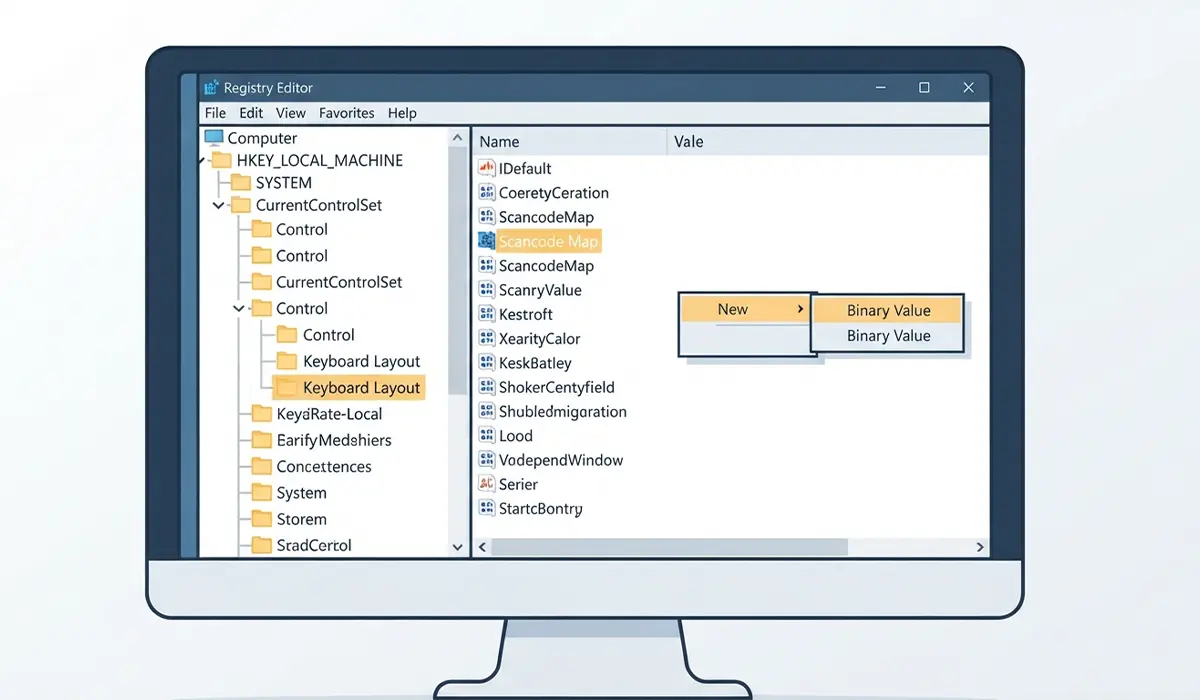
Tip: Back up the registry key before editing it, or create a system restore point first, so any typo in the binary value can be undone in seconds.
Common Problems and Fixes
- The key still works after using PowerToys: Confirm the Keyboard Manager toggle at the top of the module is switched on, since the remap list only applies while it is active.
- The registry method has no effect after a restart: Double check that the binary value was entered exactly, since a single incorrect byte in the scancode map will cause Windows to ignore the whole entry.
- A laptop key still types randomly even after disabling it: This usually points to a physical issue like trapped dust or a stuck key mechanism rather than a software conflict, and a careful cleaning with compressed air is worth trying next.
- Disabling one key seems to affect a nearby key too: This can happen if the wrong scancode was used, since some keys share similar codes. Recheck the reference table and re-enter the correct value.
- The fix disappears after a Windows update: Major Windows updates occasionally reset keyboard layout settings, so the Scancode Map value may need to be re-added, or the PowerToys profile reapplied.
Frequently Asked Questions
Can a single key be disabled without affecting the rest of the keyboard?
Yes. Both the PowerToys and Scancode Map methods target one specific key at a time, leaving every other key working normally.
Is it safe to edit the registry to disable a key?
It is safe as long as the correct key and value are used and the change is limited to the Scancode Map entry described above. Creating a restore point beforehand adds an extra layer of safety.
Will disabling a key void the keyboard’s warranty?
No. Software based key disabling does not involve opening any hardware, so it has no effect on a warranty.
Does this method work on laptop keyboards as well as external keyboards?
Yes. Both methods work at the operating system level, so they apply to any keyboard connected to or built into the computer.
Can the Windows key be disabled during gaming without disabling it everywhere else?
PowerToys supports app-specific shortcuts in some versions, but the standard remap disables the key system-wide. Many games also have a built-in setting to block the Windows key while the game has focus, which is often simpler.
What happens if the wrong scancode is entered in the registry?
Nothing harmful happens to the system. At worst, the intended key stays active or a different key stops working, and deleting the Scancode Map value restores everything to normal.
Can a key be remapped instead of fully disabled?
Yes, both methods support full remapping. Instead of choosing ‘Disable’ in PowerToys or using the disable code in the registry, a different key can be assigned in its place.
Does disabling a key work on Mac keyboards too?
The methods above are specific to Windows. macOS uses different built-in tools, such as Keyboard settings or third-party remapping apps, to achieve the same result.
Why does a key sometimes need to be disabled instead of just avoided?
A malfunctioning key can send repeated keystrokes on its own, which interrupts typing or gaming even if it is never intentionally pressed. Disabling it removes that interference completely.
