
Learning how to fix Wi-Fi not connecting after sleep saves a lot of frustration, especially when a laptop wakes up with no network and only a restart brings it back. The cause is almost always a power setting or a driver that fails to wake the wireless adapter properly. The fixes below go from the quickest to the most thorough.
Key Takeaways
- Windows often switches off the Wi-Fi adapter during sleep to save power, and it does not always switch back on cleanly.
- Turning off the adapter’s power saving options fixes the problem for most laptops.
- Outdated or corrupted wireless drivers are the next most common cause.
- A network reset and a router restart cover the stubborn cases.
Common Causes of Wi-Fi Not Connecting After Sleep
Sleep does not fully shut a laptop down. It freezes the system in a low-power state, and the wireless adapter has to resume from that frozen state. Think of it like a person woken from a deep nap who needs a moment to remember where things are. When that handoff goes wrong, the adapter stays stuck.
- Adapter power management: Windows is allowed to turn off the Wi-Fi adapter to save energy, and the adapter sometimes fails to restart.
- Wireless power saving mode: The power plan may put the adapter in a low-power mode that interferes with waking.
- Outdated or faulty drivers: A driver that mishandles the resume process leaves the adapter unresponsive.
- Stale network settings: Saved network data or IP settings can become corrupted during sleep.
- Router-side issues: An old connection record on the router can block the laptop from reconnecting.
Step-by-Step Fixes for Wi-Fi Not Connecting After Sleep
Work through these in order. Most people find that the second or third step solves it, so there is no need to do everything at once. Administrator access is needed for several steps.
Quick Checks First
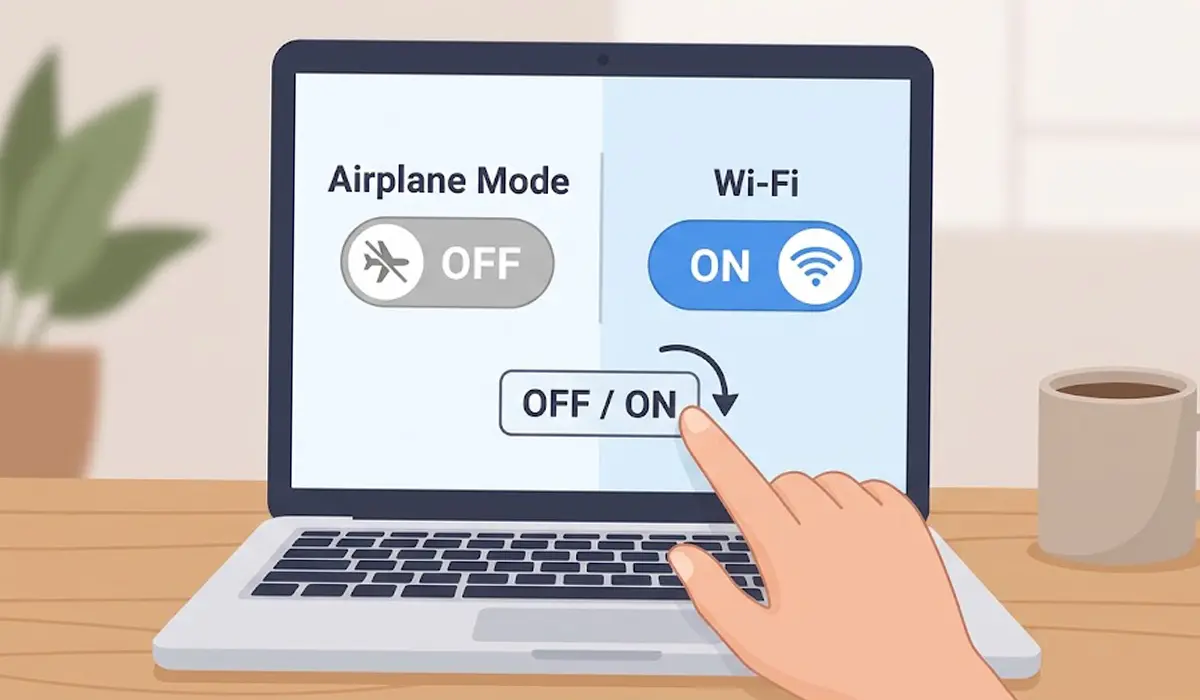
- Step 1: Confirm that Airplane mode is off and that the Wi-Fi toggle in the quick settings panel is on. Some laptops also have a function key or a physical switch for wireless. Then turn Wi-Fi off and on once, or restart the laptop, to confirm the adapter itself is working.
Stop Windows From Powering Down the Adapter
- Step 2: Right-click the Start button and open Device Manager. Expand Network adapters, right-click the wireless adapter (the name usually includes Wi-Fi or Wireless), and choose Properties.
- Step 3: Open the Power Management tab and uncheck ‘Allow the computer to turn off this device to save power.’ Click OK.
- Step 4: Open Control Panel, go to Power Options, click Change plan settings next to the active plan, then Change advanced power settings. Expand Wireless Adapter Settings, then Power Saving Mode, and set both On battery and Plugged in to Maximum Performance. Click OK.

Tip: Sleep the laptop for a few minutes after changing these settings and test the connection right away. That confirms whether the power settings were the culprit before moving on to anything heavier.
Refresh the Wireless Driver
- Step 5: In Device Manager, right-click the wireless adapter and choose Update driver, then Search automatically for drivers. The laptop manufacturer’s support page for the exact model is also a reliable source for the wireless driver.
- Step 6: If the problem started right after a driver update, open the adapter’s Properties, go to the Driver tab, and choose Roll Back Driver if the button is available.
- Step 7: If neither helps, right-click the adapter, choose Uninstall device, and restart the laptop. Windows reinstalls the adapter automatically on startup.

Reset the Network Stack
- Step 8: Search for Command Prompt, right-click it, and choose Run as administrator. Enter these commands one at a time, pressing Enter after each: netsh winsock reset, then netsh int ip reset, then ipconfig /release, then ipconfig /renew, then ipconfig /flushdns. Restart the laptop afterward.
- Step 9: If the problem continues, open Settings, go to Network and internet, then Advanced network settings, and choose Network reset. This removes saved Wi-Fi networks and reinstalls network adapters, so keep the Wi-Fi password handy.
Check the Router Side
- Step 10: Select the network in the Wi-Fi list, choose Forget, and reconnect with the password. Then restart the router by unplugging it for about 30 seconds. If other devices also struggle to reconnect, check the router manufacturer’s site for a firmware update.
Tip: A laptop that fails on only one network but connects fine elsewhere points toward the router rather than the laptop, so focus on Step 10 first in that case.
Common Problems and Fixes
The Power Management Tab Is Missing
Some adapters or drivers do not show this tab. Install the latest driver from the laptop manufacturer’s support page, then check again. The Wireless Adapter Settings option in the power plan can still be set to Maximum Performance.
Wi-Fi Connects After Sleep but Shows No Internet
This usually means the IP configuration is stale. Run the ipconfig /release, ipconfig /renew, and ipconfig /flushdns commands from Step 8, then restart the router if the message stays.
The Wi-Fi Option Disappears After Sleep
A vanished Wi-Fi toggle means the adapter did not wake at all. Restart the laptop, then apply Steps 2 to 4 and update or reinstall the driver as described in Steps 5 to 7.
The Problem Returns After a Windows Update
Updates can replace a working driver with a different version or reset power settings. Recheck the adapter’s Power Management tab and the Maximum Performance setting, then roll back the driver if needed.
Nothing Works and Wi-Fi Fails Even After a Restart
If the adapter fails on every network and after every reset, the wireless card itself may be faulty. Replacing it means opening the laptop and may affect the warranty, so a professional technician or the manufacturer’s support team is the safer choice.
Frequently Asked Questions
Why does Wi-Fi not connect after my laptop wakes from sleep?
Most often Windows powers down the wireless adapter to save energy and the driver fails to bring it back properly. Outdated drivers and stale network settings are other common reasons.
Is this a software problem or a hardware problem?
It is usually software, meaning a driver or power setting. A failing wireless card is rare, but it becomes a possibility when Wi-Fi fails on every network even after a restart and a driver reinstall.
Does disabling power saving on the Wi-Fi adapter drain the battery?
Battery use can rise slightly because the adapter stays active, but most people barely notice the difference. The trade-off is usually worth it for a connection that works reliably after sleep.
Will a network reset delete my files?
No. A network reset removes saved Wi-Fi networks and VPN adapters and returns network components to their defaults. Personal files stay untouched, but Wi-Fi passwords will need to be entered again.
Why does Wi-Fi work after a restart but not after sleep?
A restart reloads the driver completely, while sleep resumes the adapter from a saved state. A faulty driver or power setting can leave the adapter stuck in that resumed state.
Should the driver come from Windows Update or the laptop manufacturer?
Either can work. The manufacturer’s support page often offers the version tested for that exact model, while Windows Update is quicker. If the problem began after an update, rolling back to the previous driver is a good test.
Can the router cause Wi-Fi to fail after sleep?
Yes. An old connection record or outdated router firmware can block a laptop from reconnecting. If other devices have the same trouble, restart the router and check for a firmware update.
Do these fixes work on both Windows 10 and Windows 11?
Yes. The Device Manager, power plan, and command steps are the same, and only some Settings menu names differ slightly between the two versions.
